
Short answer: Cloudways settings live on two levels: Server Management, where you set things that affect the whole server (default PHP version, upload and execution limits, services such as Redis and Varnish), and Application Management, where you configure a single site (the app’s PHP version, Cron, database, Web Rules and access details). You don’t get root access, but almost every setting you need is available from the panel or over SSH. This page collects all my guides by topic.
What you’ll learn here
| Topic | What you’ll be able to do | Level |
|---|---|---|
| Files and access | Open the file manager and find your application folder | Beginner |
| PHP | Change the PHP version for the server or an app, and raise memory_limit and the upload limit | Beginner to intermediate |
| Cron | Create scheduled tasks and replace WP-Cron with a real server cron | Intermediate |
| Databases | Manage, import and export a database, and connect to it remotely | Intermediate |
| Services and server settings | Restart services, configure packages and schedule maintenance | Intermediate |
| Web Rules and .htaccess | Set up redirects, headers and robots.txt | Intermediate |
| WordPress from the terminal | Reset a password, manage users and run WP-CLI commands | Advanced |
Where does each server setting live in Cloudways?
The most common mix-up is looking for a site setting in the server settings, or the other way round. The rule is simple: anything that affects every site on the server is in Server Management, and anything that affects one site is in Application Management.
| Level | Panel area | What you configure there |
|---|---|---|
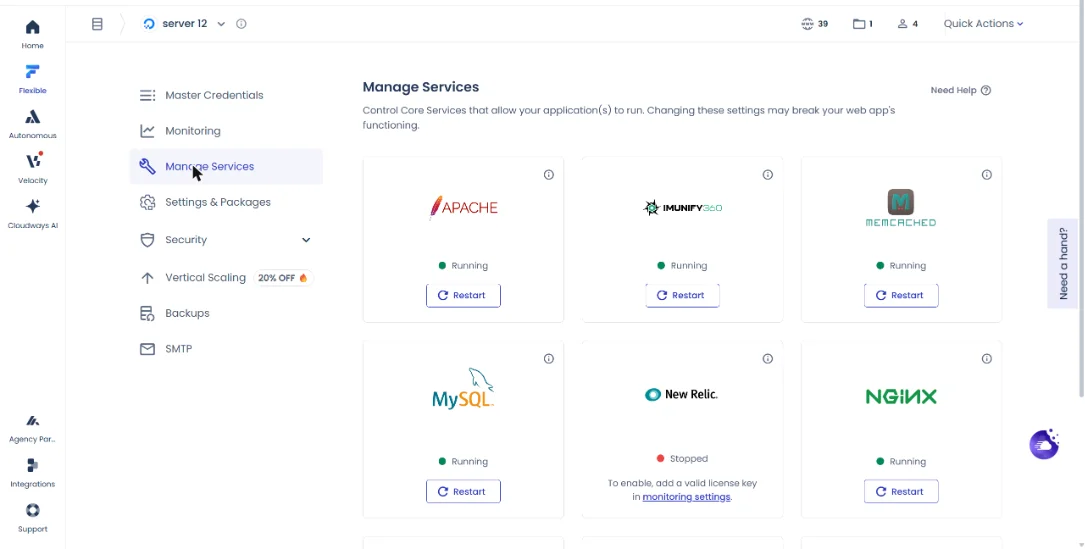
| Server | Manage Services | Start, stop and restart Nginx, Apache, PHP-FPM, MariaDB or MySQL, Redis, Memcached and Varnish |
| Server | Settings & Packages | Execution time limit (300 seconds by default), upload size, PHP and database versions, extra packages |
| Application | Application Settings | PHP settings for the site, per-app PHP version (preview feature), Web Root folder |
| Application | Cron Job Management | Scheduled tasks and the Cron Optimizer for WordPress |
| Application | Access Details | Application and database credentials, and the Database Manager |
| Application | Web Rules | Redirects, URL rewrites and HTTP headers without editing files |
PHP: version and settings
According to Cloudways, a new server defaults to PHP 8.2, and you can upgrade to a newer version such as 8.4. Downgrading is more restricted. The good news is that you can now pick a different PHP version for each application on the same server, so one old site no longer holds back the upgrade for the rest. Before you switch versions, test on a staging copy first, because a single outdated plugin can take the site down. For custom PHP applications, not just WordPress, see managed PHP hosting.
WP-Cron vs. server cron
WordPress runs scheduled tasks (publishing scheduled posts, cleanups, plugin backups) only when someone visits the site. On a low-traffic site tasks get delayed, and on a busy site they fire over and over and add load. The fix is to disable WP-Cron and set up a real server cron that runs at fixed times. With the Cloudways Cron Optimizer the switch takes one click, and tasks are staggered so they don’t pile onto the server. For what to do when a scheduled post misses its time, see post not published on time (Missed Schedule).
Web Rules, .htaccess and the Lightning stack
Cloudways has two stacks: Hybrid (Nginx plus Apache), which reads .htaccess files, and Lightning (Nginx only), which is faster but ignores .htaccess. That is why Web Rules was added: a panel interface for redirects, URL rewrites and headers without editing files. As of November 2026, Web Rules is in public preview. If your site relies on .htaccess rules written by plugins, check them before you move to Lightning. A plain-English explanation of Nginx and how it differs from Apache is in what is Nginx.
The database
Cloudways supports MariaDB 10.11 and MySQL 8.4. Each application gets its own database, which you manage through the built-in Database Manager. According to Cloudways it is suited to databases up to about 200MB; beyond that, import and export over SSH so the browser doesn’t time out halfway through.
In what order should you learn this?
- Get to know the folder structure with the guide to the file manager and the application folder.
- Make sure you are on a supported PHP version with the guide to changing the PHP version.
- Tune PHP settings such as memory_limit and upload size. Detailed guide: How to increase the WordPress memory limit and change PHP settings on Cloudways (2026 guide)
- Move WP-Cron to the server cron. Detailed guide: How to create cron jobs and disable WP-Cron on Cloudways (2026 guide)
- Learn to work with the database, then with server services and Web Rules. Detailed guides: phpMyAdmin and databases on Cloudways: access, import, export and remote connections (2026 guide), Cloudways server settings and services: packages, PHP-FPM and maintenance, Web Rules, .htaccess and robots.txt on Cloudways (2026 guide)
- Bookmark the WordPress password reset guide. One day you’ll need it.
The code BFCM802 takes 80% off your bill for the first two months (up to $200 off per month), including unlimited free site migrations. New customers only, and only until the offer ends.
The offer ends on December 4, 2026 at 23:59 (UTC+2).
Start with a free trial, no credit card. Enter the code at checkout and check that it shows up.
After Black Friday: 30% off for 3 months with the code ASAEL. On a large server (above about $444 a month) ASAEL already saves more today. BFCM802 vs. ASAEL calculator
Start a free trial server, no credit card. When you move to a paid plan, the code ASAEL takes 30% off your bill for the first three months.
The link fills in the code on the signup form. Just make sure it shows up.
All server and application settings guides
Files, access and users
- How to access the file manager and the application folder on Cloudways
- How to reset a WordPress password and manage users on Cloudways
- How to connect to your server with FileZilla and SFTP
PHP
Cron and databases
- How to create cron jobs and disable WP-Cron on Cloudways (2026 guide)
- phpMyAdmin and databases on Cloudways: access, import, export and remote connections (2026 guide)
Server services and Web Rules
- Cloudways server settings and services: packages, PHP-FPM and maintenance
- Web Rules, .htaccess and robots.txt on Cloudways (2026 guide)
Sources
- Cloudways Knowledge Base: What can I do in the manage services section on Cloudways
- Cloudways Knowledge Base: How to manage your server settings
- Cloudways Knowledge Base: How to change PHP version for your application on Cloudways
- Cloudways Knowledge Base: How to change your application stack
Frequently asked questions
Yes. Cloudways now lets you choose the PHP version for each application separately, so one site can run on 8.2 and another on 8.4 on the same server. As of November 2026 the feature is in public preview, so test it on staging first.
In the application settings in the panel, under the PHP settings, without editing any files. Server-wide settings such as upload size and the execution time limit are in the server’s Settings & Packages.
Because WP-Cron only runs when someone visits the site. On a quiet site tasks get delayed, and on a busy site they run too often and load the server. A server cron runs at fixed times, and with the Cloudways Cron Optimizer the switch takes one click.
On the Hybrid stack, which includes Apache, yes. On the Lightning stack, which runs on Nginx only, .htaccess files are not read; instead you set redirects and headers through Web Rules in the panel.
Yes. Enable remote database access and add your IP address to the allowlist, then connect with MySQL Workbench or a similar tool. For quick work in the browser there is also the built-in Database Manager.
Related topics and key pages
- Performance and caching: Varnish, Redis and Breeze
- Staging, Git and cloning: test setting changes before they hit the live site
- Troubleshooting: 500 and 502 errors and the white screen
- My full Cloudways review 2026
- All guides: the Cloudways guide library
Official sources: What Can I Do in the Manage Services Section?, How to Manage Your Server Settings, How to change PHP version for your application, How to Change Your Application Stack (Cloudways Knowledge Base). Written and checked by Asael Dreyer · Updated: 6 Nov 2026
Disclosure: this is an independent site, not the official Cloudways site. Some links on this site are affiliate links: if you sign up through them we earn a commission, at no extra cost to you. Full details