
Last updated: · By Asael Dreyer
Short answer: The Too Many Redirects error (ERR_TOO_MANY_REDIRECTS) in WordPress is almost always caused by two redirect rules colliding, for example Cloudways’ HTTPS Redirection together with a redirect from Cloudflare, a plugin or .htaccess. Mixed Content is when an HTTPS page loads files over HTTP. The fix: keep a single source of redirects, update your site URLs to https, replace http links in the database, and clear every cache layer.
What Mixed Content and a redirect loop are
The two problems usually show up at the same moment: after installing an SSL certificate, after moving a site to Cloudways, or after connecting Cloudflare. It’s worth understanding each one before you touch any settings.
Mixed Content is a page that loads over HTTPS, but some of its files (images, CSS, JavaScript or fonts) load from an http address. The browser marks the page as not fully secure, and sometimes blocks those files. There are two situations: a padlock with a warning when the files still load, or a normal padlock but a broken layout because the browser blocked CSS or JS files.
Too Many Redirects (a redirect loop) happens when URL A redirects to B, and B redirects back to A. The browser gives up after a few rounds and shows ERR_TOO_MANY_REDIRECTS. In WordPress this almost always happens when more than one place tries to “fix” the address: one forces HTTPS, another forces www, and a third thinks the visitor arrived over HTTP.
The most important rule on this page: the redirect from HTTP to HTTPS should come from one source only. Cloudways itself warns that if you’ve already set up a redirect in Cloudflare, Sucuri, a plugin or .htaccess, you shouldn’t also turn on HTTPS Redirection in the platform, because that can cause a Too Many Redirects error.
Before you start
- Back up the application. Replacing URLs in the database is hard to undo without a backup.
- Make sure an SSL certificate is installed and active on the domain (on the application’s SSL Certificate tab).
- Have WordPress admin access ready, plus SFTP details in case the loop locks you out of the dashboard.
- Write down where redirects are set today: Cloudways, Cloudflare, a plugin (such as Really Simple SSL) or .htaccess.
How to fix Too Many Redirects, step by step
Work in order. In most cases the problem is solved by the third step.
- Rule out a local problem. Open the site in an incognito window or another browser. If it works there, clear cookies and cache for the domain in your regular browser.
- Map the redirect chain. Enter your site URL into a tool such as Redirect Checker. You’ll see exactly where each URL redirects, and whether there’s a cycle between http and https or between www and non-www.
- Keep a single redirect source. If there’s a redirect in Cloudflare, a plugin or .htaccess, turn off HTTPS Redirection in Cloudways, or the other way around: keep the toggle in Cloudways and turn the others off.
- Check the SSL mode in Cloudflare (if you use your own Cloudflare account). In Flexible mode, Cloudflare connects to your server over HTTP, the server redirects to HTTPS, and it loops. When the server has a certificate, choose Full (strict).
- Align the WordPress addresses with the primary domain. In the dashboard, under Settings and then General, set the WordPress Address and Site Address to exactly match the primary domain in Cloudways, including https, and with or without www, but identical in both.
- If you can’t reach the dashboard, connect over SFTP and rename the folder of the SSL or redirect plugin inside wp-content/plugins. WordPress will deactivate it, and you’ll be able to log in again.
- Clear every cache layer: Varnish and the application cache in Cloudways, Breeze or your cache plugin, and the Cloudflare cache. An old redirect can stay cached even after you fix the source.
| Sign | Likely cause | Fix |
|---|---|---|
| The loop started right after connecting Cloudflare | SSL Flexible mode, or Always Use HTTPS together with a redirect on the server | Full (strict) in Cloudflare, and a single redirect only |
| The loop started after turning on HTTPS Redirection in Cloudways | Another redirect in a plugin or .htaccess | Turn one of them off |
| A chain bouncing between www and non-www | The WordPress address differs from the primary domain | Align WordPress Address, Site Address and the primary domain |
| Only the login page or wp-admin loops | Old cookies or a security plugin | Clear cookies, and if needed deactivate the plugin over SFTP |
| Works in incognito but not in the regular browser | An old redirect saved in the browser | Clear the cache and cookies for the domain |
How to turn HTTPS Redirection on or off in Cloudways
In new applications on Cloudways Flexible, the HTTPS redirect is on by default. After a migration, or if it was turned off, you enable it like this. It creates a permanent 301 redirect.
- Log in to the platform, open Servers and select the application’s server.
- Click the globe icon (in the new interface) or www (in the classic interface) and select the application.
- Under Application Management, choose Application Settings and go to the General tab.
- Scroll to the HTTPS Redirection toggle and turn it on or off.
- Read the message in the confirmation window and click Yes.
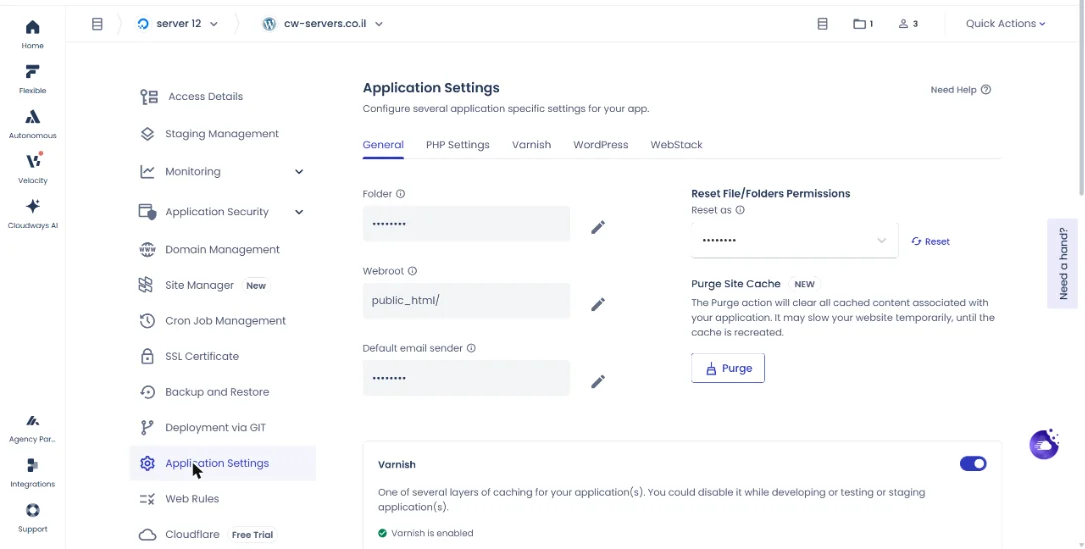
After the change, clear your browser cache and Varnish, and restart Apache from Manage Services on the server. To confirm everything is right, check in Redirect Checker that the http address returns a single 301 to https, with no extra hops.
How to fix Mixed Content in WordPress
The goal is to find every http address loading on the page and replace it with https. Start with diagnosis, so you know exactly what to replace.
- Find the problem files. Open the page, press Ctrl+Shift+I (or right-click and choose Inspect) and go to the Console or Network tab. Refresh the page and note every address that starts with http.
- Confirm the site URLs are right. Under Settings and then General, both addresses should start with https.
- Replace the links in the database. Install a search and replace plugin (Cloudways demonstrates with the Search and Replace plugin), enter the http address in the first field and the same address with https in the second, and run it. If the plugin offers a dry run, do that first.
- Check the CDN settings in Breeze. If you set a CDN URL in the Breeze plugin, make sure it starts with https:// or // and not http://, and save.
- Look for hard-coded links in the code. If the address still appears, it’s probably written directly into a template, the Customizer or an HTML widget. Fix it there.
- Clear every cache: Varnish, Breeze, the application cache in Cloudways and the WordPress object cache.
- Test again with the Why No Padlock tool, or in the Console tab. When there are no more warnings, the padlock will show correctly.
For advanced users: if you have SSH access, you can replace addresses with WP-CLI from the application’s public_html folder: wp search-replace 'http://example.com' 'https://example.com' --all-tables --dry-run. After you’ve checked the result, run it again without --dry-run. The command also handles serialized data, unlike direct SQL.
What are the common mistakes and how do you fix them?
Three redirects for the same thing: the toggle in Cloudways, the Really Simple SSL plugin and a rule in .htaccess. This is the most common cause of a loop. Pick one and delete the rest. If the loop only happens when logging in to wp-admin, see the WordPress login loop.
Replacing just “http” in the database: a blanket replacement of the string http will break external links. Always replace the full address of your own domain.
Forgetting the cache: after the fix the site still shows the problem because Varnish or Breeze is serving an old page. Clear every layer before you keep looking.
A mismatched primary domain: the primary domain in Cloudways is example.com, and in WordPress the address is www.example.com. Each side redirects to its own version. Align them.
The certificate doesn’t cover www: if the certificate was issued only for the bare domain, visitors who arrive at www will get an SSL error. If you see ERR_SSL_PROTOCOL_ERROR instead, the cause is different. Issue Let’s Encrypt for both versions.
The code BFCM802 takes 80% off your bill for the first two months (up to $200 off per month), including unlimited free site migrations. New customers only, and only until the offer ends.
The offer ends on December 4, 2026 at 23:59 (UTC+2).
Start with a free trial, no credit card. Enter the code at checkout and check that it shows up.
After Black Friday: 30% off for 3 months with the code ASAEL. On a large server (above about $444 a month) ASAEL already saves more today. BFCM802 vs. ASAEL calculator
Start a free trial server, no credit card. When you move to a paid plan, the code ASAEL takes 30% off your bill for the first three months.
The link fills in the code on the signup form. Just make sure it shows up.
If you’re changing page URLs and not only the protocol, also read our case study of moving from non-Latin URLs to English ones. It explains why a redirect failed when the URL had a parameter, and how we solved it.
Sources
- Cloudways Knowledge Base: How to fix mixed content issue for WordPress
- Cloudways Knowledge Base: How to redirect HTTP to HTTPS
- Cloudways Knowledge Base: Recommended measures after installing SSL certificate
Frequently asked questions
Almost always two redirect rules colliding, for example an HTTPS redirect in both Cloudways and Cloudflare or a plugin. Other causes: SSL Flexible mode in Cloudflare, and a WordPress address that doesn’t match the primary domain.
Connect over SFTP and rename the folder of the SSL or redirect plugin in wp-content/plugins. WordPress deactivates it, and you can log in again and fix the settings.
Only if Cloudflare isn’t redirecting to HTTPS itself. Cloudways recommends not turning the toggle on if the redirect is already set in Cloudflare, Sucuri, a plugin or .htaccess. A single redirect source is enough.
Open the browser’s developer tools (Ctrl+Shift+I) and check the Console tab for warnings about files loading over http. You can also use the Why No Padlock tool, which lists every insecure file on the page.
Indirectly, yes. The browser marks the page as not secure and blocks some files, which hurts the visitor experience and trust. Fix it right after moving to HTTPS.
Related guides
- Error Establishing a Database Connection: the fix on Cloudways
- Full disk or no inodes left: how to free up space
- WordPress upload errors: 413, file type and FTP request
- The 404 error in WordPress: how to fix it
- All troubleshooting guides: Troubleshooting on Cloudways
- Still deciding? Cloudways hosting review: the full picture
Official sources: How To Fix Mixed Content Issue For WordPress · How to Redirect HTTP to HTTPS · Recommended Measures After Installing SSL Certificate (Cloudways Knowledge Base). Written and checked by Asael Dreyer · Updated: 6 Nov 2026
Disclosure: this is an independent site, not the official Cloudways site. Some links on this site are affiliate links: if you sign up through them we earn a commission, at no extra cost to you. Full details

