
Last updated: · By Asael Dreyer
Short answer: server settings on Cloudways are gathered in three places in the panel: Settings & Packages (PHP and MySQL limits, software versions, disk optimization and the maintenance window), Manage Services (starting, stopping and restarting Nginx, Apache, PHP-FPM, the database, Redis and Varnish) and the server’s actions menu (stop, start, restart and rename). There’s no root access, but almost everything a site owner needs to change is there, with no terminal.
How a Cloudways server is built, and why it matters when you change settings
It’s worth understanding what runs on the server before you touch the settings. That way you’ll know which setting affects what.
A Cloudways server comes with a ready-made software stack that the Cloudways team installs and maintains. On new servers the operating system is Debian 12, and on top of it run several services, each responsible for a different part of serving your site:
| Service | What it does | Version according to the docs (02.2026) |
|---|---|---|
| Nginx | Receives requests from visitors and serves static files (images, CSS, JS) | 1.25.x |
| Varnish | A full-page cache, so PHP doesn’t have to rebuild pages on every visit | 6.0.x |
| Apache | Runs htaccess rules and passes requests to PHP (in the Hybrid Stack) | 2.4.x |
| PHP-FPM | Runs the PHP code of WordPress and your applications | Default 8.2, up to 8.4 |
| MariaDB / MySQL | The database | MariaDB 10.11 or MySQL 8.4 (the engine is chosen when the server is created and doesn’t change) |
| Redis | An in-memory object cache (used by Object Cache Pro) | 8.2.x (older articles: 7.0.x) |
| Memcached | An in-memory cache for query results | 1.5.x |
The Redis version differs between the docs articles: the packages table from February 2026 says 8.2.x, and older articles say 7.0.x. If the version matters to you, check it over SSH with redis-server -v.
Also preinstalled are Git, Composer, WP-CLI and New Relic Lite. Elasticsearch/OpenSearch, Supervisor and RabbitMQ aren’t installed by default, and you enable them as needed.
Two important things to remember. First, server settings apply to every application on it. If you raise the PHP memory limit, it affects all the sites on the server. For a single site there’s a PHP editor at the application level, explained in the guide to PHP settings. Second, there’s no root access, so you don’t edit php.ini or my.cnf directly, only through the panel.
Before you start
- Access to the panel with permission for the server: the account owner, or a team member with the right permissions.
- Before changing a version (PHP, database) or installing PHP-FPM on an old server, take a backup of the server.
- Test big changes first on a staging environment or a cloned server.
- This guide describes Flexible. On Autonomous, most of these settings are managed by Cloudways and aren’t exposed to you.
Where are the settings in Settings & Packages?
- In the admin panel click Flexible in the side menu, and on the screen that opens, the Servers tab.
- Choose the server.
- In the server’s left menu click Settings & Packages.
The screen has five tabs: Basic, Advanced, Packages, Optimization and Maintenance. After every change you click Save Changes, at the bottom of the page.
The Basic tab: core PHP limits
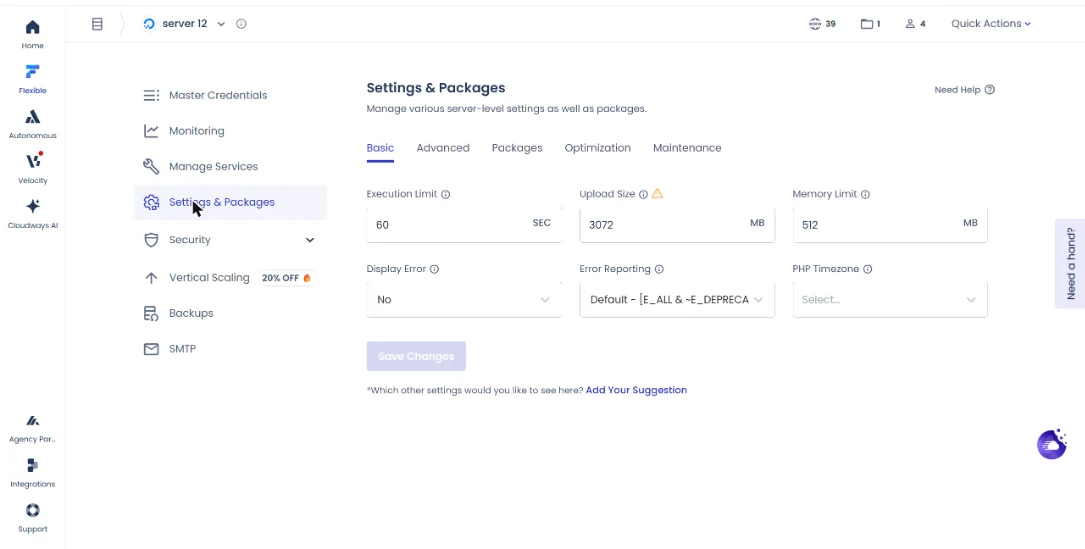
| Setting | Default | Cloudways recommendation | When to change it |
|---|---|---|---|
| Execution Limit | 300 seconds | Under 900 | A large import or a long script that gets cut off |
| Upload Size | 100MB | Under 500MB | Uploading a theme, a video or a large backup through WordPress |
| Memory Limit | 256MB | 1GB RAM: under 512MB, 2GB: under 1024MB, 4GB and up: under 2048MB | An “Allowed memory size exhausted” error |
| Display Error | No | Leave it at No on a live site | Only for temporary debugging |
| Error Reporting | – | – | Choosing the level of errors PHP reports |
| PHP Timezone | – | – | Set it to your local time zone, so times in code match your local clock |
A common mistake: raising Memory Limit to a very high value “just in case”. It’s a per-request limit, and on a small server a few heavy requests at once can use up all the RAM. Raise it gradually, and only when an error justifies it.
The Advanced tab: PHP, MySQL, Nginx, Apache and Varnish
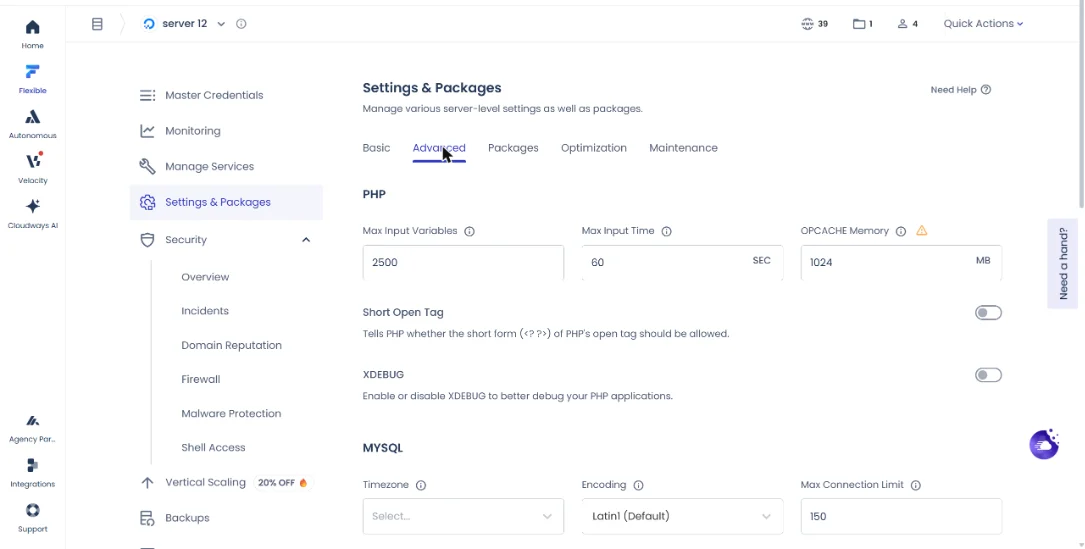
- PHP: Max Input Variables (default 10000; raise it when a large WordPress menu won’t save), Max Input Time (60 seconds), Opcache Memory (64MB), Short Open Tag (off) and xDebug (off; availability depends on the PHP version).
- MySQL: time zone, encoding, Max Connections Limit (default 150), Buffer Pool Size and timeouts. Details in the guide to databases.
- Nginx: Access Application via IP (whether the site also opens when you type the server’s IP), Default Application (which site is shown for an unknown domain), Static Cache Expiry (525600 minutes, which is a year; 0 disables it) and TLS Versions (1.2 and 1.3 are active; you can’t turn off 1.3).
- Apache: Request Body Size Limit, the maximum size of a request such as a file upload (128MB by default).
- System: Locales, adding a system language alongside English_US.
- Varnish: Cache Lifetime, how long a page is kept in the cache (4 hours by default). Full explanation in the Varnish guide.
A security tip: turn off Access Application via IP unless you have a reason to leave it on. That way the site isn’t reachable through the exposed IP address, and bots that scan IP ranges don’t reach it directly.
The Packages tab: versions and additional software
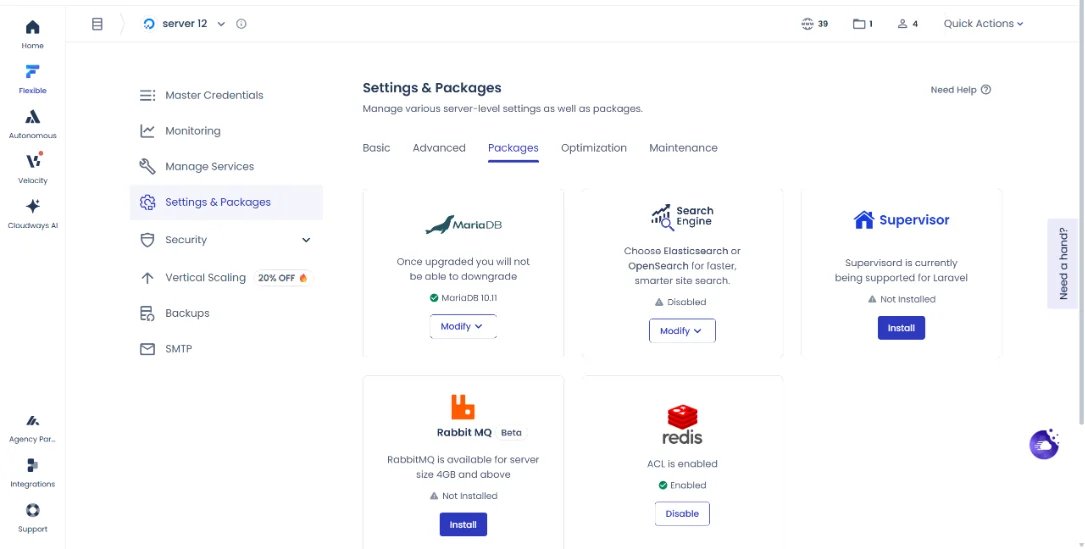
- PHP: the default on a new server is 8.2, and you can upgrade up to 8.4. As of 2026, versions 7.4 to 8.4 are supported. Upgrading a version is explained in the guide to changing the PHP version.
- MySQL/MariaDB: a version upgrade within the same engine, with the Modify button on the card. You can’t go back to an older version after upgrading, and you can’t switch engines (MariaDB or MySQL) on an existing server: the engine is set when the server is created. Details in the guide to databases.
- Search Engine: Elasticsearch 7.17 or 8.11, or OpenSearch 2.19. Mainly for Magento stores and advanced search.
- Supervisord: a manager for background processes (workers), common in Laravel applications.
- RabbitMQ: a message broker between applications. According to the docs it’s available as a Beta for servers of 4GB and up.
- Redis ACL: creating Redis users with limited permissions, for anyone connecting several applications to the same Redis.
PHP-FPM on older servers
PHP-FPM is PHP’s process manager. It runs PHP separately from the web server, uses less memory and is faster than the old method (mod_php). On every server created from 23 August 2016 onwards it’s already installed, so most readers can skip this section.
If you have a very old server without PHP-FPM:
- In Settings & Packages open the Packages tab.
- Click Install next to PHP-FPM.
- Follow the progress. The installation takes a few minutes.
Note: you can’t uninstall PHP-FPM once it’s installed. Also, PHP settings defined in htaccess (php_value lines) stop working, and you move them to the application’s PHP editor. Test the sites on a staging server first.
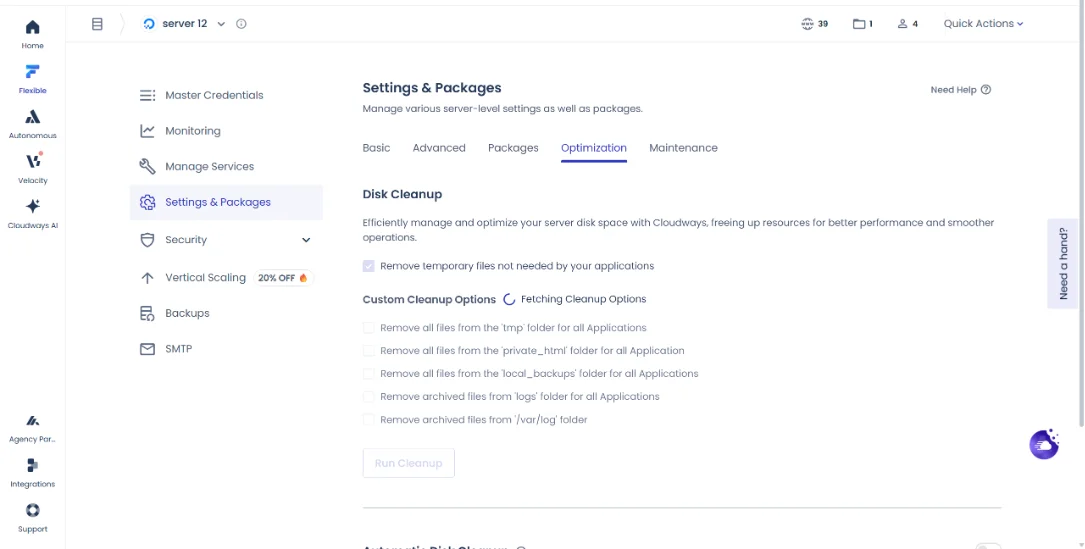
The Optimization tab: freeing up disk space
When the disk fills up, before you scale up the server, try the cleanup tool in this tab. Clicking Run Cleanup without ticking anything deletes only temporary system files, and is always safe. You can also tick advanced cleanup: the tmp folders of all applications, the private_html folder of all applications, local backups (local_backups), old application logs and old system logs.
Be careful: the advanced options apply to all applications on the server. If you kept a backup file or a database dump in private_html, ticking that option will delete it. Download anything important to your computer first, and don’t run the local backup cleanup while a backup is running.
The Maintenance tab: the maintenance window
Cloudways updates the operating system packages from time to time and installs security patches. During that time there may be short service interruptions, so it’s worth choosing the hour when your site is quietest.
- In Settings & Packages open the Maintenance tab.
- Choose a day of the week.
- Choose an hour. The window lasts one hour: if you chose 14:00, maintenance will run between 14:00 and 15:00.
- Click Save.
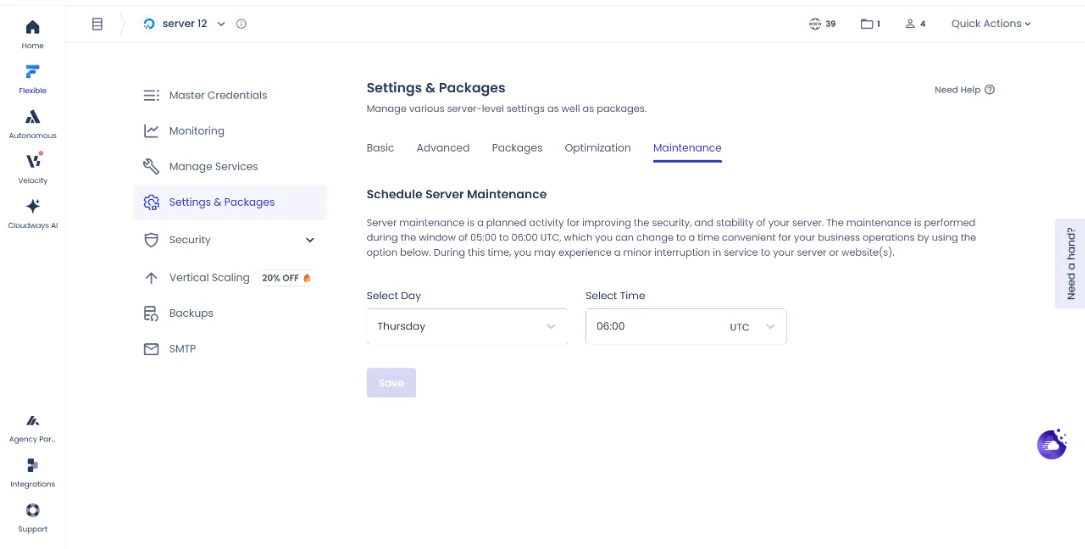
The hours in the panel are in UTC and in 24-hour format. Work out the difference from your local time, remembering that it changes with daylight saving time. Look in your analytics for the quietest hour for your audience, and convert it to UTC.
Two notes from the docs: the setting is per server, and a cloned server doesn’t inherit it, so set it again on every new server.
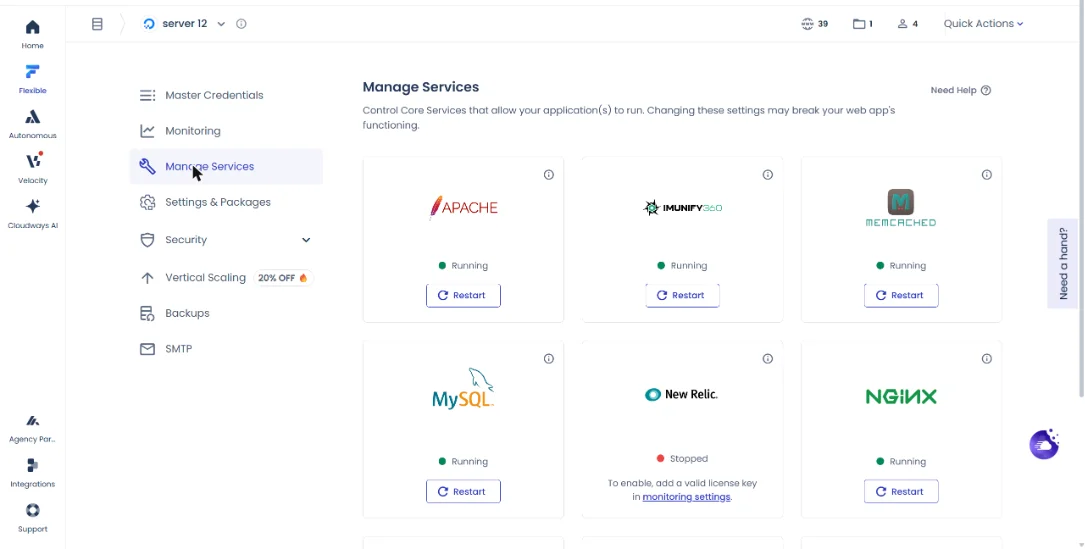
How do you start, stop and restart services in Manage Services?
When a site gets stuck, sometimes it’s enough to restart one service instead of the whole server. It’s faster and affects the other sites less.
- In the server’s left menu click Manage Services.
- Find the service in the list.
- Use the buttons to turn it on, turn it off, stop, start or restart it. Varnish also has a Purge button for clearing the cache.
| The problem | Which service to restart | What to watch for |
|---|---|---|
| “Error establishing a database connection” | MariaDB / MySQL | If it keeps coming back, check RAM and connections in monitoring |
| 502/504 errors, PHP stuck | PHP-FPM | Requests running at that moment will be cut off |
| A content change doesn’t show up for visitors | Varnish (Purge) | A restart clears the whole cache, and the site will be slower for a few minutes |
| Object Cache returns stale data | Redis | Turning Redis off disables Object Cache Pro on every site on the server |
On Varnish the docs are clear: you can turn it off on a test server, but on a live server it’s better to leave it on. Clearing the cache for a single site is explained in the guide to clearing the cache.
How do you stop, start and restart the whole server?
- In the panel click Flexible in the side menu, and on the screen that opens, the Servers tab.
- In the server list click the three-dots icon (⋮) on the right side of the server.
- Choose Stop, Start or Restart.
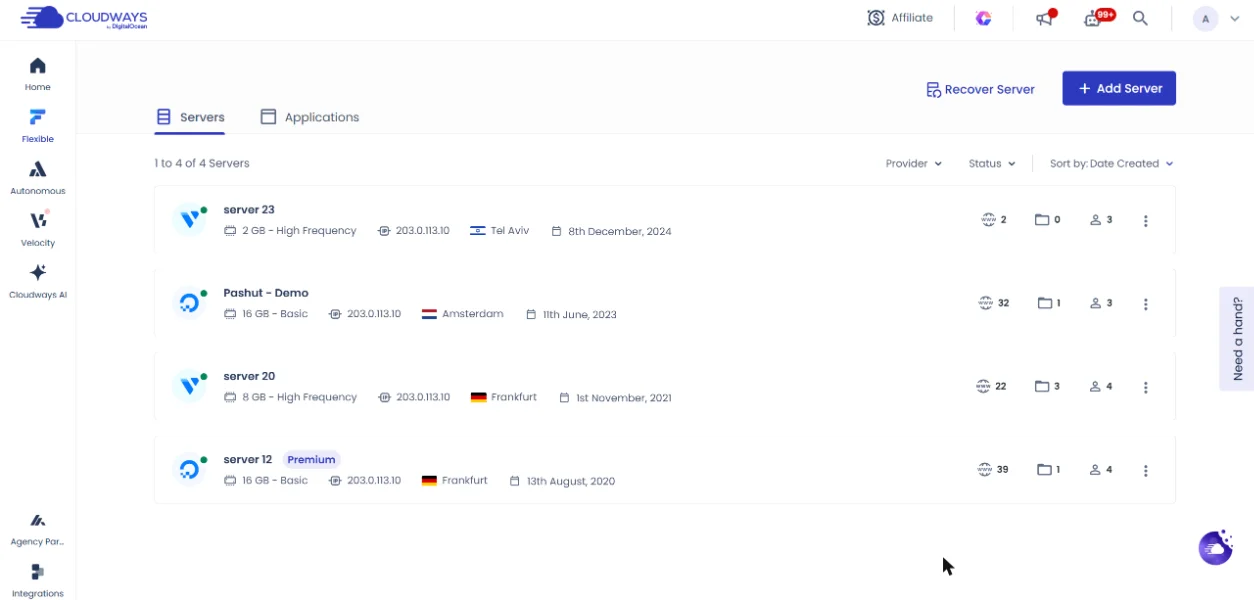
- Stop: all the sites on the server go down, but data and settings are kept. Billing continues even while the server is stopped, because the resources are still reserved for you. To stop paying you need to delete the server, after taking a backup.
- Start: starts a stopped server. A stopped server is marked with a red circle next to its name.
- Restart: restarts all the services. Helpful when CPU stays high or processes are stuck. Do it during quiet hours, and check monitoring afterwards.
Before a Stop or Restart, glance at the traffic monitoring, so you don’t cut visitors off in the middle of a purchase.
Renaming a server or an application
The name shown in the panel is a label for you only. Changing it doesn’t change the domain, the folder on the server or the database name.
- Go into the server (or the application, through the globe icon).
- Click Quick Actions.
- Choose Rename.
- Type a new name and click Save.
On Autonomous you can only rename an application, through My Applications and the same Quick Actions menu. A tip for agencies: a consistent name like “client – site type – environment” saves a lot of mistakes when you have dozens of sites.
How do you switch the Web Stack: Hybrid or Lightning?
This is an application-level setting, not a server one, but it changes how your site is served, so it belongs here. Every new application is created on the Hybrid Stack (Nginx and Apache together). The other option is the Lightning Stack, where Nginx alone serves the site, without Apache.
| Topic | Hybrid Stack | Lightning Stack |
|---|---|---|
| What runs | Nginx, Varnish, Apache | Nginx and Varnish, no Apache |
| htaccess rules | Work | Don’t work |
| Performance | Baseline | In Cloudways’ test: 54% more requests and 25% faster response time for pages |
| Best for | A site with redirects or rules in htaccess, plugins that depend on it | A modern WordPress site without special htaccess rules |
- In the application, in the left menu, click Application Settings.
- Open the Stack setting tab.
- Choose Lightning Stack and click Update Now.
- Confirm with Proceed.
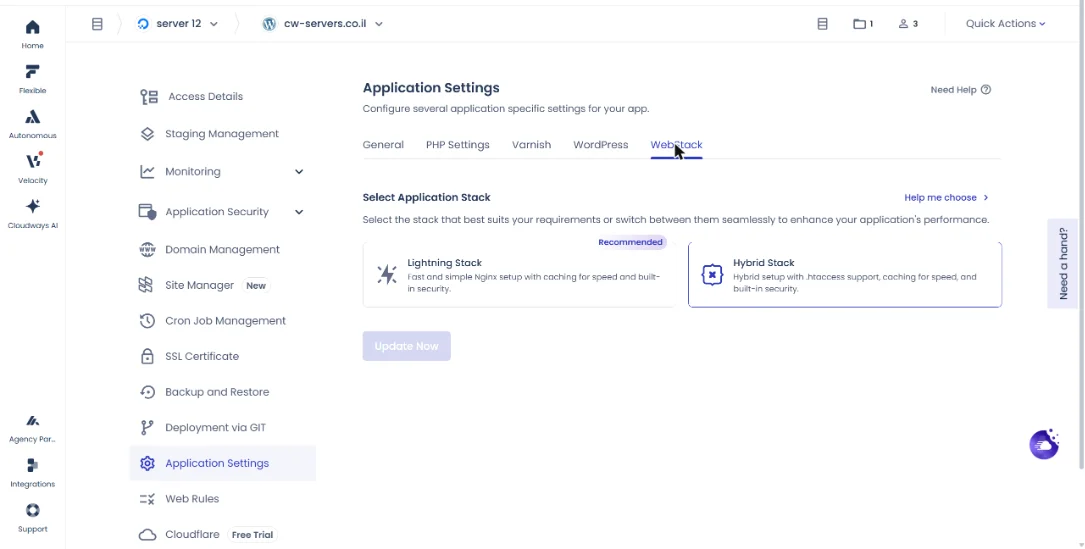
According to the docs, the switch takes about a minute, with no downtime, and you can go back to Hybrid the same way. There’s also a Switch to Lightning Stack button on the main screen, which switches several applications at once. Before you switch, check whether you have 301 redirects or rules in htaccess. If you do, move them to Web Rules first. And remember that a push from staging doesn’t carry the Stack setting over to the live site.
The code BFCM802 takes 80% off your bill for the first two months (up to $200 off per month), including unlimited free site migrations. New customers only, and only until the offer ends.
The offer ends on December 4, 2026 at 23:59 (UTC+2).
Start with a free trial, no credit card. Enter the code at checkout and check that it shows up.
After Black Friday: 30% off for 3 months with the code ASAEL. On a large server (above about $444 a month) ASAEL already saves more today. BFCM802 vs. ASAEL calculator
Start a free trial server, no credit card. When you move to a paid plan, the code ASAEL takes 30% off your bill for the first three months.
The link fills in the code on the signup form. Just make sure it shows up.
Common mistakes and how to fix them
You changed a setting and nothing happened: you probably didn’t click Save Changes at the bottom of the page. If you did save, also check the application’s PHP editor, where a different value may be set for that particular site.
A php_value setting in htaccess doesn’t work: with PHP-FPM those settings are ignored. Move them to the application’s PHP editor.
The server is stopped and the invoice keeps going: that’s expected. Stopping doesn’t release resources. Only deleting stops billing.
After switching to the Lightning Stack, redirects broke: they were in htaccess, which Lightning doesn’t read. Go back to Hybrid or move the redirects to Web Rules.
Maintenance happened at a busy hour: the window is set in UTC. Check the conversion to your local time, and the daylight saving change.
A PHP or Apache module is missing: anything that isn’t enabled by default you can request from support, through chat or a ticket.
Sources
- How to manage your server settings – Cloudways Knowledge Base
- What can I do in the manage services section on Cloudways – Cloudways Knowledge Base
- Which base packages are deployed with a Cloudways server – Cloudways Knowledge Base
- What actions can you perform on your Cloudways server – Cloudways Knowledge Base
- How to install PHP-FPM on existing servers – Cloudways Knowledge Base
- Optimize your server disk space – Cloudways Knowledge Base
- How to schedule server maintenance activity at Cloudways – Cloudways Knowledge Base
- How to rename your application and server – Cloudways Knowledge Base
FAQ
No. Cloudways doesn’t give root access, because it’s responsible for maintaining and securing the server. You change most settings from the panel, and you can ask support for missing modules.
Server settings under Settings & Packages apply to all the sites on the server. The application’s PHP editor changes values for a single site only.
Yes. Billing continues because the server’s resources are still reserved for you. To stop paying you need to delete the server, and take a backup before that.
Usually only for a few seconds. Restarting Varnish or Memcached clears the cache, so the site will be slower for a few minutes until the cache is rebuilt.
For a WordPress site without special htaccess rules, probably yes. The switch is free and takes about a minute, and you can go back. Test on staging first, and make sure your 301 redirects don’t live in htaccess.
The quietest hour for your audience, which you can find in your analytics. Remember that the panel works in UTC, so convert from your local time, and keep daylight saving changes in mind.
Related guides
- Web Rules, htaccess and robots.txt on Cloudways
- Databases on Cloudways: access, import and export
- WP-CLI on Cloudways
- How to use the file manager
- How to reset your password on Cloudways
- All guides on this topic: Server settings and developer tools
- Why managed hosting: Cloudways website hosting
Official source: How to Manage Your Server Settings, What Can I Do in the Manage Services Section?, Which Base Packages are Deployed With a Cloudways Server?, What Actions Can You Perform on Your Server?, How to Install PHP-FPM on Existing Servers, Optimize Your Server Disk Space, How to Schedule Server Maintenance, How to Rename Your Application and Server, How to Change Your Application Stack (Cloudways Knowledge Base). Written and checked by Asael · Updated: 6 Nov 2026
Disclosure: this is an independent site, not the official Cloudways site. Some links on this site are affiliate links: if you sign up through them we earn a commission, at no extra cost to you. Full details

