
Last updated: · By Asael Dreyer
Short answer: when a contact form doesn’t send email, the form itself is almost always fine. The problem is how WordPress sends the message: through the server’s PHP function, with no authentication, from a sender address that doesn’t belong to your domain. The fix is to send through an authenticated SMTP service (on Cloudways: Elastic Email or the SMTP add-on from the panel, or a plugin like WP Mail SMTP), set a sender address on your own domain, and add SPF and DKIM records. It applies equally to Elementor, Contact Form 7 and WPForms, and takes about half an hour.
Why a contact form doesn’t send email
To fix it once and for all, it helps to understand what happens behind the scenes when someone clicks “Send”.
Every form plugin in WordPress hands the email to a single WordPress function, wp_mail. By default it sends through PHP’s mail function, which means straight from the server that hosts your site. A server like that has no reputation as a mail sender, and usually has no authentication records for your domain. Gmail, Outlook and other mail providers see a message arriving from a random server that claims to be from your domain, and they filter it to spam or drop it.
Cloudways itself also recommends not relying on direct sending from cloud servers, and sending through an external service. With some cloud providers, such as Vultr and Google Cloud, outbound port 25 is blocked by default, so sending without an external SMTP simply won’t go out.
SMTP is the protocol mail servers use to pass messages along. When you set up “authenticated SMTP”, your site logs in with a username and password to a real mail service (Elastic Email, SendGrid, Mailgun, Gmail), and that service sends the message on your behalf. SPF and DKIM are DNS records that prove to mail providers that this service is allowed to send for your domain.
Before you start: a 3-minute check
- The spam folder: check spam in the inbox that receives the form messages, and also the “Promotions” and “Updates” tabs in Gmail.
- Was the submission saved? In WPForms and Elementor you can see submissions stored on the site (in WPForms on the paid version, in Elementor Pro under Submissions). With CF7 you need an extra plugin like Flamingo. If the submission is saved and the email didn’t arrive, the problem is in sending, not in the form.
- DNS access: make sure you can manage the domain’s DNS (at your domain registrar, in Cloudflare or in DNS Made Easy). You’ll need to add records.
How do you fix a contact form that doesn’t send email?
The order matters: first connect a sending service, then verify the domain, and only at the end set up the form.
Step 1: choose a sending service
| Option | Where you set it up | When to choose it |
|---|---|---|
| Elastic Email (a Cloudways add-on) | In the panel, at the server level | The simplest if you’re on Cloudways; plans by emails per month |
| Cloudways SMTP add-on (free) | In the panel, at the server level, with your own provider | When you already have SendGrid, Mailgun or Gmail |
| WP Mail SMTP plugin | Inside WordPress, for each site separately | When you’re not on Cloudways, or when each site on the server needs a different provider |
| Gmail / Google Workspace | Through one of the options above | For low volume: about 500 emails a day on a free account and 2,000 on Workspace |
A full comparison of email options on Cloudways, including mailboxes with Rackspace (and its forwarding limits): email options on Cloudways.
Step 2: connect the service
- On Cloudways: in the management panel choose Servers, then your server, then SMTP in the side menu. Choose Elastic Email or Your Own SMTP and enter your provider’s details. The setting applies to all applications on the server. Full guide: setting up SMTP on Cloudways.
- Outside Cloudways, or for a single site: install WP Mail SMTP and enter your provider’s details. Guide: setting up the WP Mail SMTP plugin.
- Use port 587 (or 2525), not port 25.
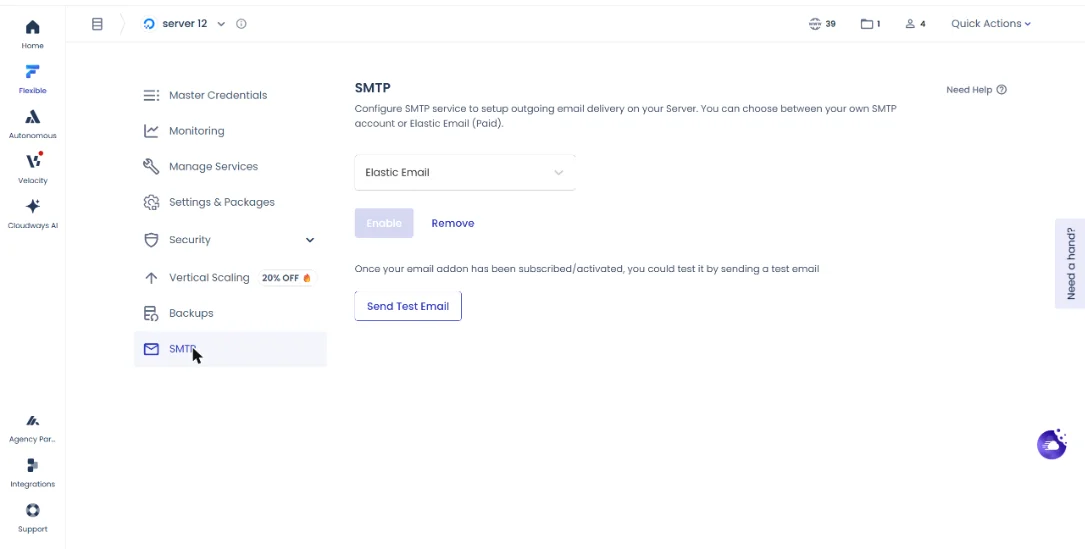
According to Cloudways, you can enable only one sending add-on per server: either Elastic Email or the SMTP add-on. If an SMTP plugin in WordPress is configured alongside the server setting, it’s hard to tell which one is actually working. It’s better to pick one place and not mix them.
Step 3: verify the domain (SPF, DKIM and DMARC)
- Get the SPF and DKIM records your sending provider requires.
- Add them in your domain’s DNS. If you already have an SPF record (for example from Google Workspace), don’t add a second one; merge them into a single record.
- I also recommend adding a basic DMARC record. The full explanation, including merging SPF, is here: SPF, DKIM and DMARC.
- In Elastic Email, verify the domain on the add-on’s screen. Guide: verifying a domain in Elastic Email.
Most domain registrars let you add TXT records from the DNS management area. If your DNS is managed in Cloudflare, add the records there and not at the registrar. The update usually takes minutes to a few hours.
Step 4: fix the form settings
The most important rule: the sender address (From) must be on your domain, ideally the same address you verified in the sending service. Put the visitor’s address in the Reply-To field, so that clicking “Reply” goes to them.
| Plugin | Where the setting is | What to watch for |
|---|---|---|
| Elementor Pro (Form) | In the form widget, Actions After Submit, then the Email section | Put an address on your domain in From Email; in Reply-To choose the visitor’s email field |
| Contact Form 7 | In the form editor, the Mail tab | An address on your domain in the From field; in Additional Headers Reply-To: [your-email] |
| WPForms | Settings and then Notifications inside the form | From Email on your domain; Reply-To from the visitor’s email field |
The classic mistake is a From with the visitor’s Gmail address, or the site owner’s Gmail address. Gmail knows Gmail didn’t send this message, and blocks it. CF7 also shows a warning in the form editor when the sender address doesn’t belong to the site’s domain.
Step 5: test it
- In the Cloudways panel, on the server’s SMTP screen, click Send Test Email, using the verified sender address.
- Send a real submission from the form to a Gmail address and also to an Outlook address.
- In Gmail, open the message, choose “Show original” and make sure SPF and DKIM are marked PASS.
The code BFCM802 takes 80% off your bill for the first two months (up to $200 off per month), including unlimited free site migrations. New customers only, and only until the offer ends.
The offer ends on December 4, 2026 at 23:59 (UTC+2).
Start with a free trial, no credit card. Enter the code at checkout and check that it shows up.
After Black Friday: 30% off for 3 months with the code ASAEL. On a large server (above about $444 a month) ASAEL already saves more today. BFCM802 vs. ASAEL calculator
Start a free trial server, no credit card. When you move to a paid plan, the code ASAEL takes 30% off your bill for the first three months.
The link fills in the code on the signup form. Just make sure it shows up.
What are the common mistakes, and how do you fix them?
The email arrives, but in spam: usually DKIM is missing, there are two SPF records, or the sender address doesn’t match the verified domain. Check “Show original” to see what failed.
Everything is set up and still nothing goes out: a security plugin or another plugin may be taking over wp_mail, or two SMTP plugins are installed together. Keep one. WP Mail SMTP has a test email tool that shows the exact error.
The form “hangs” on sending and never finishes: this is usually a blocked port or wrong SMTP details, and the site is waiting for a connection that never happens. Try port 587 or 2525, and check the username and password.
The visitor gets a confirmation, the site owner gets nothing: the destination address in the form is wrong, or it’s on the same domain and the domain’s email is hosted somewhere else. Check the domain’s MX records.
“I need a mailbox on the server”: no. Cloudways doesn’t host mailboxes on its servers. To receive email on your domain you use Google Workspace, Microsoft 365 or the Rackspace add-on. The SMTP service is only for sending from the site.
Frequently asked questions
Almost always because WordPress sends the email directly from the server with no authentication, or because the sender address in the form isn’t on your domain. Connect an authenticated SMTP service, put an address on your domain in the From Email field, and the visitor’s email in Reply-To. Then test again.
Because mail providers can’t verify that the message was really sent on behalf of your domain. Add the SPF and DKIM records of your sending service, and a DMARC record. Make sure there is only one SPF record.
Not necessarily. You can set up Elastic Email or your own SMTP directly in the panel, at the server level, and it applies to all the sites on it. A plugin like WP Mail SMTP is useful when each site needs a different sending provider.
Yes, for low volume. According to Cloudways, a free Gmail account allows about 500 emails a day and Google Workspace about 2,000. For a site with many forms or a store, a dedicated sending service is better.
An address on your site’s domain, for example noreply or office on that same domain, verified in the sending service. Put the visitor’s address in Reply-To. That way the message arrives and you can still reply to the visitor.
Not on the servers themselves. Cloudways offers add-ons for sending (Elastic Email, SMTP) and a Rackspace add-on for paid mailboxes. You can also use Google Workspace or Microsoft 365.
Related guides
- Setting up SMTP on Cloudways
- SPF, DKIM and DMARC: how to verify a domain
- Setting up the WP Mail SMTP plugin
- WooCommerce emails not reaching customers
- Cloudways review
- All guides on this topic: email
Sources
- Which Email Add-on Should I Use?
- How to Activate the Custom SMTP Add-on
- How to Activate the Elastic Email Add-on
- Does Cloudways Provide Servers for Email Hosting?
Official source: Which Email Add-on Should I Use?, How to Activate the Custom SMTP Add-on, How to Activate the Elastic Email Add-on and Does Cloudways Provide Servers for Email Hosting? (Cloudways Knowledge Base). Written and checked by Asael Dreyer · Updated: 6 Nov 2026
Disclosure: this is an independent site, not the official Cloudways site. Some links on this site are affiliate links: if you sign up through them we earn a commission, at no extra cost to you. Full details

