
Last updated: · By Asael Dreyer
In short: A 503 means the service is unavailable right now, a 502 means the server got a broken response from the service behind it, and a 504 means the response did not arrive in time. On Cloudways, four causes cover almost every case: an overloaded server, PHP-FPM that hit its ceiling, a script that exceeded the time limit, or a problem plugin. A 503 has two more regular causes: WordPress stuck in maintenance mode, and a flood of requests for Elementor CSS files that are missing. The first quick fix for all three is a restart in Manage Services.
At a glance: 502, 503 and 504 on Cloudways (as of 7 Nov 2026)
- First fix: Restart PHP-FPM, Apache and Nginx in Manage Services, and Purge Varnish.
- Execution Limit: according to the documentation, the default is 300 seconds, and the recommendation is to stay under 900. On my server, PHP reported 30 seconds in a normal request, so check the value on yours.
- MySQL Max Connections: default 150, in Settings & Packages.
- A 503 from maintenance mode: delete the .maintenance file in public_html.
- From my support tickets: on a server with about 36 sites, one application consumed about 69% of the applications’ memory because of a flood of 404, 500 and 503 errors on missing Elementor CSS files.
Why do 502, 503 and 504 errors appear?
To understand the error, you need to know the chain of services. On a Cloudways server, Nginx stands at the front as a reverse proxy: it receives every request from the browser and passes it on. Behind it sit caching services such as Varnish, an Apache server (on the Hybrid stack), and PHP-FPM, which actually runs the WordPress code. At the end of the chain is the database.
When Nginx passes a request on and gets a broken response, or no response at all, it returns a 502 or 504 to the visitor. The important point: Nginx itself is fine, and the problem is in one of the services behind it, or in load that stops them from answering. If your site is behind Cloudflare and you see a 521, 522 or 525 error, read the guide to Cloudflare 5xx errors.
| Code | What happened | Common causes on Cloudways |
|---|---|---|
| 502 Bad Gateway | The service behind Nginx returned an invalid response or crashed | A stuck PHP-FPM, CPU or memory load, a problem plugin |
| 503 Service Unavailable | The service is temporarily unavailable | A stopped service, PHP-FPM at its process ceiling, WordPress in maintenance mode, a flood of requests for missing files |
| 504 Gateway Timeout | The service did not answer in time | A long script (import, backup, report), heavy database queries |
The official definitions of the three codes are on MDN: 502, 503 and 504. A 500 error, by contrast, means the code ran and failed. If that is what you see, the guide to the 500 error fits better.
Before you start
- Check whether the error appears on all applications on the server or only one. On the whole server: probably load or a service that went down. On one application: probably its code, a plugin or a setting.
- Check whether the error is constant or comes and goes. An intermittent error during busy hours points to resources. A constant error points to a stuck service or code.
- If you are going to change code or plugins, take a backup first. See the backup and restore guide.
How to fix a 502 Bad Gateway, step by step
The order here is deliberate: start with the action that takes a minute and does no harm, and move on to deeper diagnosis only if you need to. The same steps fix most 503 and 504 cases.
Step 1: Restart the services
A service that crashed or froze is the simplest cause to fix. A restart clears stuck processes and gets the chain working again.
- In the dashboard, open the server and choose Manage Services.
- Check that all services are running. A service marked as stopped is almost certainly the culprit.
- Click Restart on the PHP-FPM row, and then do the same for Apache and Nginx.
- On the Varnish row, purge the cache (Purge) so visitors do not get a cached copy of the error page.
- If there are signs of a database problem, restart MariaDB or MySQL as well.
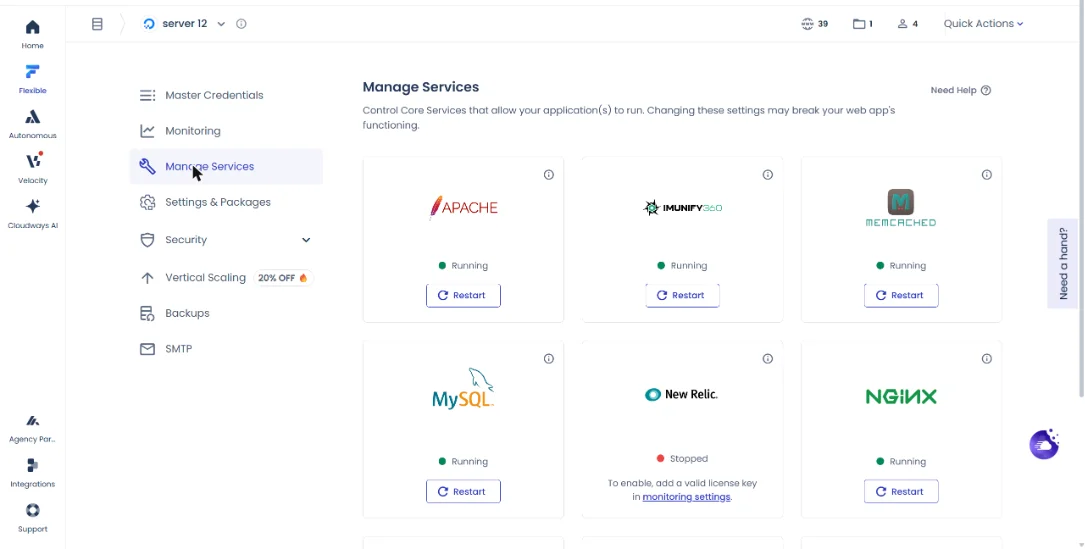
Note: restarting Memcached deletes all the data stored in it, and the site will be a little slower until the cache rebuilds. If the error went away after the restart and comes back a few hours later, the service was not the real problem. Continue to step 2.
Step 2: Check whether the server is overloaded
A server that runs out of CPU or memory starts to slow down, and at some point the services stop answering in time. The built-in monitoring in the dashboard shows this right away.
- Open the server and choose Monitoring.
- Check the CPU, memory and disk graphs for the hours when the error appeared.
- Also check the database connections graph. A sharp rise in it during the load is a clear sign.
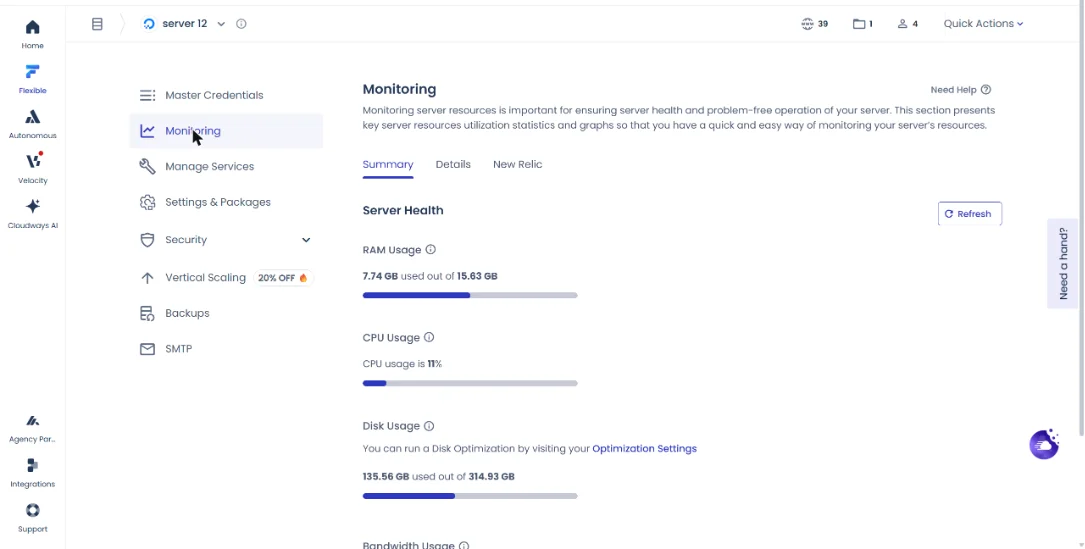
What to do, based on what you found:
| What you saw | Likely cause | The fix |
|---|---|---|
| High CPU and memory for a long time, and the traffic is real | The server is too small for the site | Scale up the server (Vertical Scaling) |
| Sharp CPU spikes at regular minutes | Heavy cron jobs running too often | Spread the jobs out, with at least 15 minutes between them |
| Many requests from a few IP addresses | Bots or a DoS attack | Block the IPs in the server’s Firewall, and check its advanced settings (Enhanced DoS Protection and Anti-Bot Protection) |
| Many database connections | Too many simultaneous visitors or slow queries | Raise Max Connections, use object caching, and check heavy plugins |
| MariaDB restarts by itself, and swap is full | Memory ran out, and the Linux OOM Killer kills a process | The guide to MariaDB crashing and the OOM Killer |
For the MySQL connection limit, the Max Connections Limit setting is in the server’s Settings & Packages, and its default is 150. If you know Linux, you can connect over SSH and run htop to see in real time which process is taking resources. For a deeper load analysis, see the guide to a slow site and high CPU.
Step 3: Raise the execution time limit (mainly for 504)
When a PHP script runs longer than the time it was given, it is stopped, and the error log shows “Maximum Execution Time Exceeded”. This happens when importing products into a store, generating reports, backing up through a plugin, or with a plugin that calls a slow external service.
- Open the server, choose Settings & Packages and go to the Basic tab.
- Raise Execution Limit. The default is 300 seconds, and the official recommendation is to stay under 900.
- Save. If the application has its own PHP-FPM setting, open the application’s PHP settings, find the line
;php_admin_value[max_execution_time], remove the semicolon at the start and raise the value.
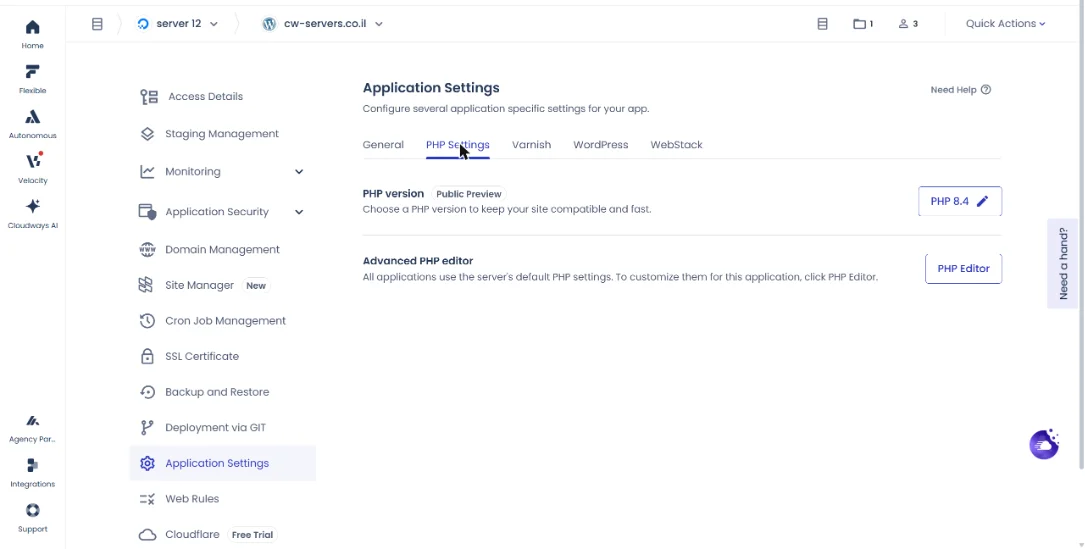
What I saw on my own server: on 7 Nov 2026, I checked, read-only, what PHP 8.4 reports inside a normal PHP-FPM request on this site. The max_execution_time value was 30 seconds, not 300. A setting at application level may override the server default. In earlier support tickets I saw a similar case, where a value saved in the dashboard never reached PHP-FPM at all. So before you raise it, check what PHP itself reports.
Raising it is a legitimate fix for a heavy task that runs now and then. If regular pages on the site need more than a few seconds, raising the limit only hides the problem: look for the plugin or query that is slowing the site down.
Step 4: Check plugins and the theme
If the services are running, the server is not overloaded and the error is still there, the culprit is probably a plugin or theme that makes PHP crash or hang.
- Deactivate all plugins, from the admin or over SSH with the command
wp plugin deactivate --allin thepublic_htmlfolder. - If the site is back, activate the plugins one by one and reload after each, until the error returns.
- If deactivating the plugins did not help, temporarily switch to a default WordPress theme.
- When you find the culprit, leave it deactivated and report it to the developer.
What is a 503 Service Unavailable error and how do you fix it?
A 503 means the service is unavailable right now, not that it returned a broken response. According to MDN, it is temporary by nature, for example maintenance or load, and a Retry-After header can be attached to it. In practice, in most cases steps 1 and 2 above fix it too. These are the four causes worth checking specifically.
WordPress stuck in maintenance mode (.maintenance)
While updating the core, a plugin or a theme, WordPress creates a file called .maintenance in the root folder and returns a 503 with the message “Briefly unavailable for scheduled maintenance”. If the update is interrupted halfway, the file stays and the site is stuck.
- Connect over SFTP or the file manager to the application’s
public_htmlfolder. - Show hidden files, and delete
.maintenance. - Go to the admin and check which update did not finish. Run it again.
If the screen is white and there is no message at all, that is a different problem, explained in the guide to the white screen and stuck Maintenance Mode. By the way, on my own site I checked on 7 Nov 2026 that there is no forgotten .maintenance file.
PHP-FPM reached its process ceiling
PHP-FPM runs a limited number of processes (workers) for each application. When they are all busy, new requests wait in a queue and eventually end in a 503 or 504. This happens under real load, but also when a few slow requests occupy all the workers.
In my tickets with Cloudways support I saw two sides of the same problem. On one server there were about 108 FPM processes for 36 sites. On another there were about 112 idle processes, and cutting them down to 3 freed about 7.5GB of memory. In both cases the memory ran out, and MariaDB went down. I detailed how to diagnose and tune this in the guide to MariaDB crashing and the OOM Killer. If the site is slow and OPcache is full, see also the guide to a full OPcache in PHP-FPM.
A flood of 503s on Elementor CSS files
This is a real case from my own servers. After the CSS files that Elementor generates were deleted, every page view requested files that did not exist. The requests came back as 404, 500 and 503, and each one ran PHP. One application consumed about 69% of the server’s application memory this way, and took MariaDB down with it.
The fix was to rebuild the files. In current Elementor versions that is the Clear Files & Data button under Tools, according to the Elementor Help Center. Then clear the Varnish and Cloudflare cache. And a lesson I learned the hard way: do not manually delete files or folders inside elementor/css. Code that deleted such a folder broke a client’s site of mine, and restoring from a week-old backup did not help. More on fast Elementor on a server in the guide to a fast Elementor site.
The server maintenance window
Check in Settings & Packages when the weekly maintenance window is set. If the error appeared exactly then and went away, that is a plausible explanation.
Does a 503 error hurt your Google rankings?
Not when it is short. According to Google Search Central, 5xx errors make Google slow its crawling temporarily, and the rate recovers gradually once the server answers with 200 again. Pages already in the index stay at first.
The problem starts when the error persists. Google writes that URLs that keep returning a server error will eventually be removed from the index. So a 503 planned for an hour of maintenance is fine. A 503 that returns every day at busy hours is a sign that the server is too small.
How do you prevent it next time?
- Turn on monitoring alerts for the server, so you know about CPU or memory load before visitors see an error.
- Before a sale or campaign, scale the server up temporarily. Billing is hourly, so two days on a bigger server costs little.
- Turn on caching at every layer: Varnish, object cache and a cache plugin. Every request answered from cache never reaches PHP.
- Watch for repeated 404 errors on CSS and JS files. They look harmless, but each one runs PHP.
- Consider Cloudways Copilot, which monitors the server, detects problems and suggests a fix.
Common mistakes and how to fix them
Restarting again and again: if the error returns every few hours, the restart only postpones the problem. Look for the cause in monitoring and plugins.
Blocking IPs in .htaccess on a Lightning Stack application: on the Lightning stack (Nginx only) the file is not read. Block addresses in the server’s Firewall, and set other rules in Web Rules.
Raising Execution Limit to 3,600 seconds: stuck requests will hold PHP processes open and block other visitors, and so can cause another 502 or 503. Stay under 900 seconds.
Manually deleting Elementor’s CSS folder: use Elementor’s own tool, not SFTP.
The error only appears through Cloudflare: if the domain goes through Cloudflare and the error page is Cloudflare-branded, first check that the server itself answers, and that DNS points to the right IP address. Database problems get an entirely different message, explained in the guide to Error Establishing a Database Connection.
If no step helped, open a ticket with Cloudways support and attach the time of the problem, a screenshot of the monitoring graphs and what you tried. Support is available 24/7.
The code BFCM802 takes 80% off your bill for the first two months (up to $200 off per month), including unlimited free site migrations. New customers only, and only until the offer ends.
The offer ends on December 4, 2026 at 23:59 (UTC+2).
Start with a free trial, no credit card. Enter the code at checkout and check that it shows up.
After Black Friday: 30% off for 3 months with the code ASAEL. On a large server (above about $444 a month) ASAEL already saves more today. BFCM802 vs. ASAEL calculator
Start a free trial server, no credit card. When you move to a paid plan, the code ASAEL takes 30% off your bill for the first three months.
The link fills in the code on the signup form. Just make sure it shows up.
Sources
- Cloudways Knowledge Base: How to fix 502 bad gateway error
- Cloudways Knowledge Base: What can I do in the manage services section on Cloudways
- Cloudways Knowledge Base: How to manage your server settings
- MDN Web Docs: 502, 503, 504
- How HTTP status codes and network errors affect Google Search – Google Search Central
- Clear Files & Data – Elementor Help Center
My own data: the max_execution_time value and the existence of the .maintenance file were checked read-only on this site’s server on 7 Nov 2026. The process counts, memory figures and the Elementor case come from my tickets with Cloudways support in September and October 2026, on servers with dozens of WordPress sites.
Frequently asked questions
503 Service Unavailable means the server cannot handle the request right now, temporarily. The common causes in WordPress are stuck maintenance mode, PHP-FPM with all its processes busy, a stopped service or unusual load. In most cases restarting the services and checking monitoring reveals the cause.
With a 502, the service behind Nginx returned an invalid response or crashed. With a 504, it simply did not answer in time. A 502 usually points to a stuck service or load, and a 504 to a script or query that runs too long.
Sometimes. During an update WordPress enters maintenance mode and returns a 503. If the update is interrupted, the site stays stuck, and you delete the .maintenance file in the public_html folder.
For a few seconds. Restarting PHP-FPM, Apache or Nginx is very brief, but it is better to do it at a quiet hour if the site is partly working. Restarting Memcached clears its cache.
According to the documentation, the default is 300 seconds per request, and you change it in Settings & Packages in the Basic tab, in the Execution Limit field. The official recommendation is to stay under 900 seconds. A setting at application level can override it, so check what PHP actually reports.
Because the server reaches its limit on CPU, memory, PHP-FPM processes or database connections, and the services stop answering in time. Check the monitoring graphs for those hours, and consider better caching or scaling up the server.
A short 503 does not. Google slows its crawling temporarily and returns to a normal rate when the server answers again. A server error that lasts a long time can get pages dropped from the index.
Related guides
- How to fix a 500 Internal Server Error
- MariaDB crashing and the OOM Killer: how to diagnose it
- A full OPcache in WordPress and PHP-FPM
- Cloudflare 5xx errors: 520 to 526
- Scaling a server and RAM on Cloudways
- The WordPress white screen and stuck Maintenance Mode
- A slow site or high CPU: how to find the cause
- Error Establishing a Database Connection
- Mixed Content and Too Many Redirects in WordPress
- Cloudways hosting: why a managed server
- All guides in this category: Troubleshooting guides
Official source: How to Fix 502 Bad Gateway Error, plus What Can I Do in the Manage Services Section on Cloudways and How to Manage Your Server Settings (Cloudways Knowledge Base). Written and checked by Asael Dreyer · Updated: 7 Nov 2026
Disclosure: this is an independent site, not the official Cloudways site. Some links on this site are affiliate links: if you sign up through them we earn a commission, at no extra cost to you. Full details

