
Last updated: · By Asael Dreyer
Short answer: you create a Cron Job on Cloudways in the application, under Cron Job Management > Add New Cron Job: choose a frequency, a command type (PHP, curl or wget) and the command itself. To replace WordPress’s WP-Cron, which runs on every site visit and loads the server, turn on Cron Optimizer in the application’s WordPress settings. It switches to the server’s Cron and spreads the tasks out so they do not all run at once.
What a Cron Job is, and what WP-Cron is
Two terms that sound alike and work completely differently. It is worth understanding the difference before you configure anything.
Cron is the Linux task scheduler. It wakes up every minute, checks a table called the crontab, and runs every command whose time has come. Such a task is called a Cron Job. Common uses: scheduled backups, cleaning temporary files, inventory sync, sending reports.
WP-Cron is WordPress’s internal scheduler. It handles publishing scheduled posts, checking for updates, and tasks from plugins such as WooCommerce. The key difference: WP-Cron does not run by the clock. It is checked every time someone loads a page on the site.
| Topic | Server Cron | WP-Cron |
|---|---|---|
| What triggers it | The server clock, every minute | A site visit (even by a bot) |
| On a site with no traffic | Runs on time | Does not run, and tasks get “delayed” |
| On a busy site | Runs once at the set time | Can be checked on every request and add load |
| Where you set it up | Cron Job Management or crontab | In the code of WordPress and plugins |
| Shown in Running Crons in monitoring | Yes | No |
Why WP-Cron slows sites down
According to Cloudways, WP-Cron has two problems. On a site with few visits, tasks do not run on time, and a scheduled post is marked “missed”. And on a busy site it can be triggered over and over: fifty simultaneous visitors can cause fifty checks, and search engine bots count as visitors too. The result is unnecessary load on PHP and the database, exactly when the site needs to be fast. If you are trying to work out why your site is slow, see also slow website or high CPU.
What should you prepare before you start?
- To create a Cron in the platform: permission for the application. To edit in the Advanced tab: the account owner, or a team member with full permissions, only.
- For crontab or WP-CLI: an SSH connection. See how to connect over SSH.
- All times are in UTC. A job set for 01:00 UTC runs at 02:00 in Berlin in winter and at 03:00 in summer. Convert to your own time zone, and remember that daylight saving changes the local time.
- Cron Optimizer is available only in the new interface, and only for WordPress applications (including WooCommerce and Multisite).
How do you create a Cron Job from the platform (Flexible)?
The simple way, with no terminal. It suits most tasks.
- In the side menu click Flexible, go to the Applications tab and choose the application.
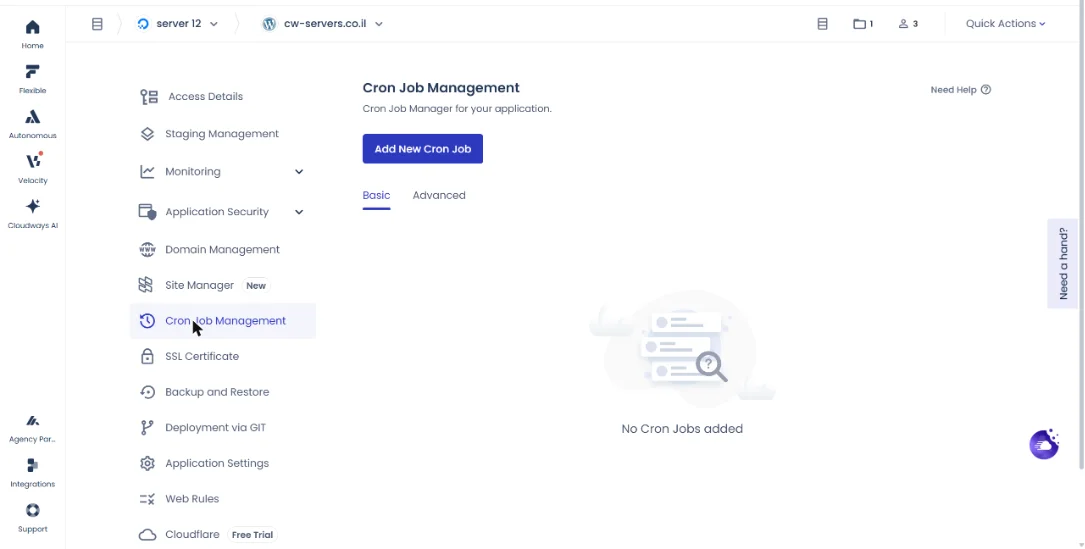
- Go to Cron Job Management and click Add New Cron Job.
- Choose a frequency from the dropdown, or define your own.
- Choose the script type, PHP, curl or wget, and enter the command.
- Click Submit. The job will appear in the list on the Basic tab.
PHP, curl or wget: which to choose
| Type | What it does | Best for |
|---|---|---|
| PHP | Runs a PHP file directly on the server | Internal scripts, without going through the web server |
| curl | Sends an HTTP request to a URL | A “Cron URL” a plugin gives you, for example inventory sync or a feed import |
| wget | Also sends an HTTP request | The same use as curl, for anyone who prefers it |
Note: on the Basic tab you cannot add switches (flags) to curl and wget commands. If you need to, for example, silence the output or limit the time, go to the Advanced tab.
The Advanced tab
The Advanced tab is a full crontab editor for the application, one line per job. Here you can use the full Cron syntax and all switches. Only the account owner or a team member with full permissions can edit it.
Cron syntax in five minutes
A Cron line consists of five time fields followed by the command. An asterisk means “every value”.
┌───── minute (0-59)
│ ┌───── hour (0-23)
│ │ ┌───── day of month (1-31)
│ │ │ ┌───── month (1-12)
│ │ │ │ ┌───── day of week (0-6, Sunday = 0)
│ │ │ │ │
* * * * * command| Expression | When it runs (UTC) |
|---|---|
*/15 * * * * | Every 15 minutes |
0 * * * * | On the hour, every hour |
0 3 * * * | Every day at 03:00 UTC |
0 6 * * 0 | Every Sunday at 06:00 UTC |
0 0 1 * * | At midnight on the first day of every month |
Advice from Cloudways: jobs that run too often use a lot of CPU. Space jobs at least 15 minutes apart, and do not schedule three heavy jobs for the same round minute.
How do you add a Cron over SSH (crontab)?
For anyone who works in the terminal or needs a job at the user level rather than the application level.
- Connect to the server over SSH.
- Open the Cron table for editing with
crontab -e. - Add a line at the end of the file, for example to run every day at 06:00 UTC.
- Save and exit (in the nano editor: Ctrl+X, then Y and Enter).
- Check that the line was saved with
crontab -l.
crontab -e
0 6 * * * /path/to/command
crontab -l
Here too all times are in UTC. If you have jobs both in the platform and in crontab, note down where each one is defined. That way you will not end up with the same job running twice.
Disabling WP-Cron in one click: Cron Optimizer
This is the recommended way to replace WP-Cron on Cloudways today. The old official article on disabling WP-Cron manually has been deprecated, and the documentation points to this tool.
Cron Optimizer is a Cloudways tool that stops WP-Cron from firing on every visit and runs its tasks through the server’s Cron using WP-CLI. Beyond that, it schedules the tasks intelligently: if several tasks are due at the same moment, it runs them one after another instead of in parallel. On a Multisite network it runs the tasks of each subsite in turn.
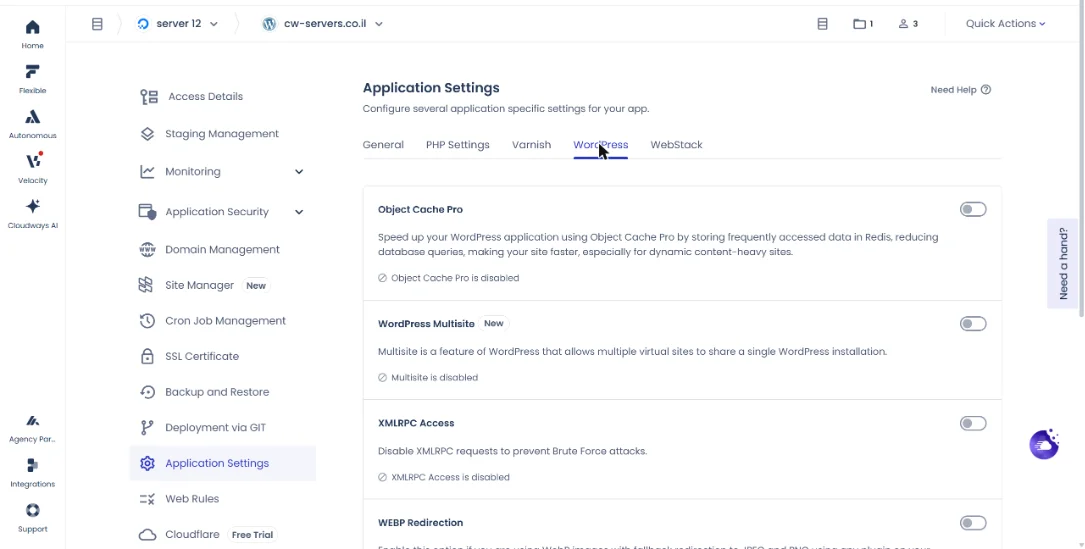
- Open the application and go to Application Settings.
- Choose the WordPress tab (in the older documentation it is called WordPress Settings).
- Turn on Cron Optimizer.
- In the confirmation window click Confirm.
- After a few minutes check that the tasks are running (see “How to check” below).
For advanced users: disabling WP-Cron manually
If you prefer full control, you can disable WP-Cron manually and run it from the server’s Cron. This is an accepted practice in WordPress, but do not combine it with Cron Optimizer. Pick one.
- Add the line
define( 'DISABLE_WP_CRON', true );towp-config.php, before the “stop editing” line. - In Cron Job Management add a job every 15 minutes that runs the due tasks with WP-CLI, from the site’s
public_htmlfolder.
define( 'DISABLE_WP_CRON', true );
*/15 * * * * cd /path/to/public_html && wp cron event run --due-now
You will find the full folder path in the application details in the platform.
How to check that Cron works
Three checks that take two minutes, and it is best to do them right after the change.
List the WP-Cron events: over SSH, go to the site’s public_html folder (WP-CLI only works in the folder that contains wp-config.php) and run the command. WP-CLI comes pre-installed on every Cloudways server.
cd applications/<application_folder_name>/public_html
wp cron event list
wp cron event list --fields=hook,recurrence --format=json
The list shows every task, when it is due and how often it recurs. A task whose run time passed long ago is a sign that WP-Cron is not firing. You can filter and change the format with --fields, --format (table, csv, json, yaml and more) and --field. More useful commands in the guide to WP-CLI on Cloudways.
Running Crons in monitoring: under the application > Monitoring > Analytics > Running Crons you see system Cron jobs running at this moment, with CPU, memory and duration. Regular WP-Cron will not show up there, because it is part of WordPress code. Full explanation in the application monitoring guide.
A scheduled post: schedule a draft post for twenty minutes from now and check that it gets published.
Cron on Cloudways Autonomous
On Autonomous the screen is somewhere else: Applications > the application > Workflow/Tools > Cron Jobs Management > Add Cron Job. You choose a frequency, a command type (PHP or CURL) and the command, and click Add Cron Job. You can edit and delete jobs afterwards. For the differences between the platforms, read the guide to Cloudways Autonomous.
Common mistakes and troubleshooting
The job runs at the wrong time: times are in UTC. And after a switch to or from daylight saving time, your local time shifts by an hour without you touching anything.
Scheduled posts are marked “missed”: WP-Cron is not firing. If you turned on DISABLE_WP_CRON without setting up a Cron on the server, the tasks will not run at all. Turn on Cron Optimizer, or add the job on the server.
CPU spikes on the hour: several heavy jobs are scheduled for minute 0. Spread them out (for example 7, 22, 37) and space them at least 15 minutes apart.
A curl command with a switch fails: the Basic tab does not accept switches for curl and wget. Move it to Advanced.
You do not have access to the Advanced tab: only the account owner or a team member with full permissions can edit it. Ask the account owner to update permissions; see team members and permissions.
WP-CLI returns “This does not seem to be a WordPress installation”: you are not in the right folder. Switch to the application’s public_html.
A heavy job fails halfway: it may be exceeding PHP’s execution time. See PHP settings, and consider splitting it into smaller batches.
The code BFCM802 takes 80% off your bill for the first two months (up to $200 off per month), including unlimited free site migrations. New customers only, and only until the offer ends.
The offer ends on December 4, 2026 at 23:59 (UTC+2).
Start with a free trial, no credit card. Enter the code at checkout and check that it shows up.
After Black Friday: 30% off for 3 months with the code ASAEL. On a large server (above about $444 a month) ASAEL already saves more today. BFCM802 vs. ASAEL calculator
Start a free trial server, no credit card. When you move to a paid plan, the code ASAEL takes 30% off your bill for the first three months.
The link fills in the code on the signup form. Just make sure it shows up.
Sources
The official sources this page is based on (checked on 7 Nov 2026):
- Cloudways Knowledge Base: How to create cron jobs on cloudways
- Cloudways Knowledge Base: How to add a cron job via ssh
- Cloudways Knowledge Base: How to list wp cron events using wordpress cli
- Cloudways Knowledge Base: How to disable wp cron
- Cloudways Knowledge Base: How to enable cron optimizer for your application
Frequently asked questions
On most sites yes, especially busy sites or sites with a lot of bot traffic. The simple way is Cron Optimizer, which moves the tasks to the server’s Cron and spreads them out. Do not disable WP-Cron without setting up a replacement, otherwise scheduled posts and plugin tasks will not run.
UTC. Convert to your local time zone yourself. A daylight saving change shifts the local run time, so it is worth checking time-sensitive jobs twice a year.
Because Running Crons only shows system Cron jobs, set up in the platform or on the command line. WP-Cron is part of WordPress code. You see its events with the command wp cron event list.
Yes. According to Cloudways it is available for WordPress applications, including WooCommerce and Multisite, in the new interface. On Multisite it runs the tasks of each subsite in turn.
It depends on the task, but Cloudways recommends spacing jobs at least 15 minutes apart so you do not overload the CPU. For most sites, running the WordPress tasks every 15 minutes is enough.
Only the account owner or a team member with full permissions. Other team members can add jobs on the Basic tab, depending on their permissions.
Related guides
- WP-CLI on Cloudways: useful commands for managing WordPress
- Server settings and services: packages, PHP-FPM and maintenance
- Databases on Cloudways: access, import and export
- Web Rules, htaccess and robots.txt
- All guides on this topic: Cloudways server and application settings
- Before you choose a host: the full Cloudways review
Official source: How to Create Cron Jobs on Cloudways, How to Enable Cron Optimizer for Your Application, How to List WP-Cron Events Using WordPress CLI, How to Add a Cron Job via SSH, How to Disable WP-Cron (Cloudways Knowledge Base). Written and checked by Asael Dreyer · Updated: 6 Nov 2026
Disclosure: this is an independent site, not the official Cloudways site. Some links on this site are affiliate links: if you sign up through them we earn a commission, at no extra cost to you. Full details

