
Last updated: · By Asael Dreyer
Short answer: when your site is down, you check four layers in order, in five minutes: is it just you, are the domain and DNS healthy, is the server itself running, and is the SSL certificate valid. The error message in the browser almost always points to the problem layer: “server not found” is a domain or DNS problem, “connection failed” is the server, and 500 and 502 errors are a problem in the site or in the server’s services. Most outages get solved without a developer, once you know where to look.
Before you start: what you need at hand
- A phone on mobile data (not Wi-Fi), so you can test from a different network.
- Access to your account at the domain registrar (for example Namecheap, GoDaddy or any other provider).
- Access to your hosting provider’s panel.
- A screenshot of the exact error message. “The site won’t load” isn’t enough for a diagnosis; the message is.
How do you check a website that’s down in five minutes?
- Minute 1, is it just you? Open the site from your phone on mobile data. If it loads there, the problem is on your side: a router, a VPN, your browser cache, or the server’s firewall blocking your IP address (it happens after several failed login attempts).
- Minute 2, read the error. Look it up in the table in the next section. It tells you which step to jump to.
- Minute 3, domain and DNS. Check that the domain hasn’t expired and that it points to the server’s IP address (details below).
- Minute 4, the server. Log in to your hosting panel and check that the server is running and its services are up.
- Minute 5, SSL and the application. If the server is fine, check the SSL certificate and the site’s error log.
What the error message tells you
| What you see | What it probably is | Where to go next |
|---|---|---|
| DNS_PROBE_FINISHED_NXDOMAIN, “server IP address could not be found” | The domain points nowhere: it expired, a record was deleted, or a DNS change hasn’t propagated yet | Domain and DNS · The full guide to DNS_PROBE_FINISHED_NXDOMAIN |
| A registrar parking page, “This domain is for sale” | The domain expired and wasn’t renewed | Domain and DNS |
| ERR_CONNECTION_TIMED_OUT or ERR_CONNECTION_REFUSED | The server is off, heavily loaded, or blocking you | The server |
| NET::ERR_CERT_DATE_INVALID, “Your connection is not private” | The SSL certificate expired or doesn’t match the domain | SSL |
| 500 Internal Server Error | A code error on the site: a plugin, a theme, .htaccess | Error 500 guide |
| 502 Bad Gateway or 504 Gateway Timeout | A service on the server crashed or hung (PHP-FPM, the database), or overload | 502 and 504 errors guide |
| Error establishing a database connection | The database is unavailable or the connection details are wrong | Database connection error |
| A blank white screen | A critical PHP error that isn’t displayed | The WordPress white screen |
| The site loads but redirects to a foreign site | Probably a hack, not an outage | Emergency guide for a hacked site |
Does the address lead to your server? Domain and DNS check
Check that the domain points to your server’s IP address. DNS is the “phone book” of the internet: it translates the domain name into a server’s IP address. If it’s broken, the server can work perfectly and nobody will reach it.
- Check that the domain is valid. Log in to your account at the registrar and check the renewal date. You can also look the domain up in a public WHOIS database. An expired domain is a common and embarrassing cause of outages, especially when the credit card saved at the registrar was replaced.
- Check where the domain points. On your computer, open a command line and type
nslookup yourdomain.com. The address that comes back should be identical to the server’s public IP address, shown in your hosting panel (on Cloudways: on the server details page). - If the address is different, someone changed a record, or the name servers were replaced. Fix the A record with whoever manages your DNS (the registrar, Cloudflare or another provider).
- If you just changed DNS, the change may still be propagating. That can take anywhere from a few minutes to a day, depending on the record’s TTL.
Country-code domains have a few special points (name servers at the registrar, update times). Details are in the domain and DNS guide.
Server check: is it running and what are its services doing
If the domain points correctly and the site still doesn’t load, move on to the server. Here is how to do it on Cloudways. On other providers the screens are different, but the checks are the same.
- Log in to the management panel and open the server list. A stopped server is marked with a red circle next to its name, and has a Start button.
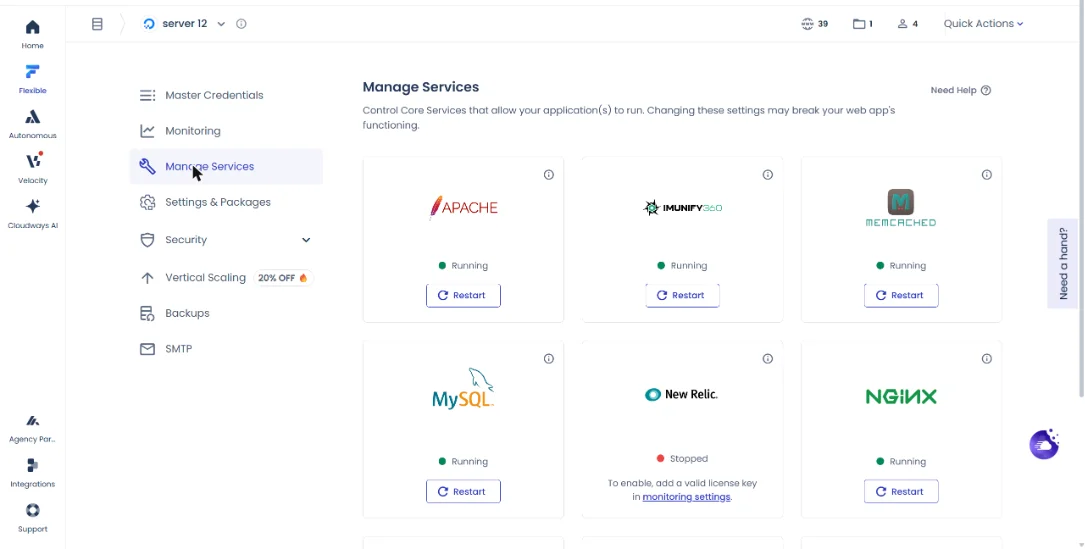
- If the server is running, open it and go to Manage Services. There you can see the state of Nginx, Apache, PHP-FPM, the database (MariaDB or MySQL), Redis and Varnish, and you can restart each service separately.
- Restart the service that looks stuck. For a 502 error you usually start with PHP-FPM, and for a database error with MariaDB/MySQL.
- If that didn’t help, check the monitoring graphs to see whether the CPU, memory or disk is full. A full disk takes sites down silently. See server monitoring on Cloudways and full disk and inodes.
- As a last resort, restart the whole server (Restart). It doesn’t delete data, but every site on the server goes down for a minute or two.
Worth knowing: Cloudways monitors the server and its main services, tries to fix problems automatically, and sends an email if the server is unavailable or a service has been down for more than 10 minutes. But according to Cloudways itself, this monitoring doesn’t check each site separately. A site that went down because of a plugin, while the server is healthy, won’t trigger an alert. For that you need an external uptime monitoring tool. To find out your site is down before your customers do, see uptime monitoring for your site.
SSL check: when the site loads but the browser blocks it
If the browser shows a “Your connection is not private” warning, the site is actually working, but the certificate has expired or doesn’t cover the address (for example the certificate covers the domain without www, and the visitor arrived with www). Click the padlock icon or the warning and check the expiry date and the domains in the certificate.
Let’s Encrypt certificates renew automatically, but renewal fails if the domain stopped pointing to the server, or something blocks the validation check. If the browser shows ERR_SSL_PROTOCOL_ERROR, that is a handshake failure and not a certificate expiry problem. The full solutions are in the guide to SSL errors on Cloudways.
The server is fine and the site still doesn’t load: check the application
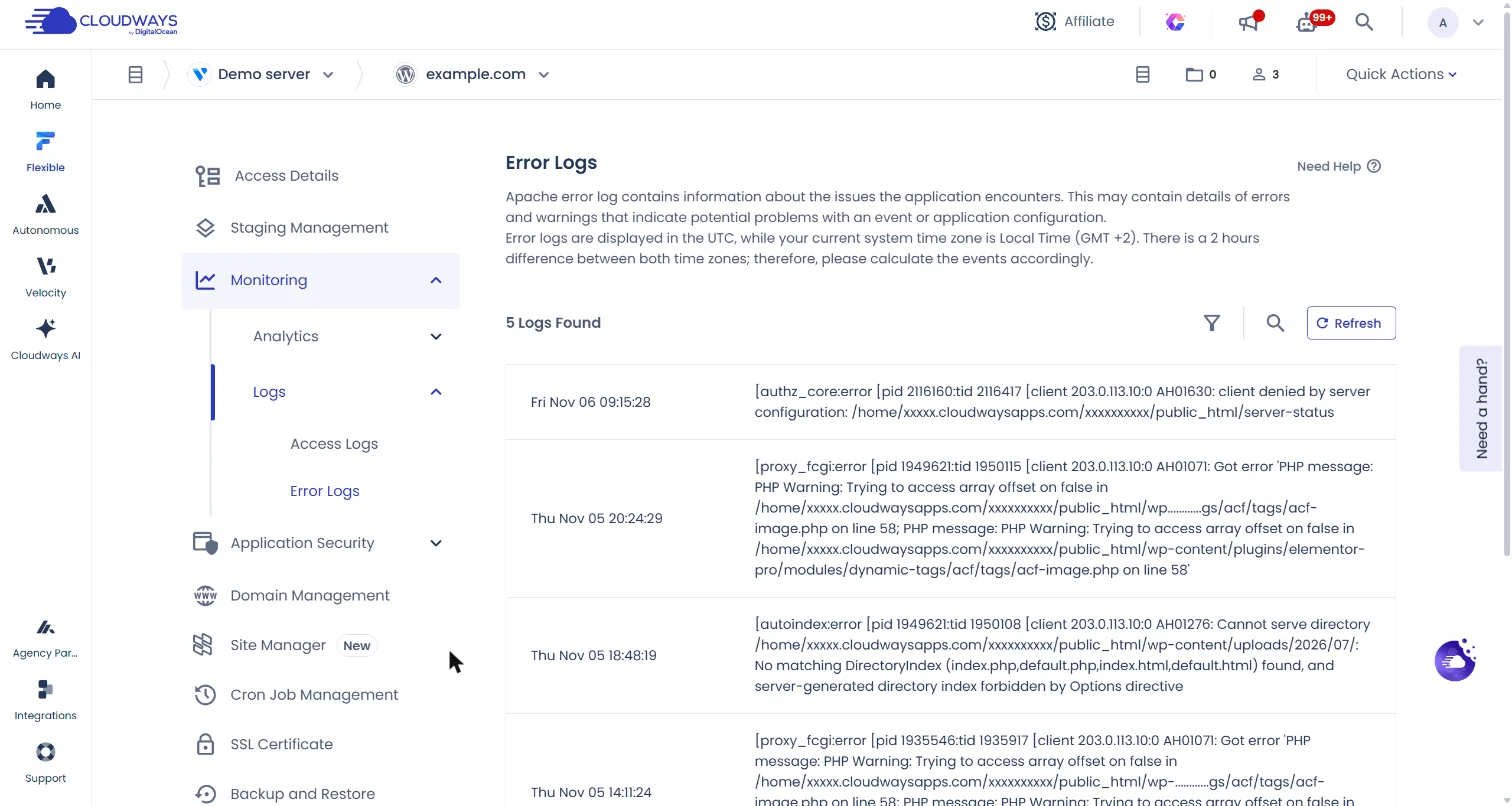
- Open the site’s error log. On Cloudways: in the application, Monitoring → Logs → Error Logs. The screen shows the last 1,000 entries, and a PHP Fatal error will tell you exactly which file and which plugin failed.
- If the error points to a plugin, disable it: rename its folder in
wp-content/pluginsover SFTP, or use WP-CLI. - If the problem started right after an update, consider restoring to a point in time from before the update. See backup and restore on Cloudways.
How to find out why the site went down at night: Copilot
Cloudways Copilot is an AI-based assistant in the Cloudways panel that monitors the server 24/7, explains what caused a problem (AI Insight), and in some cases offers a one-click fix (SmartFix). According to Cloudways, SmartFix currently handles four types of issues: a full disk, a shortage of inodes, server health (crashed services, bot load) and the server layer (restarting Apache, Nginx or MySQL and fixing configuration errors). Every fix is shown to you before it runs, and needs your approval.
As of November 2026, Copilot works on a credits model: the Starter plan at $3.99 a month, Growth at $9.99 and Scale from $19.99. The Micro, Small, Medium, Large and Small+ server plans include 4 free credits. When is it worth it? When the site earns money and an hour of downtime costs more than a month’s subscription. For a small brochure site, the built-in alerts and a free external monitoring tool are enough. Details: Copilot guide and Copilot pricing.
The code BFCM802 takes 80% off your bill for the first two months (up to $200 off per month), including unlimited free site migrations. New customers only, and only until the offer ends.
The offer ends on December 4, 2026 at 23:59 (UTC+2).
Start with a free trial, no credit card. Enter the code at checkout and check that it shows up.
After Black Friday: 30% off for 3 months with the code ASAEL. On a large server (above about $444 a month) ASAEL already saves more today. BFCM802 vs. ASAEL calculator
Start a free trial server, no credit card. When you move to a paid plan, the code ASAEL takes 30% off your bill for the first three months.
The link fills in the code on the signup form. Just make sure it shows up.
What common mistakes happen when a site goes down?
“The site is down” when only your own computer is blocked: after several failed login attempts, the server’s firewall can block your IP. Check from your phone before you open a ticket.
Changing DNS under pressure: changing records without understanding what’s broken creates a second problem, which takes hours more to propagate. Change things only after you’ve confirmed the current record is really wrong.
Restarting the server as a first step: it sometimes works, but it wipes out the clues (a stuck process, the log). Look at the monitoring and the logs first, and only then restart.
No uptime monitoring: most site owners find out about an outage from a customer. A free external monitoring tool that sends an email or message alert solves that in ten minutes of setup. And if you’re wondering how much downtime is acceptable, see what an SLA and 99.9% uptime mean.
When to open a support ticket
If the domain points correctly, the server is running, restarting the services didn’t help and there is no clear error in the log, open a ticket. Include the exact message, the time the problem started and what you’ve already checked. It shortens the handling significantly. Cloudways support is available 24/7 by chat and ticket (how to open a ticket).
Frequently asked questions
Run nslookup on the domain and compare the address that comes back with the server’s IP address in the hosting panel. If they differ, or no address comes back at all, the problem is in the domain or the DNS. If they match and the site doesn’t respond, the problem is in the server.
Usually it’s the browser cache, an old DNS entry on your computer, or your IP being blocked in the server’s firewall after failed login attempts. Try from a mobile network, clear the cache, and if needed ask support to check whether your IP is blocked.
From a few minutes up to 24–48 hours, depending on the record’s TTL and the DNS cache at internet providers. In most cases you’ll see the change within an hour or two.
It sends an alert when the server is unavailable or a core service has been down for more than 10 minutes. It doesn’t monitor each site separately, so a site that went down because of a plugin, while the server is healthy, won’t trigger an alert. For that you add an external uptime monitoring tool.
A 500 error is usually a fault in the site’s own code, such as a plugin or an .htaccess file. A 502 error means the web server didn’t get a response from a service behind it, such as PHP-FPM or the database, usually because of a crash or overload.
No. A restart doesn’t delete files or data. All the sites on the server go down for a minute or two, and then come back. That’s why it’s worth trying to restart only the problem service first.
Related guides
- 502 and 504 errors: causes and fixes
- Error 500 in WordPress
- SSL errors on Cloudways
- Site hacked? Emergency guide
- Our full review: Cloudways hosting
- All troubleshooting guides: troubleshooting
Sources
- Server Monitoring Alerts
- Manage Services
- Server Actions
- How to View Application Logs
- How to Fix 502 Bad Gateway Error
- How SmartFix Works
- Copilot Pricing and Billing
Official source: Server Monitoring Alerts, Manage Services, Server Actions, How to View Application Logs, How to Fix 502 Bad Gateway Error, How SmartFix Works, Copilot Pricing and Billing (Cloudways Knowledge Base). Written and checked by Asael Dreyer · Updated: 6 Nov 2026
Disclosure: this is an independent site, not the official Cloudways site. Some links on this site are affiliate links: if you sign up through them we earn a commission, at no extra cost to you. Full details

