
Last updated: · By Asael Dreyer
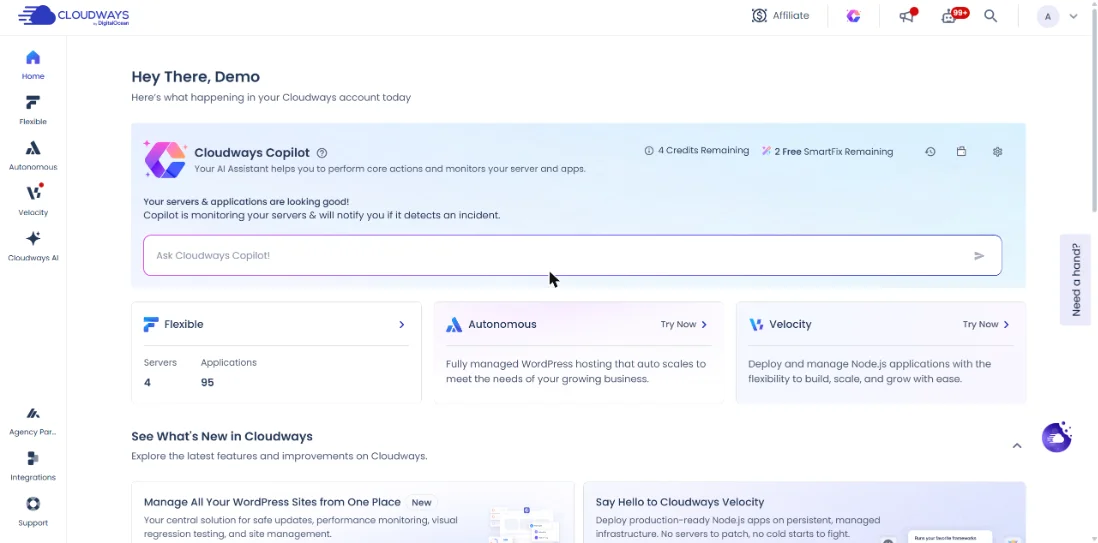
Short answer: Cloudways Flexible is Cloudways’ managed cloud hosting: you choose a cloud provider (DigitalOcean, Vultr, Linode, AWS or Google Cloud), a server size and a location, and Cloudways manages the server, security, caching and backups for you. You pay by the hour for the server, not per site, and you can install as many sites on it as the resources allow. It is the product that suits most sites, agencies, and anyone who wants control without running a server alone.
What Cloudways Flexible is, and what a “managed server” means
A cloud server is a virtual machine rented by the hour from an infrastructure company such as DigitalOcean or AWS. On its own it arrives “empty”: you have to install an operating system, a web server, PHP and a database, and then secure and update it. That is a sysadmin’s job.
A managed server means someone else does that work. With Flexible, Cloudways sets up the server with a ready stack, updates and secures it, backs it up, and gives you a management platform where every action is a few clicks: launching a site, staging, cloning, backup and restore, scaling the server. You stay with the important decisions: which provider, how many resources, and where.
Flexible is one of Cloudways’ two hosting products. The other, Autonomous, also manages the resource decisions, but suits only WordPress. The full comparison is in the guide Flexible or Autonomous: how to choose.
What you get with every Flexible server
According to the Cloudways product page, as of November 2026, these come with the server at no extra charge:
- Unlimited sites – no per-site fee. The only limit is the server’s resources.
- A fast stack – NGINX, Apache, PHP-FPM and MySQL or MariaDB, and now also the new NGINX-based Lightning Stack.
- Built-in caching – Varnish, Redis and Memcached at the server level, Object Cache Pro free for WordPress on servers of 4GB and up (according to the pricing page), and the Breeze cache plugin.
- Staging and cloning – a test environment, and cloning a site or a whole server in one click.
- Security – a dedicated platform-level firewall, free Let’s Encrypt SSL certificates, two-factor authentication for your account, an IP allowlist for SSH and SFTP, and a vulnerability scanner for WordPress.
- Developer tools – SSH and SFTP access, Git preinstalled, several PHP versions, and separate SFTP users for team members.
- Automatic backups and on-demand backups, with one-click restore.
- Monitoring of the server and applications, and Cloudways Copilot, an AI assistant that detects problems and offers a one-click fix (SmartFix). According to Cloudways, Copilot is available only on Flexible.
- 24/7 support by chat and ticket.
What is not included and costs extra: off-server backup ($0.033 per GB according to the product page), Cloudflare Enterprise, email mailboxes, DNS management (DNS Made Easy) and advanced support add-ons. Email also isn’t hosted on the server itself. The details are in the Cloudways FAQ, and add-on prices are in the Cloudways add-ons pricing guide.
What Cloudways manages, and what is left to you
“Managed” doesn’t mean you have no responsibility. The split below helps you know who to turn to when something doesn’t work, and what to check before you open a support ticket.
| Area | Cloudways | You |
|---|---|---|
| Operating system and server packages | Installation, updates and security | Choosing the PHP version and database |
| Server resources | Monitoring and alerts | Deciding when to scale up and to what size |
| Backups | Automatic backup and one-click restore | Setting frequency and retention, and backing up before big changes |
| Server security | Firewall, security updates, access restrictions | Strong passwords, 2FA, managing SFTP users |
| WordPress itself | Initial installation and cache plugins | Plugin and theme updates, content, code errors |
| Domain, DNS and email | An SSL certificate and paid DNS and email add-ons | DNS records at your registrar and the email service |
In practice, it’s worth contacting Cloudways support for any problem that could stem from the server, even when it looks like a WordPress problem. But fixing a plugin that broke after an update, or changing the design, stays your responsibility or your developer’s.
Choosing a cloud provider: the five options
This is the first decision in the form, and it affects price, scaling speed and locations. The table is based on the Cloudways KB article on choosing a provider.
| Provider | Price | Scaling the server | Bandwidth | Suited to |
|---|---|---|---|---|
| DigitalOcean | Low | Up to about 10 minutes, no direct downsizing | Cheap | Most sites, a first site, agencies |
| Vultr | Low | Up to about 10 minutes, no direct downsizing | Cheap | General sites, many locations |
| Linode | Low | Up to about 10 minutes, no direct downsizing | Cheap | Medium sites at a good price |
| AWS | High | Fast (under 5 minutes), including downsizing | Expensive | Organizations, a global audience, a need for fast scaling |
| Google Cloud | High | Fast (under 5 minutes), including downsizing | The most expensive | Organizations, heavy workloads |
With every provider, scaling a server involves a short downtime. With AWS and Google Cloud you also choose storage size and a bandwidth limit separately. According to the pricing page, the trial period doesn’t include AWS and Google Cloud.
Which provider and location for your audience
For most sites, a DigitalOcean server in a European data center is a good starting point: a low price and good response times across Europe. Frankfurt appears in the location lists of DigitalOcean, Vultr, Linode, AWS and Google Cloud. In general, pick the location closest to most of your visitors. According to the KB article on choosing a provider, locations differ between providers, so the closest one to your audience may be available only on some of them, and AWS and Google Cloud cost more than DigitalOcean. A detailed comparison of locations is in the cloud provider guides.
Which server type and size should you choose?
With DigitalOcean, Vultr and Linode you choose between three types: Basic for general sites, General Purpose for sites that need more memory and CPU, and CPU Optimized for busy sites that need processing power. DigitalOcean also has Standard servers and Premium servers with NVMe storage and a faster network.
For sizes, here is an example from the product page for DigitalOcean Premium servers, as of November 2026 (prices in US dollars, before any taxes that apply):
| Size | Resources | Price per month | Suited to |
|---|---|---|---|
| Micro | 1GB RAM, 1 vCPU, 25GB NVMe | From $14 | A personal site, a simple blog, testing |
| Small | 2GB RAM, 1 vCPU, 50GB NVMe | $28 | A small business, moderate traffic |
| Medium | 4GB RAM, 2 vCPU, 80GB NVMe | $54 | Sites with more traffic, several client sites |
| Large | 8GB RAM, 4 vCPU, 160GB NVMe | $99 | Stores and heavy applications |
DigitalOcean Standard servers are cheaper: from $11 a month for 1GB, $24 for 2GB, $46 for 4GB and $88 for 8GB, as of November 2026. Cloudways recommends 2GB and up for a live site. Billing is actually by the hour: a server that ran for only a week pays for only that week. Current prices are collected in the Cloudways pricing guide.
How to get started with Flexible: five steps
- Open an account and start with a free 5-day trial, no credit card. Signing up is explained in the guide to opening a trial account.
- Launch a server with WordPress. Choose a provider, type, size and location and click Launch Now. Every field in the form is explained in the guide to launching a Cloudways server.
- Build or migrate your site on the temporary address. There is a free plugin for migration, and a free managed migration too.
- Connect a domain and install SSL from Domain Management and SSL Certificate in the application.
- Upgrade to a full account before the trial ends, so the server keeps running without interruption.
The code BFCM802 takes 80% off your bill for the first two months (up to $200 off per month), including unlimited free site migrations. New customers only, and only until the offer ends.
The offer ends on December 4, 2026 at 23:59 (UTC+2).
Start with a free trial, no credit card. Enter the code at checkout and check that it shows up.
After Black Friday: 30% off for 3 months with the code ASAEL. On a large server (above about $444 a month) ASAEL already saves more today. BFCM802 vs. ASAEL calculator
Start a free trial server, no credit card. When you move to a paid plan, the code ASAEL takes 30% off your bill for the first three months.
The link fills in the code on the signup form. Just make sure it shows up.
Flexible vs regular shared hosting
Most people who arrive at Flexible come from shared hosting. Here is what the difference looks like in practice:
| Topic | Shared hosting | Cloudways Flexible |
|---|---|---|
| Resources | Shared with other sites on the same server | A server that is entirely yours |
| Pricing | An annual plan by number of sites | By the hour, per server, no commitment |
| Scaling | Switching plans, sometimes moving the site | Scaling in the platform in a few minutes |
| Staging and cloning | Not always available | Built in and free |
| Usually included | Not included, you need a separate service | |
| Interface | cPanel or the hosting company’s own panel | Cloudways’ own dedicated platform |
Pros and cons, honestly
The pros: control over the provider and location, pricing per server rather than per site, hourly billing with no contract, unlimited sites, support for applications other than WordPress too (Magento, Laravel, PHP), and Multisite. For Laravel developers there is a separate guide: deploying a Laravel project.
The cons: no root access to the server (Cloudways keeps it to manage and secure the server), no email hosting, scaling a server involves a short downtime and doesn’t happen on its own, add-ons such as Cloudflare Enterprise and off-server backup cost extra, and billing is in US dollars.
Who it’s not for: anyone who needs full root on the server, anyone who wants email in the same package and isn’t willing to use a separate service, and anyone with sudden traffic spikes that can’t be predicted. In the last case it’s worth looking at Autonomous.
Common beginner mistakes
Choosing a huge server “just in case”: there’s no need. Start at a reasonable size and scale up when monitoring shows load. On DigitalOcean, Vultr and Linode there is no direct downsizing, so a server that’s too big needs to be cloned to a smaller one.
Putting all your eggs in one server: an important store and small client sites on the same server share resources. Separate critical sites onto their own server.
Ignoring email: on the day you switch DNS, emails that used to arrive at the old hosting may stop working. Arrange an email service and MX records before the switch.
Forgetting to upgrade the trial: Cloudways recommends upgrading to a full account before the trial ends, so the servers keep running without interruption. At the end of the trial the server is deleted, and if you upgrade afterward it is restored with its applications and data, but it’s better not to rely on that. Upgrade ahead of time, and enter the coupon code at the time of the upgrade.
Sources
- Cloudways Flexible – the official Cloudways page
- Which infrastructure provider do I have to choose – Cloudways Knowledge Base
- Cloudways Pricing – Flexible server prices by cloud provider
Frequently asked questions
It is Cloudways’ classic managed hosting product. You choose a cloud provider, size and location for the server, and Cloudways manages the software, security, caching and backups. You pay by the hour for the server, and can install as many sites on it as you like.
According to the pricing page, as of November 2026, a DigitalOcean Standard 1GB server starts at $11 a month ($14 on Premium), and a 2GB server costs $24 on Standard and $28 on Premium. Billing is by the hour, so you pay only for the time the server ran. Providers such as AWS and Google Cloud cost more.
There is no hard limit. The limit is the server’s memory, CPU and disk. According to the Cloudways example, a 2GB server holds 4–5 small sites with up to about 110 thousand page views a month combined, and a busy store will need a server of its own.
No. Cloudways doesn’t give root, in order to keep the managed server stable and secure. There is SSH and SFTP access with the master credentials, which is enough for most developer work.
Not on an existing server. You clone the server or the application to a new server with the provider you want, test it, and update DNS.
Yes. WordPress in any language, including RTL languages, works just like in English, because language is a matter for the site and not the server. What is worth choosing is a server location close to your audience, for example in Europe.
Related guides
- How to launch your first server and WordPress site on Cloudways
- Flexible or Autonomous: how to choose a server type
- Cloudways FAQ: root, dedicated IP, email and more
- A glossary of web hosting terms
- How to open a free trial account on Cloudways
- All guides on this topic: getting started with Cloudways guides
Official source: Cloudways Flexible – Managed Cloud Hosting (product page), Which Infrastructure Provider Do I Have to Choose? (Cloudways Knowledge Base). This guide was written and checked by Asael Dreyer · Updated: 6 Nov 2026
Disclosure: this is an independent site, not the official Cloudways site. Some links on this site are affiliate links: if you sign up through them we earn a commission, at no extra cost to you. Full details

