
Last updated: · By Asael Dreyer
In short: to connect a domain to Cloudways, you add it to the application under Domain Management, set it as the primary domain (Make Primary), and then create two A records at your domain registrar, one for the domain and one for www, pointing to the server’s IP address. On Autonomous you add CNAME records, shown in the panel, instead. The connection itself takes 20 to 30 minutes, and afterwards you install an SSL certificate.
How the connection between a domain and a server works
Before you click any buttons, it helps to understand three separate parties. Most domain connection problems come from mixing them up. If your domain or hosting is with GoDaddy, see Cloudways vs GoDaddy.
The domain registrar is the company you bought the domain from. For Israeli domains (.co.il, .org.il and similar), these are usually companies like Box, LiveDNS or Internic. The DNS provider is where the domain’s records are managed. Sometimes it is the registrar itself, and sometimes another service such as Cloudflare. Cloudways is only the hosting company: it doesn’t sell domains, doesn’t provide name servers and doesn’t answer DNS queries.
An A record is a line in DNS that says “this domain lives at this IP address”. When a visitor types the domain, the browser asks DNS, gets the IP of your Cloudways server and connects to it.
That’s why the connection always has two sides: in Cloudways you tell the application “this domain is yours”, and at the DNS provider you tell the domain “your server is here”. If one side is missing, the site won’t come up.
Before you start
- An active application on Cloudways. If you haven’t created one yet, see how to launch servers and sites.
- Access to DNS management at the registrar or at the DNS provider. Make sure you know where the records are actually managed. If the domain’s name servers point to Cloudflare, the records are edited there and not at the registrar.
- A list of the existing email records. If the domain’s email is with Google Workspace, Microsoft 365 or another provider, take a screenshot of the MX and TXT records before you touch anything.
- If this is a live site moving hosts: test it on the new server before the switch. Later in this guide there is an explanation of testing through the hosts file.
What is the difference between a primary domain, an additional domain and a subdomain?
| Type | What it is | Example | How many |
|---|---|---|---|
| Primary Domain | The site’s official address. It sets the site address in the application settings | example.com | One per application |
| Additional Domain / Alias | An extra address that leads to the same site | example.net, example.org | As many as you like |
| Subdomain | A part of the domain that leads to a section or a different site | shop.example.com | As primary or additional |
| Wildcard domain | Covers all subdomains at once | *.example.com | As needed |
When you add a primary domain like example.com, Cloudways automatically adds the www version too. Additional domains are useful, for example, when you also bought the .net version of your domain and want it to lead to the same site.
How to connect a domain on Cloudways Flexible, step by step
In the video I demonstrate the connection with three popular domain registrars in Israel: Box, LiveDNS and Internic. The method is the same at any other registrar, Israeli or international. Here are the steps in writing:
Step A: Add the domain to the application
- In the management panel, click Flexible in the side menu and then My Servers.
- Select the server, click the www globe icon and choose the application.
- Under Application Management, choose Domain Management.
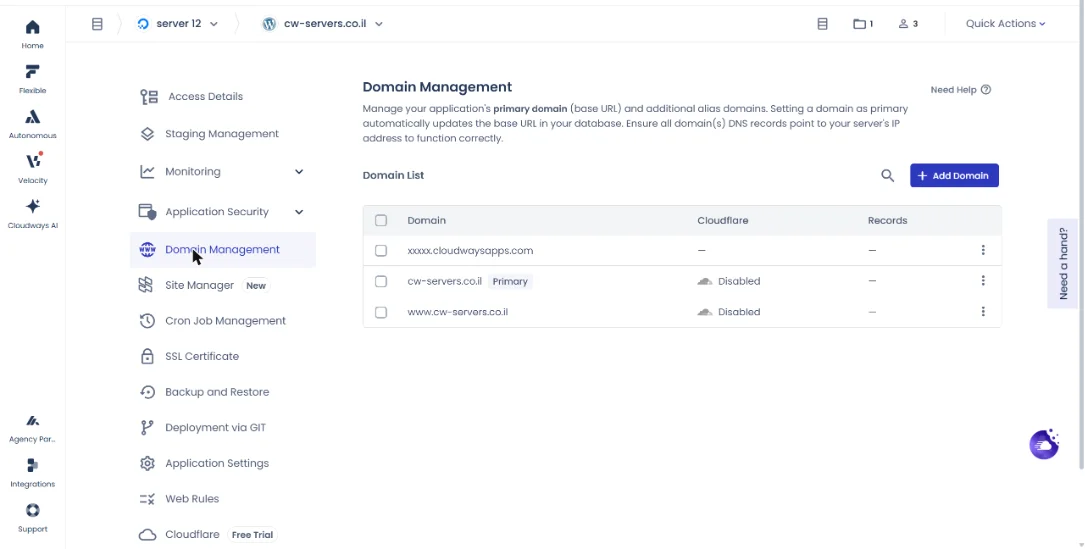
- Click Add Domain, type the domain without
https://and without www (for exampleexample.com), and save. You can add several domains at once. - Cloudways will show a window with the details of the records you need to create in DNS. Copy them and click Got it.
Step B: Set a primary domain
- Next to the domain you added, click the three dots (⋮) and choose Make Primary.
- Confirm with Set as Primary. All the other domains remain as aliases.
When you set a primary domain, Cloudways also updates the domain in the WordPress database. So there is no need to change the site address manually in the WordPress settings.
Step C: Create A records at the DNS provider
- Copy the server’s IP address. It appears in the window you got in step 5, on the server page under Master Credentials, and on the application’s Access Details screen.
- Log in to the domain’s DNS interface, at the registrar or in Cloudflare.
- Create or edit two A records, according to the table:
| Type | Host / Name | Value / Target | TTL |
|---|---|---|---|
| A | @ (or empty) | The IP address of your Cloudways server | Auto / default |
| A | www | The same IP address | Auto / default |
If the domain already has an A record pointing to the old host, edit it instead of adding a second record. Two A records for the same name with different addresses will make the site load sometimes from the old server and sometimes from the new one. If www is set up as a CNAME pointing to the primary domain, you can leave it that way.
At the registrars shown in the video: Box, LiveDNS and Internic
At all of these registrars the principle is the same: you log in to the account, choose the domain, go to the DNS or records management area, and edit the A records. The differences are only in the names of the menus, and I show all of them in the video.
Two things worth checking at any registrar. First, make sure the domain uses the registrar’s name servers, otherwise editing the records there won’t have any effect. Second, if the registrar offers “forwarding” or “parking” for the domain, turn them off, because they override the A record. There is a detailed walkthrough for each registrar in the guide to setting up DNS for Israeli domains.
My tip from the field: I manage the DNS of almost all my sites through Cloudflare and not at the registrar. Changes are picked up almost instantly, and you get a CDN and protection for free. See how to connect a domain to Cloudflare and Cloudways.
Step D: Check that DNS has updated
- Use a tool like whatsmydns.net to check that the domain returns your Cloudways server’s IP. According to Cloudways, an update can take up to 24–48 hours, but in most cases it happens much faster.
- Go back to Domain Management in the panel and check that the records are shown as configured.
The code BFCM802 takes 80% off your bill for the first two months (up to $200 off per month), including unlimited free site migrations. New customers only, and only until the offer ends.
The offer ends on December 4, 2026 at 23:59 (UTC+2).
Start with a free trial, no credit card. Enter the code at checkout and check that it shows up.
After Black Friday: 30% off for 3 months with the code ASAEL. On a large server (above about $444 a month) ASAEL already saves more today. BFCM802 vs. ASAEL calculator
Start a free trial server, no credit card. When you move to a paid plan, the code ASAEL takes 30% off your bill for the first three months.
The link fills in the code on the signup form. Just make sure it shows up.
How to connect a domain on Cloudways Autonomous
On Autonomous the connection is different, because every site goes through Cloudflare Enterprise by default. So you don’t point the domain to a server IP, but to a Cloudflare address, using CNAME records.
- In the panel, click Autonomous and choose the application under My Applications.
- On the Overview screen, click Add Custom Domain. You can reach the same place through Manage Access and then Domain Management, or through Security and then Cloudflare.
- Enter the domain and click Add Domain. Cloudways will verify ownership of the domain.
- Click View CNAME Records and copy the values. According to the documentation, the records look like this:
| Type | Name / Host | Target / Value |
|---|---|---|
| CNAME | @ | secure.cloudwayssites.com |
| CNAME | www | secure.cloudwayssites.com |
- Add the records at your DNS provider. If your registrar doesn’t allow a CNAME on the primary domain (which is common), use the alternative A records that Cloudways shows. Cloudways recommends adding both.
- If your DNS is on Cloudflare, set the records to DNS only: click the orange cloud until it turns gray.
- Wait. As long as the status is Domain is not Live, Cloudways is still checking the records. When the connection is complete, the status changes to Domain is Live and you receive an email.
You can also set up a domain already when you create the application on Autonomous, with the custom domain option in the form.
After connecting: the SSL certificate
An SSL certificate isn’t installed automatically on Flexible. You install it only after the domain already points to the server, because Let’s Encrypt checks that the domain really is yours.
- In the application, choose SSL Certificate.
- Choose Let’s Encrypt, enter an email address and the domain, and add the www version too.
- Click Install Certificate, and then turn on the redirect from HTTP to HTTPS.
Let’s Encrypt certificates on Cloudways are free and renew automatically. If the domain goes through Cloudflare’s proxy and the installation fails, you may need to turn the proxy off temporarily. All the details, including Wildcard and custom certificates, are in the guide to installing an SSL certificate.
How to change the domain of an existing site
Changed your business name, bought a new domain, or is the site still running on Cloudways’ temporary address? The process is almost the same as connecting a new domain:
- Under Domain Management, add the new domain.
- Set it as Primary. The old domain becomes an alias, and you can delete it if you don’t need it. The Cloudways temporary domain can’t be deleted.
- Create A records for the new domain, and then install SSL.
Cloudways updates the domain in the database when you set a primary domain. If the site still has links or images pointing to the old address afterwards, you can replace them manually with WP-CLI. Connect over SSH, go to the application’s public_html folder, and run a dry run first:
wp search-replace old-domain.com new-domain.com --dry-runThe command shows what would change without saving. If the result looks right, run it again without --dry-run. Take a backup first, and note that the command is case-sensitive.
For advanced users: when you change the domain of a site that already ranks on Google, set up 301 redirects from the old domain to the new one and update Google Search Console. Otherwise you’ll lose part of your organic traffic. If the site disappears from Google after the move, see site dropped from the index after a migration.
Testing the site before switching DNS (the hosts file)
When you move a live site from another host, you can view it on the new server with the real domain before you change DNS. You add a line to the hosts file on your computer that points the domain to the new IP. On Windows the file is at C:\Windows\System32\drivers\etc\hosts, and you edit it in Notepad opened as administrator:
203.0.113.10 example.com
203.0.113.10 www.example.com
Only your computer will see the new server, and everyone else keeps seeing the old site. After the DNS switch, delete these lines.
Common mistakes and how to fix them
The site still loads from the old host: an old A record remains, or you edited records at the registrar while DNS is actually managed in Cloudflare. Check where the domain’s name servers point, and fix the records in the right place.
The site works without www and doesn’t work with www: a record for www is missing. Add an A record for www, or a CNAME pointing to the primary domain.
Email stopped working after the connection: you touched the MX records, or you changed name servers without copying the email records. Restore the MX and TXT records from the screenshot you saved.
The SSL certificate won’t install: the domain doesn’t point to the server yet, a record for www is missing, or there are CAA records blocking it. Cloudways recommends checking CAA records on whatsmydns.net and asking the registrar to remove them if they interfere.
A cloudwaysapps.com address appears on the site: you didn’t set the domain as primary. Go back to step 6.
On Autonomous the status is stuck on Domain is not Live: check that the records are set to DNS only if you are on Cloudflare, and click the refresh button in the panel. If the registrar doesn’t accept a CNAME on the primary domain, use the A records.
Want to manage DNS without leaving the panel? Cloudways offers the DNS Made Easy add-on, where you manage all the records from the panel. It requires moving the domain’s name servers to DNS Made Easy, and the move takes 24–48 hours.
Sources
- Cloudways Knowledge Base: How do I take my website live from Cloudways
- Cloudways Knowledge Base: How to create an A record
- Cloudways Knowledge Base: Difference between primary domain and additional domains
- Cloudways Knowledge Base: How to add domain in Cloudways Autonomous
- Cloudways Knowledge Base: How to change the domain name of your application
- Cloudways Knowledge Base: How to manually update WordPress application domain name
- Cloudways Knowledge Base: Does Cloudways offer name servers DNS resolution
Frequently asked questions
No. Cloudways doesn’t sell domains and doesn’t provide name servers. You buy a domain from a registrar, for example Box, LiveDNS or Internic for an Israeli domain, and point it to your Cloudways server with an A record. You can also manage DNS from the panel with the DNS Made Easy add-on.
A change to an A record is usually picked up within minutes to a few hours, and Cloudways notes it can take up to 24-48 hours. If you change name servers, for example when moving to Cloudflare, the wait is longer. On Cloudflare itself, a change to an existing record is picked up almost instantly.
The primary domain is the site’s official address, and Cloudways uses it to set the site address in the application settings. Each application has one primary domain. Additional domains are aliases that lead to the same site, for example the .com version of a .co.il domain.
No, as long as you don’t touch the email records. Email works through MX records and sometimes CNAME, not through the site’s A record. You change only the A records of the domain and of www, and leave the email records as they are.
Because on Autonomous every site goes through Cloudflare Enterprise by default, and the domain points to a Cloudflare address and not to a server IP. If your registrar doesn’t allow a CNAME on the primary domain, Cloudways shows alternative A records.
You add the new domain in Domain Management, set it as primary and point your DNS to it. Cloudways also updates the domain in the WordPress database. If links to the old address remain, you run wp search-replace.
Related guides
- How to connect a domain to Cloudflare and Cloudways
- How to install an SSL certificate on a Cloudways site
- The DNS Made Easy add-on on Cloudways
- Our review of Cloudways hosting
- All guides on this topic: domain and SSL guides
Official source: How Do I Take My Website Live from Cloudways?, How to Create an A Record, Difference Between Primary Domain and Additional Domains, How to Add Domain in Cloudways Autonomous, How to Change the Domain Name of Your Application, How to Manually Update WordPress Application Domain Name, Does Cloudways Offer Name Servers? (Cloudways Knowledge Base). Written and checked by Asael Dreyer · Updated: 6 Nov 2026
Disclosure: this is an independent site, not the official Cloudways site. Some links on this site are affiliate links: if you sign up through them we earn a commission, at no extra cost to you. Full details

