
Short answer: if your WordPress site has been hacked, don’t delete files and don’t move it to another host. First isolate it, save a copy of its current state, change every password, and only then clean it or restore a clean backup from before the hack. After the cleanup, close the hole (usually an outdated plugin or theme) and ask Google for a review. If you work quickly, most of the job can be done in one to three hours.
This guide is an emergency procedure. It’s written for site owners, not security researchers, and it’s ordered the way you actually need to act. Each step also explains why it sits where it does, because getting the order wrong (for example, cleaning before changing passwords) is the most common reason a site gets hacked again a week later.
How to tell your WordPress site has been hacked
A hacked site means a stranger has gained the ability to change files, the database or users on your site without permission. In most cases the attacker didn’t “sit at a keyboard” and target you personally. An automated bot found a plugin with a known vulnerability, or a weak password, and planted code. If Google is showing a warning for your site, see Google’s “dangerous site” warning.
The common signs:
- The site redirects to another site (gambling, pharma, “you’ve won a prize”), sometimes only for visitors coming from Google or only on mobile. That’s deliberate: the attacker wants the site owner, who types the address directly, not to notice.
- A red warning in the browser or in search results (“This site may harm your computer”, “Deceptive site ahead”).
- Strange pages in Google’s index: search for
site:yourdomain.comand check for pages in Japanese, Chinese or about products you don’t sell. - An Administrator user you didn’t create in the WordPress user list.
- Odd PHP files in the
wp-content/uploadsfolder, which should only contain images and media. - A sudden load spike on the server or large volumes of email going out from the site (spam sent from your server).
- A notice from your host or from Google Search Console about “security issues”.
Keep in mind: a slow site or a 500 error on its own isn’t proof of a hack. Sometimes it’s just a plugin that updated and broke. If the site simply won’t load, start with my guide Site down? How to find out what happened in 5 minutes, and come back here if you see any of the signs above. If there are Japanese pages in the index, see the Japanese keyword hack and spam pages in the index.
WordPress site hacked: the first 10 steps, in order
This is the full checklist. A detailed explanation of each step follows.
- Document what you see (screenshots, time, URLs).
- Isolate the site so it stops infecting visitors.
- Save a copy of the current state, even though it’s infected.
- Change every password and turn on two-factor authentication.
- Map the scope of the hack: files, database, users.
- Decide: restore a clean backup or clean up.
- Carry out the restore or the cleanup.
- Close the hole: updates, removing unused plugins and new keys.
- Win back Google’s trust (Search Console).
- Turn on protection and monitoring so it doesn’t happen again.
1. Document: five minutes that will save you hours
Screenshot the redirect or the warning, and note when you noticed it and on which device. Copy the address of the site you’re being redirected to. This information will help you (or support) identify the type of malware and work out from which date your backups are no longer clean.
2. Isolate the site
Every minute the site sends visitors to a malicious page hurts your customers and Google’s trust in you. There are two ways to isolate it:
- Maintenance mode through a plugin: fast, but if the attacker controls the files, they can bypass it.
- Stopping access at the server level: on Cloudways, open the application, go to Application Settings and switch off the Application Access toggle. The site stops loading in the browser, the application’s cron jobs stop, and application-level credentials are disabled. Backups and the database keep working, and the Master user can still access the files.
If the site is an active store, check with your payment provider whether you need to notify them. An infected checkout page is an especially sensitive case.
3. A copy of the current state
Backing up an infected site sounds strange, but it’s essential. If the cleanup accidentally deletes an important file, or you later want to investigate how the attacker got in, you’ll need that copy. On Cloudways, click Take Backup Now on the server’s backup screen, or download a copy of the application. Just don’t accidentally restore it to the live site.
Guides: backing up and restoring a site on Cloudways and downloading a manual backup to your computer.
4. Change every password (before the cleanup, not after)
If the attacker holds a valid password, they’ll be back within hours of the cleanup. So you change everything, starting with the highest-level accounts:
- The hosting account itself (on Cloudways: the account password and turning on two-factor authentication, see Cloudways account security).
- SFTP/SSH credentials, both the server’s (Master Credentials) and the application’s. If you gave access to a freelancer who no longer works with you, delete it.
- Every WordPress user with administrator rights. Delete any admins you don’t recognize.
- The database password, and then update it in
wp-config.php. - The email inbox used for password resets. Whoever controls the email controls everything else.
Do this from a clean computer. If there’s any chance the machine you log in from is infected (for example, an FTP password saved in a client app), changing passwords from it won’t help.
5. Map the scope of the hack
You need to know what was hit: just files, the database too, or users as well. Tools that help:
- Server-level malware scanning. On Cloudways Flexible servers, malware detection is included for free. On the application screen, under Application Security → Malware Protection, you’ll see whether the application is flagged as Infected.
- Vulnerability Scanner (in the same menu): shows which plugins and themes contain a known vulnerability. It isn’t a malware scanner, but it points to the door the attackers probably came through.
- Google Search Console, in the Security issues report: shows what Google detected and on which URLs.
- Server logs (access/error logs): repeated POST requests to an unfamiliar file indicate a backdoor. See viewing logs on Cloudways.
6. Decide: restore or clean
This is the most important decision in the process. The simple rule: if you have a backup from before the hack and the site hasn’t changed much since (no new orders, no new content), restoring is the fast and safe route. If the hack is old, or the site is live and changes every day (a store), you need to clean.
| Situation | Best option | Why |
|---|---|---|
| A clean backup from two days ago, brochure site | Full restore from backup | Fast (minutes), and it reliably gets you back to a clean state. Anything that changed since, you add back manually. |
| A store with orders from the last few days | Clean up, or restore files only | Restoring the database would wipe orders and customers. You can restore just the site files and clean the database separately. |
| Unclear when the hack started | Clean up | The backups may be infected too. A “clean” restore that brings the malware back is a waste of time. |
| No backups at all | Clean up (manually, with a plugin or at the server level) | No choice. And afterwards, set up automatic backups. |
A reminder about backups: Cloudways sets up an automatic off-server backup for every new server, once a day, and keeps it for a week by default. You can change the frequency (from hourly to every 7 days) and the retention (one week to 4 weeks). If the hack is three weeks old and retention is one week, there’s no clean backup. So it’s worth extending retention today.
7. Carry it out: point-in-time restore or cleanup
A point-in-time restore on Cloudways is done from inside the application, on the Backup and Restore screen: you pick a restore point from the list and the restore type. A full restore brings back both files and database, and a partial restore brings back only one of them. Before restoring, the system saves a copy of the current state so you can undo with Rollback. That copy is deleted automatically after 24 hours.
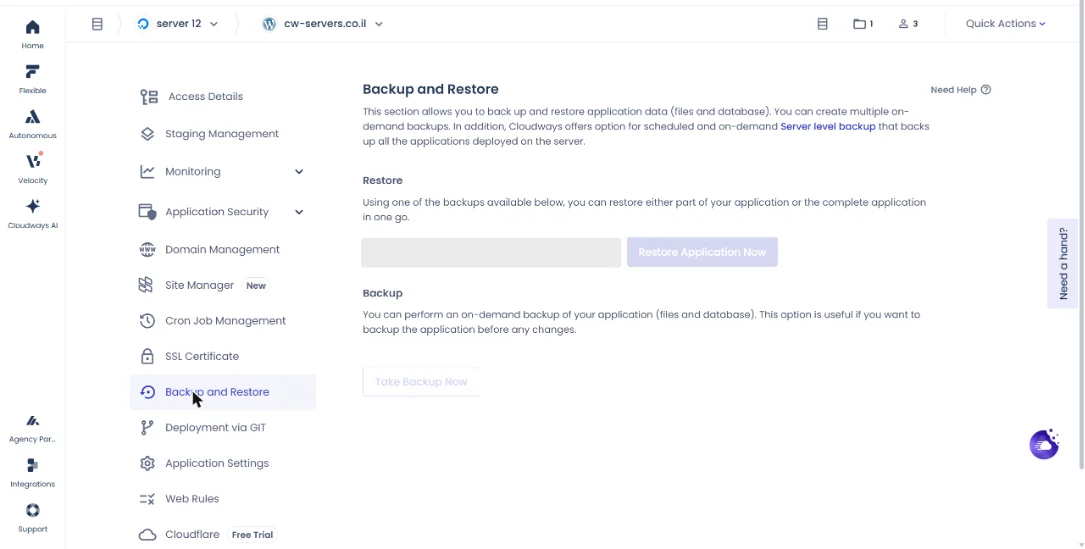
Cleanup is a topic of its own, with three approaches: manual, with a plugin, or automatic server-level cleanup. The full comparison, including the steps, is in my guide how to remove malware from a WordPress site.
After a restore, even from a clean backup, you still need step 8. The restore puts the site back in the state where it was vulnerable. If you don’t close the hole, the same bot will get in again.
8. Close the hole
- Update WordPress core, every plugin and the theme. Start with the ones the Vulnerability Scanner flagged.
- Delete (don’t just deactivate) plugins and themes you’re not using.
- Replace any “nulled” plugin or theme (a premium version downloaded for free from an unofficial site). These are a very common source of backdoors.
- Replace the security keys (salts) in
wp-config.php. This logs out every signed-in user, including the attacker. - Check that there are no PHP files in the uploads folder, and no cron jobs or users you don’t recognize.
Worth knowing: Cloudways itself states that its Malware Protection cleans the malware but doesn’t provide a full investigation into how the hack happened. That’s true of every automated tool. If you can’t find the hole yourself, this is the point to pay a security specialist.
9. Win back Google’s trust
If Google flagged the site, the warning won’t disappear on its own right after the cleanup. In Google Search Console, in the Security issues report, mark the issues as fixed and submit a review request (Request review). In the request, briefly say what you did: what was deleted, what was updated and which passwords were changed. If spam pages were added to the index, request their removal with Search Console’s removals tool, and return a 404 or 410 status for those URLs.
10. Protection and monitoring, so it doesn’t happen again
- Server-level protection instead of (or in addition to) a security plugin. The difference is explained in the next section.
- Backups with long retention (at least two weeks), so you always have a backup from before a hack.
- Regular updates, ideally tested on a staging environment before they go to the live site.
- Two-factor authentication for every user with admin rights, and as few of those users as possible.
The code BFCM802 takes 80% off your bill for the first two months (up to $200 off per month), including unlimited free site migrations. New customers only, and only until the offer ends.
The offer ends on December 4, 2026 at 23:59 (UTC+2).
Start with a free trial, no credit card. Enter the code at checkout and check that it shows up.
After Black Friday: 30% off for 3 months with the code ASAEL. On a large server (above about $444 a month) ASAEL already saves more today. BFCM802 vs. ASAEL calculator
Start a free trial server, no credit card. When you move to a paid plan, the code ASAEL takes 30% off your bill for the first three months.
The link fills in the code on the signup form. Just make sure it shows up.
The site redirects to another site: where the code hides
A malicious redirect is the most common sign of a hacked WordPress site, and also the most frustrating, because sometimes it only shows up for some visitors. The usual places the code sits:
- The
.htaccessfile: redirect rules that only fire when the visitor comes from Google (by checking the referrer). - The database: a changed site address (
siteurl,home) in the options table, or JavaScript injected into posts, widgets or theme settings. - Theme files, mainly
functions.php,header.phpandfooter.php. - WordPress core files such as
index.phporwp-config.php.
Because some redirects are stored in the database, cleaning files alone sometimes isn’t enough. That’s one reason to choose a tool that also scans the database. A good check after cleanup: visit the site from a mobile device, from a private browsing window, and through a Google search result, because that’s exactly the scenario the attacker targets.
Why server-level protection is stronger than a security plugin
A security plugin runs inside WordPress, in the same layer as the malware. Malware that has gained write access can switch the plugin off, modify it or hide from it. Server-level protection runs outside the site, so code planted in the site can’t disable it.
On Cloudways, as of November 2026, protection is built in layers:
| Layer | What it does | Cost |
|---|---|---|
| Server-level firewall (Imunify360) | Filters malicious traffic, DoS and brute-force protection on SSH and HTTP, IP and country blocking, a honeypot for bots | Included on Flexible servers |
| Bot Protection | Blocks harmful bot traffic | Included |
| Vulnerability Scanner (Patchstack) | Alerts on vulnerabilities in WordPress core, plugins and themes | Included |
| Malware detection | Scans and flags an application as infected | Included on Flexible |
| Malware Protection (add-on) | Automatic cleanup of files and database, RASP that blocks malicious code at runtime, link scanning, free manual cleanup if the automatic one fails | $4 per application per month (1–5 applications), $3 (6–15), $2 (16 and up) |
Full details on the add-on, including how to turn it on, are in my Malware Protection guide, and the other add-ons and their prices are in the add-ons price list. A broader overview of every security layer: website security.
Should you switch hosts after a hack?
Sometimes yes, but not in the middle of the incident. Moving an infected site moves the malware too. The right order: clean up, close the hole, make sure the site is clean, and only then migrate.
When does moving actually help? When the hack came through the hosting: shared hosting where an infected neighboring site spread to yours, an old PHP version the host doesn’t update, or when there are no reliable backups and no scanning tools. In cases like that, a server with dedicated resources, server-level protection and a daily backup changes the picture. Your first migration to Cloudways is free (details on the free migration).
And when won’t it help? If the hack came from a weak password, a nulled plugin or an infected computer belonging to whoever manages the site. Better hosting won’t fix a problem that sits on your side. Be honest with yourself about the cause before you pay for a move.
What are the common mistakes after a hack?
Cleaning before changing passwords: the attacker gets back in with the old password. Always change them first.
Deleting “everything that looks suspicious” without a copy: it’s easy to delete an essential core file. Keep a copy before any deletion (step 3).
Restoring a backup without checking the date: if the backup is from after the hack started, you’ve restored the malware. Scan again after the restore.
“I deactivated the vulnerable plugin”: a deactivated plugin still sits on the server, and its files are still reachable. Delete it. A well-known example is the hack through the WP File Manager plugin.
Cleaning files only: redirects and scripts injected into the database stay behind. Scan the database too.
Waiting for Google to “figure it out”: without a review request in Search Console, the warning can stay up for a long time even after the site is clean.
The offer ends on December 4, 2026 at 23:59 (UTC+2).
Start with a free trial, no credit card. Enter the code at checkout and check that it shows up.
Start a free trial server, no credit card. When you move to a paid plan, the code ASAEL takes 30% off your bill for the first three months.
The link fills in the code on the signup form. Just make sure it shows up.
Frequently asked questions
Isolate the site (maintenance mode or stopping access at the server), save a copy of its current state and change every password. Only after that do you clean or restore. The order matters: cleaning before changing passwords lets the attacker come back.
Because the malware checks where the visitor came from and only fires the redirect for visitors from search or on mobile. That way the site owner, who visits directly, doesn’t notice. The code usually sits in the .htaccess file, in theme files or in the database.
Only if the backup was made before the hack started. Even then, the site goes back to the state where it was vulnerable, so you need to update plugins and change passwords right after the restore. On a store, restoring the database will wipe new orders.
Restoring a clean backup takes minutes to an hour, depending on the site’s size. Manually cleaning a site with lots of infected files can take a full working day. Getting a Google warning removed after a review request usually takes a few days.
Usually not. In most cases the hack comes from an outdated plugin or theme, or a weak password. Hosting can be a factor with shared hosting where a neighboring site is infected, or with an old PHP version, and then moving to an isolated server helps.
With the Malware Protection add-on, yes: it cleans files and the database automatically, and if the automatic cleanup fails, support cleans it manually at no extra charge. Without the add-on, Flexible servers detect malware for free but don’t remove it. Investigating the source of the hack isn’t included.
Possibly. If customers’ personal data was exposed, or could have been, data protection laws in many jurisdictions (the GDPR in the EU, for example) can impose reporting and notification duties, depending on the type of data and the extent of the exposure. This is general information, not legal advice: talk to a lawyer who specializes in privacy and check your data protection authority’s guidance. If only a redirect was injected, with no access to personal data, there may be no such exposure, but verify that rather than assume it.
Related guides
- How to remove malware from WordPress: manual, plugin or server-level cleanup
- Cloudways Malware Protection: automatic malware cleanup
- Backing up and restoring a site on Cloudways
- Website security: every layer
- Site down: a 5-minute check
- My full review: hosting on Cloudways
- All security guides: security guides
Sources
- How to Use Malware Protection to Protect Your Applications
- How to Do a Point-in-time Restore of Your Application
- How to Configure a Server-level Backup
- How to Stop Access to Your Application
- Vulnerability Scanner
- Cloudways Managed Security
- Security issues report
Official sources: How to Use Malware Protection to Protect Your Applications, How to Do a Point-in-time Restore of Your Application, How to Configure a Server-level Backup, How to Stop Access to Your Application, Vulnerability Scanner (Cloudways Knowledge Base); Cloudways Managed Security; Security issues report (Google Search Console Help). Written and reviewed by Asael Dreyer · Updated: 6 Nov 2026
Disclosure: this is an independent site, not the official Cloudways site. Some links on this site are affiliate links: if you sign up through them we earn a commission, at no extra cost to you. Full details