
Last updated: · By Asael Dreyer
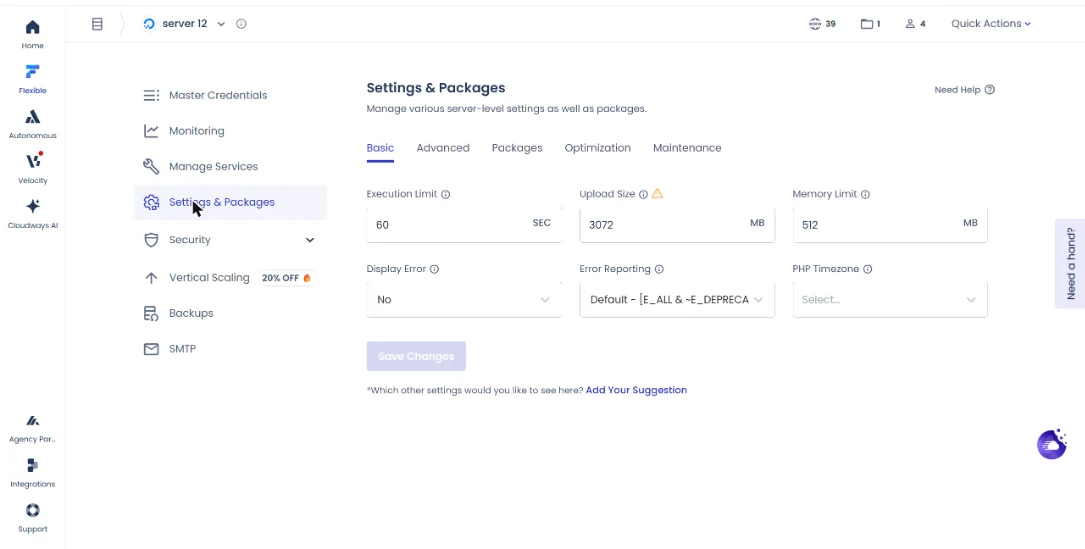
Short answer: to raise the WordPress memory limit, upload size or execution time on Cloudways, there are two levels. At the server level, go to Settings & Packages > Basic and change Memory Limit, Upload Size and Execution Limit for every site on the server. For a single application, use the application’s PHP Settings editor with lines like php_admin_value[memory_limit] = 512M, and that setting overrides the server setting.
What these settings do, and why they are limited
Before you change any numbers, it helps to understand what each setting controls and why a very high value is not always better.
PHP is the language that runs WordPress. Every request for a page that is not cached starts a PHP process, and the server sets limits on every process: how much memory it may use, how long it may run, and how large a file sent to it can be. These limits protect the server: a single stuck script cannot eat all the memory and take down the other sites.
| Setting | What it controls | Server default (according to Cloudways) | When to raise it |
|---|---|---|---|
memory_limit | The maximum memory a single PHP request can use | 256MB | An “Allowed memory size exhausted” error, heavy page builders, large imports |
upload_max_filesize + post_max_size | The maximum file or request size | 100MB (Upload Size) | Uploading video, theme files or large backups |
max_execution_time | How many seconds a script may run | 300 seconds (Execution Limit) | Product imports, creating a backup with a plugin, timeout errors |
max_input_time | Time allowed for parsing input data | 60 seconds | Long uploads on a slow connection |
max_input_vars | How many fields may be sent in one form | 10,000 | Huge menus or settings forms that get cut off when saving |
The official recommended ceilings: Execution Limit under 900 seconds, Upload Size under 500MB, and Memory Limit according to server size (see the table below). A value that is too high lets a single process choke the server, so raise it only as much as you need.
Which level to change: server or application?
Cloudways has two places to change PHP settings, and choosing the right one saves confusion.
| Level | Where | What it applies to | Best for |
|---|---|---|---|
| Server | Server > Settings & Packages > Basic / Advanced | All applications on the server | A general, simple change, without writing code |
| Application | Application > Settings > PHP Settings (PHP-FPM editor) | One application only | A single site that needs more, or directives that are not in the form |
The order of priority, according to the documentation: application settings override server settings. Inside the application, code that uses ini_set can override php_value and php_flag directives, but it cannot override php_admin_value and php_admin_flag. So when you want a value to hold, use the admin version.
What should you prepare before you start?
- Permission for the server (for the server level) or the application (for the editor).
- Make sure this really is the problem: check the error log. A memory or timeout error is written there explicitly.
- If you previously added
php_valueorphp_flaglines to the.htaccessfile, be ready to comment them out. Otherwise you will get an Internal Server Error or a white screen. - The PHP version is a separate setting. To change it, see how to change the PHP version on Cloudways.
How do you change it at the server level (Settings & Packages)?
The simple way, with a form and no code. It suits cases where every site on the server needs the same increase.
- Open the server in the platform and click Settings & Packages.
- On the Basic tab change Execution Limit, Upload Size or Memory Limit.
- On the same tab you can also choose the PHP Timezone (for example Europe/Berlin or America/New_York), and leave Display Error on No.
- Click Save Changes.
How much memory_limit to set for your server size
Cloudways recommends a ceiling based on the amount of RAM on the server:
| Server RAM | Recommended Memory Limit (per request) |
|---|---|
| 1GB | Under 512MB |
| 2GB | Under 1024MB |
| 4GB and up | Under 2048MB |
Note that this is memory per request. If ten heavy requests run at once, each one can take up to the ceiling. On a 1GB server, a value of 512MB is a ceiling for edge cases, not an everyday working value. For most sites the default (256MB) is enough, and you raise it only when the log shows an actual memory error. If you build with a heavy page builder or run a large store, you may need more.
Advanced settings on the Advanced tab
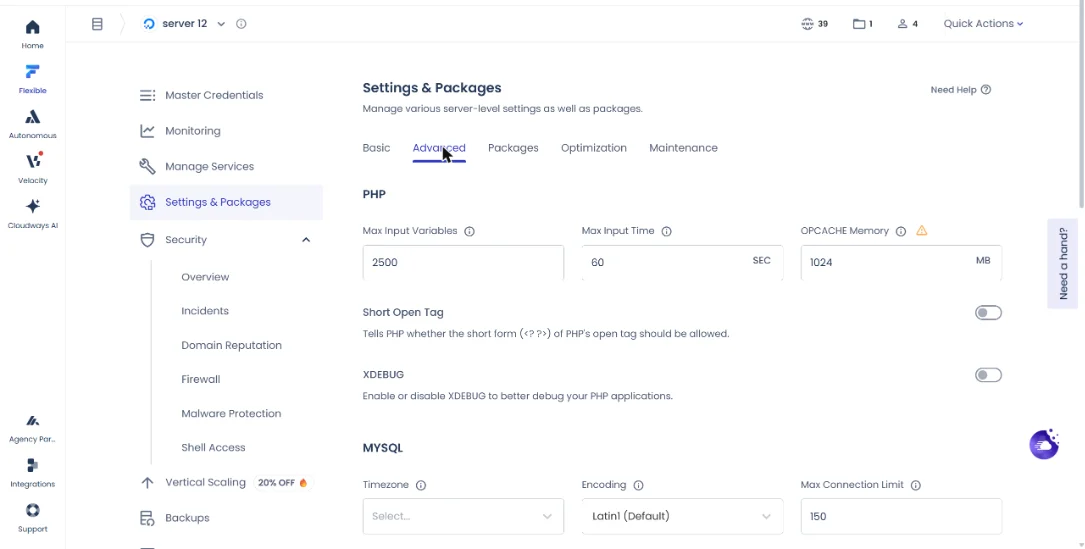
The Advanced tab has more PHP settings: Max Input Variables (default 10,000, recommended under 15,000), Max Input Time (default 60 seconds, recommended under 300), Opcache Memory and xDebug. On the same tab, under Apache, there is the Request Body Size Limit (default 128MB). If you raised Upload Size above that and large uploads still fail, this is the next place to check. The server settings and services guide explains the whole tab.
How do you change it for a single application (PHP Settings editor)?
When only one site needs more memory, or when you want a directive that is not in the form, use the application’s PHP-FPM editor.
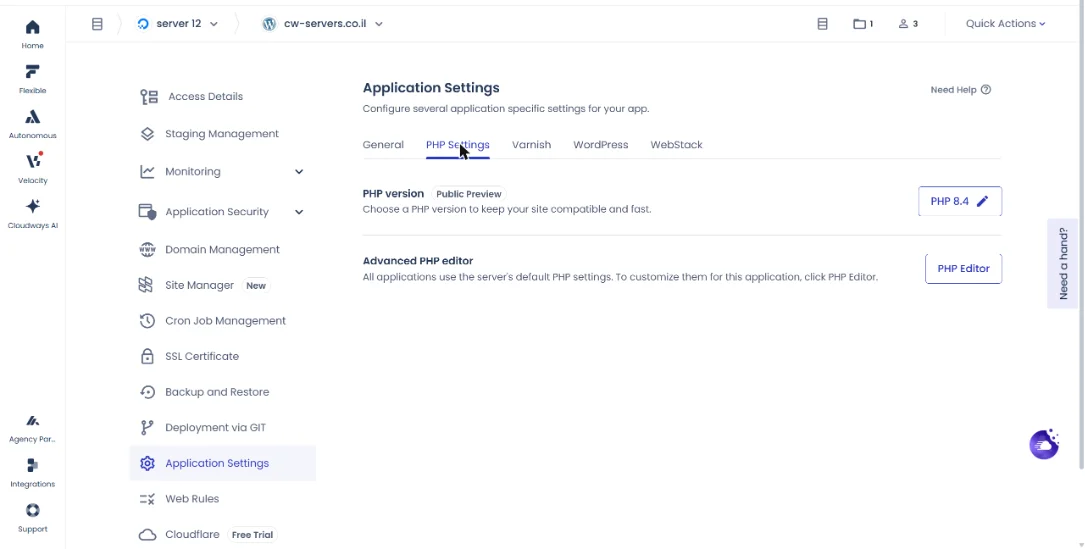
- Open the application in the platform and go to Application Settings (in the new interface: Settings).
- Choose the PHP Settings tab. Above the editor there is also a PHP version selector.
- Add one line per directive, in the format that fits its type (see below).
- Make sure there is no semicolon (;) at the start of the lines you added. A semicolon turns the line into a comment, and it will not take effect.
- Save, and load the site to check that everything is fine.
Four types of directives
The editor accepts only four types: php_flag and php_admin_flag for On/Off values, and php_value and php_admin_value for everything else. An example for a WordPress site with a heavy page builder that also accepts large uploads:
php_admin_value[memory_limit] = 512M
php_admin_value[upload_max_filesize] = 256M
php_admin_value[post_max_size] = 256M
php_admin_value[max_execution_time] = 300
php_admin_value[max_input_time] = 300
php_admin_value[max_input_vars] = 5000
php_admin_value[date.timezone] = Europe/Berlin
php_admin_flag[log_errors] = on
php_admin_flag[display_errors] = off
Tip: post_max_size should be equal to or larger than upload_max_filesize, because the file is sent inside a POST request. If only one of them was raised, the upload still stops at the lower limit.
The editor is powerful, and a wrong line can break the application. If you are not sure about the format, use the server-level settings. Redirect rules and URL rewrites are not written here but in .htaccess or in Web Rules.
WordPress memory limit: WP_MEMORY_LIMIT vs. the server setting
Many guides suggest adding WP_MEMORY_LIMIT to wp-config.php. Here is how that fits with Cloudways’ settings.
WP_MEMORY_LIMIT is a WordPress constant that tries to raise memory from inside the code, through ini_set. It can only work within what the server allows. If you set php_admin_value[memory_limit] in the Cloudways editor, WordPress code cannot override that value. My recommendation: manage memory in the platform, and do not scatter settings across wp-config, .htaccess and the editor. That way there is one place that decides the value.
To check what WordPress actually sees, go to Tools > Site Health > Info in the dashboard and open the Server section. The memory limit and the maximum upload size are listed there.
Large uploads on WordPress Multisite
On a Multisite network there is one more limit that most admins miss.
In the network admin dashboard go to Settings > Network Settings, and change Max upload file size. The Multisite default is only 1500KB. This setting cannot exceed the server limit: if the server is set to 20MB, you cannot allow 25MB on the network. But if the server is at 20MB and the network at 15MB, raise the network to 20MB and the problem is solved. More on networks in the guide to Multisite on Cloudways.
How do you enable blocked PHP functions?
Some plugins and development tools need a function that Cloudways blocks by default. You can open it up, but first understand why it is blocked.
Most of PHP’s built-in functions are enabled. A few dozen are blocked for security reasons, because an attacker who takes over a site could use them to run system commands. Among them: exec, shell_exec, system, passthru, proc_open, popen, symlink, putenv, and the posix_* and socket_* functions.
How do you know this is the problem? The error log shows a message like symlink() has been disabled for security reasons. If there is no such message, enabling a function will probably not fix the problem.
- Check the error log to see exactly which function is blocked.
- Open the application > Settings (in the older documentation: Application Settings) > PHP Settings.
- Scroll in the editor to the list of blocked functions.
- Remove from the list only the function you need (for example
shell_exec), and leave the rest. - Save and check that the error is gone.
Cloudways explicitly recommends not opening all the functions, and consulting a developer before making the change. The change applies to this application only. On Magento 2, the functions exec, symlink and putenv are open by default because the system needs them, and even then the recommendation is to keep everything updated and consider Malware Protection.
And on Cloudways Autonomous?
Autonomous has no free-form PHP-FPM editor. The settings are under My Applications > the application > Workflow/Tools > PHP Settings, in a form with the fields Memory Limit, Execution Time, Max Input Time, Post Max Size, Max Upload Size, Max Input Variables and PHP Timezone (with an Auto Detect button). For the differences between the platforms, see the guide to Cloudways Autonomous.
Common mistakes and troubleshooting
You changed it and nothing changed: check whether the application has its own setting in the editor. It overrides the server setting. Also check whether a plugin or wp-config changes the value with ini_set (relevant only to directives without admin).
A white screen or Internal Server Error after the change: there are probably php_value lines in .htaccess, or a line in the wrong format in the editor. Comment out the .htaccess lines and fix the editor.
You added a line and it does not work: check that there is no ; at its start and that the square brackets are correct.
“The uploaded file exceeds the upload_max_filesize directive”: raise both upload_max_filesize and post_max_size, and check the Request Body Size Limit. For more cases see WordPress upload errors.
A long import stops halfway: raise max_execution_time for the import only, then put it back. Heavy recurring tasks are better run as a Cron or with WP-CLI rather than through the browser.
You raised memory_limit to a huge value and the server started crashing: several heavy requests at once can take all the RAM. Go back to a value from the recommendations table, and check server monitoring.
The code BFCM802 takes 80% off your bill for the first two months (up to $200 off per month), including unlimited free site migrations. New customers only, and only until the offer ends.
The offer ends on December 4, 2026 at 23:59 (UTC+2).
Start with a free trial, no credit card. Enter the code at checkout and check that it shows up.
After Black Friday: 30% off for 3 months with the code ASAEL. On a large server (above about $444 a month) ASAEL already saves more today. BFCM802 vs. ASAEL calculator
Start a free trial server, no credit card. When you move to a paid plan, the code ASAEL takes 30% off your bill for the first three months.
The link fills in the code on the signup form. Just make sure it shows up.
Sources
The official sources this page is based on (checked on 7 Nov 2026):
- Cloudways Knowledge Base: How to manage your server settings
- Cloudways Knowledge Base: How to customize php settings for your application
- Cloudways Knowledge Base: How to enable php functions
- Cloudways Knowledge Base: How to increase the max upload size in wordpress
Frequently asked questions
256MB per PHP request. You can change it under Settings & Packages > Basic for the whole server, or in the PHP Settings editor for a single application. Cloudways recommends a ceiling based on server size: under 512MB on a 1GB server, under 1024MB on a 2GB server.
Usually there is no need. On Cloudways it is better to manage memory in the platform, because a php_admin_value setting in the editor cannot be overridden from code. That way one place decides the value.
Check that post_max_size is at least as large as upload_max_filesize, and that the application’s setting is not lower. On the Advanced tab there is also Apache’s Request Body Size Limit, whose default is 128MB. On Multisite there is one more limit in Network Settings.
A change in the server-level form should not take it down. In the application editor, a line in the wrong format, or php_value lines left in .htaccess, can cause a 500 error. So change one line at a time and test.
Yes, at the application level. You remove the function from the list of blocked functions in the PHP Settings editor. Cloudways recommends opening only what you really need and consulting a developer, because these functions are blocked for security reasons.
On the server’s Basic tab choose PHP Timezone, or add php_admin_value[date.timezone] = Europe/Berlin (or your own time zone) in the application editor. This affects dates that PHP generates, separately from the time zone setting inside WordPress.
Related guides
- Server settings and services: packages, PHP-FPM and maintenance
- How to create Cron Jobs and disable WP-Cron
- Databases on Cloudways: access, import and export
- Web Rules, htaccess and robots.txt
- All guides on this topic: Cloudways server and application settings
- Still choosing a host? The full Cloudways review
Official source: How to Customize PHP Settings for Your Application, How to Increase the Max Upload Size in WordPress, How to Enable PHP Functions, How to Manage Your Server Settings (Cloudways Knowledge Base). Written and checked by Asael Dreyer · Updated: 6 Nov 2026
Disclosure: this is an independent site, not the official Cloudways site. Some links on this site are affiliate links: if you sign up through them we earn a commission, at no extra cost to you. Full details

