
Last updated: · By Asael Dreyer
In short: Cloudways billing is pay-as-you-go. Every Flexible server is metered by the hour, and on DigitalOcean, Vultr and Linode there is a monthly cap, so a full month never costs more than the plan’s monthly price. On AWS and Google Cloud you always pay by the hour, with no cap. The invoice is generated on the 1st of each month for the previous month’s usage, in US dollars, and charged automatically to a credit card or PayPal.
How Cloudways billing works: three principles
Before getting into numbers, it helps to understand the logic. Three principles explain almost every line on the invoice.
- Pay-as-you-go. There is no annual contract and no paying a year upfront. A server that runs for ten days is billed for ten days, and a server you delete stops accruing charges the moment it is gone.
- Billing in arrears. Cloudways does not charge at the start of the month for the month ahead. It adds up what you used last month and bills you on the 1st of the following month.
- Everything is in dollars. As of November 2026, every transaction on the platform is in USD only, and you cannot change the account currency.
In practice this means you can spin up a test server, work on it for two days, delete it and pay only for those hours. On the flip side, anything left running in the background keeps costing money, even if nobody visits the site.
What exactly you pay for
The monthly invoice is made up of several types of line items. The table shows how each one is calculated.
| Item | How it is calculated | Example |
|---|---|---|
| Flexible | Hourly for each running server, summed into one monthly invoice | A DigitalOcean, Vultr, Linode, AWS or Google Cloud server |
| Autonomous | Hourly for each application, for the time it is active, including automatic scaling (Autoscaling) | A WordPress site on an Autonomous plan |
| Client Billing | A separate monthly subscription based on the plan you choose | An agency that bills its clients through the platform |
| Copilot | A monthly subscription based on a credit plan. Starter is free for accounts that meet Cloudways’ eligibility terms (per the product page); Growth and Scale are paid | AI-assisted monitoring and troubleshooting |
| Add-ons | Third-party add-ons are billed for a full month from the moment you activate them | DNS Made Easy, email services |
| Overages and extra usage | Based on actual consumption | Off-site backups, bandwidth over the quota, a cloned server |
Pay attention to the add-ons row: an add-on such as DNS Made Easy that you activate and delete in the same month still appears on the invoice for the whole month. That is the main difference from a server, which is billed by the hour. You will find a full explanation of every add-on and its price in the Cloudways add-ons guide.
Hourly vs monthly billing
This is the part that confuses people most, because both terms are correct at the same time. Cloudways always measures hours; the only question is whether there is a monthly cap.
DigitalOcean, Vultr and Linode: hourly with a cap
Every plan from these three providers has an hourly price and a monthly price. You can see the full prices on the Cloudways DigitalOcean pricing page, the Cloudways Vultr pricing page and the Cloudways Linode pricing page. As long as the server has not run for a full month, you pay hours times the hourly rate. Once it runs the whole month, billing stops at the monthly price and does not go above it, even in a 31-day month.
An example from the official documentation: a 48GB DigitalOcean Premium server has a cap of $388 per month and a rate of $0.5774 per hour. Such a server that ran for 666 hours in July cost $384.54, which is below the cap. The cap only kicks in after 672 hours, which is 28 full days.
A smaller example, based on the pricing page in November 2026: a 1GB DigitalOcean Premium server costs $14 per month, or $0.0208 per hour. If you launched it for ten days to build a client site and then deleted it, you would pay roughly 240 × 0.0208 = about $5. The cheapest Cloudways plan currently starts at $11 per month (DigitalOcean Standard, 1GB).
AWS and Google Cloud: hourly with no cap
On AWS and Google Cloud (GCE) servers there is no monthly price that stops the billing. Every hour is charged, so a 31-day month costs a little more than a 30-day month. There is one more difference: AWS and GCE usage data (traffic, disk, snapshots) from the last two or three days of the month reaches Cloudways late from the providers, so it shows up on the following month’s invoice as “carry-forward” lines.
| Situation | DigitalOcean, Vultr, Linode | AWS, Google Cloud |
|---|---|---|
| The server ran the whole month | The monthly price (the cap) | All hours times the hourly rate, no cap |
| The server ran for part of the month | Hours times the hourly rate | Hours times the hourly rate |
| You scaled the server up or down mid-month | Each size is billed for the hours it ran, and the cap does not apply | Each size is billed for the hours it ran |
| You stopped the server (Stop) | Billing continues, because the IP and disk are still reserved for you | A small storage charge remains |
| You deleted the server | Billed until the moment of deletion, then nothing | Billed until the moment of deletion, then nothing |
The most common mistake: stopping a server and assuming the billing stops. On DigitalOcean, Vultr and Linode, stopping does not save money. To stop paying, you have to delete the server, and it is wise to back it up first. If you are resizing a server, read the guide to scaling a server to understand the effect on your bill as well.
Which extra charges should you know about?
Beyond the server itself, a few small lines can show up on the invoice. None of them are hidden, but they surprise people who did not expect them.
- Off-site Backup: according to the pricing page, $0.033 per GB of backup storage. A large site with a long backup retention period generates most of this charge.
- Bandwidth over the quota: every plan includes a set amount of bandwidth, and going over it is billed at the provider’s rate.
- Cloned server (Clone): cloning a server creates a brand-new server, and it is billed separately until you delete it.
- DNS Made Easy: the quota is 500,000 DNS queries per month per domain. Beyond that, you pay $0.10 per additional 100,000 queries, shown as an “Excessive DNS Query Usage” line.
When the invoice arrives and how it is charged
Since 1 May 2026, the invoice is issued on the 1st of each month for the previous month’s usage. Before that, it usually arrived on the 4th or 5th. Cloudways’ FAQ still lists a window of the 1st to the 6th, so do not panic if it arrives a day or two late.
When the invoice is generated, the system covers it in a fixed order:
- Credits and promotional discounts (signup bonus, referral rewards). They expire one year after they are issued.
- Any money you loaded in advance (Prepayments).
- Your primary payment method.
- Your backup payment method, if the primary one fails.
- If everything fails, you receive an email asking you to update your payment details. An automatic retry happens two days later.
One important thing: only one discount code can be active on an account at any time. If you are signing up with a code, choose it up front. The current details on the ASAEL code are on the Cloudways coupon code page.
The Billing area in the dashboard: what each tab does
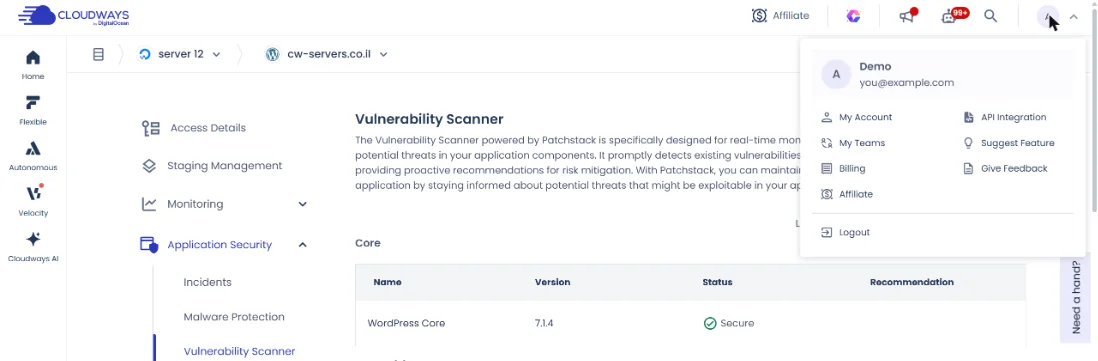
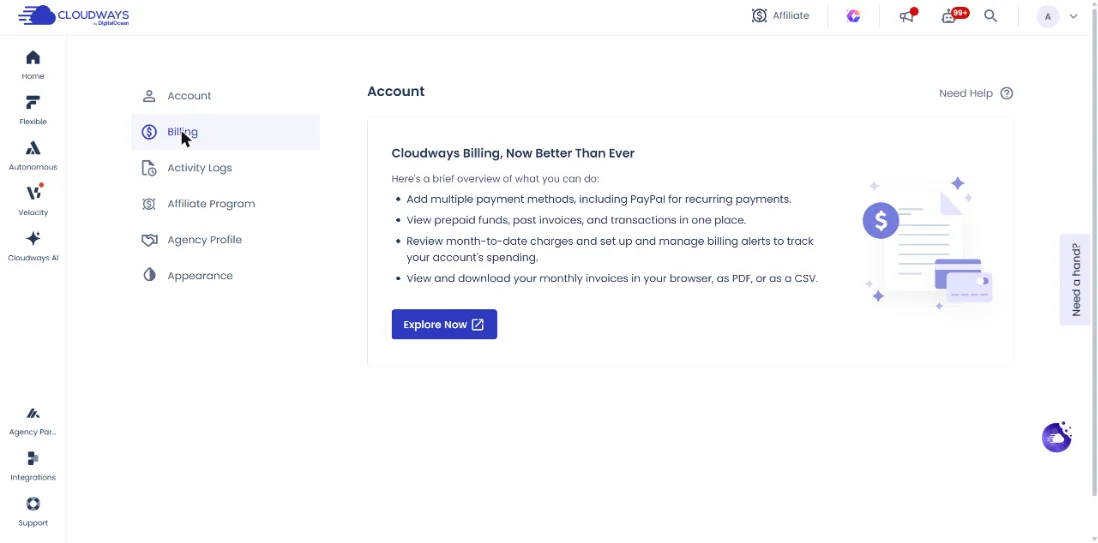
In April 2026, Cloudways moved all the billing pages, which used to be scattered under My Account, into a single area called Billing. Here is how to get there:
- Log in to the Cloudways dashboard.
- Click the profile icon in the top-right corner and choose Billing. The billing area opens in a new window.
| Tab | What you will find | When to open it |
|---|---|---|
| Overview | Estimated amount due, the billing date, any open balance, the prepaid balance you loaded, and a breakdown of month-to-date usage by service | To see how much you will pay this month |
| Billing History | All invoices, payments and prepayments, with PDF or CSV download | For bookkeeping, and to check that a payment went through |
| Credits & Discounts | Promotional credits, active discounts, percentages and expiry dates | To check that a discount code was applied |
| Settings | Billing address, tax location (Tax Location), payment methods and billing alerts | To update a card, edit invoice details or set up an alert |
The amount under Estimated Due is only an estimate. It updates once a day, and the final invoice can differ from it by up to 3%. If you used the old Real-Time Billing screen in the past, you will find the same information today in the Overview tab.
Setting up a billing alert (recommended for every account)
A billing alert emails you when your monthly usage passes an amount you choose. It is the simplest way to catch a forgotten server or an undeleted clone before the invoice arrives.
- In the Billing area, go to the Settings tab.
- Scroll down to the Billing Alerts section and click Enable Alert.
- Enter the amount in dollars under Alert Amount. My rule of thumb: your normal invoice plus 20%.
- Click Save Changes.
To change or turn off an alert, go back to the same place, click the three-dot menu (⋮) and choose Edit Alert or Disable Alert.
Downloading an invoice for your accountant
- In the Billing area, open Billing History.
- Find the invoice and click the three dots at the end of the row.
- Choose PDF (for filing) or CSV (for analysis in a spreadsheet).
A tip from experience: download the invoice at the start of every month and keep it in one folder. That way you will not have to log in to the dashboard every time your accountant asks for a document. For details on adding PayPal, prepaying and fixing a failed payment, see the invoices and payment methods guide.
Can you change the billing date?
No. The billing cycle is fixed and starts on the 1st of every month for all accounts. What you can do is load money in advance, up to 12 months based on your current usage, and later invoices will be deducted from that balance until it runs out. This is useful if you want to pay for a quarter or a year in one go, or if you do not want your site to depend on a credit card’s expiry date.
- In the Billing area, open the Credits & Discounts tab.
- Click Make a Payment.
- Enter an amount under Add a Custom Amount.
- Choose a credit card or PayPal and click Submit Payment.
A prepayment does not create a separate invoice. It appears as a credit entry in Billing History, and each monthly invoice shows how much was deducted from the balance. You can request a refund for an unused balance within three months of the payment date, subject to review by the billing team.
Payment methods, verification charges and tax on your invoice
Cloudways accepts Visa, Mastercard, American Express and Discover credit and debit cards, plus PayPal with recurring payments. PayPal is only available after you have moved from a trial account to a full account, and you can connect only one PayPal account. You can add as many cards as you like, and I recommend setting up at least one backup card.
| What you saw | What it is | Is it a real charge? |
|---|---|---|
| $1 on your credit card after adding it | A temporary authorization to verify the card | No. The amount is released automatically |
| $5 on PayPal after connecting it | A check that the account is active | Yes, but it goes into your balance and is deducted from your next invoice |
| An “Authorization” with no clear amount | A temporary hold by the bank | No. It usually clears within a few days |
Tax on your invoice: according to Cloudways’ documentation, taxes such as VAT or GST are calculated based on your billing country and included on the invoice where the law requires it, and the pricing page states that the displayed prices do not include taxes. In the Settings tab, fill in your business name and your tax details under Tax Location, check what appears on your first invoice, and ask your accountant how to report a service bought from abroad.
One more point: every charge is in US dollars. If your card is not in dollars, your bank may treat each charge as a foreign-currency transaction. Check with your card issuer whether there is a conversion fee; if you have a USD card or a PayPal balance held in dollars, it may save you a few percent over a year.
What happens if an invoice goes unpaid
An expired card is the most common reason for a failed payment. Cloudways runs a staged process, and it is important to know the timeline because at the end of it your data is permanently deleted.
| Day | What happens | Is the site live? |
|---|---|---|
| 1 | The invoice is issued, and the system tries your primary payment method and then your backup. If everything fails, an email is sent | Yes |
| 7 | Access to the dashboard is blocked, except for the Billing area. You get a warning that suspension will happen in 48 hours | Yes |
| 10 | All servers and applications are stopped. The data still exists but is not accessible | No |
| 13 | Applications and servers are deleted, and a final warning about backups is sent | No |
| 28 | Server backups and all data are permanently deleted, with no way to restore them | No |
As soon as you get an email about a failed payment, go to Billing, update the card or load a balance. If you manage client sites, do not rely on a single card: a backup card and a small prepaid balance are cheap insurance.
The code BFCM802 takes 80% off your bill for the first two months (up to $200 off per month), including unlimited free site migrations. New customers only, and only until the offer ends.
The offer ends on December 4, 2026 at 23:59 (UTC+2).
Start with a free trial, no credit card. Enter the code at checkout and check that it shows up.
After Black Friday: 30% off for 3 months with the code ASAEL. On a large server (above about $444 a month) ASAEL already saves more today. BFCM802 vs. ASAEL calculator
Start a free trial server, no credit card. When you move to a paid plan, the code ASAEL takes 30% off your bill for the first three months.
The link fills in the code on the signup form. Just make sure it shows up.
What about Autonomous and Client Billing?
With Autonomous you are billed per application, not per server. Billing is based on the hours the application is active, including extra containers that spin up through automatic scaling, plus a charge for going over the disk space quota (hourly) and bandwidth (monthly). You will find the full pricing, the differences between plans and what happens when you upgrade in the Cloudways Autonomous pricing guide.
Client Billing is a separate subscription for agencies and freelancers who want to bill clients for hosting and services from inside the platform. It appears on your invoice as its own line. How to set it up and price it is covered in the Client Billing guide.
Common mistakes and how to fix them
“I stopped the server and I was still billed”: on DigitalOcean, Vultr and Linode, stopping does not release the resources. Back up and delete the server if you do not need it.
“The invoice is higher than what I saw in Overview”: the estimate updates once a day and can be off by up to 3%. On AWS and GCE servers, look for carry-forward lines from the previous month.
“I was charged for a full month for an add-on I deleted after one day”: this is the official behavior. Third-party add-ons are billed for a full month from the moment of activation. Only turn an add-on on when you are sure you will use it.
“I got an invoice after I cancelled my account”: billing is in arrears. If you cancel on 5 January, you will receive an invoice at the start of February for those five days, and the account is only fully closed once it is paid.
“I can’t add a card”: this is usually a bank block on international transactions, inaccurate details or a failed verification. Make sure the billing address matches the card, try a different card, and if that does not help, contact your bank or Cloudways support.
“I can’t get into the dashboard”: if an invoice has been open for more than a week, access is limited to the Billing area only. Pay the balance and access returns.
Sources
The official sources this page is based on (checked on 7 Nov 2026):
- Cloudways Knowledge Base: Upcoming cloudways billing updates
- Cloudways Knowledge Base: Understanding monthly vs hourly billing on cloudways
- Cloudways Knowledge Base: Guide to billing at cloudways
- Cloudways Knowledge Base: How does cloudways payment system work
- Cloudways Knowledge Base: How can i change my billing date
- Cloudways Knowledge Base: How to manage your cloudways payments
- Cloudways: the official pricing page
Frequently asked questions
At the end. The invoice is issued on the 1st of each month for the previous month’s usage and charged automatically. There is no annual prepayment unless you choose to load a balance.
Yes, on DigitalOcean, Vultr and Linode. The IP and disk stay reserved for you, so billing continues. On AWS and Google Cloud a small storage charge remains. To stop paying, you have to delete the server.
No. All charges are in US dollars and you cannot change the account currency. A card issued in another currency is charged as a foreign-currency transaction, under your card issuer’s terms.
It is a temporary authorization that verifies the card when you add it. It is not collected and is released automatically. On PayPal, by contrast, $5 is charged, goes into your balance and is deducted from your next invoice.
The Overview tab in the Billing area shows an estimated month-to-date amount, after discounts, taxes and balance. It updates once a day and can differ from the final invoice by up to 3%.
No. The billing cycle is fixed from the 1st of the month for all accounts. You can load a balance in advance, up to 12 months based on your usage, so invoices are deducted from the balance and not from your card.
Related guides
- Cloudways Autonomous pricing: how it works and switching plans
- Invoices and payment methods: PayPal, prepayment and failed payments
- Client Billing: billing clients for hosting and services
- Cloudways add-ons: what’s available and what they cost
- Full Cloudways pricing
- All guides in this category: Account and billing guides
Official source: Guide to Billing at Cloudways, How Does Cloudways Payment System Work, How to Manage Your Cloudways Payments, Understanding Monthly vs. Hourly Billing on Cloudways, Upcoming Cloudways Billing Updates, How Can I Change My Billing Date? (Cloudways Knowledge Base) and the pricing page. Written and checked by Asael Dreyer · Updated: 6 Nov 2026
Disclosure: this is an independent site, not the official Cloudways site. Some links on this site are affiliate links: if you sign up through them we earn a commission, at no extra cost to you. Full details

