
Last updated: · By Asael Dreyer
Short answer: good WooCommerce hosting is a server with resources reserved for you, an object cache for the database, frequent backups and a fast way to scale up before a sale. On Cloudways you launch a WooCommerce application in one click, get Redis and Breeze built in and Object Cache Pro for free from a 4GB server, and you can back up as often as every hour. For stores with sharp traffic spikes there is also Autonomous, which scales resources automatically, starting at $99 a month (what Autonomous costs).
Why a WooCommerce store needs different hosting than a brochure site
On a brochure site, most visitors see the same pages, so the server can keep a ready-made copy of every page and serve it fast. In a store that only works for part of the site (torn between WordPress and Shopify? See Shopify vs WooCommerce). The cart, the checkout page and “My Account” are dynamic pages: they are different for every customer, so they can’t be served from a full-page cache. If you’re thinking of leaving Shopify, read about moving from Shopify to WooCommerce.
That means every click on “Add to cart” and every payment makes the server do real work: it runs PHP, sends queries to the database and updates stock. In a store with lots of products, variations and orders, the database grows fast. So what mostly decides how fast a store is:
- CPU and memory you don’t share with other people’s sites, so under load your store doesn’t wait in line.
- An object cache, which keeps the results of repeated queries in memory instead of asking the database again and again.
- A maintained database, without tables bloated by old orders, transient data and removed plugins.
- The ability to scale up fast before a sale, and go back to normal size afterwards.
What Cloudways gives a WooCommerce store
These are the components that matter most to stores, according to the Cloudways WooCommerce hosting page and knowledge base:
| Component | What it does for a store | Availability |
|---|---|---|
| One-click WooCommerce application | WordPress with WooCommerce, preconfigured for a store | All servers |
| Redis | An in-memory object cache that reduces load on the database | All servers |
| Object Cache Pro | A commercial, advanced object cache for WordPress | Free on Flexible servers of 4GB and up; included in Autonomous (with Relay) |
| Breeze | The Cloudways cache plugin, preinstalled. You can also use WP Rocket or W3TC | All servers |
| Server-level page cache | Serves product and category pages fast (on the Hybrid Stack it’s Varnish) | All servers |
| Automatic backups | You can set a frequency of up to one backup every hour | All servers |
| Staging | Test WooCommerce, theme and plugin updates on a copy | All servers |
| Cloudflare Enterprise | An edge CDN and cache, advanced protection | An add-on on Flexible (from $4.99); included in Autonomous |
| Automatic scaling and high availability | The site is spread across several servers and grows under load | Autonomous |
The full explanation of each cache layer, and when to enable what, is in the guides Object Cache Pro on Cloudways, setting up Breeze and Varnish on Cloudways.
An important tip for setup: according to the Cloudways knowledge base, it’s better to launch a WooCommerce application from the start, rather than installing the WooCommerce plugin on a regular WordPress application. That way the server’s cache is configured as a store from day one, including the cart and checkout exclusions.
Flexible or Autonomous for a store?
Both plans suit stores, but different kinds of stores.
| Flexible | Autonomous | |
|---|---|---|
| Starting price | DigitalOcean Premium 4GB server: $54 a month | Growth: $99 a month (Scale $199, Plus $399) |
| Number of stores | As many as the server can hold | One store per plan |
| Sudden load | You have to scale the server up in advance | Scales automatically, billed hourly beyond the base |
| High availability | One server | The site is spread across several servers |
| Technical control | Full: PHP, stack, SSH, Git | Intentionally limited |
| Fits | Most stores, and agencies with several stores | One store with launches, campaigns and flash sales |
On Autonomous you can set a maximum budget for the automatic scaling, and when you reach it the scaling stops. That prevents a surprise on your bill after a busy weekend. All the prices for both plans are in the Cloudways pricing guide.
What server size does a store need?
There’s no official table for this, because everything depends on the number of products, the volume of orders and your plugins. This is my starting point, from experience with client stores:
| Type of store | Starting point | Why |
|---|---|---|
| A new store, dozens of products, few orders | 2GB | Enough to start, and easy to scale up when sales begin |
| An active store with daily orders | 4GB | You get Object Cache Pro for free, and there’s headroom for load |
| A large catalog, many variations, campaigns | 8GB and up, or General Purpose | More memory for the database and more CPU for checkout pages |
| A store that lives off flash sales | Autonomous | Automatic scaling without guessing in advance |
The sign that you need to scale: CPU or memory usage that stays above 80% in the monitoring tab. For how to actually scale, see how to increase a server’s RAM on Cloudways. A store on Magento needs a stronger server from the start, see Magento hosting.
How to set up a WooCommerce store on Cloudways, step by step
- Log in to the panel, open Flexible and start launching a new server or application.
- Under Choose your Application Type, select WooCommerce.
- Pick a stack: Lightning Stack for a new store, or Hybrid Stack if you’re migrating a store that relies on .htaccess rules.
- Choose a cloud provider and a location close to your buyers. For a European audience, for example, Frankfurt is a good choice; otherwise pick the region nearest to where most of your customers are.
- Choose a server size from the table above, and click Launch Now.
- Once the server is ready, enable Redis under Manage Services, and on a server of 4GB or more enable Object Cache Pro as well.
- Set up server-level backups at a frequency that matches your order rate.
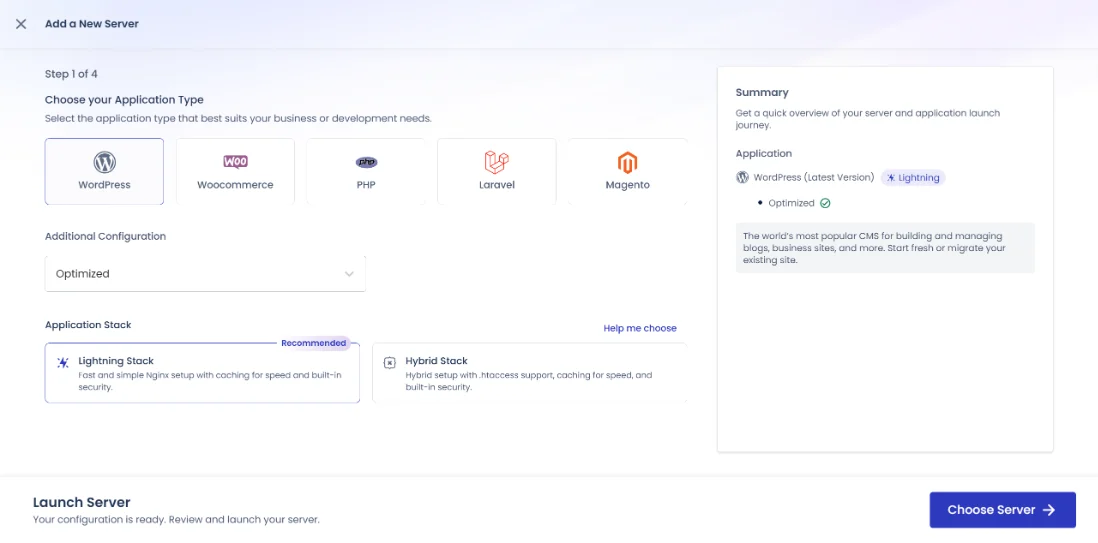
The guide how to open a trial account and launch your first server walks through every screen of the setup, with screenshots.
The code BFCM802 takes 80% off your bill for the first two months (up to $200 off per month), including unlimited free site migrations. New customers only, and only until the offer ends.
The offer ends on December 4, 2026 at 23:59 (UTC+2).
Start with a free trial, no credit card. Enter the code at checkout and check that it shows up.
After Black Friday: 30% off for 3 months with the code ASAEL. On a large server (above about $444 a month) ASAEL already saves more today. BFCM802 vs. ASAEL calculator
Start a free trial server, no credit card. When you move to a paid plan, the code ASAEL takes 30% off your bill for the first three months.
The link fills in the code on the signup form. Just make sure it shows up.
How to move an existing store to Cloudways without losing orders
Moving a store differs from moving a brochure site in one thing: orders keep coming in during the migration. If you copy the store in the morning and switch DNS in the evening, the orders from the hours in between stay on the old server.
- Move a first copy using the Cloudways migration plugin, or ask for a managed migration. Migrating a WordPress WooCommerce site is free.
- Pick a quiet hour and put the old store into maintenance mode so no new orders come in.
- Sync the latest database, or run the migration again.
- Switch the A record, install SSL, and test one real order.
Full migration instructions are in the guide to migrating a site to Cloudways, and for pointing a domain from your registrar to the new server see how to connect a domain to Cloudways.
Store specifics: payment gateways, emails and server location
A few points that matter especially for stores selling to customers in a specific country or region:
- The server’s IP address changes. Some payment providers and invoicing systems restrict access to approved IP addresses. Before the move, check with your payment provider whether the new server’s IP needs to be approved. You’ll find the address in the server details in the panel.
- Order emails. Cloudways doesn’t send email from the server without setup. Connect SMTP, for example Elastic Email, or Gmail SMTP (according to the Cloudways setup article it’s limited to about 100 emails a day, so it only suits a small store). See setting up WP Mail SMTP on Cloudways.
- Server location. Choose a data center close to your buyers. For a European audience, a server in Frankfurt with a CDN gives good performance. If you have a requirement to keep data in a specific country, check which regions Vultr, Google Cloud and AWS offer there (the price is higher on Google Cloud and AWS).
- Peak seasons. Black Friday, the holidays and local sale days bring sharp loads. Scale the server up a few days before, not on the day itself.
7 ways to keep a store fast over time
Good hosting is only half the job. These are the things I check on every store I maintain:
- Clean the database. Transient data, old product revisions and tables from removed plugins slow down queries. Clean after a backup. On a large store it’s also worth looking at HPOS in WooCommerce.
- Keep variations in proportion. A product with hundreds of variations is heavy to load. Where possible, use attributes instead of creating a variation for every combination.
- Compressed, right-sized images. A 4MB image on a category page will slow every purchase. Compress, scale down to the display size, and enable lazy loading.
- Server cron. On busy stores it’s better to run WordPress’s scheduled tasks from Cron Job Management on the server, rather than on every page load.
- Fewer plugins. Every plugin that runs on the checkout page adds time. Check what’s really necessary.
- Updates in staging. A WooCommerce update that breaks payment costs money every minute. Test on a copy first.
- Purge the cache after changes. After a price change or a sale, purge the cache so customers see the right price. See how to clear the server cache on Cloudways.
Backups for a store: how often, and how to restore
In a store, a backup from a day ago means a day of orders lost if you restore. So frequency matters more than on a brochure site. On Cloudways you can set an automatic backup as often as once an hour. Remember that off-server backup storage is billed at $0.033 per GB, so an hourly backup with long retention will cost more.
My recommendation: a server backup several times a day on an active store, and a manual backup before every big update. The full instructions are in the backup and restore guide for Cloudways.
Common mistakes in WooCommerce stores on Cloudways
A cart that shows another customer’s products or gets stuck: probably a dynamic page is being cached. Make sure the cart, checkout and “My Account” are excluded from the cache, both in the cache plugin and on the server. The full fix is in cache and cart issues in WooCommerce.
Scaling a server in the middle of a sale: with some cloud providers, scaling involves a short downtime. Scale up a few days before, at a quiet hour.
Order emails don’t arrive: SMTP isn’t set up, or the domain’s SPF and DKIM records weren’t updated. Set up SMTP and check your DNS records.
Payment fails after the move: the payment provider is blocking the new IP address, or the callback URL still points to the old server. Check with your payment provider.
A server that’s too small “because that’s how it started”: a store that grew and stayed on 1GB will suffer under every load. Watch the monitoring and scale up in time.
What to check in any store hosting, even if you don’t choose Cloudways
| Criterion | Why it matters for a store | How it looks on Cloudways |
|---|---|---|
| Reserved resources | Other people’s load doesn’t slow your checkout | A private server |
| Object cache | Cart and checkout pages aren’t stored in the page cache | Redis on every server, Object Cache Pro from 4GB |
| Frequent backups | Every hour without a backup is orders at risk | Up to one backup an hour |
| Security | Customer details and payments | A dedicated firewall, free SSL, Malware Protection as an add-on |
| Scaling | Sales and peak seasons | Scale the server from the panel, or automatic scaling on Autonomous |
| Location | Response time for buyers | Data centers across Europe, North America, Asia and more on AWS, Google Cloud and Vultr |
| A test environment | Updates without breaking checkout | Free staging |
Want to see how this compares with other providers? In my web hosting comparison there’s a table with verified prices.
The offer ends on December 4, 2026 at 23:59 (UTC+2).
Start with a free trial, no credit card. Enter the code at checkout and check that it shows up.
Start a free trial server, no credit card. When you move to a paid plan, the code ASAEL takes 30% off your bill for the first three months.
The link fills in the code on the signup form. Just make sure it shows up.
Frequently asked questions about WooCommerce hosting
A store runs many dynamic pages, like the cart and checkout, that can’t be served from a page cache. So it needs more CPU and memory, an object cache and more frequent backups than a brochure site.
On Flexible there is no limit on the number of stores on a server, and each gets its own database. The limit is resources, so active stores are best spread across several servers. On Autonomous, each plan covers one store.
Yes, with conditions. On Flexible it’s free on servers of 4GB and up, and on Autonomous it’s included in all plans together with Relay. On smaller servers you can use Redis.
Yes. Breeze comes preinstalled on every store, but according to Cloudways you can use other cache plugins like WP Rocket or W3TC. Don’t run two page cache plugins at once.
Automatic backups are on by default, and you can set a frequency of up to one backup every hour. Off-server backup storage is billed at $0.033 per GB.
Yes, if you have one store with sharp traffic spikes and you don’t want to manage a server. Autonomous starts at $99 a month and scales resources automatically. For most stores, and for agencies with several stores, Flexible is cheaper.
Related guides
- Object Cache Pro on Cloudways
- Setting up Breeze on Cloudways
- Varnish on Cloudways: what it is and when to enable it
- Cloudways pricing
- All WordPress and WooCommerce guides: WordPress and WooCommerce on Cloudways
Official sources: Cloudways WooCommerce Hosting, Cloudways Pricing, Getting Started Guide for Ecommerce Store Owners, Do I Choose WooCommerce or WordPress? (Cloudways Knowledge Base). This guide was written and tested by Asael Dreyer · Updated: 6 Nov 2026
Disclosure: this is an independent site, not the official Cloudways site. Some links on this site are affiliate links: if you sign up through them we earn a commission, at no extra cost to you. Full details

