
Last updated: · By Asael Dreyer
Short answer: on Cloudways every server is backed up automatically to off-server storage, by default once every 24 hours with one week of retention. You change the frequency (from every hour up to 7 days) and the retention (one to 4 weeks) on the server, under Backup. Before a big change, click Take Backup Now in the application, and if something breaks, restore to a point in time from Backup and Restore: the whole site, only the files, or only the database. Restoring an ordinary site usually takes minutes.
When you need a backup and a restore
A backup is the copy that saves the business when something goes wrong. In my experience, with hundreds of sites across dozens of servers, these are the cases where we go back to a backup again and again: a plugin or theme update that broke the site, a design change that didn’t work out, files or products deleted by mistake, and a hacked site.
My rule is simple: before any change you can’t undo with a click, take a manual backup. It takes a minute and saves hours of manual recovery. The automatic backup covers you on a normal day. The manual backup covers the moment right before the risk.
What types of backup does Cloudways have, and how do they differ?
Cloudways has several backup mechanisms, and each has a different job. It’s worth knowing the terms before you touch the settings.
- Off-site Backup is the automatic backup. It’s created on the server, compressed, and moved to external, secured storage. So even if the server itself is damaged, the backup is kept somewhere else.
- A server-level backup backs up all the applications on the server. In effect it’s a collection of the backups of every single site.
- An application backup backs up just one site: the
public_htmlandprivate_htmlfolders and its database. Other files in the application’s home folder aren’t included. - A Local Backup is a copy of the latest backup that stays on the server itself, instead of being deleted after the transfer. You use it mainly to download a backup to your computer.
- A Snapshot is a full image of all the disks on the server. It’s available only on AWS and Google Cloud servers, for an additional fee.
| Type | What’s included | How it’s created | Main use |
|---|---|---|---|
| Automatic server backup | All applications on the server | On a schedule, from every hour up to 7 days | A daily safety net |
| Manual server backup | All applications on the server | Take Backup Now in the server’s backup settings | Before a change to the whole server, such as a PHP update |
| Manual application backup | One site: files and database | Take Backup Now in the application | Before updating plugins, the theme or changing the design |
| Snapshot | All the server’s disks | At a frequency from one day to 7 days | Fast recovery of large, critical servers (AWS / Google Cloud) |
Tip: if you have important files outside the site’s folders, move them to the private_html folder. That way they’ll be included in the backup automatically.
Before you start
- Permission for the server in the panel: the account owner, or a team member with access to the server.
- Know which account type you have: Flexible or Autonomous. The screens are different, and below there are instructions for each.
- Remember that the server runs on UTC time. Convert it to your own time zone: for example, 01:00 on the server is 02:00 in Berlin in winter, or 20:00 the evening before in New York.
How do you set up an automatic server-level backup (Flexible)?
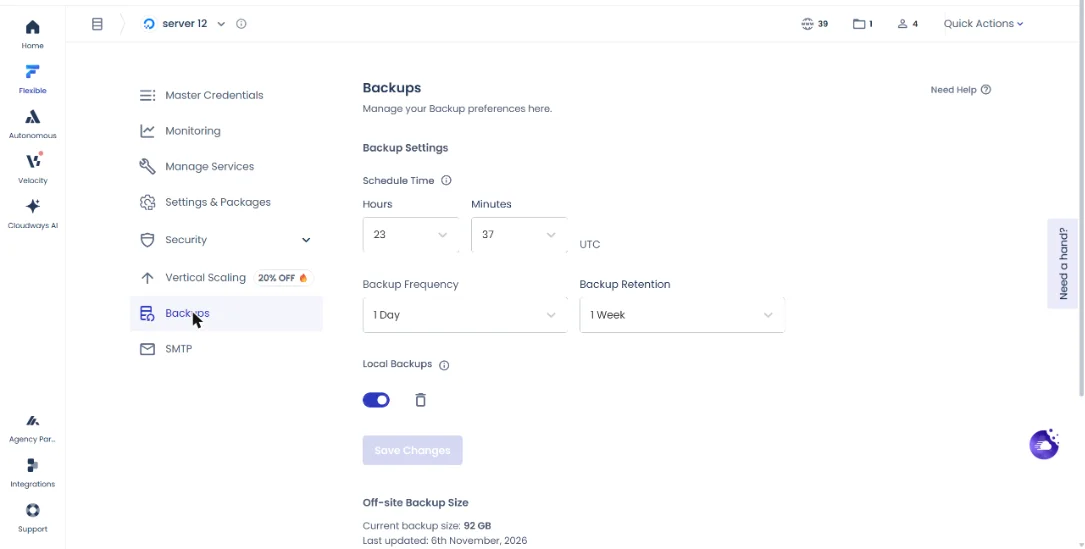
When a new server comes up, backup is already on: once a day, between 01:00 and 05:00 UTC, with one week of retention. Here is how to change it:
- In the management panel, open Servers and select the server.
- Under Server Management, choose Backup.
- In Backup Frequency, choose how often to back up: from every hour up to every 7 days.
- In Schedule Time, choose a quiet hour (in UTC). The option only appears when the frequency is a day or more.
- In Backup Retention, choose how long to keep the backups: from one week up to 4 weeks.
- Click Save Changes.
Which frequency to choose
More backups isn’t always better. An hourly backup loads the server, and on a large site a single backup can take more than an hour. Then the next backup starts before the previous one has finished, and it skips or fails. For servers with more than 100GB of storage, Cloudways recommends a frequency of 12 hours or longer.
| Type of site | Recommended frequency | Recommended retention |
|---|---|---|
| A brochure site or blog updated now and then | Once a day (the default) | One to two weeks |
| A WooCommerce store with orders every day | Every few hours, depending on site size | Two to 4 weeks |
| A large server (over 100GB) | Every 12 hours or less often | Depends on budget, since every extra week increases storage |
How the backup works behind the scenes
The first backup is a full one. After it come incremental backups, which copy only new or changed files. The database, on the other hand, is backed up in full every time. For example, with the default setting (daily, one week of retention) you’ll have two full backups and six incremental ones at any moment. You can restore to any of those points.
What backups cost
On Flexible you pay for backup volume: $0.033 per GB, regardless of cloud provider or location (as of Nov 2026). Billing is rounded up in steps of fifty cents. For example, 20GB of backups comes to about $0.66, which rounds up to $1 a month. On Autonomous the backups are included in the plan price. You can see the current backup volume on the server’s backup screen. The figure isn’t updated in real time, so check the time of the last update.
How do you manually back up one site before a change?
This is the backup I recommend before every significant update. It’s stored off the server, and it appears in the list of restore points alongside the automatic backups.
On Flexible
- Open Servers and select the server your site is on.
- Click the globe icon (www) and select the application.
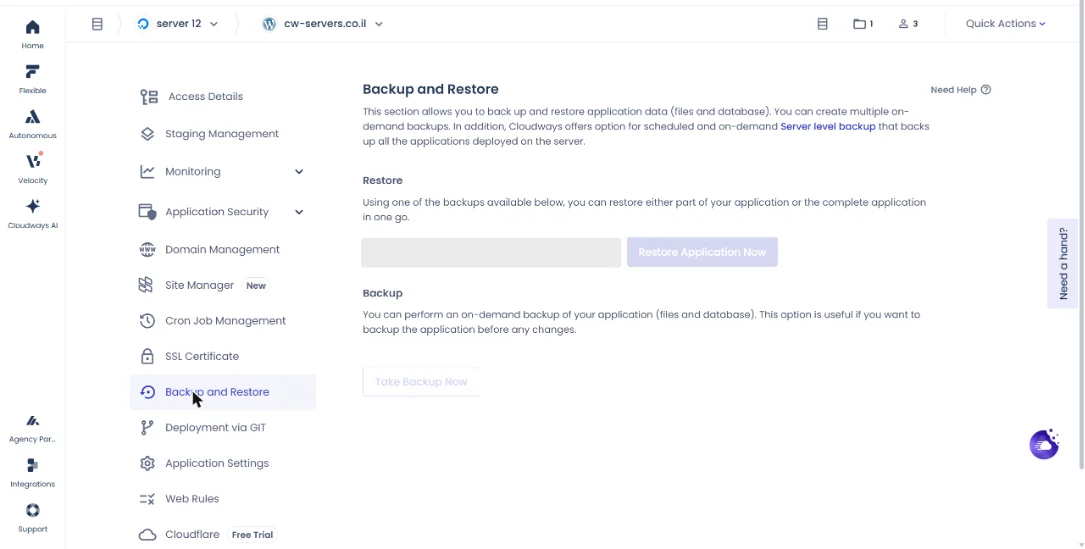
- Under Application Management, open Backup and Restore and click Take Backup Now.
- Wait for the message that the backup is finished, and check that Last Backup Date updated to this moment.
On Autonomous
- Open Applications and select the application.
- Click Workflow/Tools, choose Backup/Restore and go to Backup.
- Click Take Backup Now and wait for the completion message.
Note the difference: on Autonomous the backup includes only public_html and the database, without private_html.
How do you restore a site to a point in time (Point-in-time Restore)?
A point-in-time restore returns the application to the state it was in at the moment a particular backup was taken. Before you click, you need to decide what to restore.
| Option | What’s restored | When to choose it |
|---|---|---|
| Complete Restore | Files and database | When it’s not clear what the problem is, when even the dashboard won’t load, and after a hack |
| Web Files | Only the files | A plugin or theme broke the site, while the orders and content in the database are fine |
| Database | Only the database | Content, settings or products were deleted, while the files are fine |
A warning for stores: restoring the database also returns the orders, customers and stock to the state of that moment. Orders that came in after the restore point will disappear. In a store, if the problem is only in the files, it’s better to restore just Web Files. On Flexible all three options are available. According to the documentation, Autonomous offers a complete restore, although the restore screen there also shows a choice between files and database.
Restoring on Flexible
- Open Servers, select the server, click www and select the application.
- Under Application Management, choose Backup and Restore.
- In the Restore Point list, choose the date and time you want to go back to. Remember: the times are in UTC.
- Click Restore Application Now.
- Choose Complete Restore, Web Files or Database, and click Proceed.
- When the restore finishes you’ll get a message. Go into the site and check it thoroughly: the homepage, the dashboard, forms, and in a store the cart and checkout too.
Rollback or Delete: what to do after the restore
Right before the restore, Cloudways automatically backs up the site’s current state. After the restore there are two options:
- Rollback: not happy with the result? This returns the site to the state it was in just before the restore. Note that it only undoes what was restored: if you restored only files, it will bring back only the files.
- Delete: happy? This deletes the temporary backup created before the restore and takes you back to the regular backup screen. If you don’t choose, the temporary backup is deleted on its own after 24 hours.
Restoring on Autonomous
- Open Applications and select the application.
- Click Workflow/Tools, choose Backup/Restore and go to Restore.
- Choose a Restore Point and click Restore.
- Choose what to restore. If you select the Backup and Restore option, the site is backed up right before the restore, and you can go back to that backup if you regret it.
The code BFCM802 takes 80% off your bill for the first two months (up to $200 off per month), including unlimited free site migrations. New customers only, and only until the offer ends.
The offer ends on December 4, 2026 at 23:59 (UTC+2).
Start with a free trial, no credit card. Enter the code at checkout and check that it shows up.
After Black Friday: 30% off for 3 months with the code ASAEL. On a large server (above about $444 a month) ASAEL already saves more today. BFCM802 vs. ASAEL calculator
Start a free trial server, no credit card. When you move to a paid plan, the code ASAEL takes 30% off your bill for the first three months.
The link fills in the code on the signup form. Just make sure it shows up.
Local backup and downloading to your computer
A good rule of thumb: keep a copy of the backup in more than one place. In the server’s backup settings you can enable Local Backup, and then the latest copy stays on the server and you can download it. Only the latest copy is kept, and it includes all the applications on the server, not a single site. You delete the local copy from the trash icon on the same screen.
I described the full process, including downloading a single site over SFTP, in the guide to downloading a backup to your computer.
Snapshots for AWS and Google Cloud servers
On servers running on AWS or Google Cloud there’s another option: a Snapshot, a full image of all the disks on the server. The advantage is a much shorter recovery time when you have more than 10GB of files and database. The downside: you can only restore the whole server, not a single site, and there’s an additional charge that appears on the monthly invoice.
- On the server, under Server Management, open the backups area and choose Snapshots.
- Choose a frequency: from once a day up to once every 7 days.
- Check the estimate of the monthly price. It depends on the current size of the disks.
- Click Save Changes.
Each Snapshot is kept for 14 days. The regular backups keep running in parallel, so you can still restore a single site.
What if you deleted a server?
Cloudways keeps a backup of all the applications on the server for 14 days after the server is deleted. After that you can’t restore it. And it’s important to know: when a deleted server is restored, only the latest backup of each application comes back, not the whole history of points in time. An application added less than 24 hours before the server was deleted won’t be restored. The full explanation is in the guide to recovering a deleted server or site.
Common mistakes and how to fix them
The restore fails or gets stuck: the common cause is a lack of disk space. Cloudways recommends free space of 2.5 times the size of the application. For a 4GB site you need about 10GB free. Free up space or scale up the server and try again.
Backups skip or fail: the frequency is probably too high for the size of the site, and the previous backup doesn’t finish in time. Lower the frequency, for example to every 6 hours or less often.
You restored to the wrong hour: restore points are shown in UTC. A problem that happened at 14:00 in your time zone has to be converted first: in Berlin in winter, for example, that is 13:00 UTC. If you got it wrong, click Rollback and choose a different point.
Orders disappeared after a restore: the database was restored too. If you haven’t clicked Delete yet, you can do a Rollback. Next time, when the problem is a plugin or a theme, restore only Web Files.
You want to keep backups for more than 4 weeks: in the panel the maximum is 4 weeks. According to Cloudways, you can use SnapShooter (by DigitalOcean) for longer retention and your own external storage, such as Amazon S3 or Google Drive.
Sources
- Cloudways Knowledge Base: How to configure a server-level backup
- Cloudways Knowledge Base: How to backup a specific application
- Cloudways Knowledge Base: How to do a point-in-time restore of your application
- Cloudways Knowledge Base: How to take a snapshot of a server
- Cloudways Knowledge Base: Will my old point-in-time backups be available when my server is recovered
- Cloudways Knowledge Base: Charges for off-site backups
Frequently asked questions about backups on Cloudways
Yes. Every server comes with an automatic off-server backup, by default once every 24 hours with one week of retention. You can change the frequency from every hour up to 7 days and the retention up to 4 weeks.
On Flexible you pay by volume: $0.033 per GB of backup, rounded up in steps of fifty cents (as of Nov 2026). On Autonomous the official plan page shows the same charge of $0.033 per GB (an older documentation article says the backups are included in the price, so it’s worth checking your invoice).
Yes, on Flexible. On the restore screen you choose Database instead of Complete Restore. This is useful when content was deleted but the files are fine. In a store, remember that it also returns the orders to that point.
Rollback cancels the restore and returns the site to the state it was in just before. Delete keeps the restored site and deletes the temporary backup created before the restore. If you don’t choose, the temporary backup is deleted on its own after 24 hours.
No. The backup includes the site’s files and the database. Cloudways doesn’t host mailboxes on the server, so you back up your email with your email provider.
14 days from the deletion of the server. During that time you can ask for a restore, and only the latest backup of each application is restored. After 14 days the data can’t be recovered.
Related guides
- How to download a site backup from Cloudways to your computer
- Recovering a deleted server or site on Cloudways
- Cloudways hosting review
- All guides on this topic: Backup and restore guides
Official source: How to Configure a Server-level Backup, How to Backup a Specific Application, How to Do a Point-in-time Restore of Your Application, How to Take a Snapshot of a Server, Will My Old Point-in-time Backups be Available When My Server is Recovered?, Charges for Off-site Backups (Cloudways Knowledge Base). This guide was written and tested by Asael Dreyer · Updated: 6 Nov 2026
Disclosure: this is an independent site, not the official Cloudways site. Some links on this site are affiliate links: if you sign up through them we earn a commission, at no extra cost to you. Full details

