
Last updated: · By Asael Dreyer
Short answer: WP-CLI is a command-line tool for managing WordPress without opening the dashboard, and it comes preinstalled on every Cloudways server. You connect to the server over SSH, go to the application’s public_html folder and run commands such as wp plugin update --all or wp search-replace. That’s how you update plugins, reset a password, change a domain in the database and rescue a crashed site, in seconds.
What WP-CLI is and why you should know it
WP-CLI (WordPress Command Line Interface) is software that talks to WordPress directly from the terminal. Everything you do in the dashboard, such as installing a plugin, creating a user or changing a setting, you can also do with one command.
Why is it worth the effort? Three practical reasons:
- When the site won’t load. A white screen or a 500 error after a plugin update locks you out of wp-admin. WP-CLI still works, and you can switch off the problem plugin from the terminal.
- Bulk operations. Updating 30 plugins, deleting a thousand spam comments or replacing an address across the whole database. In the dashboard it takes an hour, in the terminal a minute.
- Accuracy. Replacing a domain with
search-replacealso handles serialized data from plugins and page builders, where editing by hand in SQL breaks things.
On Cloudways you don’t need to install anything. WP-CLI comes installed on every Flexible server, and it works with every WordPress or WooCommerce application on the server.
Before you start
- SSH access. You need the Master Credentials or an application user with SSH permission. The full explanation, including SSH keys and IP restrictions, is in the SSH connection guide.
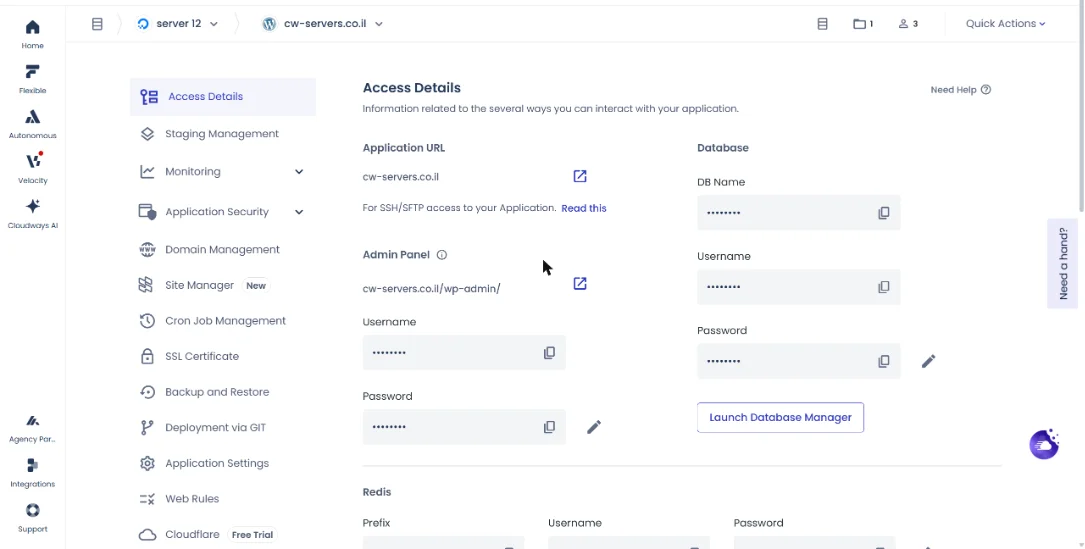
- The application folder name. On Cloudways the folder name is the same as the database name, a string of letters such as
abcdefghij. You find it in the application’s Access Details or in the file manager. - A backup. Before any command that writes to the database (search-replace, deletions, imports), take a backup of the application. A backup takes a minute, restoring a broken database takes an evening.
- On Autonomous: according to Cloudways’ FAQ you can connect with SSH keys there too. This guide was written and tested on Flexible servers.
| User | What it sees | When to use it for WP-CLI |
|---|---|---|
| Master (the main user) | All the applications on the server | When you manage several sites from the same connection |
| Application (an application user) | Only its own application | When you give an outside developer access to one site |
How to connect and run your first command, step by step
This process is the same for every command you’ll run later. After doing it once, it becomes automatic.
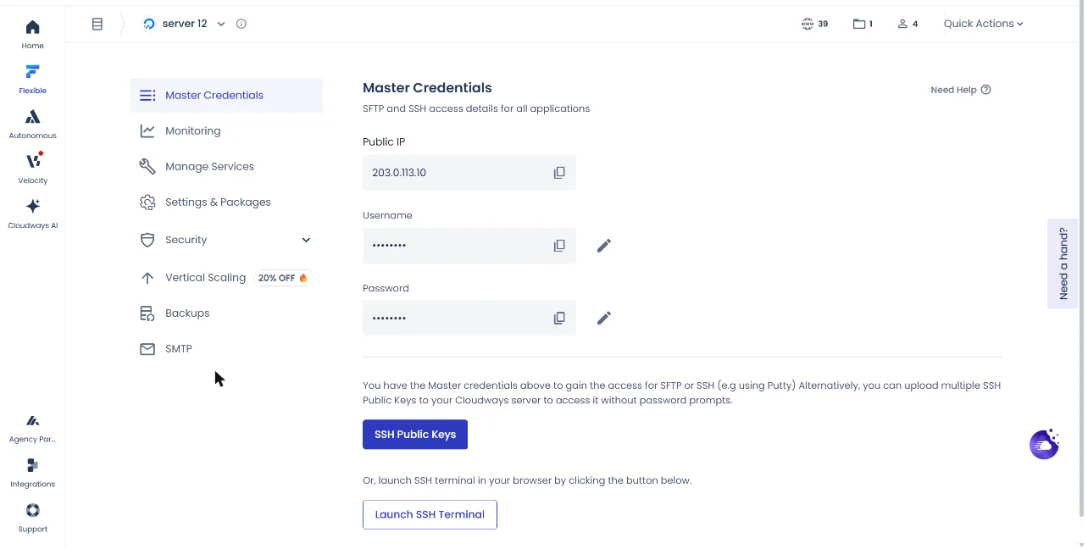
- Log in to the platform, select the server and open Master Credentials.
- Connect: click Launch SSH Terminal for a terminal in your browser, or connect from your computer with
ssh master_xxxxx@IP(on Windows 10 and 11 this works from PowerShell, no PuTTY needed). - Go to the site’s folder. Without this step WP-CLI won’t find
wp-config.phpand will return an error. - Make sure everything works with a command that changes nothing:
wp core version. If a version number comes back, you’re in.
cd applications/abcdefghij/public_html/
wp core version
wp plugin list
Replace abcdefghij with your application’s folder name. If you connected with an application user, you may already be inside the application folder, in which case cd public_html is enough.
What are the useful WP-CLI commands, by topic?
This is the list of commands people really use day to day. Every command works from inside the public_html folder. For the full list, run wp help.
Plugins, themes and WordPress core
| What you want | Command |
|---|---|
| List plugins and their status | wp plugin list |
| Update all plugins | wp plugin update --all |
| Install and activate in one command | wp plugin install query-monitor --activate |
| Deactivate one plugin | wp plugin deactivate elementor-pro |
| Check the WordPress version | wp core version |
| Update WordPress core | wp core update |
| Check that core files weren’t modified (after a hack) | wp core verify-checksums |
Users and passwords
| What you want | Command |
|---|---|
| List users | wp user list |
| Reset a password | wp user update admin --user_pass='NEW_STRONG_PASSWORD' |
| Create a new administrator | wp user create dana dana@example.com --role=administrator |
Resetting a password from the terminal bypasses the recovery email, which sometimes doesn’t arrive. For other ways, including through the platform, see the guide to resetting a WordPress password.
Database, cache and settings
| What you want | Command |
|---|---|
| Export the database to a file | wp db export before-change.sql |
| Import from a file | wp db import before-change.sql |
| Read a setting | wp option get siteurl |
| Change a setting | wp option update blogname "Dana's Shop" |
| Clear the Object Cache (Redis) | wp cache flush |
| Clear transients | wp transient delete --all |
| Rebuild the permalink rules | wp rewrite flush |
wp db export is also a quick backup before a change. The file is saved in the folder you’re standing in, so delete it when you’re done so it doesn’t stay in a public folder. On a Multisite site, wp cache flush clears the cache of every site in the network, so run it at a quiet hour.
How to replace a domain and text across the whole database with search-replace
wp search-replace searches for a string in every table and replaces it with another. The difference from regular SQL: it unpacks serialized data and JSON, replaces inside them, and fixes the string length. Page builders such as Elementor store settings in exactly that format, so a replacement in direct SQL can break entire pages.
When do you need it? After moving a site from a temporary domain to the real one, moving from http to https, or replacing an old CDN address. Good to know: when you set a primary domain in the Cloudways platform, it updates the domain in the WordPress database by itself. search-replace is mainly needed when leftovers remain, or when you changed a domain manually.
The safe order is always: backup, dry run, real run.
wp db export before-replace.sql
wp search-replace 'http://old-site.com' 'https://new-site.com' --dry-run
wp search-replace 'http://old-site.com' 'https://new-site.com'
wp cache flush
The --dry-run flag shows how many replacements would happen in each table, without saving anything. If the numbers look reasonable, run it again without the flag.
| Flag | What it does | When to use it |
|---|---|---|
--dry-run | A preview without saving | Always, before the real run |
wp_posts (a table name) | Limits the replacement to one table | Replacing text in content only |
--skip-columns=guid | Skips a column | So you don’t change old post identifiers |
--all-tables | Every table in the database, including plugins’ tables | When a plugin stores data in its own tables |
--network | All sites in a Multisite network | Replacing a domain across a whole network |
--precise | Replacement through PHP instead of SQL, more thorough and slower | When a regular replacement missed places |
--export=file.sql | Writes an SQL file instead of changing the database | When you’re preparing a database for another server |
Two traps worth knowing. The first: the search is case-sensitive, so Old-Site.com and old-site.com are two different strings. Check variations with --dry-run too. The second: on sites with non-Latin URLs, page addresses are sometimes stored percent-encoded (%d7%90...) and sometimes as plain characters. Replace the domain only and not full paths, and both cases are handled.
The code BFCM802 takes 80% off your bill for the first two months (up to $200 off per month), including unlimited free site migrations. New customers only, and only until the offer ends.
The offer ends on December 4, 2026 at 23:59 (UTC+2).
Start with a free trial, no credit card. Enter the code at checkout and check that it shows up.
After Black Friday: 30% off for 3 months with the code ASAEL. On a large server (above about $444 a month) ASAEL already saves more today. BFCM802 vs. ASAEL calculator
Start a free trial server, no credit card. When you move to a paid plan, the code ASAEL takes 30% off your bill for the first three months.
The link fills in the code on the signup form. Just make sure it shows up.
What do you run when the site crashed or got locked? Rescue commands
These are the commands worth their weight in gold on a bad day. They work even when the WordPress dashboard won’t load.
| Situation | Command |
|---|---|
| A white screen after a plugin update | wp plugin deactivate --all, then activate them one by one |
| You don’t know which plugin is at fault | wp plugin list --status=active, then deactivate by suspicion |
| WP-CLI itself crashes because of a plugin | Add --skip-plugins --skip-themes to the command |
| The site is stuck on “Briefly unavailable for scheduled maintenance” | wp maintenance-mode deactivate |
| Pages return 404 after a migration | wp rewrite flush |
| You suspect core files or plugins were modified | wp core verify-checksums and wp plugin verify-checksums --all |
After every fix, clear the cache: wp cache flush for the Object Cache, and clear Varnish from the platform or from the Breeze plugin. Otherwise you may see the broken version from the cache and think the fix didn’t work.
How to work with WP-CLI on a Multisite network
On a Multisite network, every command runs on the main site by default. To target a sub-site, add its address:
wp site list
wp plugin list --url=shop.example.com
wp search-replace 'old.example.com' 'new.example.com' --network --dry-run
wp site list shows all the network’s sites and their addresses. Without --network, the search-replace command only touches the current site’s tables.
Common mistakes and how to fix them
“This does not seem to be a WordPress installation”: you’re not in the right folder. Run pwd and make sure you’re inside the application’s public_html, where wp-config.php is.
wp: command not found or “Permission denied”: almost always a user problem. An application user without SSH permission can’t run commands. Check the permission in Access Details, or connect with the master user.
After installing a plugin from the terminal, WordPress can’t update it: files created as the master user belong to it, not to the application user. In the application settings there’s Reset File/Folders Permission, which returns permissions to the defaults (775 for folders, 664 for files) with the user you choose.
“Allowed memory size exhausted” during a command: heavy commands such as a large import use PHP memory. Raise memory_limit following the PHP settings guide, and make sure your PHP version is current per the guide to changing the PHP version.
search-replace replaced it, but the site still shows the old address: that’s cache. Clear the Object Cache, Varnish and Breeze, and check in an incognito window. If the address is old only in Elementor’s CSS files, regenerate them from Elementor’s settings.
You pasted a command with angle brackets from the documentation: documentation writes <old> to mark a place for a value. Remove the brackets and put the value itself, in quotes.
Sources
This page is based on the following official documentation and pages:
- How to manage WordPress with WP-CLI (Cloudways Knowledge Base)
- How to use the search and replace function of WP-CLI (Cloudways Knowledge Base)
- WP-CLI Commands (WordPress.org)
Frequently asked questions
It’s preinstalled on every Cloudways server. You connect over SSH, go to the application’s public_html folder and run wp. There’s nothing to download and nothing to configure.
Back up first with wp db export, run wp search-replace ‘old-domain’ ‘new-domain’ –dry-run to see how many changes there will be, then run it again without –dry-run. Clear the cache when you’re done. On a Multisite network, add –network.
Yes, if you replace a string that’s too short or too general, for example just “old”. So always run with –dry-run first, replace full strings such as a complete domain, and keep a database backup. With a backup, any mistake is fixed in a minute with wp db import.
Yes. The Cloudways platform has a built-in terminal that opens in your browser from Master Credentials. It’s handy for quick commands. For longer work, a local terminal such as PowerShell is easier for copy and paste.
wp cache flush clears WordPress’s Object Cache, meaning Redis, if it’s active. Clearing in the platform or in Breeze also clears Varnish, which holds whole pages. After a database change it’s worth clearing both.
Related guides
- SSH access to a Cloudways server and SSH keys
- The file manager and the application folder on Cloudways
- Resetting a WordPress password and managing users
- Changing the PHP version for a server and an application
- PHP settings: memory_limit, upload and more
- Databases on Cloudways: access, import and export
- All guides on this topic: Server and application settings on Cloudways
- Before you choose: Cloudways hosting review
Official sources: How to Manage WordPress With WP-CLI, How to Use the Search and Replace Function of WP-CLI (Cloudways Knowledge Base) and the official command documentation of WP-CLI. Written and checked by Asael Dreyer · Updated: 6 Nov 2026
Disclosure: this is an independent site, not the official Cloudways site. Some links on this site are affiliate links: if you sign up through them we earn a commission, at no extra cost to you. Full details

