
Last updated: · By Asael Dreyer
In short: there are four ways to reset a WordPress password on Cloudways. The fastest: in the panel, open the application, go to Access Details, click edit next to the Admin Panel details, enter a new password and save. For other users, use WP-CLI (wp user update), and if you have no access at all, reset a password or create an admin user through the database. Each method takes 1 to 10 minutes.
Which method fits you
The choice depends on two questions: whose password you need to reset, and what access you have.
| Method | Fits… | What you need | Time |
|---|---|---|---|
| 1. From the panel (Access Details) | The admin user created with the site | Access to the Cloudways panel | A minute |
| 2. WP-CLI | Any user, including several at once | SSH access or the terminal from the panel | 3–5 minutes |
| 3. The database | Any user, when you have no SSH | Database Manager in the panel | 5–10 minutes |
| 4. A new admin user | No access to any admin, or the admin was deleted | WP-CLI or the database | 5–10 minutes |
What do you need before you start?
- The right permission on Cloudways. The account owner, or a team member with permission on the application, can change the admin password from the panel.
- A backup before working in the database. Methods 3 and 4 touch the tables directly. A mistake on the wrong row can lock out another user.
- A strong password. Use a password generator and keep it in a password manager. Not in a chat app, and not on a sticky note.
Method 1: Reset the admin password from the panel
This is the easiest way, and it works for WordPress sites (including WooCommerce and Multisite) and for Magento sites.
- In the management panel, open Servers, select the server, click the globe icon and choose the application. You can also go straight from Applications or from search.
- In the side menu, choose Access Details.
- In the Admin Panel area, click the edit icon next to the password.
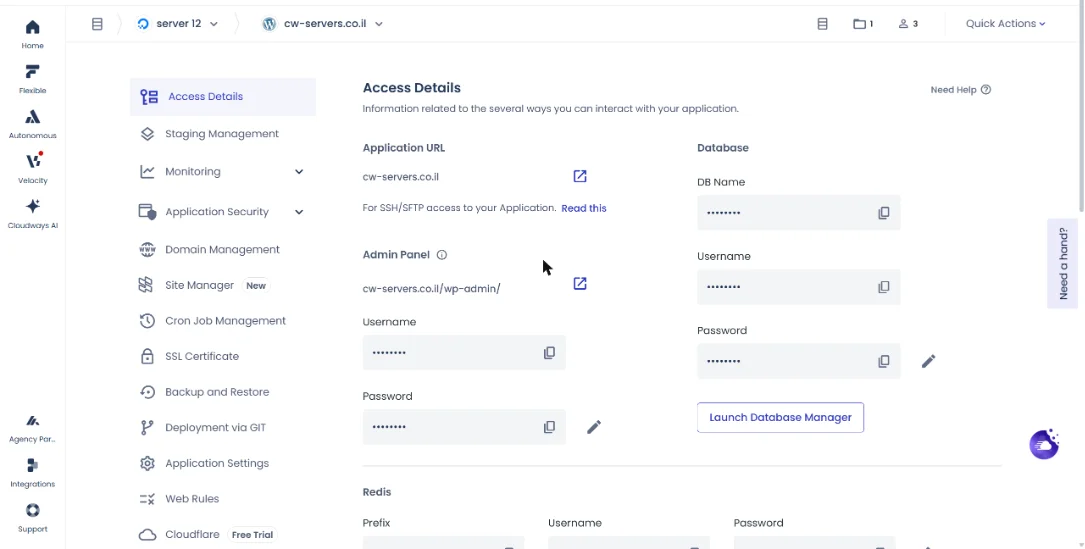
- Enter a new, strong password and click Save.
- Log in to WordPress with the username shown on the same screen and the new password. The link to the admin area is shown there.
Three things worth knowing about this method:
- The panel doesn’t update by itself. If you changed a password from inside WordPress, the panel keeps showing the old one. A reset from the panel aligns both.
- After migrating a site or restoring from an outside source, the login details in the panel won’t work, because the database was replaced. A reset from the panel gets them working again.
- If you deactivated the original admin user for security reasons, a reset from the panel will reactivate it. Keep that in mind.
Method 2: Reset any user’s password with WP-CLI
WP-CLI is a command-line tool for managing WordPress without a browser. It is preinstalled on every Cloudways server, and it is the quick way to handle users other than the main admin.
- Connect to the server over SSH. The simplest way is Launch SSH Terminal from the server page. You can also use PuTTY or the terminal on your computer. See the guide to accessing the server and files.
- Go to the site folder. With the master credentials, the command is:
cd applications/<your_application_name>/public_html/Replace <your_application_name> with the application’s folder name, without the angle brackets.
- List all users, to see the username or ID of the one you need to reset:
wp user list- Update the password. You can specify a username, email or ID:
wp user update john --user_pass=NewStrongPass2026- Log in to WordPress with the new password.
For advanced users: you can update several users in one command, and add --skip-email if you don’t want WordPress to email the user about the change. Note that a password on the command line is saved in the terminal history. After the reset, it’s a good idea to ask the user to choose their own password.
Method 3: Reset a password through the database
This method works even when you have no SSH access. It fits any user on the site.
- In the application, under Access Details, click Launch Database Manager. If the browser shows a certificate warning, confirm to continue.
- Find the users table. Its name is a prefix followed by
users. On most sites it iswp_users, but the prefix can be different, for exampleabc_users. My trick: press Ctrl+F on the page and search for the word users.
- Click the table and then Select data, to see all the users.
- Find the user by email (the
user_emailcolumn). If there are several users, make sure you have the right one. Click edit on their row. - In the
user_passfield, delete the existing value and paste the new password. - In the functions dropdown next to the field, choose md5 and click Save.
- Log in to WordPress with the email or username and the new password.
Why md5? WordPress accepts a password in this format, and on the first login it re-saves it in its own secure format. Without md5, the password would be stored as plain text and the login would fail.
Method 4: How do you create a new admin user?
Sometimes there is nothing to reset: the admin was deleted, hacked, or the site came from a freelancer who left no details. In that case you create a new admin.
With WP-CLI (recommended)
After you get into the public_html folder as in method 2:
wp user create newadmin owner@example.com --role=administrator --user_pass=StrongPass2026Without --user_pass, WP-CLI generates a random password and prints it. You can add --send-email so the user receives an email with the details.
Through the database
- In Database Manager, open the
wp_userstable (or the table with your prefix) and click New Item. - Fill in:
user_login(username),user_pass(the password, with the md5 function),user_nicename,user_email,user_registered(with the Now function),user_status= 0 anddisplay_name. LeaveIDempty. - Save, and check under Select data which ID the new user received.
- Open the
wp_usermetatable, click New Item and add a row with the new user’suser_id,meta_key=wp_capabilities, and thismeta_value:
a:1:{s:13:"administrator";s:1:"1";}- Save and log in to WordPress with the new user.
The trap most guides forget: if your table prefix isn’t wp_, the meta_key must start with the same prefix. In the abc_users table, the key is abc_capabilities. Otherwise the user will be created, but without permissions. When you copy the meta_value, make sure the quotation marks are straight (“) and not curly.
How do you manage users and roles in WordPress?
Once you’re back in the site, it’s worth tidying up the users. Every WordPress user has a role, and every role has permissions:
| Role | What it can do | Who it fits |
|---|---|---|
| Administrator | Everything: plugins, themes, users, settings | The site owner. As few people as possible |
| Editor | Write, edit and publish all content, including other people’s | A content manager |
| Author | Write and publish only their own content | A regular writer |
| Contributor | Write and edit, without publishing | A guest writer |
| Subscriber | Manage only their own profile | Registered customers |
| Super Admin | Manage the whole network | Multisite only |
In the WordPress admin: Users > All Users. There you add a user with Add New, edit with Edit, delete with Delete, and change the role of several users at once with the Change role to menu and then Change.
The same actions in WP-CLI:
wp user list --role=administrator
wp user update 5 --role=editor
wp user delete 7 --reassign=1
The first command lists all the administrators, which is a check worth doing after any suspicion of a hack. In the delete command, --reassign moves the deleted user’s posts to another user. Without this parameter, the user’s posts are deleted too.
The code BFCM802 takes 80% off your bill for the first two months (up to $200 off per month), including unlimited free site migrations. New customers only, and only until the offer ends.
The offer ends on December 4, 2026 at 23:59 (UTC+2).
Start with a free trial, no credit card. Enter the code at checkout and check that it shows up.
After Black Friday: 30% off for 3 months with the code ASAEL. On a large server (above about $444 a month) ASAEL already saves more today. BFCM802 vs. ASAEL calculator
Start a free trial server, no credit card. When you move to a paid plan, the code ASAEL takes 30% off your bill for the first three months.
The link fills in the code on the signup form. Just make sure it shows up.
What are the common mistakes and how do you fix them?
I reset from the panel and still can’t log in: check that the username you type is the one shown in Access Details. If the site was moved from elsewhere, the panel’s user may not exist in the new database. Use method 2 or 4.
I entered a password in the database and it doesn’t work: you forgot to choose md5. Edit the row again and choose the function before saving.
The new user was created but has no access to the admin area: the meta_key doesn’t match the table prefix, or the quotation marks in the meta_value are curly. Fix the row in the usermeta table.
WP-CLI returns an error saying this is not a WordPress installation: you are not in the right folder. WP-CLI needs to run in the folder that contains wp-config.php, usually public_html.
I edited the wrong user: restore the database backup, or reset their password too and update them. Next time, identify the user by email before editing.
A suspected hack: don’t stop at a password reset. Use wp user list --role=administrator to check for unfamiliar admins, delete them, change all passwords and consider a security scan.
Sources
- Cloudways Knowledge Base: How to change your application admin password
- Cloudways Knowledge Base: How to reset WordPress user password using WordPress CLI
- Cloudways Knowledge Base: How to create a new WordPress admin user using database
- Cloudways Knowledge Base: Managing users and roles using WordPress admin panel
- Cloudways Knowledge Base: Managing users and roles using WordPress CLI
Frequently asked questions
Through the panel. Open the application, click edit next to the Admin Panel login details under Access Details, enter a new password and save. It takes less than a minute and fits the admin user created with the site.
Because the password was changed from inside WordPress, or the site was migrated or restored from an outside source. The panel doesn’t know about such changes and keeps showing the old password. Reset the password from the panel, and it will then be the same in both places.
With WP-CLI or from the WordPress admin area. In WP-CLI you run wp user list to find the user, then wp user update with the username and the –user_pass parameter. An admin can also edit the user on the Users page in WordPress.
Yes, if you work carefully. You choose the md5 function in the user_pass field, and WordPress converts the password to a more secure format at the next login. Take a backup first, and make sure you are editing the right user’s row.
The easy way is WP-CLI: wp user create with a username, an email and the –role=administrator parameter. If you have no SSH access, you can add a user in the users table in the database and give it administrator capability in the usermeta table.
Related guides
- How to change the PHP version on Cloudways
- PHP settings on Cloudways
- Cron jobs on Cloudways
- Database management on Cloudways
- Our review of Cloudways hosting
- All guides on this topic: server and application settings guides
Official source: How to Change Your Application Admin Password, How to Reset WordPress User Password Using WordPress CLI, How to Create a New WordPress Admin User Using Database, Managing Users and Roles Using WordPress Admin Panel, Managing Users and Roles Using WordPress CLI (Cloudways Knowledge Base). Written and checked by Asael Dreyer · Updated: 6 Nov 2026
Disclosure: this is an independent site, not the official Cloudways site. Some links on this site are affiliate links: if you sign up through them we earn a commission, at no extra cost to you. Full details

