
Last updated: · By Asael Dreyer
Short answer: When the server disk is full or inodes run out, the server can’t create new files: uploads fail, the database crashes and the site goes down. On Cloudways you free up space under Settings & Packages, on the Optimization tab, with the Disk Cleanup tool, which deletes temporary files, old logs and local backups. You check for inode shortage over SSH with df -i, and track down the application that generates the most files. If the server is still above 80% after cleanup, it’s time to increase the disk.
The difference between disk space and inodes
You can get stuck even when many GB are still free. The reason: two different things can run out on a disk, and it’s worth understanding both.
Disk space is the amount of data, in GB. It runs out when there are large files: local backups, video, huge images and logs that grew.
An inode is a record in the file system that points to a file or folder. Every file uses one inode, whatever its size. The number of inodes on a server is limited and depends on the disk size. That’s why a million tiny session files can use up your inodes while the disk is almost empty.
In both cases the result is similar: no new files get created, so uploads fail, the cache isn’t written, and the database may crash with the Error Establishing a Database Connection error.
| Symptom | What probably ran out | How to check |
|---|---|---|
| A CloudwaysBot low disk alert | Disk space (the alert is sent at 95%) | Monitoring on the server |
| Disk percentage is low, but you can’t create files | Inodes | The df -i command over SSH |
| An image upload fails with no clear error | Either one | Both checks |
| The database keeps crashing | Usually disk space | Monitoring, then cleanup |
Before you start
- Check how much space is used: on the server, open Monitoring and look at disk usage in the summary.
- If you keep local backups, download a copy to your computer before cleaning up. The option to delete local_backups deletes them for all applications.
- Checking inodes requires SSH access. See how to connect over SSH on Cloudways.
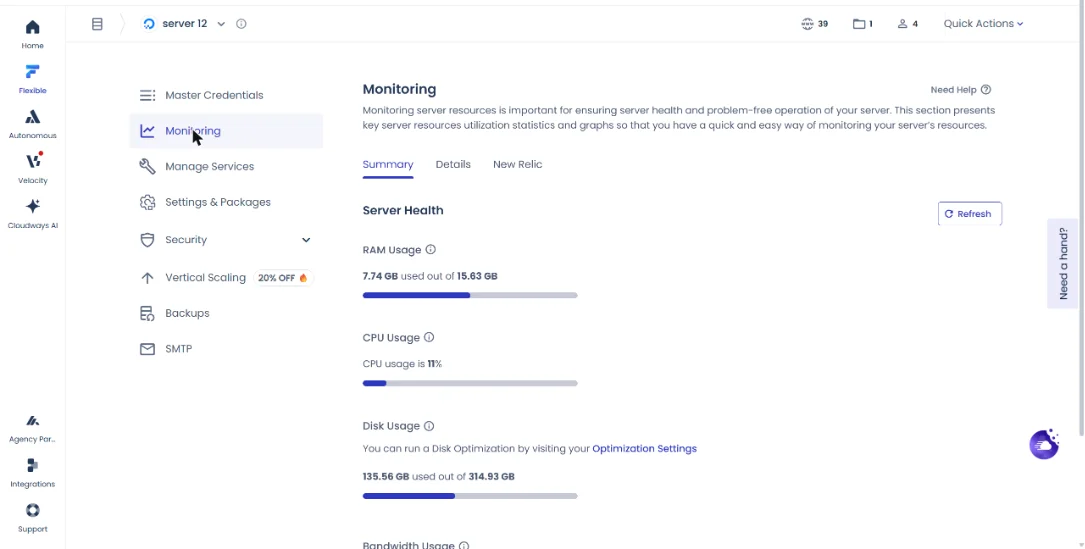
How to free up disk space with Disk Cleanup, step by step
The Cloudways Disk Cleanup tool removes non-essential files without touching your site’s own files. Cleaning one server doesn’t affect other servers in your account.
- Log in to the platform, open Servers and select your server.
- Under Server Management, choose Settings & Packages.
- Go to the Optimization tab.
- Tick the cleanup options you need (details in the table below). The first option, deleting temporary files, always runs.
- Click Run Cleanup and wait for it to finish.
- Go back to Monitoring and check how much space was freed.
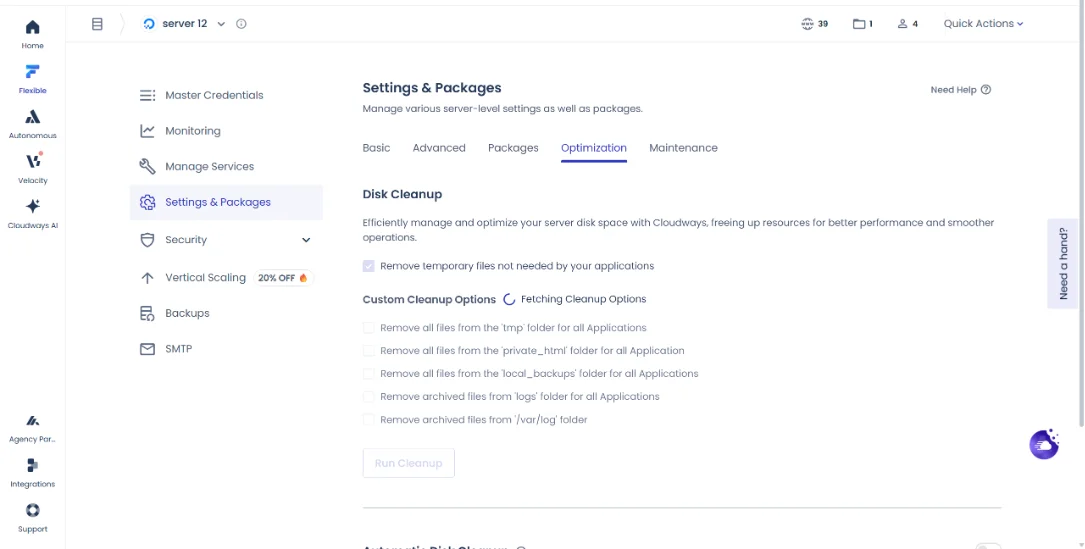
| Option | What gets deleted | When to tick it |
|---|---|---|
| Default: temporary files | log and gz files in tmp, ImageMagick temp files and unneeded system files | Always runs, safe |
| The tmp folder of all applications | Everything in each application’s tmp | When an application piles up temporary files |
| The private_html folder of all applications | Everything in private_html | Only if you’re sure nothing you need is there |
| The local_backups folder | The local backups of all applications | After you’ve downloaded them, and not while a backup is running |
| Archived application logs | Old gz files in the logs folder; the current log starts fresh | Almost always |
| Archived logs in /var/log | Old PHP, database and mail logs, and the journal folder | Almost always |
The last three options free up the most space for most users. Note that after cleaning logs, only the last few hours of logs remain, so if you’re in the middle of investigating a problem, save what you need first.
Automatic cleanup: how it works
Automatic cleanup is on by default. When the server’s main disk reaches 80% or more, Cloudways runs it by itself, using the options you saved. If it can’t bring usage below 80%, it tries again every 4 hours. At 95%, CloudwaysBot sends an alert.
To improve automatic cleanup, tick the options you want, make sure the automatic cleanup toggle is on, and click Save Changes. Note that automatic cleanup only handles the main disk, not additional partitions such as Block Storage.
What takes up space on a WordPress site
Disk Cleanup doesn’t touch your site content. If it didn’t free enough space, the problem is probably inside the application folder. These are the usual suspects from experience:
- A backup plugin that backs up to the server itself, for example a backups folder inside wp-content. A backup that sits on the same server doesn’t protect you if that server fails. Move the destination to the cloud and delete the old copies.
- The uploads folder with dozens of sizes for each image. Optimization and WebP plugins multiply the number of files.
- Plugin cache folders inside wp-content/cache, which can hold hundreds of thousands of small files. This is a common cause of inode shortage.
- A debug.log file that stayed on after debugging and grew to several GB.
- Old applications, such as a forgotten staging site or a test copy. Deleting an unused application frees both space and inodes.
For advanced users: over SSH, from the application’s folder, the command du -sh public_html/wp-content/* | sort -h shows which folders are the largest.
How to check and free up inodes
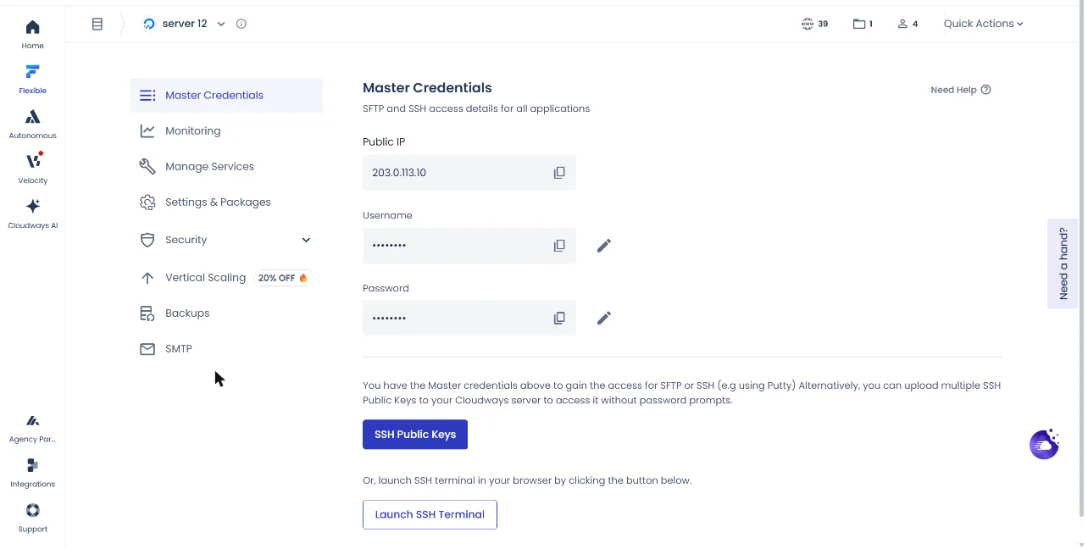
Checking inodes is done on the command line. You can open an SSH terminal straight from the platform, or connect with PuTTY or a regular terminal, using the Master Credentials.
- Connect to the server over SSH and run
df -i. The IUse% column shows the percentage of inodes in use. It should always stay below 100%. - Go to the applications folder:
cd /home/master/applications - Run the command Cloudways suggests, which sorts the applications by number of files:
find -mindepth 1 | cut -d/ -f2 | uniq -c | sort -n - Enter the folder of the application at the top of the list, and run the same command again to drill down to the problem folder.
- Delete the unneeded files, depending on the application type (table below), and check again with
df -i.
| Application | Where files pile up | What to do |
|---|---|---|
| WordPress | public_html/wp-content (plugin cache, image sizes, backups) | Clear the plugin cache, delete local backups |
| Magento | public_html/var/sessions | Delete only files older than seven days, not all of them |
| Drupal and Joomla | public_html/cache | Clean roughly once a month, possible with Cron |
In Magento, don’t delete all the session files, because that logs customers out of their carts. Cleaning by file age is better. You can set up the regular cleanup as a scheduled task in Cron Job Management.
Why do backups fail before the site goes down?
Because a backup needs temporary free space on the disk. According to the Cloudways guide to server-level backups, the off-site backup is first created on the server itself and only then transferred, so it takes up space until the transfer finishes. When the disk is nearly full, the backup is the first thing to fail, even before the site stops working.
In my experience this is a consistent pattern. On one server with many sites, I received at least seven alerts from Cloudways about a failed backup or a full disk, between Jan 2025 and Sep 2026:
| Date | The alert | What happened next |
|---|---|---|
| 29 Jan 2025 | Backup failed, not enough disk space | Recommendation: free up space or scale up. Closed automatically |
| 17 Sep 2025 | Backup failed, not enough space | Notification only |
| 9 Mar 2026 | Backup failed, disk full | Recommendation: free up space or scale up, with a link to the scaling guide |
| 25 May 2026 | Backups failed, disk problem | Notification only |
| 28 Jul 2026 | MySQL disruption caused by a full disk | Resolved automatically |
| 3 Sep 2026 and 5 Sep 2026 | Full disk and a MySQL service disruption | Resolved automatically |
What I learned: support never freed up space for me. The answer was always “free up space or scale up the server”, and most alerts closed automatically. And by the time the backups failed, the full disk had already hit MySQL. Treat a failed backup alert like a disk alert: it’s the time to clean up or scale up, before the database is affected.
Watch out for Local Backup: according to the same guide, the local backup option keeps a copy of the latest backup of every application on the server. It’s convenient for a quick restore, but it takes up permanent disk space. On a server that’s close to its limit, consider turning it off. More on backup types in the backup and restore guide and in all the backup guides.
Not every failed backup is about disk: in Mar 2024 a backup failed for me because the CPU was fully loaded, not because of space. Before you delete files, read the failure reason in the alert.
When to clean up and when to increase the disk
Cleanup is the fix for unnecessary files. If the site has genuinely grown, with more products, more images and more sites, cleanup only postpones the problem. A rule of thumb: if after a full cleanup the server is still above 80%, scale up. Cloudways recommends exactly that when automatic cleanup can’t get below the threshold. With some cloud providers you can increase only the disk, and with others you scale the whole server under Vertical Scaling.
Common mistakes and how to fix them
Deleting local_backups during a backup: if cleanup runs in the middle of a local backup, it will also delete the temporary backup files. Run this option only when no local backup is active.
Deleting manually over SSH without checking: a delete command in the wrong folder can wipe out the site. Always check the path with pwd, and back up first.
Looking only at GB: disk at 60% and the site can’t save files? Check inodes.
Ignoring alerts: the 95% alert from CloudwaysBot is the time to act, not to wait. Set up an alert channel to email or Slack so you don’t miss it.
The code BFCM802 takes 80% off your bill for the first two months (up to $200 off per month), including unlimited free site migrations. New customers only, and only until the offer ends.
The offer ends on December 4, 2026 at 23:59 (UTC+2).
Start with a free trial, no credit card. Enter the code at checkout and check that it shows up.
After Black Friday: 30% off for 3 months with the code ASAEL. On a large server (above about $444 a month) ASAEL already saves more today. BFCM802 vs. ASAEL calculator
Start a free trial server, no credit card. When you move to a paid plan, the code ASAEL takes 30% off your bill for the first three months.
The link fills in the code on the signup form. Just make sure it shows up.
Sources
This page is based on the following official documentation and pages:
- Optimize your server disk space (Cloudways Knowledge Base)
- My server is out of Inodes how do I solve it (Cloudways Knowledge Base)
- Cloudways Pricing
Frequently asked questions
The server can’t write new files. Uploads fail, the cache isn’t saved, and the database may crash and take the site down. That’s why Cloudways runs automatic cleanup as early as 80%.
An inode is a record for each file or folder on the server, and their number is limited. They run out when there are huge numbers of small files, such as session files, plugin cache or logs, even if there’s free disk space left.
Connect to the server over SSH and run df -i. The IUse% column shows the percentage in use. To see which application is responsible, run the find command Cloudways suggests from /home/master/applications.
No. With the default options it only deletes temporary files and logs. The options for deleting private_html and local_backups do delete files you might want, so tick them only after checking.
CloudwaysBot sends an alert when usage reaches 95% of the storage. It’s a good idea to connect alerts to email or Slack so you can act before the server gets stuck.
Related guides
- WordPress upload errors: 413, file type and FTP request
- The 404 error in WordPress
- The 500 error in WordPress
- 502 and 504 errors: why they happen and how to fix them
- To get alerts in time: CloudwaysBot alerts by email and Slack
- All troubleshooting guides: Troubleshooting on Cloudways
- Still deciding? Cloudways hosting review: the full picture
Official sources: Optimize Your Server Disk Space · My Server Is out of Inodes. How Do I Solve It? (Cloudways Knowledge Base). Written and checked by Asael Dreyer · Updated: 6 Nov 2026
Disclosure: this is an independent site, not the official Cloudways site. Some links on this site are affiliate links: if you sign up through them we earn a commission, at no extra cost to you. Full details

