
Last updated: · By Asael Dreyer
Short answer: The Error Establishing a Database Connection message means WordPress can’t connect to the database. On Cloudways, the usual causes are a crashed MySQL or MariaDB service, wrong connection details in wp-config.php after a migration or clone, a full disk, or a server that ran out of memory. Start by restarting the database service under Manage Services. If that doesn’t help, compare the connection details with Access Details and check server monitoring.
What this error actually means
Every WordPress page is built from data stored in the database: posts, settings, users and orders. On each load, WordPress reads the connection details from wp-config.php (database name, user, password and host) and connects to the database service. If the connection fails, it can’t build any page, and it shows this message instead of your site.
On Cloudways servers the database runs on the same server as your site, as a service called MySQL or MariaDB. As of November 2026, Cloudways supports MySQL 8.4 and MariaDB 10.11. That means if the service goes down, every site on the server shows the error. If only one site shows it, the problem is probably in that site’s connection details or tables.
Which three questions should you ask before touching anything?
| What you see | What it probably means | Where to jump |
|---|---|---|
| Every site on the server shows the error | The database service is down, the disk is full or memory ran out | Step 1 and Step 3 |
| Only one site, right after a migration or clone | Wrong connection details in wp-config.php | Step 2 |
| wp-admin shows “One or more database tables are unavailable” | Corrupted tables | Step 4 |
| The error appears and disappears during busy hours | The server is too small for the load, or bots | Step 3 |
What do you need to prepare first?
- Make sure you have permission to manage the server in the platform (the owner, or a team member with server permissions).
- Have your SFTP or SSH details ready, so you can open wp-config.php. See connecting to your server with FileZilla.
- Don’t restore a backup right away. A restore won’t help if the service is down or the disk is full, and it can wipe out orders from the last few hours.
How do you fix Error Establishing a Database Connection, step by step?
Step 1: Restart the database service
This is the first step, and usually the last. Cloudways itself recommends restarting MariaDB or MySQL when you have connection problems.
- Log in to the platform, open Servers and select your server.
- Under Server Management, choose Manage Services.
- Find the MySQL or MariaDB row and check its status.
- Click Restart (or Start if the service is stopped), and wait about a minute.
- Refresh your site. If it’s back, continue to Step 3 to understand why the service crashed in the first place.
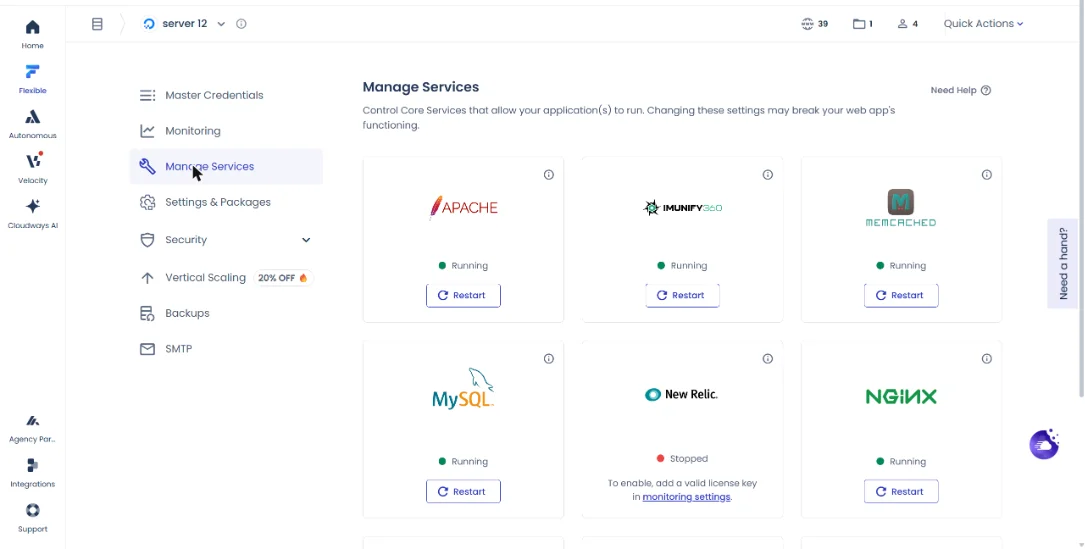
If the service won’t start, or crashes again after a few minutes, don’t keep clicking Restart. Check the disk and memory first, in Step 3.
Step 2: Compare the connection details in wp-config.php
This is the classic situation after a manual migration, an application clone or a password change: the site arrives with the wp-config.php from the old server, but the application on Cloudways has its own database name, user and password.
- In the platform, open Applications and select the application.
- On the Access Details tab, under the MySQL details, copy the database name (DB Name), the username and the password.
- Connect over SFTP and open public_html/wp-config.php.
- Compare DB_NAME, DB_USER and DB_PASSWORD with what you copied. Fix any difference, including stray spaces.
- Check DB_HOST too. For a site whose database is on the same server, the value is usually localhost. If a host name from your previous provider was copied in, replace it.
- Save the file and refresh the site.
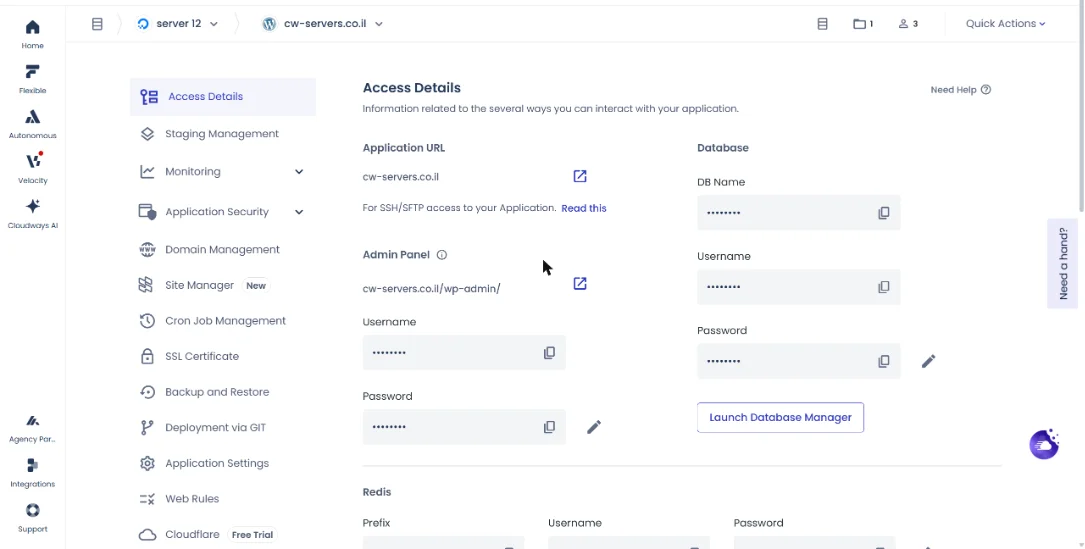
From the same screen you can click Launch Database Manager and confirm the database exists and has tables. If it’s empty, the migration didn’t include the database, and you need to import it. Details in the guide to managing your database on Cloudways.
Step 3: Check disk, memory and load
A database service doesn’t just crash for no reason. The three common causes are a full disk, running out of memory, and a sudden load spike.
- On the server, open Monitoring and check disk, RAM and CPU usage in the summary.
- If the disk is full or nearly full, MySQL can’t write and goes down. Free up space using the guide to a full disk and inodes, and only then restart the service.
- If RAM peaked during the incident, the operating system probably killed the database to free memory. Scale the server up under Vertical Scaling, or reduce the load.
- If CPU spiked for no obvious reason, check application monitoring and the logs for a wave of bots or requests to xmlrpc.php and wp-login.php.
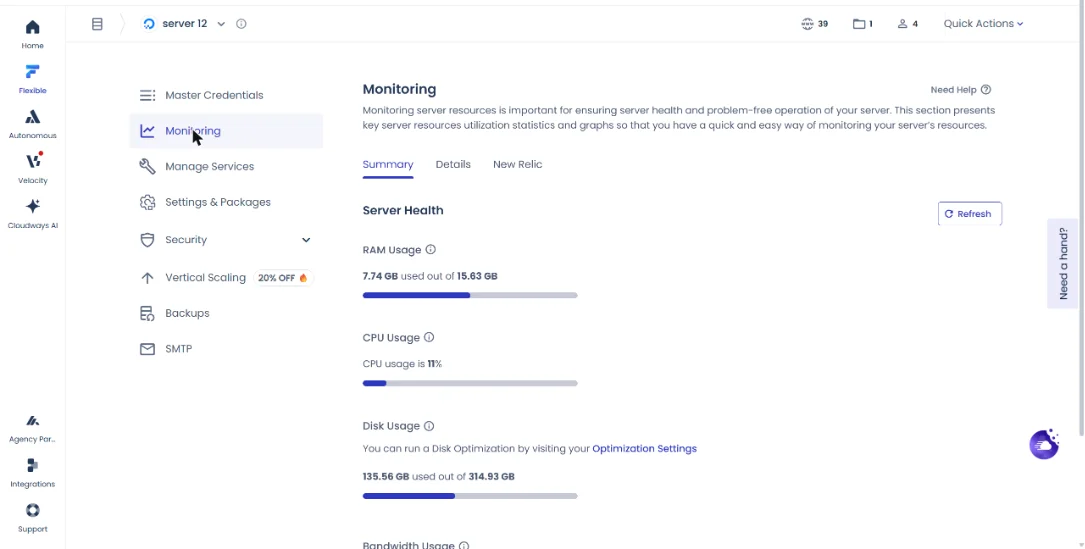
If you have Cloudways Copilot, it detects this kind of server problem and suggests an explanation and a fix. Details in the Copilot guide. For ongoing monitoring, see the server monitoring guide.
Step 4: Repair corrupted tables
If the connection itself works but a table is corrupted, WordPress shows a message about unavailable tables. WordPress has a built-in repair tool.
- Back up the application before repairing.
- In wp-config.php, above the line “That’s all, stop editing”, add:
define('WP_ALLOW_REPAIR', true); - Go to /wp-admin/maint/repair.php on your site and click Repair Database.
- Right after the repair, delete the line from wp-config.php. That page is open to anyone for as long as the line exists.
For advanced users: with SSH access, from the application’s public_html you can run wp db check and then wp db repair.
Common mistakes and how to fix them
A restart loop: the service comes up and falls over again. The cause is almost always a full disk or memory. Treat the cause, not the symptom. If it’s memory, see why MariaDB restarts because of the OOM Killer.
Changing the database password without updating wp-config.php: if you changed the database password, you need to update it in the file too, exactly as it appears in Access Details. Otherwise the site goes down immediately.
A cache plugin showing an old error: sometimes the database is already back, but Varnish or Breeze is still serving the error page. Clear the application’s cache and check again.
A small server for a WooCommerce store: a 1GB server running an active store with heavy plugins will hit the edge of its memory during busy hours. 2GB is a more sensible starting point for a store.
When to contact support: if the service won’t start even when there’s disk space and free memory, open a ticket with Cloudways support and include the time of the incident. Support is available 24/7.
The code BFCM802 takes 80% off your bill for the first two months (up to $200 off per month), including unlimited free site migrations. New customers only, and only until the offer ends.
The offer ends on December 4, 2026 at 23:59 (UTC+2).
Start with a free trial, no credit card. Enter the code at checkout and check that it shows up.
After Black Friday: 30% off for 3 months with the code ASAEL. On a large server (above about $444 a month) ASAEL already saves more today. BFCM802 vs. ASAEL calculator
Start a free trial server, no credit card. When you move to a paid plan, the code ASAEL takes 30% off your bill for the first three months.
The link fills in the code on the signup form. Just make sure it shows up.
Sources
The official sources this page is based on (checked 7 Nov 2026):
- Cloudways Knowledge Base: What can i do in the manage services section on cloudways
- Cloudways Knowledge Base: Manage your databases using the cloudways database manager
- WordPress.org: Common WordPress errors
Frequently asked questions
On Cloudways, the usual causes are a crashed MySQL or MariaDB service, and wrong connection details in wp-config.php after a migration. Other causes: a full disk, running out of memory and corrupted tables.
Open your server in the platform, choose Manage Services under Server Management, and click Restart on the MySQL or MariaDB row. A restart usually takes less than a minute.
On the application’s Access Details tab. You’ll find the database name, username and password there, plus a Launch Database Manager button to manage the database from your browser.
Yes. When the server runs out of memory during a traffic spike or a bot attack, the operating system may shut down the database service. If it keeps happening, scale up the server or block the harmful traffic.
Not as a first step. If the service is down or the disk is full, the backup won’t help either, and a restore can wipe out recent data. Restore only if you’ve confirmed that the database itself was deleted or damaged.
Related guides
- Full disk or no inodes left: how to free up space
- WordPress upload errors: 413, file type and FTP request
- The 404 error in WordPress
- The 500 error in WordPress
- All troubleshooting guides: Troubleshooting on Cloudways
- Still deciding? Cloudways hosting review: the full picture
Official sources: What Can I Do in the Manage Services Section on Cloudways · Manage Your Databases Using the Cloudways Database Manager (Cloudways Knowledge Base). Written and checked by Asael Dreyer · Updated: 6 Nov 2026
Disclosure: this is an independent site, not the official Cloudways site. Some links on this site are affiliate links: if you sign up through them we earn a commission, at no extra cost to you. Full details

