
Short answer: to get started with Cloudways, you open a trial account, pick a product (Flexible or Autonomous), choose a cloud provider and server location, and launch your first WordPress application. This page collects every getting-started guide in the order I’d learn them: the core concepts first, then choosing a server type and your first launch, and finally the steps to take right after your site goes live.
What you’ll learn here
The guides in this section cover everything that happens until your first site is live on a Cloudways server. The table sums up what you’ll be able to do at the end of each stage.
| Topic | What you’ll be able to do | Level |
|---|---|---|
| Core concepts | Understand what a server, application, project and cloud provider are, and how they fit together in the control panel | Beginner |
| Choosing a product | Decide between Flexible and Autonomous based on the type of site, your budget and how much control you need | Beginner |
| Account and free trial | Sign up, activate the trial and know what is allowed and what is limited during it | Beginner |
| Launching a server and site | Choose a cloud provider, server size and location, and launch a WordPress application | Beginner |
| First steps after launch | Connect a domain, install SSL and make sure backups are configured | Beginner–intermediate |
Cloudways for beginners: which concepts do you need to know?
Before you log in to the panel, it helps to understand how Cloudways is structured. That alone saves most of the confusion of the first week.
What Cloudways actually is
Cloudways is a managed cloud hosting platform: it doesn’t run its own data centers. Instead, it sets up and manages servers for you on large cloud providers. As of November 2026 there are five providers to choose from: DigitalOcean, Vultr, Linode (Akamai), AWS and Google Cloud. You get a real cloud server, and Cloudways takes care of server setup, security, backups and support.
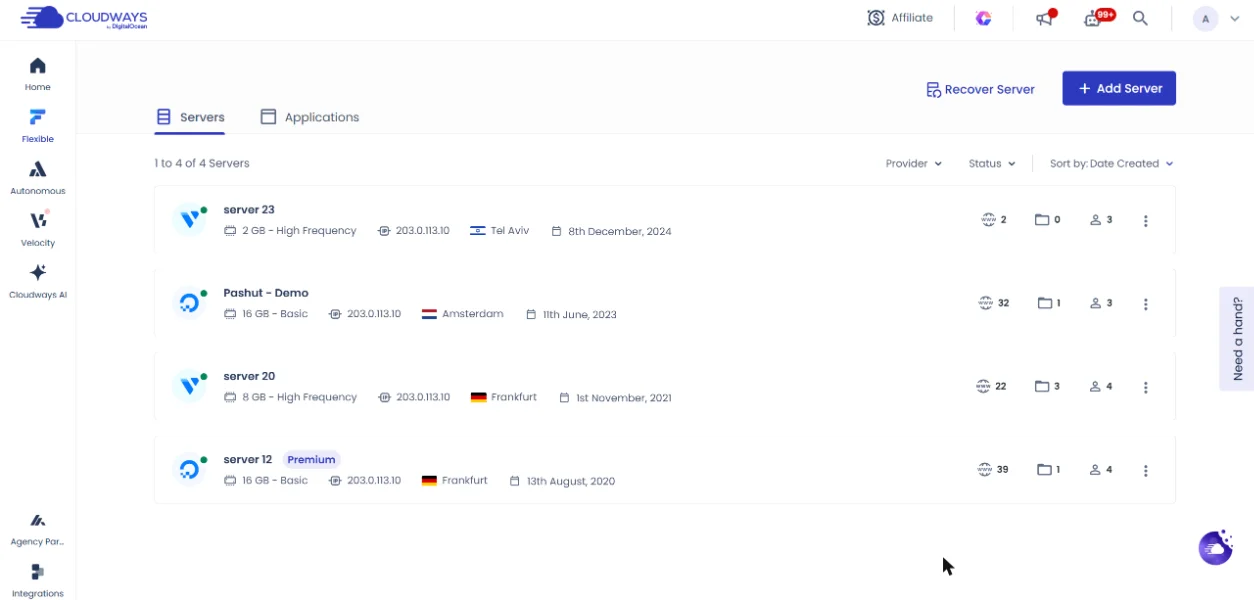
Account, project, server and application
The control panel has four levels. Once you understand them, every other guide on this site gets easier:
- Account: your user, with billing, payment methods and team members.
- Project: a logical folder that groups servers and applications, for example by client. Optional, but very handy once you have several sites.
- Server: the machine in the cloud, with RAM, CPU and disk. On Flexible you can run several sites on one server, as long as the resources are enough.
- Application: the site itself. A WordPress site is an application, and each application has its own folder, database and access credentials.
Flexible, Autonomous and the other products
The first decision at signup is the product. Most site owners will pick one of the first two:
| Product | What it is | Who it suits | Free trial (as of November 2026) |
|---|---|---|---|
| Flexible | A managed cloud server where you choose the provider, size and location. Full control over settings | People who manage several sites, agencies, developers, and anyone who wants to pick the server location | 5 days, no credit card |
| Autonomous | Managed WordPress hosting with automatic scaling (Autoscaling). No server to manage | WordPress sites with traffic spikes, stores, anyone who doesn’t want to deal with a server | 3 days |
| Velocity | Managed hosting for Node.js applications | Developers and JavaScript applications | See the official page |
| Managed AI Agents | Managed hosting for AI agents (OpenClaw, Hermes) | Anyone running an AI agent that needs to work 24/7 | See the official page |
Note one limitation of the Flexible trial: according to Cloudways support articles, a trial account can run only one server, so server cloning isn’t available either until you upgrade to a full account.
What Cloudways doesn’t have (and you should know up front)
Honesty first: there is no root access to the server, because the platform manages all servers centrally. Instead you get Master Credentials for SSH and SFTP, which are enough for almost any job. There are also no built-in mailboxes on the server: email for your domain comes through the Rackspace add-on or an external provider, and sending email from the site goes through Elastic Email or SMTP. Cloudways also doesn’t sell domains or provide nameservers, so your domain stays with your registrar.
In what order should you read the guides?
If you’re new to Cloudways, go through the steps in order. Each one builds on the previous, so you won’t get stuck halfway through the launch.
- Start with the web hosting glossary, so the terms in the panel look familiar.
- Decide between Flexible and Autonomous using the table above, and compare costs on the Cloudways pricing page. Detailed guide: Cloudways Flexible vs Autonomous: How to Choose the Right Server Type – 2026 Guide
- Open a trial account with the guide to opening a free trial account and launching your first server.
- Launch a server and your first WordPress site, and choose a server location close to your audience. Detailed guide: Launching a Cloudways Server and Your First WordPress Site – 2026 Guide
- Connect your domain with the guide to connecting a domain to Cloudways, then install an SSL certificate.
- Make sure backups are set up the way you need, following the backup and restore guide.
The code BFCM802 takes 80% off your bill for the first two months (up to $200 off per month), including unlimited free site migrations. New customers only, and only until the offer ends.
The offer ends on December 4, 2026 at 23:59 (UTC+2).
Start with a free trial, no credit card. Enter the code at checkout and check that it shows up.
After Black Friday: 30% off for 3 months with the code ASAEL. On a large server (above about $444 a month) ASAEL already saves more today. BFCM802 vs. ASAEL calculator
Start a free trial server, no credit card. When you move to a paid plan, the code ASAEL takes 30% off your bill for the first three months.
The link fills in the code on the signup form. Just make sure it shows up.
All getting-started guides
The guides are grouped by stage. New guides are added to the list as soon as they go live.
Basics and concepts
- Web hosting glossary – every term explained (including Cloudways terms)
- What is web hosting? The complete beginner’s guide
- Cloudways FAQ – root, dedicated IP, email and more
- Building a WordPress business site – the complete guide from domain to launch
- How much a WordPress business site costs in 2026 – build, hosting and maintenance
Opening an account and your first launch
- How to open a Cloudways free trial account and launch your first server
- Cloudways coupon code ASAEL – how to redeem it and what you get
- Cloudways pricing 2026 – what it really costs
Choosing a product – Flexible or Autonomous
- Cloudways Flexible vs Autonomous: How to Choose the Right Server Type – 2026 Guide
- Cloudways Flexible – Managed Cloud Server with Full Control: What It Is and How to Start – 2026 Guide
- Cloudways Autonomous – WordPress Hosting with Autoscaling: What It Is and How It Works – 2026 Guide
After your site is live: next steps
- How to connect a domain to Cloudways – A record, primary and additional domains
- How to install an SSL certificate on Cloudways – Let’s Encrypt, Wildcard and custom certificates
- How to back up and restore a site on Cloudways
- How to access the file manager and the application folder
Sources
The official sources this page is based on (checked on 7 Nov 2026):
- Cloudways Knowledge Base: Getting started with Cloudways
- Cloudways Knowledge Base: Why can’t I have root access to my server
- Cloudways Knowledge Base: Getting started FAQs
Frequently asked questions
It depends on the product. As of November 2026, the Flexible trial lasts 5 days and needs no credit card, and the Autonomous trial lasts 3 days. A Flexible trial can run only one server.
Not at the level of server administration. Launching a server and a WordPress site takes a few clicks, and server backups, security and updates are managed for you. It does help to know basic concepts like an A record and SSL, and that’s what the glossary is for.
The server is the cloud machine with the resources (RAM, CPU and disk), and the application is the site running on it. On Flexible you can run several applications on one server, and each has its own folder, database and access credentials.
No. Cloudways manages its servers centrally, so it doesn’t provide root access. You get Master Credentials for SSH and SFTP, which are enough for deploying code, working with WP-CLI and managing files.
Yes. On Flexible you choose the cloud provider and the data center location when you launch the server. Pick the location closest to most of your visitors. AWS and Google Cloud usually cost more than DigitalOcean or Vultr, so check whether the difference in response time justifies the price.
Related sections and key pages
- Moving from another host? Every way to migrate a site to Cloudways
- Domains, DNS and SSL on Cloudways
- Cloud providers and server locations – which provider to choose
- Full Cloudways review – is it the right hosting for you?
- How to install WordPress – 3 ways
- All guides: the Cloudways guide library
Official source: Getting Started With Cloudways, Getting Started FAQs, Why Can’t I Have Root Access to My Server? (Cloudways Knowledge Base). Written and reviewed by Asael Dreyer · Updated: 6 Nov 2026
Disclosure: this is an independent site, not the official Cloudways site. Some links on this site are affiliate links: if you sign up through them we earn a commission, at no extra cost to you. Full details