
Last updated: · By Asael Dreyer
In short: A WordPress white screen (White Screen of Death) is almost always a PHP error hidden from visitors: a crashed plugin or theme, PHP memory that ran out, wrong file permissions or an interrupted update. On Cloudways, start by clearing the cache, move on to the error log and debug mode, then deactivate plugins and the theme. If the site is stuck on the message “Briefly unavailable for scheduled maintenance”, all you need to do is delete the .maintenance file in the public_html folder, and it takes two minutes.
What the WordPress white screen is, and why it is white
A white screen (WSoD) is a completely blank page where your site should be. Sometimes it shows up only on the front end while the admin works, sometimes only in the admin, and sometimes the browser shows a message like “This page isn’t working” with a 500 code instead.
It is white because on a live site, PHP is set not to show errors to visitors. That is right from a security point of view, but it means that when the code crashes, the browser gets a blank page with no clue. Your job is to make the error appear, and then fix whatever caused it.
These are the common causes, according to Cloudways’ documentation:
- A code error in PHP, usually in custom code or a snippet pasted into the theme.
- PHP memory that ran out in the middle of loading a page.
- A plugin or theme that is not compatible with each other, with the WordPress version or with the PHP version.
- A corrupted plugin or theme, for example after an update that did not finish.
- A server-level problem, such as file permissions.
And what is a stuck Maintenance Mode?
During every core, plugin or theme update, WordPress creates a temporary file called .maintenance and shows visitors a maintenance message, so they do not see a half-updated site. When the update finishes, it deletes the file. If the update is interrupted halfway, for example because you closed the browser, the execution time ran out or the disk filled up, the file stays and the site is stuck on the maintenance message.
Before you start
- Back up the application. That way you can return to the current point if something goes wrong during the fix. See the backup and restore guide.
- Get file access ready. Most fixes need SFTP or SSH. Connecting with FileZilla is explained in the guide to connecting to your server files.
- Remember the path. The site folder on a Cloudways server is
/home/master/applications/folder_name/public_html/. You find the folder name in the application details in the dashboard.
How to get out of a stuck Maintenance Mode
I will start with the easy case, because it solves a lot of tickets. If your site shows a maintenance message and not a white screen, this is the section for you.
- Connect over SFTP to the application’s
public_htmlfolder. - Turn on the display of hidden files. In FileZilla: the Server menu, then Force showing hidden files. A file whose name starts with a dot is hidden by default.
- Delete the
.maintenancefile. Over SSH, frompublic_html, the same action is the commandrm .maintenance. - Reload the site. If the update actually finished, the site comes back immediately. If not, WordPress may run it again, and the message disappears when it ends.
- Go to the admin, open the updates page, and check that everything that was updating is really on the new version. A plugin left half-updated is better reinstalled.
Still stuck? Probably a plugin whose update broke. Rename the wp-content/plugins folder to plugins-backup and check the site. If it comes up, put the original name back and track down the problem plugin using fix 3. The official guide also suggests setting WP_INSTALLING to false in the wp-activate.php file. I recommend leaving that as a last resort and saving a copy first: it is a WordPress core file, and the change will be overwritten at the next update.
How to fix the WordPress white screen, step by step
Start with the first fix and continue only if the problem remains. After every change, check the site in a private browsing window.
| What you see | Where to start |
|---|---|
| The site is white, the admin works | Fix 1 (cache), then fix 3 (plugins) |
| Both the site and the admin are white | Fix 2 (logs and debug), then fix 3 over SSH or SFTP |
| The white screen started after an update | Fix 7 (.maintenance), then fix 3 |
| The white screen started after switching themes or editing functions.php | Fix 4 (theme) |
| The log shows “Allowed memory size exhausted” | Fix 5 (memory) |
| Nothing helped | Fix 8 (restore) |
Fix 1: Clear the cache
If the admin works and the site is white, you may be looking at a cached copy of a broken page, even after the problem is already solved. Clear the browser cache first, then the plugin cache (in Breeze, for example, there is a clear button in the top bar), and finally Varnish at server level. How to do it in the dashboard is in the guide to clearing the cache on Cloudways.
Fix 2: Find out what the error is
There are two ways to see the error behind the white screen. The first needs no file changes: in the application in the dashboard, open Monitoring, then Logs and then Error Logs, and look for a “PHP Fatal error” line from the time the site went down. The second is WordPress debug mode: in the wp-config.php file, change define( 'WP_DEBUG', false ); to true, and reload the page. If WordPress shows the message “There has been a critical error on this website” instead, see what to do about a WordPress critical error.
Now, instead of a white screen, you will see a message that names a file and a line. A path containing wp-content/plugins/ points to a plugin, and a path with wp-content/themes/ points to the theme. Full instructions for safe debugging, which writes to a file and does not show it to visitors, are in the guide to the 500 error. When you are done, set the value back to false.
Fix 3: Deactivate plugins
If you identified the plugin in the log, deactivate only that one. If not, deactivate them all and then activate them one by one. Without access to the admin, you do this with WP-CLI, WordPress’s command-line tool, which is installed on Cloudways servers. Connect over SSH, go to the application’s public_html folder, and run:
# List the plugins and their status
wp plugin list

# Deactivate one plugin (replace with the plugin name)
wp plugin deactivate plugin-name

# Deactivate all plugins
wp plugin deactivate --all

# Reactivate one plugin
wp plugin activate plugin-name
Once the site is back, activate the plugins one after another and reload each time. When the white screen returns, you have found the culprit: reinstall it, replace it with another plugin, or contact the developer. Without SSH, you can rename the plugins folder over SFTP, exactly as in the maintenance mode section.
Fix 4: Switch the theme
If the plugins are clean, check the theme. In the admin, under “Appearance” and then “Themes”, activate a current default WordPress theme. Without the admin, use SFTP or SSH to rename the active theme’s folder inside wp-content/themes, for example from my-theme to my-theme-old, and WordPress will switch to another theme installed on the site. If the white screen disappears, the problem is in the theme: reinstall it, check recent changes in functions.php, or contact its developer.
Fix 5: Increase PHP memory
When a script uses more memory than it is allowed, it stops midway and the page stays blank. On Cloudways there are two levels to set it at:
- At server level: on the server, Settings & Packages and then the Basic tab, in the Memory Limit field. The default is 256MB, and the official recommendation is less than 512MB on a 1GB server, less than 1024MB on 2GB and less than 2048MB on 4GB and above.
- At application level: in the application’s PHP-FPM settings, with the line
php_admin_value[memory_limit] = 512M. Remove the semicolon at the start of the line if there is one, otherwise it will not be read.
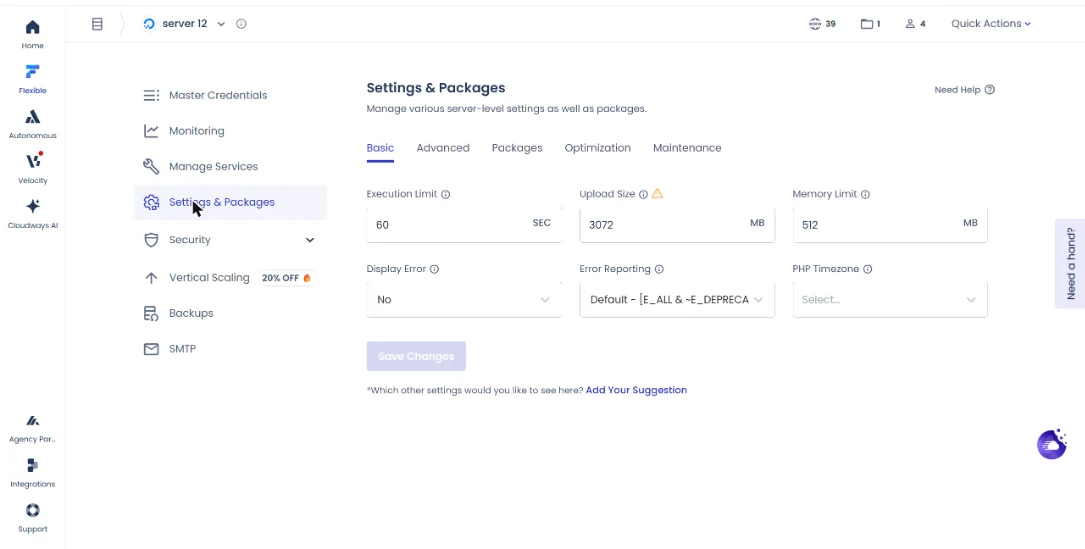
Note: the example in the official guide uses the value 64M, which is lower than the server default. Do not copy it as is, because it may make the problem worse. Choose a value higher than the current one and within the recommended range.
Fix 6: Reset file permissions
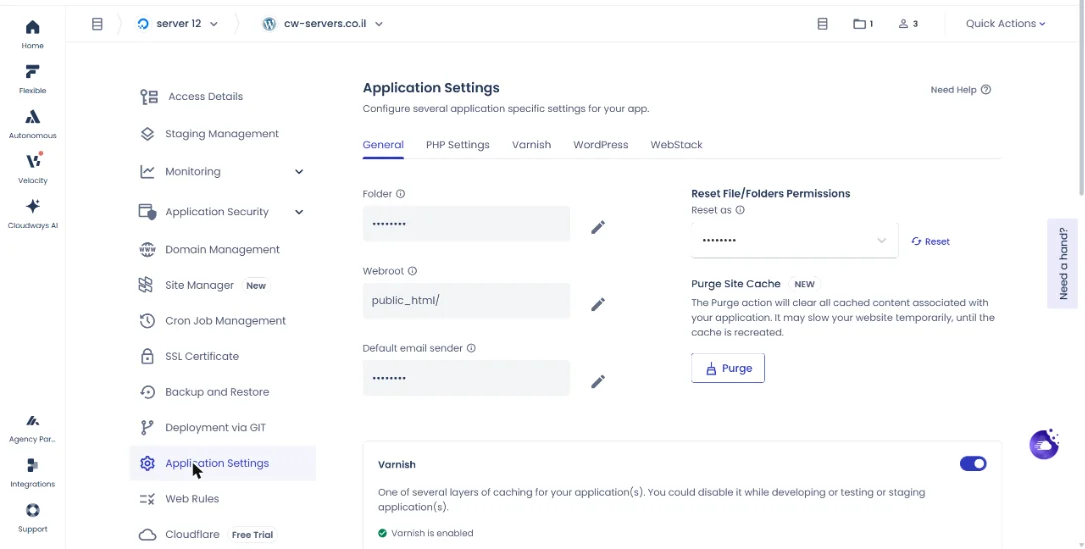
After a migration, a manual upload or working as the wrong SSH user, files can end up with the wrong ownership. In the application, open Application Settings, find Reset File/Folders Permission, choose the application user (Application User) and click Reset. Folders get permission 775 and files get 664.
Fix 7: A failed automatic update
An interrupted automatic update can leave a white screen and not only a maintenance message. Here too the fix is to delete .maintenance from the public_html folder, as in the maintenance mode section. If the updates finished and only the file remained, the site will come back. If not, WordPress will try to complete them.
Fix 8: Correct the code or restore a backup
If you edited code recently and you know what you changed, undo the change. If not, Cloudways keeps automatic backups, and you can restore the application to a point in time before the problem. That gets the site back online fastest, and afterwards you can investigate the problem on a copy in staging.
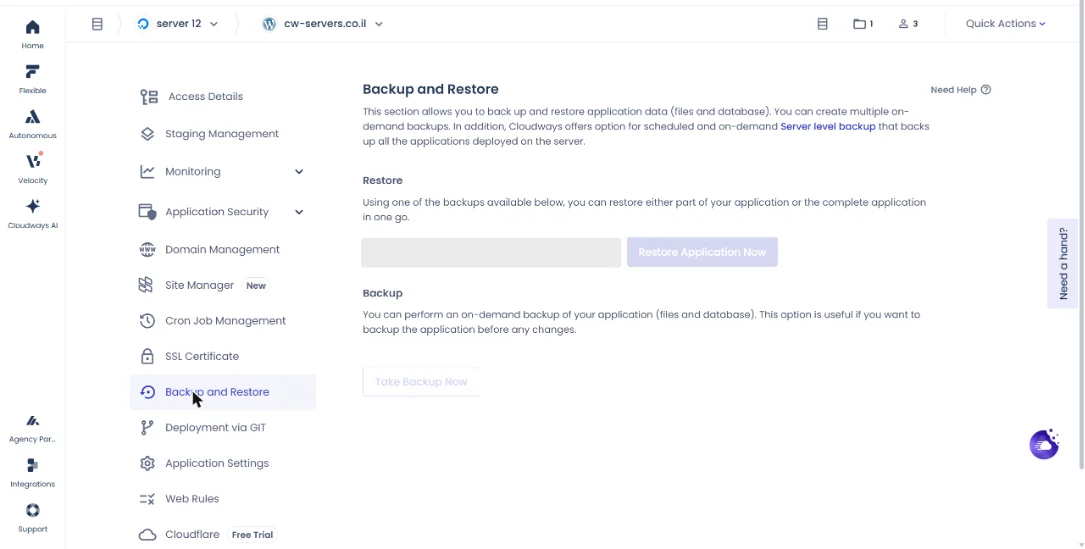
Keep in mind that in a restore, content added after the backup point, such as store orders or comments, can be lost. On an active store, consider restoring to a test environment and moving over only what you need.
How to prevent a white screen next time
- Update on staging first. A test environment on Cloudways takes one click to set up. See how to set up a staging environment.
- Safe automatic updates. The Pro plan of Site Manager, which replaced SafeUpdates, updates on a copy first, compares screenshots and rolls back if something breaks. Details in the guide to SafeUpdates and Site Manager.
- Do not update twenty plugins at once. Updating in small batches lowers the chance of an interrupted update and makes it easier to see which one broke the site.
- Keep free disk space. An update needs room for temporary files, and a full disk is a silent reason for interrupted updates. See the guide to a full disk and inodes.
Common mistakes and how to fix them
You deleted the whole themes folder: with no theme installed, WordPress cannot display anything. Put the folder back, and rename only the active theme.
You cannot find .maintenance: the file is hidden. Turn on hidden files in your SFTP client, or use ls -a over SSH. If it really does not exist, the problem is something else: continue to fix 2.
You forgot to rename the plugins folder back: all plugins will stay deactivated, including security and cache plugins. After diagnosing, restore the original name and activate the plugins.
The page is white only at checkout or on a single page: this is usually a plugin specific to that page, such as a payment gateway or a form builder. If the problem only appears after switching to HTTPS, see the guide to Mixed Content and redirect loops. And if the message “Error Establishing a Database Connection” appears, that is a different problem, explained in the guide to the database connection.
The site is white and slow, and the server is overloaded: if the monitoring graphs show CPU or memory at a peak, the problem may not be in the code but in resources. Check the guide to a slow site and high CPU.
The code BFCM802 takes 80% off your bill for the first two months (up to $200 off per month), including unlimited free site migrations. New customers only, and only until the offer ends.
The offer ends on December 4, 2026 at 23:59 (UTC+2).
Start with a free trial, no credit card. Enter the code at checkout and check that it shows up.
After Black Friday: 30% off for 3 months with the code ASAEL. On a large server (above about $444 a month) ASAEL already saves more today. BFCM802 vs. ASAEL calculator
Start a free trial server, no credit card. When you move to a paid plan, the code ASAEL takes 30% off your bill for the first three months.
The link fills in the code on the signup form. Just make sure it shows up.
Sources
- Cloudways Knowledge Base: How to fix WordPress white screen of death (WSOD)
- Cloudways Knowledge Base: How to fix WordPress stuck in maintenance mode
- Cloudways Knowledge Base: How to manage your server settings
- Cloudways Knowledge Base: How can I reset file and folder permissions
Frequently asked questions
Almost always because of a PHP error that is not shown to visitors: a crashed plugin or theme, PHP memory that ran out, file permissions or an interrupted update. The error log in the dashboard or WordPress debug mode will reveal the exact cause.
Delete the .maintenance file from the application’s public_html folder, over SFTP or over SSH with the command rm .maintenance. The file is hidden, so you need to turn on hidden files.
Usually a few seconds to a minute, while the update runs. If the message stays up for more than a few minutes, the update was probably interrupted, and you need to delete the .maintenance file manually.
Over SSH, from public_html, with the command wp plugin deactivate –all. Without SSH, rename the wp-content/plugins folder over SFTP, and WordPress deactivates all the plugins.
Usually not. In most cases it is a code, plugin or memory error. If you find unfamiliar files or suspicious code in the log, scan the site and change your passwords before you bring it back online.
Yes, if the backup is from before the problem. On Cloudways you can restore an application to a point in time. On an active store, note that orders added after the backup point can be lost.
Related guides
- How to fix a 500 Internal Server Error
- A slow site or high CPU: how to find the cause
- Mixed Content and Too Many Redirects in WordPress
- Error Establishing a Database Connection
- A full disk or no inodes left: how to free up space
- Cloudways hosting: why a managed server
- All guides in this category: Troubleshooting guides
Official source: How to Fix WordPress White Screen of Death (WSoD), How to Fix WordPress Stuck in Maintenance Mode, plus How to Manage Your Server Settings and How Can I Reset File and Folder Permissions (Cloudways Knowledge Base). Written and checked by Asael Dreyer · Updated: 6 Nov 2026
Disclosure: this is an independent site, not the official Cloudways site. Some links on this site are affiliate links: if you sign up through them we earn a commission, at no extra cost to you. Full details

