
Last updated: · By Asael Dreyer
In short: A 500 Internal Server Error means the site hit a problem in its code that it did not know how to handle, so the server could not return a page. On Cloudways the cause is almost always in the application and not on the server: a crashed plugin or theme, the PHP memory limit, broken .htaccess rules or file permissions. Start with the error log under the application’s Monitoring, and from there work through this guide in order. In most cases the fix takes 10 to 30 minutes.
What a 500 Internal Server Error is
A 500 error is a generic message from the web server: “I tried to run the site, something broke, and I have no better detail to give you.” It does not mean the server is down or overloaded. The server is working, but the code it ran, usually WordPress PHP, a plugin or a theme, stopped with an error.
That is also the main difference from 502, 503 and 504 errors. With those, the problem is in the communication between server components, in load or in response time. With a 500, the problem is almost always in the code or settings of the site itself.
| Error | What it means | Where to look |
|---|---|---|
| 500 Internal Server Error | The site’s code crashed | PHP error log, plugins, .htaccess |
| 502 Bad Gateway | Nginx did not get a valid response from PHP or another service | Manage Services, server load |
| 503 Service Unavailable | The service is unavailable right now | Load, a service that went down, maintenance mode |
| 504 Gateway Timeout | The request took too long | Execution time limit, heavy queries |
If you see a 502, 503 or 504, go to the guide to 502, 503 and 504 errors. If you see a completely blank white screen with no message, the WordPress white screen guide fits better, although the causes are very similar.
Before you start
- Back up first. Before you touch files or the database, take a backup of the server or the application so you can roll back. The backup and restore guide shows how.
- File access. Some of the fixes need SFTP or SSH. Have your credentials ready, and if you have not connected yet, go through the guide to connecting with FileZilla.
- What changed recently? A plugin update, a PHP version change, an edit to .htaccess or a code upload. Answering this question solves half of all cases.
What is probably causing the error, based on what you see?
| What is happening | Likely cause | Which step to go to |
|---|---|---|
| The error appeared right after a plugin update or installation | The plugin crashed or is not compatible | Step 3 |
| Only inner pages return 500, the homepage works | An empty or broken .htaccess file | Step 6 |
| The log shows “Allowed memory size exhausted” | The PHP memory limit | Step 5 |
| The error started after a PHP version change | Code that is not compatible with the new version | Step 7 |
| “Permission denied” errors in the log or after uploading files | File and folder permissions | Step 8 |
| The WordPress admin works, the site does not | A plugin or theme | Step 3 and 4 |
How to fix a 500 Internal Server Error, step by step
Work in order. Each step diagnoses or fixes one cause, and after every change, reload the site in a private browsing window to make sure you are not looking at a cached version.
Step 1: Check the error log in the dashboard
The error log is the first place to look, because a PHP error is almost always recorded there with the file name and line number.
- In the dashboard, open the server and then the application that returns the 500.
- In the side menu, open Monitoring and then Logs.
- Choose Error Logs, filter by Fatal error and click the refresh button to see the latest lines.
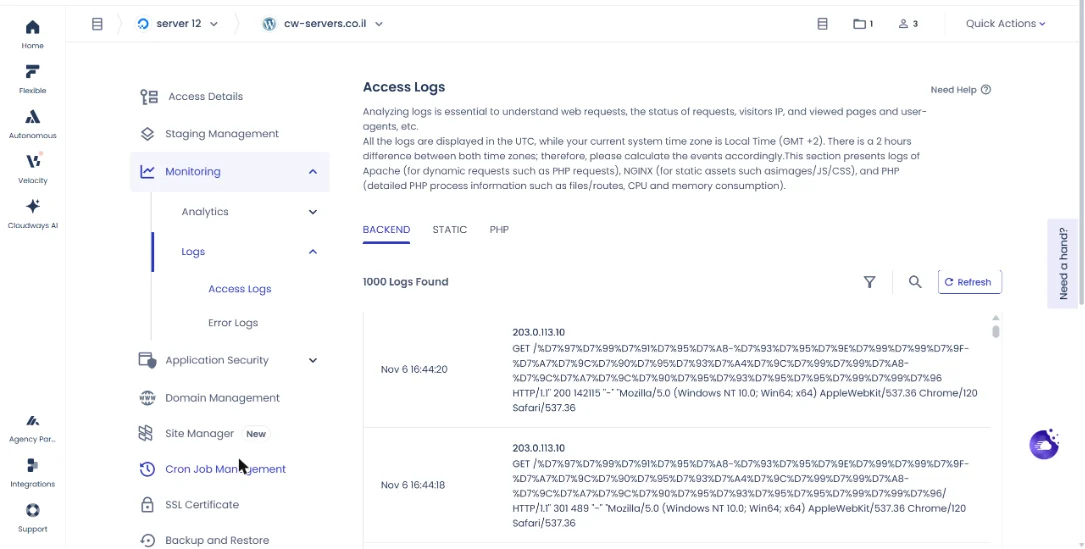
The dashboard only shows the last 1,000 entries for Apache, Nginx and PHP. For a longer log, connect over SFTP or SSH. On Autonomous, the logs are in the application under Intelligence. A line like “PHP Fatal error … in /wp-content/plugins/plugin-name/…” already tells you who is to blame, and you can jump straight to step 3.
Step 2: Turn on WordPress debug mode
If nothing in the log is clear, WordPress can write the errors to its own file. Debug mode (WP_DEBUG) is for diagnosis only, because with display turned on it can expose paths and sensitive information to visitors. For the message “There has been a critical error on this website”, read the WordPress critical error guide.
- Connect over SFTP and open the folder
applications/app_name/public_html. - Download a copy of
wp-config.phpas a backup, and open it in a text editor. - Find the
WP_DEBUGline and changefalsetotrue. If there is no such line, add the lines below before the line “That’s all, stop editing”. - Save, upload, and reload the site.
define( 'WP_DEBUG', true );
define( 'WP_DEBUG_LOG', true );
define( 'WP_DEBUG_DISPLAY', false );
This combination writes the errors to the wp-content/debug.log file without showing them to visitors, which is the safe way on a live site. If you are working on a staging environment, you can leave display on and see the error right in the browser. When you are done, set WP_DEBUG back to false.
Step 3: Deactivate plugins
A plugin that is not compatible with your WordPress or PHP version, or an update that did not finish, is the most common cause of a 500. First check whether the admin at /wp-admin loads: if it does, it is almost certainly a plugin or a theme.
- If the admin works: go to “Plugins”, deactivate all of them, and check whether the site is back.
- If it does not: connect over SSH, go to the application’s
public_htmlfolder and runwp plugin deactivate --all. Without SSH, use SFTP to rename thewp-content/pluginsfolder toplugins-off. - If the site is back, activate the plugins one by one and reload after each. The plugin that brings the error back is the culprit.
- Leave it deactivated (or delete it), and contact its developer with the line from the log.
If you renamed the folder, do not forget to rename it back to plugins before reactivating. WordPress will show all plugins as deactivated, and you activate them manually.
Step 4: Temporarily switch to a default theme
If the plugins are not to blame, check the theme. In the admin, under “Appearance” and then “Themes”, activate a current default WordPress theme. Without access to the admin, use SFTP to rename the active theme’s folder under wp-content/themes, and WordPress will fall back to another installed theme. A site with a custom theme will look broken for a few minutes, and that is fine: the goal is only to diagnose.
Step 5: Increase the PHP memory limit
When a PHP script needs more memory than it is allowed, it stops, and sometimes the result is a 500. In the log it looks like “Allowed memory size of … bytes exhausted”. WooCommerce sites, page builders and import plugins are the usual suspects.
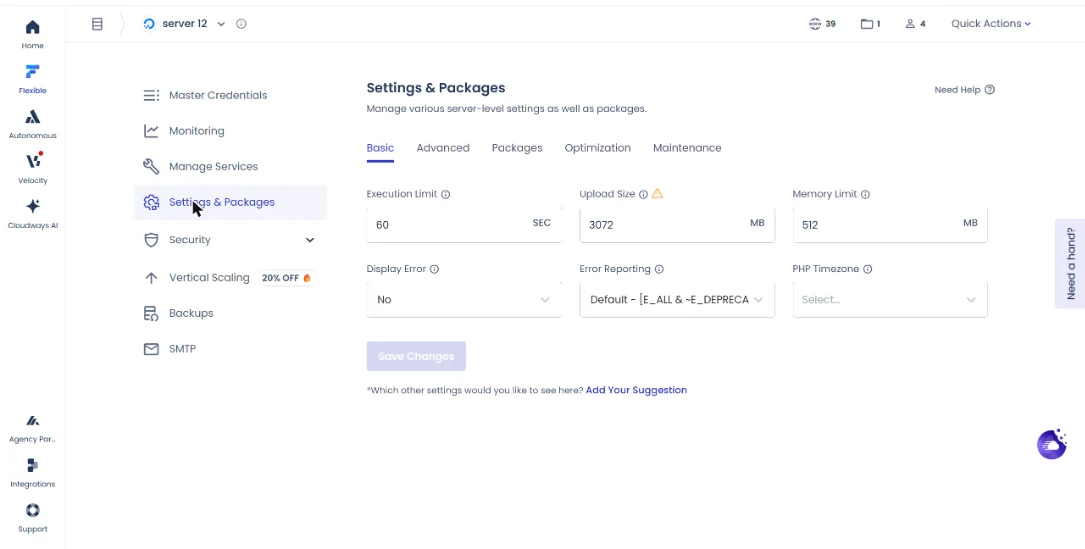
- In the dashboard, open the server and choose Settings & Packages.
- In the Basic tab, find Memory Limit.
- Raise the value according to your server size (see the table) and save.
| Server memory | Recommended PHP memory limit |
|---|---|
| 1GB | Less than 512MB |
| 2GB | Less than 1024MB |
| 4GB and above | Less than 2048MB |
The default is 256MB. This setting applies to all applications on the server, but a value set at application level (in its PHP-FPM settings) or in wp-config.php can override it. If you raised it and nothing changed, look for a lower setting in one of those places. And if the site keeps needing more memory, it may be time to scale up the server.
Step 6: Check the .htaccess file
The .htaccess file gives Apache its redirects and URL rules. When it is empty, all inner pages can return a 500. When it contains a rule that points to a module that is not installed, or a redirect that loops back on itself, the whole site goes down.
- In SFTP, in the
public_htmlfolder, turn on hidden files and find.htaccess. - Download a copy, then replace the contents with the basic WordPress rules:
# BEGIN WordPress
RewriteEngine On
RewriteRule .* - [E=HTTP_AUTHORIZATION:%{HTTP:Authorization}]
RewriteBase /
RewriteRule ^index\.php$ - [L]
RewriteCond %{REQUEST_FILENAME} !-f
RewriteCond %{REQUEST_FILENAME} !-d
RewriteRule . /index.php [L]
# END WordPress
If the site is back, add the rest of the rules from your copy back in, group by group, until you find the problem rule. Mind the stack: on an application running on the Lightning Stack (Nginx only), the .htaccess file is not read at all, and redirects and rules are managed through Web Rules in the dashboard. If you recently moved from Hybrid to Lightning and your redirects stopped working, this is why.
Step 7: Undo the last change or restore a backup
If your dev team pushed code right before the error started, roll back to the previous version. If you changed the PHP version, go back to the previous one using the guide to changing the PHP version and test. And if you do not know what changed, restoring the application to a point in time before the problem is usually the fastest way to get the site back online, and then you can investigate calmly on a copy.
Next time, test updates on a staging environment before they reach the live site.
Step 8: Reset file and folder permissions
After a manual file upload, a migration or working as the wrong SSH user, files can end up with the wrong ownership or permissions. On Cloudways you fix this with one click:
- Open the application and choose Application Settings.
- Find Reset File/Folders Permission.
- Choose the application user (Application User) from the list and click Reset.
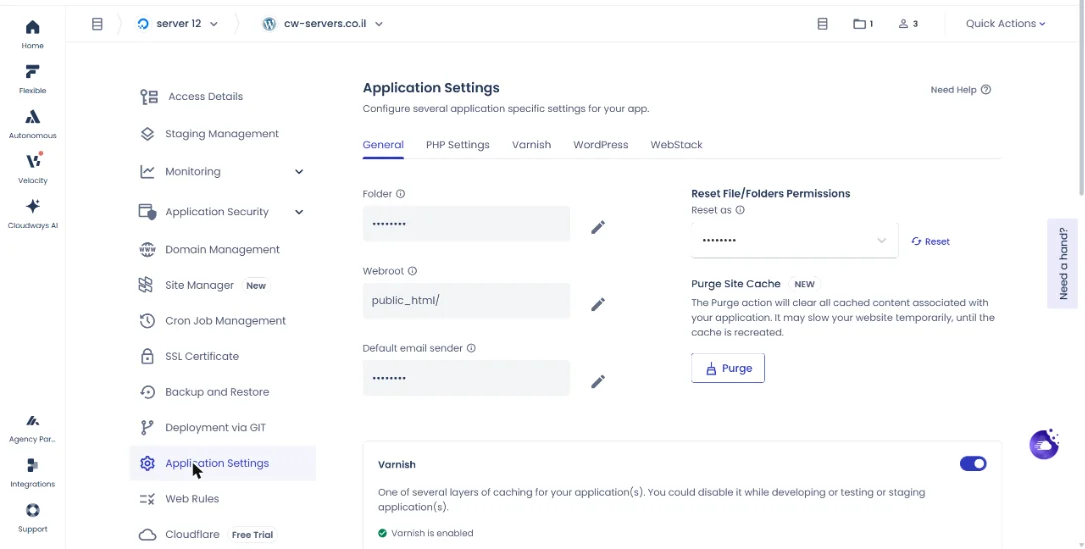
The reset applies to public_html and everything inside it: folders get 775, files get 664, and ownership goes to the user you chose. Only choose the Master user if you know why.
Which common mistakes cause the error, and how do you fix them?
“I fixed it, but I still see a 500”: you may be looking at a cached version. Clear the application cache and Varnish, and check in a private window. How to do it is in the guide to clearing cache.
Leaving WP_DEBUG on: the debug.log file keeps growing and takes up space, and with display on, visitors see errors. Set it back to false as soon as you finish diagnosing.
Deleting a plugin instead of deactivating it: if a plugin holds important settings (a store, forms), deleting it can lose them. Deactivate first, and delete only after you understand the problem.
Raising memory again and again: if every increase ends in a memory error again, there is a leak in the code or a heavy plugin. Raising the limit only postpones the problem. If the server itself is overloaded, check the guide to a slow site and high CPU.
The error only appears after switching to HTTPS: that is no longer a classic 500, but usually a redirect loop. See the guide to Mixed Content and Too Many Redirects.
Went through all the steps and the site still does not work? Open a ticket with Cloudways support, which is available 24/7, and attach the lines from the error log and whatever you changed recently. It saves a whole round of questions.
The code BFCM802 takes 80% off your bill for the first two months (up to $200 off per month), including unlimited free site migrations. New customers only, and only until the offer ends.
The offer ends on December 4, 2026 at 23:59 (UTC+2).
Start with a free trial, no credit card. Enter the code at checkout and check that it shows up.
After Black Friday: 30% off for 3 months with the code ASAEL. On a large server (above about $444 a month) ASAEL already saves more today. BFCM802 vs. ASAEL calculator
Start a free trial server, no credit card. When you move to a paid plan, the code ASAEL takes 30% off your bill for the first three months.
The link fills in the code on the signup form. Just make sure it shows up.
Sources
- How to resolve 500 Internal Server Error – Cloudways Knowledge Base
- How to view application logs using the Cloudways platform – Cloudways Knowledge Base
- How to manage your server settings – Cloudways Knowledge Base
- How can I reset file and folder permissions – Cloudways Knowledge Base
Frequently asked questions
No. The server is running, but the code it ran hit an error. In most cases the problem is in a plugin, the theme, the memory limit or the .htaccess file, not in hardware or the network.
On Flexible, in the application under Monitoring and then Logs, in the Error Logs tab. The dashboard shows the last 1,000 entries. On Autonomous, the logs are under Intelligence in the application.
Over SSH, with the command wp plugin deactivate –all in the public_html folder. Without SSH, rename the wp-content/plugins folder over SFTP, and WordPress will deactivate all of them.
The default is 256MB, and you can change it in Settings & Packages in the Basic tab. The official recommendation is less than 512MB on a 1GB server, less than 1024MB on a 2GB server and less than 2048MB on 4GB and above.
Usually because the .htaccess file is empty or broken, so WordPress’s pretty URLs are not translated. Put the basic WordPress rules back in the file. On an application running the Lightning Stack, the file is not read, so check Web Rules.
Usually yes, if the backup is from before the problem. It is the quick way to get the site back, but afterwards it is worth understanding what caused it, otherwise it will come back with the next update.
Related guides
- How to fix 502, 503 and 504 errors on Cloudways
- The WordPress white screen and stuck Maintenance Mode
- A slow site or high CPU: how to find the cause
- Mixed Content and Too Many Redirects in WordPress
- Cloudways hosting: why a managed server
- All guides in this category: Troubleshooting guides
Official source: How to Resolve 500 Internal Server Error, plus How to View Application Logs Using the Cloudways Platform, How to Manage Your Server Settings and How Can I Reset File and Folder Permissions (Cloudways Knowledge Base). Written and checked by Asael Dreyer · Updated: 6 Nov 2026
Disclosure: this is an independent site, not the official Cloudways site. Some links on this site are affiliate links: if you sign up through them we earn a commission, at no extra cost to you. Full details

