
Last updated: · By Asael Dreyer
Short answer: to set up SMTP on Cloudways, open your server, click SMTP in the left menu, choose Your Own SMTP and fill in your provider’s details. For Gmail SMTP: host smtp.gmail.com, port 587, your Gmail address as the username and an App Password with no spaces. For SendGrid the username is apikey and the password is your API key, and for Mailgun you copy the SMTP credentials from your domain in your account. Finish by sending a test email with Send Test Email. The whole setup takes about 10 minutes.
What SMTP is and why your server needs it
SMTP is the protocol servers use to send email to each other. When WooCommerce sends an order confirmation, it is really asking your server to hand a message to the customer’s mail server.
The problem is that a cloud server is not a trusted mail server. Email sent straight from it often gets flagged as spam, and some cloud providers block port 25, the port mail servers use to talk to each other. The fix is an SMTP relay: instead of sending the mail itself, your server passes it to an established sending provider (Gmail, SendGrid, Mailgun) whose servers are known and have a good reputation. The provider sends the email on your behalf. And if you are torn about which provider to pick, see Elastic Email vs SendGrid, Brevo and Mailgun.
On Cloudways you do this with the free Custom SMTP add-on, at the server level. Three things worth knowing about it:
- It works at the server level. Every application on the server sends through the same provider.
- Only one email add-on per server. If Elastic Email is active, you have to turn it off before you can enable your own SMTP, and the other way around.
- The add-on is free, the provider isn’t always. Whatever the provider charges, you pay them directly.
Not sure an external SMTP is the right choice at all? The comparison of Elastic Email, SMTP and Rackspace is in the guide to choosing an email solution.
Before you start
- An account with the provider you picked: Gmail or Google Workspace, SendGrid, or Mailgun.
- Access to your domain’s DNS (at your registrar or in Cloudflare), so you can add the provider’s SPF and DKIM records. Without them your emails land in spam even if the setup is correct.
- A From address on your own domain, for example orders@yourstore.com, verified with the provider.
Which provider to choose
| Provider | Username and password | Best for | Note |
|---|---|---|---|
| Gmail / Google Workspace | Gmail address + App Password | Small sites with a few forms | Low daily limit. Cloudways articles disagree on the number (100 to 500 per day), so check with Google |
| SendGrid | apikey + API key | Stores and sites with medium to high volume | Includes an API, templates and analytics |
| Mailgun | The domain’s SMTP credentials in your account | Developers, high volume, detailed logs | Also offers inbound email routing and address validation |
| Elastic Email (Cloudways add-on, not Custom SMTP) | Configured automatically | Most sites | Tiers by monthly volume, from $0.10 per month (list price, 6 Nov 2026) |
Check SendGrid and Mailgun plans and pricing on the providers’ own sites. They change often, and both offer free or trial starter plans.
How to get to your server’s SMTP settings
- In the management panel click Flexible in the side menu, then the Servers tab on the screen that opens. Pick your server.
- In the server’s left menu click SMTP.
- In the Select SMTP dropdown choose Your Own SMTP. The fields appear: email gateway provider, Host, Port, Username and Password.
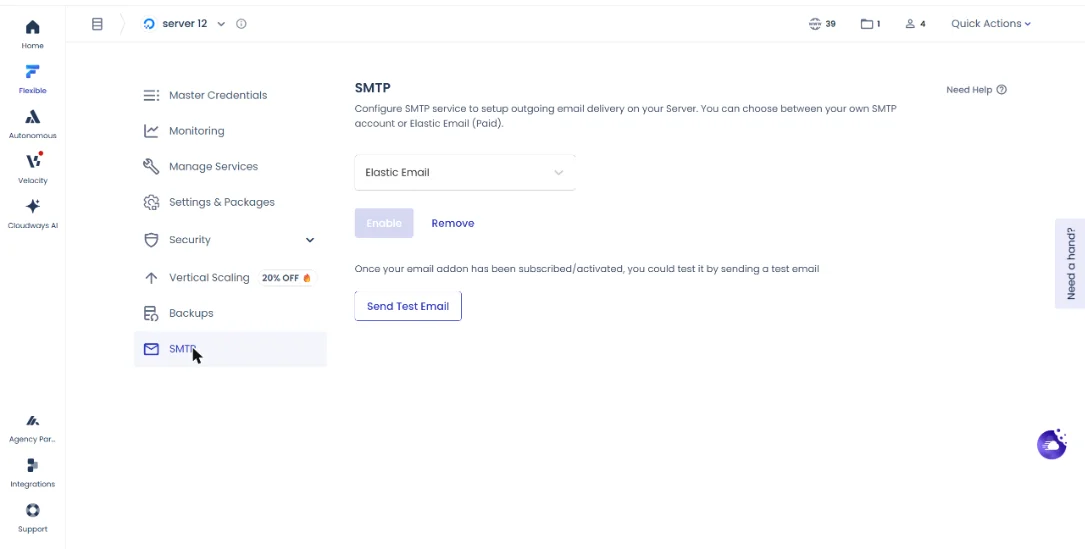
How to set up Gmail SMTP on Cloudways
Gmail SMTP is the free option, and it needs an App Password, not your regular account password. Google only lets you create an App Password on an account with 2-Step Verification.
Step 1: Turn on 2-Step Verification in your Google account
- Sign in to the Google account you will send from.
- In the side menu choose Security.
- Click 2-Step Verification and complete the setup if it isn’t already on.
Without 2-Step Verification you will get a wrong-password error later, even when the password is correct.
Step 2: Create an App Password
- Open the App Passwords page in your Google account.
- Give the password a name that helps you recognize it, for example “Cloudways – store site”.
- Click Generate.
- Copy the password and keep it somewhere safe. Google shows it in groups of four letters separated by spaces. Delete the spaces before you paste it into Cloudways, otherwise you will get an error such as “No Spaces Allowed”.
Step 3: Enter the details in Cloudways
On the server’s SMTP screen, after choosing Your Own SMTP:
| Field | What to enter |
|---|---|
| Email gateway provider | Other |
| Host | smtp.gmail.com |
| Port | 587 (TLS). 465 (SSL) also works, but according to the documentation the mail server on Cloudways (Postfix) prefers 587 |
| Username | Your full Gmail address |
| Password | The App Password, without spaces |
Click Save, then move on to sending a test email (below).
Sending limit: Cloudways articles disagree here. The Gmail SMTP article (March 2026) gives roughly 100 emails per day, about 3,000 per month, while older articles give roughly 500 per day on a free account and 2,000 on Google Workspace. Google sets the limit and it changes, so check the current numbers with them. Either way, this suits a brochure site with a contact form, not a store.
How to set up SendGrid SMTP
SendGrid (a Twilio company) is a professional sending provider with SMTP and an API, templates, logs and analytics. The recommended way to connect to it is with an API key.
Step 1: Create an API key in SendGrid
- Sign in to your SendGrid account.
- In the side menu open Settings and choose API Keys.
- Click Create API Key.
- Name the key and pick its permissions. The Cloudways documentation uses Full Access. From a security standpoint you can instead create a key limited to sending mail only (Mail Send), so that if the key ever leaks nobody can change your account with it. Send a test email to confirm the restricted key works.
- Click Create & View and copy the key. SendGrid shows it only once.
Step 2: Enter the details in Cloudways
- On the server’s SMTP screen choose Your Own SMTP.
- Under provider choose SendGrid.
- In Username type the word
apikey, exactly like that, in lowercase. - In Password paste the API key.
- Click Save.
Then, in SendGrid, authenticate your domain (Sender Authentication) and add the DKIM and SPF records they give you in your DNS. Without them your emails will go out, but they will look less trustworthy to receiving mail servers.
How to set up Mailgun SMTP
Mailgun is a sending provider popular with developers, with detailed logs, address validation, and the option to route inbound email as well.
Step 1: Get the SMTP credentials in Mailgun
- Sign in to your Mailgun account.
- In the side menu choose Sending and then Domains.
- Pick your domain. If you added your own domain, use it rather than the sandbox domain, which is for testing only.
- Open SMTP and copy the username and password.
Step 2: Enter the details in Cloudways
- On the server’s SMTP screen choose Your Own SMTP.
- Under provider choose Mailgun.
- Enter the username and password you copied.
- Click Save.
If your Mailgun domain is set up in the European (EU) region, its SMTP server differs from the default. In that case choose Other and enter the Host shown on the domain’s SMTP page in Mailgun. Mailgun’s DNS records are explained in the guide to SPF, DKIM and DMARC.
Sending a test email
Cloudways lets you test the setup right away, from the same screen:
- Click Send Test Email.
- In From enter a sender address on the domain verified with your provider.
- In To enter your own address.
- Click Send Test Email and wait for the success message on screen.
Check your inbox, and the spam folder too. If the email landed in spam, the problem is almost always DNS (SPF, DKIM), not SMTP. In Gmail you can open the message, choose “Show original” and see whether SPF and DKIM are marked PASS.
The code BFCM802 takes 80% off your bill for the first two months (up to $200 off per month), including unlimited free site migrations. New customers only, and only until the offer ends.
The offer ends on December 4, 2026 at 23:59 (UTC+2).
Start with a free trial, no credit card. Enter the code at checkout and check that it shows up.
After Black Friday: 30% off for 3 months with the code ASAEL. On a large server (above about $444 a month) ASAEL already saves more today. BFCM802 vs. ASAEL calculator
Start a free trial server, no credit card. When you move to a paid plan, the code ASAEL takes 30% off your bill for the first three months.
The link fills in the code on the signup form. Just make sure it shows up.
Multiple sites on the same server
SMTP is configured for the whole server, so every site on it sends through the same provider and the same account. Two things to watch:
- Set From Name and From Address on every site. According to the documentation, if you don’t, sites may send with the name and address of the default application, and one store’s customers could receive email under another site’s name.
- A different provider for one site: if one client needs their own provider, set up an SMTP plugin in WordPress for that site, such as WP Mail SMTP. The site-level setting overrides the server’s.
- Make sure every sending domain is verified with the provider, with its own SPF and DKIM.
Common mistakes and how to fix them
Gmail returns a password error: you used your regular password instead of an App Password, 2-Step Verification is off, or spaces were left in the App Password.
“No Spaces Allowed”: you pasted the Google App Password with its spaces. Delete them.
The test email went through, but emails from the site don’t: the site uses its own SMTP plugin with different settings, or the From address on the site isn’t verified. Check the email settings in WordPress.
Emails land in spam: SPF or DKIM records are missing, or there are two separate SPF records on the domain. Merge them into one record and add the provider’s DKIM.
The connection fails or times out: don’t use port 25, which some cloud providers block. Try 587, and 2525 if your provider supports it.
Gmail stopped sending in the middle of the day: you hit the daily limit. Switch to Elastic Email or a dedicated sending provider.
You can’t select Your Own SMTP: Elastic Email is active on the server. Only one email add-on is allowed, so turn it off first.
Sources
This page is based on the following official documentation and pages:
- How to activate the custom SMTP add-on (Cloudways Knowledge Base)
- How to configure Gmail SMTP (Cloudways Knowledge Base)
- How to configure SendGrid SMTP (Cloudways Knowledge Base)
- How to configure Mailgun SMTP (Cloudways Knowledge Base)
Frequently asked questions
Host: smtp.gmail.com, port 587 (or 465), username: your full Gmail address, password: a Google App Password without spaces. Choose Other as the provider. 2-Step Verification must be on in your account to create an App Password.
Cloudways articles disagree. The most recent one (March 2026) says roughly 100 per day, about 3,000 per month, while older ones say roughly 500 per day on a free account and 2,000 on Workspace. The limit is Google’s and it changes, so check with them. Either way it suits a small site, not a store.
No. The Cloudways add-on is free. You only pay the external provider, if their plan is paid.
When you connect with an API key, the username is the word apikey and the password is the key itself. This is the recommended approach, rather than using your account login details.
Not through the server add-on, which applies to the whole server. But you can set up an SMTP plugin in WordPress on each site, such as WP Mail SMTP, so every site has its own provider.
Almost always because of DNS: SPF and DKIM records are missing for the sending domain, or the From address wasn’t verified with the provider. Fix the records and send again.
Related guides
- Which email solution to choose on Cloudways
- How to set up SPF, DKIM and DMARC
- Verifying your domain in Elastic Email
- How to set up the WP Mail SMTP plugin
- All guides on this topic: Email and message delivery
- The full picture: Cloudways hosting review
Official source: How to Activate the Custom SMTP Add-on, How to Configure Gmail SMTP, How to Configure SendGrid SMTP, How to Configure Mailgun SMTP (Cloudways Knowledge Base). Written and checked by Asael Dreyer · Updated: 6 Nov 2026
Disclosure: this is an independent site, not the official Cloudways site. Some links on this site are affiliate links: if you sign up through them we earn a commission, at no extra cost to you. Full details

