
Last updated: · By Asael Dreyer
Short answer: on Cloudways you install a free Let’s Encrypt SSL certificate from inside the application: Application Management, then SSL Certificate, enter an email and your domain (including the www version) and click Install Certificate. The certificate installs within a few minutes and renews on its own. For several subdomains there is a Wildcard certificate (it needs a CNAME record for validation), and a certificate you bought from another provider is uploaded through the custom certificate option. After installing, enable an HTTPS redirect and check the certificate.
What an SSL certificate is and why every site needs one
An SSL certificate is a digital file that lets the browser and the server communicate over an encrypted connection. When it’s installed, the address starts with https://, the browser shows a padlock, and anyone listening on the network can’t read passwords, form details or payment details.
The exact name today is TLS, the modern version of the protocol, but everyone still calls it SSL. According to Cloudways, its servers support all TLS versions, including TLS 1.3.
Why does this matter to you in practice? Without a certificate, Chrome and the other browsers flag the site as Not Secure, and visitors leave. Taking payments in a store requires HTTPS. And Google treats HTTPS as one of the signals of a trustworthy site. I don’t launch a site for a client without a certificate, not even a three-page brochure site.
Which SSL certificate fits you
The difference between certificate types is mostly how many addresses each one covers, and who issues it.
- A single-domain certificate covers exactly one address. A certificate for
example.comwon’t covershop.example.com. - A multi-domain certificate (SAN) covers a list of domains and subdomains that you define in advance. SAN stands for Subject Alternative Name, meaning an additional name in the certificate.
- A Wildcard certificate covers the domain and every subdomain of it (
*.example.com), including ones you create in the future, without defining them in advance.
| Certificate | What it covers | Cost | When to choose it |
|---|---|---|---|
| Let’s Encrypt (domain + www) | The domain and the www version, plus more domains as needed | Free, renews automatically | Most sites: brochure, blog, store |
| Let’s Encrypt Wildcard | The domain and all subdomains | Free, needs a CNAME record | Many subdomains, for example a site network (Multisite) |
| Custom SSL certificate | Whatever you bought from the provider | Paid to the certificate provider | When you need an organization-validated (OV) certificate or a client requires one |
| Cloudflare Origin Certificate | Only the connection between Cloudflare and the server | Free | A site that goes through Cloudflare with your own account |
Is a free certificate less secure? No. Let’s Encrypt is a recognized certificate authority that all the major browsers trust, and its encryption is as strong as a paid certificate’s. The difference is the level of validation: Let’s Encrypt issues only DV certificates (validating ownership of the domain), not OV, which includes validation of the organization. For an ordinary site, DV is entirely enough.
Cloudways doesn’t sell SSL certificates. It gives you Let’s Encrypt for free on every application, and lets you install a certificate you bought elsewhere.
What do you need to prepare before you start?
- The site must be live: the domain is set up in the application, and the DNS records (A for the domain and for the www version) point to the server’s IP address. If you haven’t connected it yet, start with the domain connection guide.
- Do you have Cloudflare or Sucuri? Protection services like these sit in front of the server and can block the validation. See the instructions for protection services before installing.
- The application name: according to Cloudways, special characters in the application name (comma, underscore, period) can cause errors that look like an SSL problem. Keep only letters, numbers and hyphens.
Installing a free SSL certificate (Let’s Encrypt), step by step
This is the installation that suits the vast majority of sites. The description here is for a Flexible server.
- In the management panel, open Servers and select the server your site is on.
- Click www and select the application.
- Under Application Management, choose SSL Certificate.
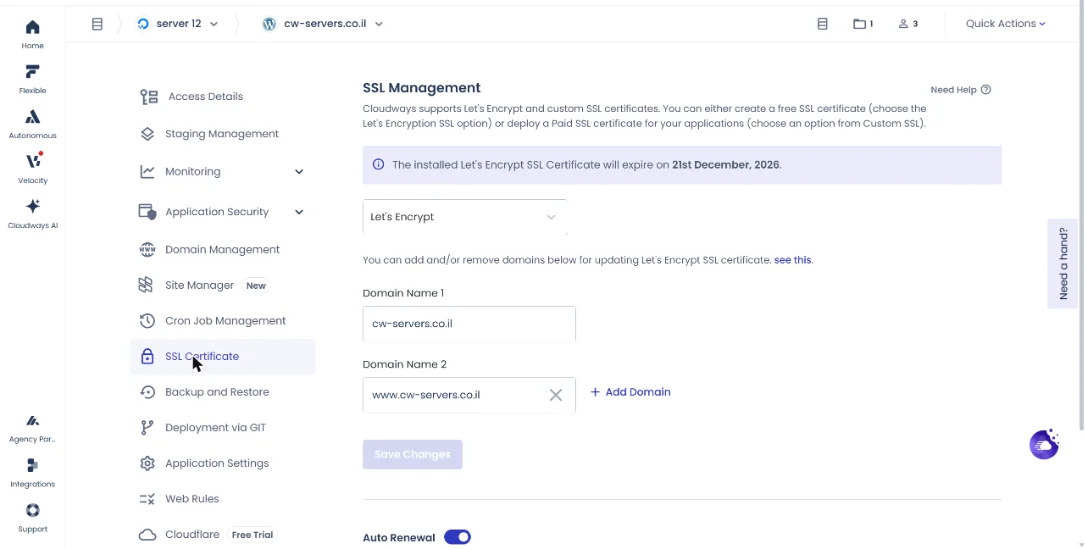
- Under SSL Management, choose Let’s Encrypt.
- Enter an email address. Notifications about the certificate go there, so pick an email that someone actually reads.
- In the Domain Name field, enter your domain, for example
example.com. Click Add Domain and addwww.example.comas well. - Click Install Certificate. The installation takes a few minutes.
Why add www? Plenty of visitors still type www. If the certificate doesn’t cover that version, they get a security warning even when the main domain is protected. It’s the most common mistake I see on sites that come to us. Also make sure the www address has a DNS record pointing to the server.
- When the installation finishes, Cloudways offers to enable an HTTPS redirect. If you don’t have a redirect in Cloudflare or in a plugin, click Enable HTTPS. If you do, skip it (explained below).
Renewing the certificate
A Let’s Encrypt certificate is valid for 90 days (according to the documentation, as of Nov 2026). Automatic renewal is checked by default, and Cloudways renews the certificate 30 days before it expires. You can also renew manually by clicking Renew Now, which resets the validity to 90 days from that moment. Leave automatic renewal on. There’s no reason to manage it by hand.
How do you install a Wildcard certificate for all subdomains?
A Wildcard is useful when you have many subdomains, or know more will be added. The main difference in the installation: Let’s Encrypt needs to verify that you control the domain’s DNS, so you add a CNAME record for validation.
- On the SSL Certificate screen, choose Let’s Encrypt and enter an email address.
- In the Domain Name field, enter the main domain only, without www.
- Check Apply Wildcard. The details of the CNAME record you need to create will appear on the screen.
- At your DNS provider (the registrar, Cloudflare or DNS Made Easy), create a CNAME record: in the name field
_acme-challenge, and in the value field the fixed address of the application on Cloudways (the FQDN shown on that same screen). You can leave the TTL at the default or set 600 seconds.
- Wait for the record to propagate. This usually takes a few minutes, and sometimes up to 24 hours. You can check with a tool like whatsmydns: enter
_acme-challenge.example.com, choose CNAME and search. - Go back to Cloudways and click Verify DNS. After the confirmation message, click Install Certificate.
Important: don’t delete the CNAME record after the installation. It’s also needed for automatic renewal. If you change the main domain in the future, you’ll need to cancel the existing certificate and install a new one.
Installing a certificate you bought (Custom SSL)
If you bought a certificate from a provider like DigiCert, Namecheap or Comodo, you upload it manually. It’s worth knowing three terms:
- CSR: certificate signing request. A small file with the certificate’s details, which you create and send to the provider when you buy.
- The CRT file: the signed certificate the provider sends you, usually with a .crt or .cer extension.
- The KEY file: the private key created together with the CSR. The certificate doesn’t work without it, and you must never share it.
- In the application, under Application Management, choose SSL Certificate.
- In the dropdown choose Upload Custom SSL and Key file(s) and click Install SSL.
- In the CRT content field, paste the content of the certificate, and right after it the provider’s certificate chain (CA Chain, a .ca or .ca-bundle file). Open the files in a text editor and copy everything, including the BEGIN CERTIFICATE and END CERTIFICATE lines.
- In the KEY content field, paste the private key.
- Click Submit. The certificate will be installed within a few minutes.
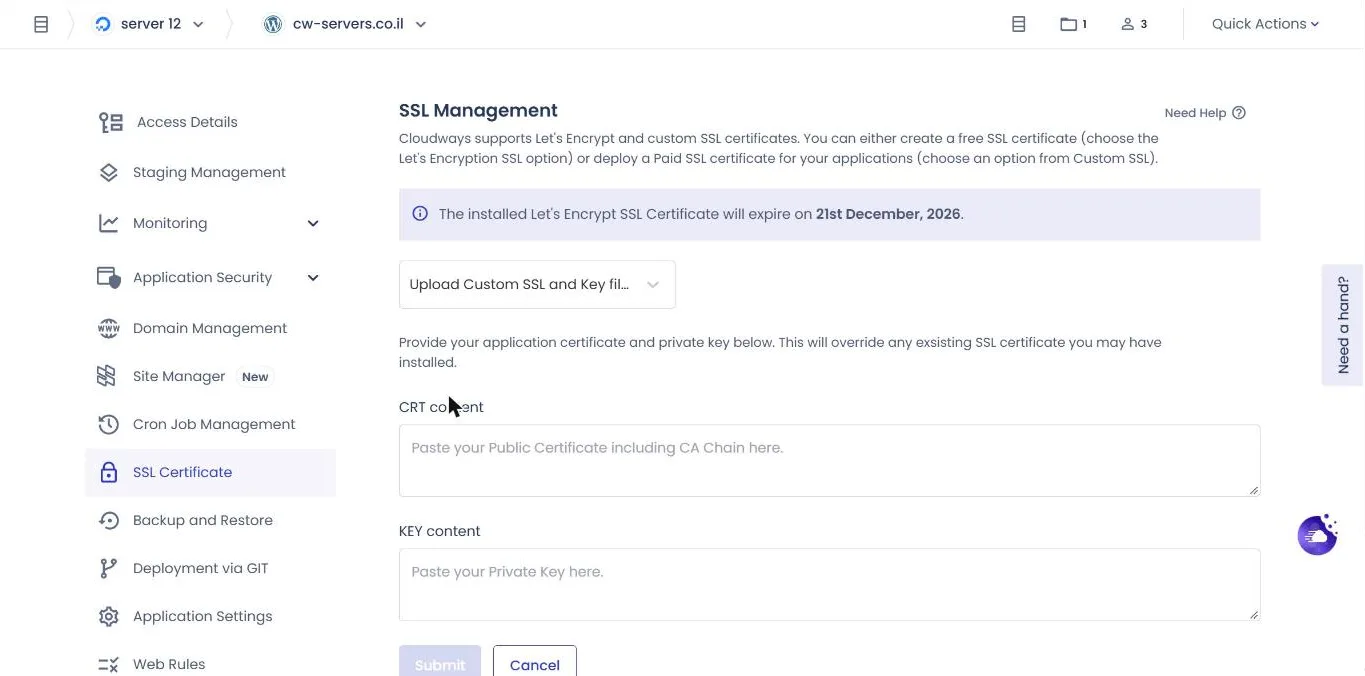
With a custom certificate, renewal is the responsibility of the certificate provider and of you. Put a reminder in your calendar a month before it expires. To remove it, there is a Remove SSL option on the same screen.
SSL with Cloudflare, Sucuri or Cloudflare Enterprise
When there is a protection service in front of the server, there are in effect two connections: from the visitor to the service, and from the service to your server. Each needs its own encryption.
- Cloudflare with your own account: you may need to temporarily pause Cloudflare’s protection until the certificate is installed, and then purge its cache. In the original version of this guide I recommended settling for Cloudflare’s certificate. Today I recommend a certificate on the server as well, and Full (strict) mode in Cloudflare, so the connection is encrypted end to end. The details, including the Origin Certificate, are in the guide to connecting Cloudflare to Cloudways.
- Sucuri: temporarily point the DNS records back to the server until the certificate is installed. According to Cloudways, you also need to ask Sucuri support to enable the Forward Certificate Validation setting. See also the Sucuri guide.
- Cloudways Cloudflare Enterprise: encryption is handled through the add-on, and a certificate on the server is only optional.
Note: when you check the certificate of a site behind Cloudflare or Sucuri, you see their certificate and not the one on the server. That’s normal.
The code BFCM802 takes 80% off your bill for the first two months (up to $200 off per month), including unlimited free site migrations. New customers only, and only until the offer ends.
The offer ends on December 4, 2026 at 23:59 (UTC+2).
Start with a free trial, no credit card. Enter the code at checkout and check that it shows up.
After Black Friday: 30% off for 3 months with the code ASAEL. On a large server (above about $444 a month) ASAEL already saves more today. BFCM802 vs. ASAEL calculator
Start a free trial server, no credit card. When you move to a paid plan, the code ASAEL takes 30% off your bill for the first three months.
The link fills in the code on the signup form. Just make sure it shows up.
What to do after the certificate is installed
The certificate alone isn’t enough. Three steps finish the job:
- An HTTP to HTTPS redirect. That way even someone who types
http://lands on the secure version. Set it up in one place only: in Cloudways, in Cloudflare or in a plugin. See the HTTPS redirect guide. - HSTS. A policy that tells the browser to connect to the site only over HTTPS. It blocks attacks that downgrade the connection to HTTP and speeds up repeat visits. Cloudways recommends enabling it, but only once you’re sure the whole site, including the relevant subdomains, works on HTTPS.
- Checking the certificate. Enter the domain in the Qualys SSL Labs SSL Server Test. The tool gives a grade from A to F and lists problems. You can tick the box so the results aren’t shown publicly.
On a WordPress site that moved from HTTP, also check for Mixed Content: images or scripts still loading from an http:// address. They make the padlock disappear even when the certificate is valid. A plugin like Really Simple SSL can help.
Let’s Encrypt limits worth knowing
The limits are set by Let’s Encrypt itself, and Cloudways can’t bypass them. Cancelling or removing a certificate doesn’t reset them either.
| Limit | What it means in practice |
|---|---|
| 5 certificates for the same domain per week | With migrations between servers or repeated attempts, you can get stuck. Don’t install again and again “to see if it works” |
| One certificate per application | A new certificate replaces the existing one, including a custom certificate |
| Up to 100 domains and subdomains per certificate | Beyond that you need to split across several applications, or use a Wildcard |
| Manual renewal up to 5 times a day | Once you hit the limit, wait 24 hours |
Two more things to know: a certificate isn’t copied when you clone a server, and you need to install it again on the new server. And when you move a domain to a different application, it’s recommended to cancel the old certificate and then install a new one at the destination.
What about Cloudways Autonomous?
On Autonomous, the domain connects through CNAME records, and protection and SSL are handled through the Cloudflare built into the platform. In practice, once the domain is connected and verified, you don’t install a certificate by hand the way you do on Flexible. The explanation of connecting a domain on Autonomous is in the domain connection guide.
Common mistakes and how to fix them
The installation fails: in most cases DNS doesn’t point to the server yet, or Cloudflare or Sucuri is blocking the validation. Check that the A records of the domain and of www point to the server’s IP address, pause the protection service and try again. If you’ve tried several times, watch out for the limit of 5 certificates per week.
A security warning only on the www address: the certificate doesn’t include www. Install it again with both domains.
There’s a certificate, but the browser still shows Not Secure: clear the browser’s cache and cookies or test in a private window. If you see the error ERR_SSL_PROTOCOL_ERROR instead, the problem is in the handshake and not in the certificate itself. If that doesn’t help, look for mixed content (files loading over http). If it’s still unclear, Cloudways recommends asking support to check the certificate from several locations.
A redirect loop (Too many redirects): the HTTPS redirect is set up in more than one place, for example in both Cloudways and Cloudflare. Keep one and turn off the rest.
Automatic renewal didn’t work: usually the DNS has changed since the installation, or the Wildcard’s CNAME record was deleted. Put the records back and click Renew Now. More detail is in the guide to troubleshooting SSL problems.
Sources
The official sources this page is based on (checked on 7 Nov 2026):
- Cloudways Knowledge Base: Difference between single multiple and wildcard ssl
- Cloudways Knowledge Base: Let’s encrypt ssl certificates limitations
- Cloudways Knowledge Base: Recommended measures after installing ssl certificate
- Cloudways Knowledge Base: How to install let’s encrypt ssl certificate
- Cloudways Knowledge Base: How to install custom ssl certificate on your application
- Cloudways Knowledge Base: What is an ssl and how does an ssl work
- Cloudways Knowledge Base: How to verify your ssl certificate
- Cloudways Knowledge Base: Does cloudways sell ssl certificates
Frequently asked questions about SSL certificates on Cloudways
Yes. A Let’s Encrypt certificate, including Wildcard, is free for every application and renews automatically. You only pay if you choose to buy a certificate from an outside provider, because Cloudways doesn’t sell certificates.
A regular certificate installs within a few minutes of the click. A Wildcard depends on the CNAME record propagating, which usually takes a few minutes and sometimes up to 24 hours.
According to the documentation the certificate is valid for 90 days. Automatic renewal is on by default and happens 30 days before expiry, so there’s nothing you need to do.
No. Each application can have one certificate. To cover several domains, add them to the same certificate (up to 100) or use a Wildcard certificate.
Strongly recommended. Without a certificate on the server, the connection between Cloudflare and the server isn’t encrypted. With Let’s Encrypt or an Origin Certificate on the server and Full strict mode in Cloudflare, encryption is complete all the way through.
No. Google checks that the site is served over HTTPS with a valid certificate, not who issued it. A Let’s Encrypt certificate gives the same signal as a paid one.
Related guides
- HTTP to HTTPS redirect on Cloudways
- Troubleshooting SSL problems on Cloudways
- Managing DNS with the DNS Made Easy add-on
- Cloudways hosting review
- All guides on this topic: Domains and SSL guides
Official source: How to Install Let’s Encrypt SSL Certificate, Let’s Encrypt SSL Certificates Limitations, How to Install Custom SSL Certificate, Difference Between Single, Multiple and Wildcard SSL, Recommended Measures After Installing SSL Certificate, How to Verify Your SSL Certificate, What is an SSL and How Does an SSL Work?, Does Cloudways Sell SSL Certificates? (Cloudways Knowledge Base). This guide was written and tested by Asael Dreyer · Updated: 6 Nov 2026
Disclosure: this is an independent site, not the official Cloudways site. Some links on this site are affiliate links: if you sign up through them we earn a commission, at no extra cost to you. Full details

