
Last updated: · By Asael Dreyer
Short answer: Cloudways offers free migration for WordPress and WooCommerce sites, done by its own migration team. You request it in the platform: Integrations, then Application Migration. Fill in the form with your site details and access to your current hosting, and submit it. An engineer contacts you within 48 hours, and the target time for the migration is 24 hours per site. Non-WordPress applications cost $99 per migration according to the KB (as of 6 Nov 2026), and managed migration is not available during the trial.
What is a managed migration, and why use one
A migration is moving everything that makes up your site (files, database, media, plugins and themes) from your current host (the source server) to a Cloudways server (the target server). A managed migration means the Cloudways team does it for you: you give them access, they transfer and test the site, and they hand it back ready to go on a temporary URL. To keep your mailboxes and email working during a hosting change, see what happens to your email when you change hosting.
Why not do it yourself? You can, with the Cloudways migration plugin, and it works well for most sites. I’d choose a managed migration when the site is large, when it’s a store with active orders, when it isn’t built on WordPress, or when you simply don’t have the time or patience for it. The big advantage: the old site keeps running the whole time, and visitors only move to the new server when you update DNS. That’s how you get a migration with almost no downtime.
What are the three ways to move a site to Cloudways?
| Migrator plugin (DIY) | Managed migration to Flexible | Managed migration to Autonomous | |
|---|---|---|---|
| Who does it | You, through the plugin wizard | The Cloudways team | The Cloudways team |
| Applications | WordPress and WooCommerce only | WordPress, Magento, Laravel, PrestaShop, custom PHP | WordPress and WooCommerce |
| Price | Free, unlimited | Free for WordPress and WooCommerce, $99 for any other application | Free, unlimited, with an active plan |
| During the trial | Available | Not available | Not available |
| Best when | A regular site and you want to start right away | A large or complex site, a store, or a non-WordPress app | Moving a site to Autoscaling |
The data comes from the Cloudways KB articles, as of November 2026. For non-WordPress applications, the KB says some account plans include a quota of free migrations (one on the Standard plan, up to five on the Agency plan). Confirm this with support before you submit the request.
Before you request a migration
Most migration delays come from missing or wrong details. Twenty minutes of preparation saves a day of back-and-forth.
- Upgrade to a full account. Managed migration is not available during the trial.
- Create the target application. On Flexible, launch a server and an application (how to launch a server); on Autonomous, add an application. Everything that already exists in the target application gets overwritten by the migration, so use a new, empty application.
- Check the site size. In WordPress: Tools, Site Health, the Info tab, then Directories and Sizes. Make sure the target server has enough free space.
- Compare PHP versions. On the source, ask your host or run
php -vover SSH. On the target: in the server, Settings & Packages, the Packages tab. Keep the versions compatible so older plugins don’t break. - Collect your access details: the WordPress admin URL, an admin username and password, and access to your current hosting: SSH (strongly recommended), SFTP, FTP or cPanel.
- No SSH or cPanel? That’s common on managed WordPress hosts. In that case, prepare a complete, current backup of the files and the database, upload it to a cloud service such as Google Drive, and put the link in the request notes.
What should you prepare so the free migration doesn’t get stuck?
Full access to the old hosting and to WordPress, before you send the request. In my migration tickets between 2022 and 2025, six got stuck waiting for access details: SSH, cPanel, or an admin login that didn’t work. This is the checklist I wish I’d had up front:
| What to prepare | Why | What happened to me without it |
|---|---|---|
| A working login to the WordPress admin | The migration team checks the site through it | In 12.2025 the team couldn’t log in, and the migration waited for new details |
| SSH or cPanel to the old hosting, not just SFTP | With SFTP alone, the database is out of reach | In 4.2025 an agency with SFTP only was stuck until the client gave full access |
| The source’s access details, not the target’s | The form asks for the current hosting | In 3.2024 SSH details of the target server were entered, and the team ended up working from an UpdraftPlus backup |
| A full backup if the host only offers FTP | Cheap shared hosting usually has no SSH | In 8.2022 support asked for access details or a full backup |
| Temporarily disable the firewall or security plugin on the source | They block the migration plugin | In 12.2024 I got Failed to connect to your source site |
| Approval from both account owners when moving between Cloudways accounts | The team needs consent from both sides | In 12.2025 the transfer was done in about 6 hours after the approvals |
| A plan for who changes DNS | The team doesn’t touch your domain registrar | In 2.2025 a site was migrated and stayed offline because DNS was never changed |
Even when everything is ready, test the site on the temporary URL before you switch DNS. In an account-to-account transfer in 12.2025, the staging environment showed that inner pages returned 404, and the fix arrived three days later. For a broader list that covers any hosting move, see the hosting migration checklist.
How to request a free migration on Cloudways, step by step
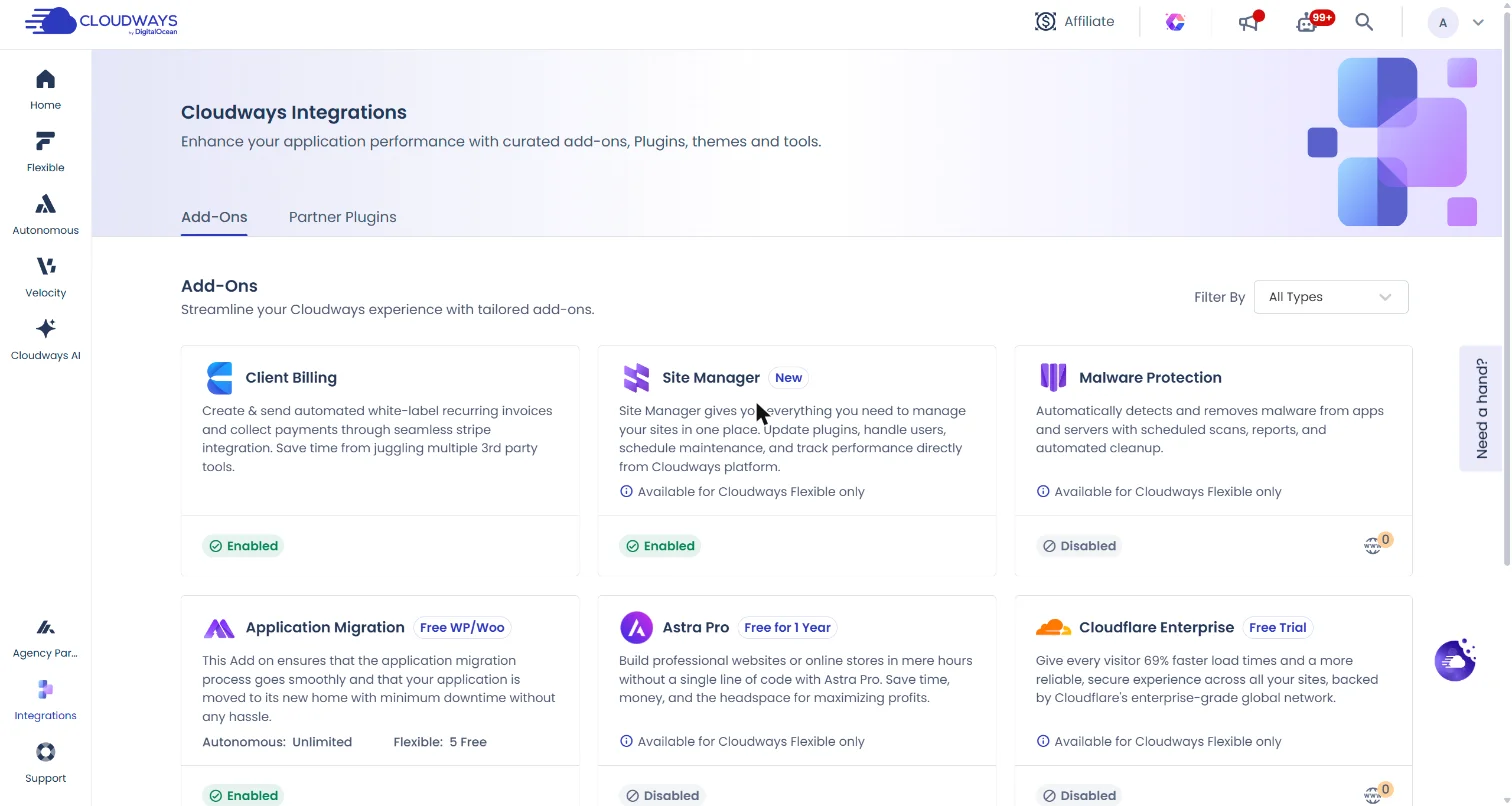
- In the platform, click Integrations in the side menu.
- In the submenu click Application Migration, or click View All and then the Application Migration card under Add-Ons.
- Read the service page and click the button that starts the request (Migrate Your Application, or Submit Your Application on some screens).
- In the Application Migration Request form, choose the product (Flexible or Autonomous) and the target application, then click Next.
- In the Site Details step, enter the site’s domain (for example example.com), the admin URL, and the admin username and password. If the site has a subsite with a separate database, or a Multisite network, check Does your application contain a subsite? and enter the path. For a PHP application with an admin panel, check CMS/Backoffice Admin. Click Next.
- In the Connection Details step, choose a connection type: SSH, SFTP, FTP, cPanel or Other Hosting. Enter the username, password, server address or IP, and port (usually 22 for SSH and SFTP, and 21 for FTP). With an SFTP or FTP connection, also add the phpMyAdmin details so the database gets transferred. Click Next.
- In the Additional Details step: if you have an SSL certificate you bought, check the option and paste the CRT and KEY contents. In the checklist field, write what should be tested, for example add to cart, payment, login and the contact form (the checklist has more ideas). In the notes, mention special requests such as forced HTTPS redirection or custom redirects.
- Review everything and click Submit. A confirmation message appears, and you get an email with a ticket number and a tracking link.
The data you enter in the form is deleted after 30 days. Once the migration is done, I recommend changing the passwords you handed over, both for WordPress and for the old hosting.
What happens after you submit the request
- Contact: a Cloudways engineer reaches out within 48 hours to schedule the migration and confirm the details.
- The migration: once the details are verified, you get an update that the migration has started. The target time (SLA) is 24 hours per site.
- Optimization: once the site is stable, the team can set up Breeze and Object Cache Pro at no extra cost.
- Service Ready: at the end you get a ticket called Service Ready, confirming the migration is complete and telling you what to check before you update DNS.
What to check before you switch DNS
This is the most important step, and it’s your responsibility. Open the site on the temporary URL and go through this list:
- Design: images, fonts (especially non-Latin fonts), menus, header and footer, and RTL layout if your site uses it.
- Key pages: the home page, service pages, products, the blog and the contact page.
- Actions: add to cart, checkout, login, registration, forms and search. If you run a store, also check the payment gateway connection and invoice generation (for example with a local invoicing provider or a regional payment provider), because some providers only approve specific IP addresses or domains.
- Email: that email sending from the site works. Cloudways has no mail server, so you need an SMTP plugin.
Only when everything works, connect the domain in Domain Management and update the DNS records at your registrar. Don’t cancel the old hosting until DNS has propagated and you’ve confirmed the site on Cloudways shows the current content. Orders or posts added to the old site in the meantime don’t carry over by themselves, so avoid changes on the old site, or ask for a final sync before the switch. Moving from a local or regional host has its own guide: how to switch from a local host to Cloudways.
The code BFCM802 takes 80% off your bill for the first two months (up to $200 off per month), including unlimited free site migrations. New customers only, and only until the offer ends.
The offer ends on December 4, 2026 at 23:59 (UTC+2).
Start with a free trial, no credit card. Enter the code at checkout and check that it shows up.
After Black Friday: 30% off for 3 months with the code ASAEL. On a large server (above about $444 a month) ASAEL already saves more today. BFCM802 vs. ASAEL calculator
Start a free trial server, no credit card. When you move to a paid plan, the code ASAEL takes 30% off your bill for the first three months.
The link fills in the code on the signup form. Just make sure it shows up.
Free migration to Autonomous: what’s different
On Autonomous, managed migration is free with no limit on the number of sites, as long as you have an active plan (not a trial). The process is the same, with three differences:
- When you pick the product, select Cloudways Autonomous, and a Free label appears next to it.
- You need an existing Autonomous application. If you don’t have one, the form shows a message, and you add an application first.
- The service is for inbound migrations only, not for moving sites out of Autonomous. For a comparison of the two products, see Flexible vs Autonomous.
If you’re still on the Autonomous trial, you can move the site yourself with the migration plugin. If it stops on a collation error, see the fix for the Migrator error.
Common mistakes and how to fix them
You can’t find Application Migration: it’s under Integrations, in the Add-Ons category. If the button is inactive, check that the account has already been upgraded from the trial.
The migration is delayed: most of the time the access details are wrong or the target is out of disk space. Reply to the ticket email with the corrected details and, if needed, scale up the server.
The content that was in the target application is gone: that’s how it’s supposed to work. The migration overwrites whatever is on the target. Always migrate into an empty application.
Errors on the site after the migration: usually a PHP version difference. Change the version on the target to the one the source was running, and test again. The guide how to change the PHP version on Cloudways explains how.
You were charged for a subsite migration: subsites with a separate database count as separate migrations and may be billed. List them in the form so you get the full picture in advance.
Sources
The official sources this page is based on (checked on 7 Nov 2026):
- Cloudways Knowledge Base: How free managed migrations to cloudways autonomous work
- Cloudways Knowledge Base: How to request and manage an end to end application migration on cloudways
- Cloudways Knowledge Base: How to request a managed application migration to cloudways
FAQ
For WordPress and WooCommerce sites, yes, even when the Cloudways team does it. For other applications, such as Magento or Laravel, the price per the KB is $99 per migration, with a free quota on some account plans. On Autonomous, managed migrations are free and unlimited with an active plan.
According to Cloudways, an engineer contacts you within 48 hours, and the target time for the migration itself is 24 hours per site. A very large site or missing access details can stretch that.
Usually not. The old site keeps running as normal until you update DNS, so according to Cloudways the migration happens with little or no downtime. While DNS propagates, visitors may see the old site one moment and the new one the next, and if both are identical they won’t notice.
No. According to Cloudways, managed migration is available only after you upgrade to a full account. During the trial you can move a WordPress site yourself with the free migration plugin.
Prepare a complete, current backup of the files and the database, upload it to a cloud service such as Google Drive, and share the link in the request notes. Make sure the backup is complete, because a partial backup delays the migration.
No. The migration moves the site: files, database and media. You update DNS yourself at your registrar, and email doesn’t move, because Cloudways doesn’t host email. Set up an email service before you change any records.
Related guides
- How to move from a local or regional host to Cloudways
- How to move a WordPress site to Cloudways with the Migrator plugin
- How to move a site from one server to another inside Cloudways
- How to transfer a server between Cloudways accounts
- How to open a Cloudways account and launch your first server
- All guides on this topic: Cloudways migration guides
Official source: How to Request a Managed Application Migration to Cloudways, How to Request and Manage an End-to-End Application Migration, How Free Managed Migrations to Cloudways Autonomous Work (Cloudways Knowledge Base). This guide was written and checked by Asael Dreyer · Updated: 6 Nov 2026
Disclosure: this is an independent site, not the official Cloudways site. Some links on this site are affiliate links: if you sign up through them we earn a commission, at no extra cost to you. Full details

