
Last updated: · By Asael Dreyer
Short answer: when WooCommerce emails aren’t sent, there are six possible causes: the email is switched off in the settings, the order never reached the status that triggers it, WordPress sends straight from the server with no SMTP, the sender address isn’t on your domain, SPF and DKIM records are missing, or the sending quota ran out. One cause is especially common in stores that use redirect-based payment gateways: the gateway didn’t update the order, it stayed “Pending payment”, so the order confirmation simply isn’t sent. Go through the causes in order, and you usually find the fault within half an hour.
How WooCommerce sends emails, in two paragraphs
WooCommerce doesn’t send an email “when someone buys”. It sends an email when the order status changes. The order confirmation to the customer goes out when the order moves to Processing or On hold, and the “New order” notification to the store owner goes out on the same transitions. An order that stays “Pending payment” doesn’t send a confirmation to the customer.
WooCommerce hands the email itself to WordPress, and WordPress by default sends it through the server’s PHP function, with no authentication. Mail providers like Gmail and Outlook don’t trust emails like that. So in practice there are two kinds of failure: the email isn’t created at all (causes 1–2), or it is created and never arrives (causes 3–6).
6 reasons WooCommerce emails aren’t sent, and how to fix them
1. The email is off or goes to the wrong address
- In WordPress go to WooCommerce > Settings > Emails.
- Make sure the important emails are enabled: New order, Processing order, Completed order and Customer invoice.
- For the emails to the store owner (new order, cancelled order), check the Recipient field. After a hosting move or when an employee changes, it sometimes still points to an old address.
2. The order stayed “Pending payment” (common with redirect-based payment gateways)
Many payment gateways send the customer to a payment page on their side, and afterwards send the store a confirmation (a callback or IPN) that updates the order to “Processing”. If the confirmation never reaches the server, the order gets stuck on “Pending payment”, the customer has paid, and the order confirmation doesn’t go out.
- Check in WooCommerce > Orders whether paid orders stayed in the “Pending payment” status.
- Open the payment plugin’s logs in WooCommerce > Status > Logs, if the plugin writes there.
- Check with your payment provider that the callback address is correct, and that if it requires a list of allowed IPs, your server’s IP is on it. On Cloudways every server has a dedicated IP that doesn’t change when you scale the server up, but it does change when you move to a cloned server.
- Check that a security plugin, a firewall rule or a cache isn’t blocking the callback address.
If this is the problem, no SMTP setting will help. The email isn’t created at all, because as far as WooCommerce is concerned, nobody has paid yet.
3. No SMTP: WordPress sends straight from the server
This is the most common reason for emails that were created but never arrived. Cloudways also recommends not sending directly from cloud servers, and with some cloud providers (Vultr and Google Cloud) outbound port 25 is blocked by default.
- In the Cloudways management panel choose Servers, then your server, then SMTP in the side menu.
- Choose Elastic Email, whose product page explicitly states support for WooCommerce emails, or Your Own SMTP with your own provider (SendGrid, Mailgun, Gmail).
- Save and send a test email with Send Test Email.
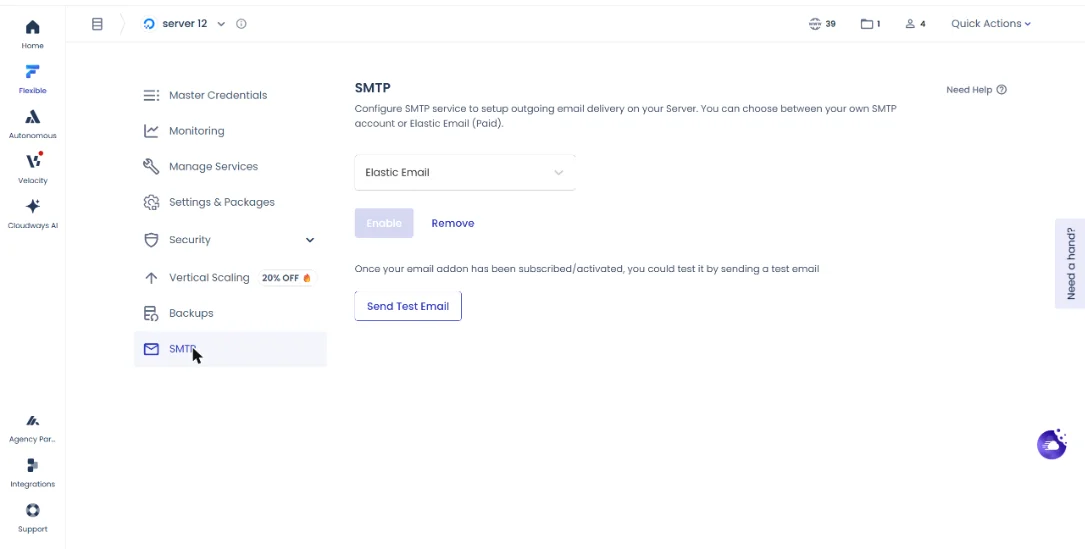
The full guide in the panel: setting up SMTP on Cloudways. If your store isn’t on Cloudways, or you want a different provider per site: setting up WP Mail SMTP. All the options side by side: email options on Cloudways.
4. The sender address isn’t on the store’s domain
In WooCommerce > Settings > Emails, in the sender options section, there are two fields: the sender name and the sender address. The address must be on the store’s domain, ideally the same address you verified in the sending service. A Gmail address in this field is a sure way to land in spam.
If an SMTP plugin is set to “force” a sender address, it overrides WooCommerce’s setting. Make sure both places agree.
5. SPF and DKIM records are missing
SPF is a DNS record that lists which services are allowed to send on behalf of the domain. DKIM is a digital signature that proves the email wasn’t altered on the way. Without both, even a good SMTP service will land in spam. A DMARC record adds an instruction to mail providers on what to do with an email that fails authentication.
- Add the SPF and DKIM records your sending provider gives you in your DNS.
- If you already have an SPF record (for example from Google Workspace or your invoicing system), merge them into a single record. Two SPF records break both.
- In Elastic Email, complete the domain verification: verifying a domain in Elastic Email.
The full explanation: SPF, DKIM and DMARC. Note: invoicing systems that send the invoice to the customer in the business’s name sometimes send from your domain too, and then they also have to be included in your SPF according to their instructions.
6. The sending quota ran out, or a plugin interferes
- Quota: free Gmail allows about 500 emails a day and Google Workspace about 2,000, according to Cloudways. In a store with a sale, plus “order shipped” and “review request” emails, that runs out fast. With Elastic Email plans you also choose a number of emails per month.
- Two SMTP plugins: an old plugin left installed next to a new one means neither works properly. Keep one.
- Plugins that replace the email templates (email designers, marketing plugins) can break sending after an update. Turn them off temporarily and test.
The code BFCM802 takes 80% off your bill for the first two months (up to $200 off per month), including unlimited free site migrations. New customers only, and only until the offer ends.
The offer ends on December 4, 2026 at 23:59 (UTC+2).
Start with a free trial, no credit card. Enter the code at checkout and check that it shows up.
After Black Friday: 30% off for 3 months with the code ASAEL. On a large server (above about $444 a month) ASAEL already saves more today. BFCM802 vs. ASAEL calculator
Start a free trial server, no credit card. When you move to a paid plan, the code ASAEL takes 30% off your bill for the first three months.
The link fills in the code on the signup form. Just make sure it shows up.
How to tell which cause is yours
| What you see | The likely cause |
|---|---|
| No email goes out, including password resets | 3 (no SMTP) or 6 (a plugin interferes) |
| Only emails to customers don’t arrive; the store owner’s do | 4 or 5 (sender and authentication), or the customer typed a wrong email |
| Emails land in spam | 5 (SPF/DKIM) or 4 (sender address) |
| Some orders have no confirmation, and all are “Pending payment” | 2 (the payment gateway’s callback) |
| It worked until the middle of the sale and then stopped | 6 (quota) |
| One particular email never goes out | 1 (the email is off or the recipient is wrong) |
A helper tool: an email log plugin, like WP Mail Logging, records every email WordPress tried to send. If the email is in the log, it was created and the problem is on the way (causes 3–6). If it isn’t in the log, it was never created (causes 1–2). When you finish the diagnosis you can turn the plugin off.
What common mistakes are there, and how do you fix them?
Sending a “test email” only to yourself: an email from your domain to a mailbox on the same domain sometimes goes through without authentication. Always test against both Gmail and Outlook.
Manually moving an order to “Processing” and expecting the problem to be solved: that sends the email for that order, but it doesn’t fix the callback. The next order will get stuck again.
Changing hosts and forgetting about email: after a move, the SMTP settings and DNS records don’t always carry over. Test sending on the first day, and update the IP with your payment provider.
Expecting the server to receive email: Cloudways doesn’t host mailboxes. Elastic Email and SMTP are for sending only. For mailboxes on your domain, use Google Workspace, Microsoft 365 or the Rackspace add-on.
Frequently asked questions
Usually because the order didn’t reach the Processing status, for example when the payment confirmation from the gateway never reached the server. If the status is fine, the problem is in sending: authenticated SMTP is missing, the sender address isn’t on your domain, or SPF and DKIM records are missing.
Because mail providers can’t verify that the email was sent on behalf of your domain. Send through an SMTP service, set a sender address on your domain, and add the service’s SPF and DKIM. Make sure there is only one SPF record.
On the order page in the admin, in the actions box, choose to resend the order email to the customer and save. That fixes the specific order, but not the cause. After that, check why the email wasn’t sent in the first place.
Yes. The Cloudways product page states support for WooCommerce emails, such as order confirmations and customer notifications. You set it up once at the server level, and choose a plan by emails per month.
Yes, indirectly. WooCommerce sends the order confirmation when the status changes to Processing. If the payment gateway doesn’t update the order after payment, the email isn’t sent, even when sending itself is fine.
According to Cloudways, about 500 a day from a free Gmail account and about 2,000 from Google Workspace. For an active store that is enough only on ordinary days. For a store with sales, a dedicated sending service is better.
Related guides
- WooCommerce store hosting on Cloudways
- Setting up SMTP on Cloudways
- SPF, DKIM and DMARC: how to verify a domain
- Contact form not sending emails
- All guides on this topic: email
Sources
- Which Email Add-on Should I Use?
- How to Activate the Elastic Email Add-on
- Does Cloudways Provide Dedicated IP?
- Elastic Email on Cloudways
Official source: Which Email Add-on Should I Use?, How to Activate the Elastic Email Add-on, Does Cloudways Provide Dedicated IP? (Cloudways Knowledge Base) and Elastic Email on Cloudways. Written and checked by Asael Dreyer · Updated: 6 Nov 2026
Disclosure: this is an independent site, not the official Cloudways site. Some links on this site are affiliate links: if you sign up through them we earn a commission, at no extra cost to you. Full details

