
Last updated: · By Asael Dreyer
In short: on Cloudways you now change the PHP version for each site separately: in the application, go to Application Settings, open the PHP Settings tab, click the edit icon next to PHP Version, choose a version and click Proceed. The change takes a few minutes, affects only the site you picked, and causes a few seconds of downtime while PHP restarts. On older servers (Debian 10 and below) the version is still set for the whole server.
Why the PHP version matters
PHP is the programming language that WordPress, WooCommerce, Laravel and Magento run on. A new version comes out every so often, and it is usually faster and more secure. Old versions stop receiving security updates, and a site running on them is more exposed. To deploy a Laravel project to a server, see the guide to deploying a Laravel project. For another custom PHP application, see managed PHP hosting: PHP-FPM, Composer and Git.
On the other hand, not every piece of code works on every version. An old plugin, a theme that hasn’t been updated or custom code can break on a new version. That’s why upgrading PHP isn’t a blind click: you test, you back up, and only then you upgrade.
What changed in 2026: a PHP version per application
Until recently, on Cloudways Flexible the PHP version was set at the server level. A change affected every site on the server, and that is what I demonstrated in the earlier version of this guide. If one site needed an old version, the whole server was stuck with it, or you needed a separate server.
Today Cloudways lets you choose a separate PHP version for each application. According to the documentation, the feature is rolling out to all servers running Debian 11 and above starting 10 September 2026, at no extra cost. One site can run on PHP 8.4 and another, on the same server, on 8.1.
| Version per application | Version per server | |
|---|---|---|
| Where you change it | Application Settings > PHP Settings in the application | Settings & Packages > Packages on the server |
| What it affects | Only the application you picked | The default for applications that don’t have their own version, and for new applications |
| Requirements | A Debian 11 or newer server | Any server |
| When to use it | Almost always | Older servers, or when you want to change the default |
Which PHP versions are supported, and what about compatibility?
As of November 2026, Cloudways supports PHP 7.4, 8.0, 8.1, 8.2, 8.3 and 8.4. New servers and applications default to PHP 8.2. Versions 5.6 through 7.3 have been retired, and PHP 8.5 isn’t available yet but is expected by the end of 2026.
| PHP version | WordPress | WooCommerce / Magento | Notes |
|---|---|---|---|
| 7.4 | 4.3 and up | Magento 2.4.0–2.4.3 | An old version. Upgrade soon |
| 8.0 / 8.1 / 8.2 | 5.6 and up | Magento 2.4.4 and up | 8.2 is the default |
| 8.3 | 5.6 and up | Magento 2.4.7 | |
| 8.4 | 6.7 and up (the latest 6.x releases) | Magento 2.4.8 | Flexible only, on a Debian 11 or 12 server only |
The table is based on Cloudways’ compatibility page. On all versions the memcache extension is not supported, and memcached is available instead. PHP 8.4 removed several extensions from the core, including IMAP and Pspell, so if a site uses them, check before you upgrade.
Before you start
- Check plugin and theme compatibility. In WordPress, check on each important plugin’s page which PHP version it was tested with. Plugins that haven’t been updated in a year or more are the first suspects.
- An on-demand backup of the application. If something breaks, you can go back to the previous version and restore.
- Test on Staging. The safe way: create a staging environment on the same server, change the PHP version there, test, and only then change it on the live site. Staging on the same server costs nothing extra.
- A quiet hour. The change restarts the site’s PHP. On an online store, it’s best to do it at night.
- A small server? According to Cloudways, running several PHP versions in parallel increases memory use, and on a 1GB or 2GB server you may notice it. The recommendation is a server of at least 4GB when you run different versions for different applications.
How to change the PHP version for an application, step by step
- In the management panel, click Flexible in the side menu, go to Applications and select the application.
- In the application’s side menu, click Application Settings.
- Go to the PHP Settings tab. Here you’ll see the application’s current version.
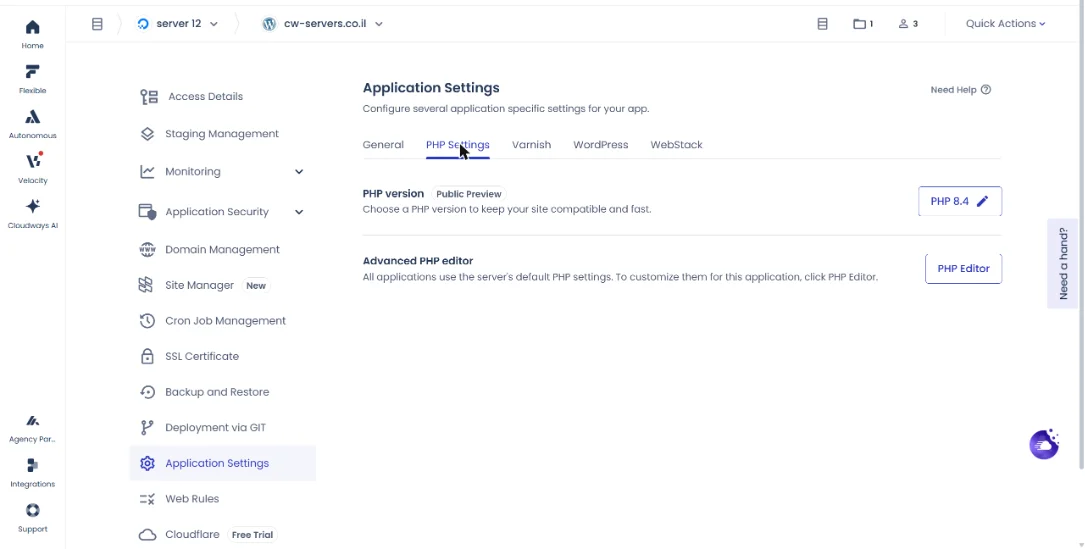
- Click the edit icon next to PHP Version.
- In the Update PHP Version window, pick the version you want from the list. Cloudways will show a warning asking you to make sure the site is compatible with that version.
- Click Proceed. The application’s PHP restarts, and a success message appears.
- Test the site: the home page, important pages, forms, the shopping cart and the admin area.
How to confirm the version changed
- In the panel: in the same PHP Settings tab, the version shown is the application’s version.
- In WordPress: Tools > Site Health > Info > Server. The PHP version field shows the version the site is actually running on.
- Over SSH (for advanced users): the command
ls -al /home/master/applications/<app_user>/.cw/bin/shows which version the application’s php points to.
Note: php -v as the master user over SSH shows the server’s default, not the application’s version.
Changing the PHP version at the server level
This is the classic method. It is still relevant for older servers that don’t support a version per application, and for changing the server’s default.
- In the panel, open Servers and select the server. You can also use search.
- Under Server Management, choose Settings & Packages.
- Go to the Packages tab.
- Next to PHP, click the edit icon (the pencil), choose the version and save.
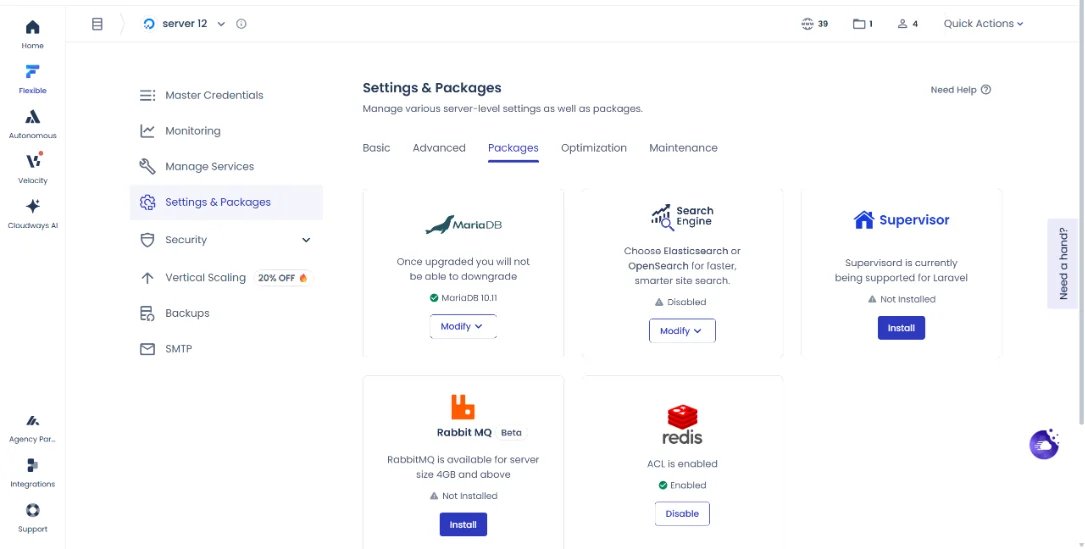
Important: on a server that supports a version per application, a change at the server level doesn’t alter applications that already have their own version. It affects applications that follow the default and new applications. On an old server, the change affects all the sites on the server, so test all of them.
Upgrade and downgrade limits: from version 8.x you can upgrade to any higher version and downgrade to lower supported versions. You can’t go back to retired versions (5.6 through 7.3). PHP 8.4 requires a Debian 11 or 12 server.
How to change the PHP version on Autonomous
- In the panel, click Autonomous and then My Applications, and select the application.
- Click Workflows/Tools and go to the PHP Settings tab.
- Open Select PHP Version and choose a version.
- Confirm with Confirm. While the update runs, some actions won’t be available, and you’ll get a notification when it finishes.
Autonomous doesn’t have PHP 8.4 at the moment. It is available only on Flexible.
The code BFCM802 takes 80% off your bill for the first two months (up to $200 off per month), including unlimited free site migrations. New customers only, and only until the offer ends.
The offer ends on December 4, 2026 at 23:59 (UTC+2).
Start with a free trial, no credit card. Enter the code at checkout and check that it shows up.
After Black Friday: 30% off for 3 months with the code ASAEL. On a large server (above about $444 a month) ASAEL already saves more today. BFCM802 vs. ASAEL calculator
Start a free trial server, no credit card. When you move to a paid plan, the code ASAEL takes 30% off your bill for the first three months.
The link fills in the code on the signup form. Just make sure it shows up.
Cron jobs, WP-CLI and Composer after switching versions
When an application has its own PHP version, there are a few places where it’s easy to run on the wrong version by mistake:
- Cron jobs from the panel: jobs created in the application’s Cron Job Management run automatically with the application’s version, and update when you switch versions. This is the recommended way. See the guide to cron jobs on Cloudways.
- Manual cron jobs (crontab -e): don’t write
phporwpwithout a path. Use a full path, for example/usr/bin/php8.2, or the application’s WP-CLI:/home/master/applications/<app_user>/.cw/bin/wp. - Composer and Artisan over SSH: as the master user they run on the server’s default. Log in with the application’s access details, or run with a full path:
/usr/bin/php8.4 /usr/local/bin/composer install. - Database Manager: keeps working with the server’s PHP version, and that is normal.
Common mistakes and how to fix them
The site shows a critical error after the upgrade: almost always an incompatible plugin or theme. Go back to the previous version (steps 4 to 6 with the old version), and check the application’s error log to see which file caused the problem. Update or replace it and try again.
I don’t have the PHP Version option in the application: the server runs on Debian 10 or below, which doesn’t support a version per application. Change it at the server level, or consider cloning your sites to a new server.
I changed the version for one site and it seems to have affected another: check that you edited the right application. Applications without their own version follow the server default, so a server-level change does affect them.
PHP 8.4 isn’t in the list: the server isn’t running Debian 11 or 12, or you are on Autonomous, where 8.4 isn’t available.
Composer complains about an incompatible PHP version: you’re logged in as the master user. Log in with the application’s access details or run with the full path of the PHP version.
The server got slow after I set several versions: every active PHP version uses memory. On a small server, consolidate the sites onto one version or scale the server up.
Sources
- How to change PHP version for your application on Cloudways – Cloudways Knowledge Base
- How to upgrade PHP version on Cloudways – Cloudways Knowledge Base
- PHP compatibility on Cloudways platform – Cloudways Knowledge Base
Frequently asked questions
As of November 2026, Cloudways supports PHP 7.4, 8.0, 8.1, 8.2, 8.3 and 8.4. New servers default to PHP 8.2. PHP 8.4 is available only on Flexible and requires a Debian 11 or 12 server, and PHP 8.5 is expected by the end of 2026.
Yes, on servers running Debian 11 and above. You change the version in each application’s settings separately, and the other sites on the server aren’t affected. On 1GB or 2GB servers, Cloudways warns that several versions in parallel increase memory use.
The change itself only restarts PHP, with a few seconds of downtime. The real risk is compatibility: a plugin, theme or old code that doesn’t support the new version. That’s why you test on a Staging environment first and take a backup.
For an up-to-date WordPress site, PHP 8.2 or 8.3 is a safe choice, and 8.4 suits WordPress 6.7 and above. The decision depends on your plugins and theme, so check their compatibility before you upgrade.
In the application, under Application Settings, open the PHP Settings tab, click the edit icon next to PHP Version, choose the previous version and click Proceed. If the errors continue, restore the backup you took before the change.
Because the master user over SSH works with the server’s default PHP version, not the application’s version. To see the site’s version, check the panel, WordPress Site Health, or the application’s .cw/bin folder.
Related guides
- PHP settings on Cloudways: memory_limit, upload and more
- Cron jobs on Cloudways
- Database management on Cloudways
- Server settings on Cloudways
- Our review of Cloudways hosting
- All guides on this topic: server and application settings guides
Official source: How to Change PHP Version for Your Application on Cloudways, How to Upgrade PHP Version on Cloudways, PHP Compatibility on Cloudways Platform (Cloudways Knowledge Base). Written and checked by Asael Dreyer · Updated: 6 Nov 2026
Disclosure: this is an independent site, not the official Cloudways site. Some links on this site are affiliate links: if you sign up through them we earn a commission, at no extra cost to you. Full details

