
Last updated: · By Asael Dreyer
Short answer: a slow Elementor site almost always comes down to a combination of three things: a server that isn’t configured properly, caching layers that aren’t working, and pages that are too heavy (images, fonts, plugins and widgets). On Cloudways the recommended order is: measure, make sure Breeze and Varnish are active, switch to the Lightning Stack if you have no htaccess rules, turn on Object Cache Pro (free on servers with 4GB and up), then enable Elementor’s own performance settings and deal with fonts and images. I estimate one to two hours, depending on the size of the site.
Why Elementor tends to be slow, and where the server comes in
It helps to understand where the slowness comes from, because each cause has a different fix.
Elementor is a visual page builder. Every page you build is made of containers, widgets and design settings, and Elementor has to turn all of that into HTML, CSS and JavaScript each time a page is built. The result, left untreated: more code, more files and more fonts than a site built on a simple theme. For Elementor’s server requirements see hosting for Elementor.
It’s convenient to split the time a page takes into two parts:
- Server time (TTFB): how long it takes before the server starts sending the page. The server, PHP, the database and the cache all affect this. On Cloudways this is the part you control from the panel.
- Browser time: how long the browser takes to download and render images, fonts, CSS and JS. Your Elementor design, your images and third-party plugins affect this.
A fast server won’t save a page with a 4MB background image, and a light page won’t run fast on an overloaded server. You have to deal with both, in the right order.
Before you start
- Back up the site, or work on a staging environment. Some settings (merging JS, changing the Stack) can break the design, and it’s better to find that out somewhere other than the live site.
- Record a baseline: run the home page and one inner page through PageSpeed Insights, on mobile, and save the score, LCP and TTFB.
- Make sure Elementor, Elementor Pro, WordPress and PHP are up to date. New Elementor versions add performance improvements.
How to speed up an Elementor site, step by step
Step 1: Isolate the problem
Elementor’s documentation suggests a simple test to find out whether Elementor, the theme or a plugin is to blame: temporarily deactivate all plugins except Elementor and Elementor Pro, switch to the Hello theme, and build a test page with the Canvas template. If the speed jumps, a plugin or the theme is the culprit, and you bring them back one by one. Do this on staging only.
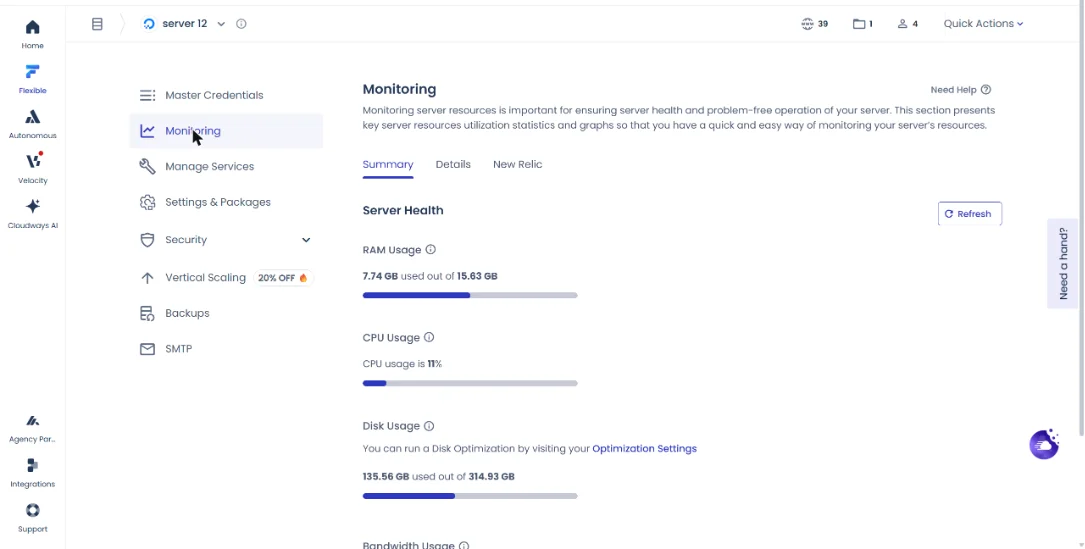
On Cloudways you can also check from the server side: in server monitoring you can see whether CPU or RAM is at the limit, and in Application Wise Details you can see which site is using the resources.
Step 2: Server and PHP settings Elementor needs
Elementor uses more memory than a regular site, especially in the editor. In the server settings (Settings & Packages) or in the application’s PHP settings, check:
| Setting | Why it matters for Elementor | What to do |
|---|---|---|
| PHP Version | Newer PHP versions are usually faster | Move to the latest 8.x version your theme and plugins support |
| Memory Limit | An editor that doesn’t load or hangs is usually out of memory | The default is 256MB. Raise it gradually, within the recommendation for your server size |
| Max Input Vars | Large pages and menus that won’t save | The default of 10000 is enough for most. Raise it only if saving fails |
| Execution Limit | Importing large templates and kits | The default is 300 seconds |
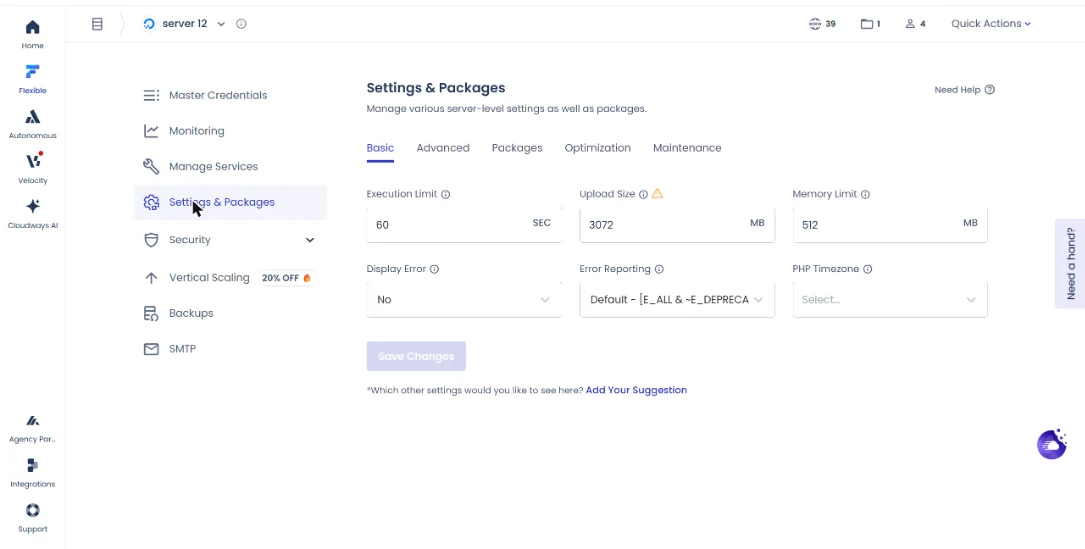
Changing the PHP version is explained in the guide to changing the PHP version. Test the site on staging before you change it on the live site.
Step 3: The Lightning Stack, if you have no htaccess rules
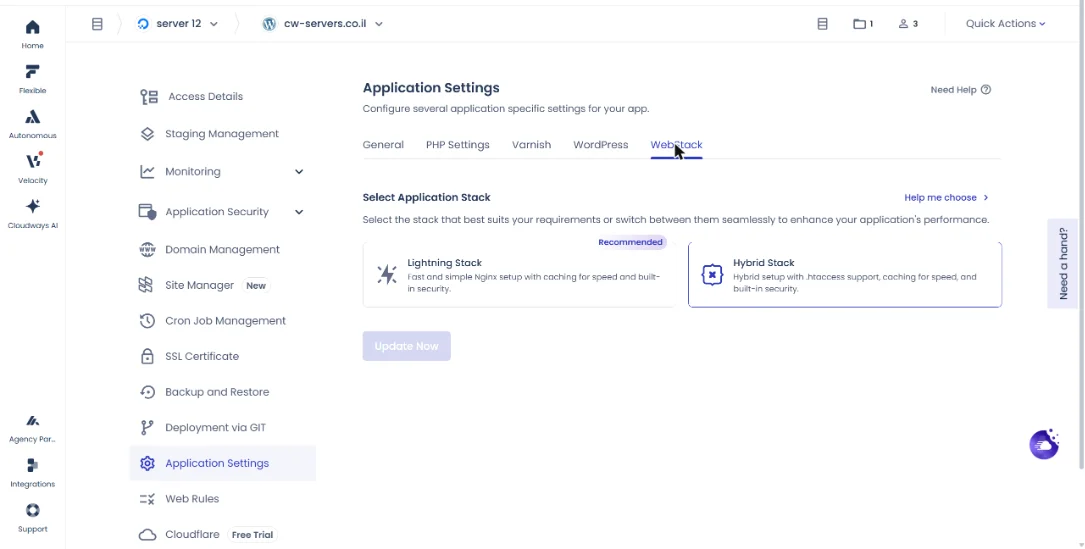
Cloudways has two kinds of Stack: Hybrid (Nginx and Apache) and Lightning. On the current server setup screen Lightning is marked Recommended and is preselected for a new WordPress application, but a site set up earlier may be on Hybrid, so check the application’s WebStack tab. The Lightning Stack drops Apache and serves everything through Nginx. In Cloudways’ own load test (a DigitalOcean server with 4 vCPU and 8GB, up to 1,000 virtual users, without Varnish and without a cache) Lightning served 54% more requests, and page response time was 25% faster. These are vendor figures from a test with no cache, and your result will be different.
You switch in Application Settings, on the WebStack tab, and you can go back to Hybrid later. The condition: you have no redirects or rules in htaccess, because Lightning doesn’t read the file. Move them to Web Rules first.
Step 4: Breeze and Varnish, and two rules for Elementor
Cloudways has two page caching layers: Varnish on the server, and Breeze, Cloudways’ caching plugin, which manages it and adds file optimization. The full explanation is in the Breeze guide and the Varnish guide. The practical guidance for an Elementor site:
- Make sure Varnish is active on the application (Application Settings, the Varnish switch), and that Breeze is installed and active. Don’t install another caching plugin next to it.
- Start with Breeze’s One-Click Optimization, on the Standard plan. It enables Gzip compression, browser cache, Lazy Load for images, HTML and CSS minification and emoji script removal, and is considered safe for most sites.
- Test the site in a private browsing window: mobile menu, sliders, forms, popups and animations. On forms, the Breeze documentation notes that a cached page also includes the form’s security token (nonce), and an expired token can break submission. If a form stops working after a while, exclude its page from the cache or shorten the cache lifetime.
- Only if everything is fine, try Minify JS and Delay All JavaScript gradually, one at a time.
Two rules for Elementor:
- If something breaks after Delay JS or Combine JS, don’t turn the feature off completely. The Breeze documentation recommends adding the problem script to the exclusion list. Which script? It depends on the site, and the browser console (F12) shows you which script failed. Possible suspects on Elementor sites: Elementor’s own scripts, jQuery, menus, popups, sliders and the cookie banner (my own estimate, not from the documentation).
- Combine JS mostly helps on HTTP/1.1. On modern servers with HTTP/2, according to the documentation, the benefit is small and sometimes the harm is large. On an Elementor site it’s usually better to leave it off.
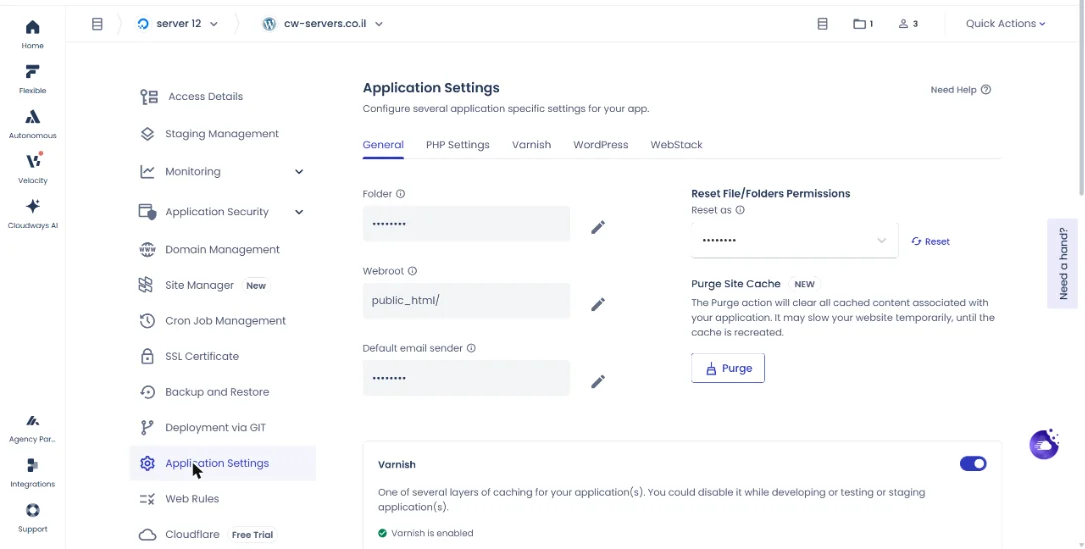
After every major design change in Elementor, clear the Breeze and Varnish caches. If the design looks broken after clearing, Elementor’s tools (Elementor, then Tools) have an option to regenerate the site’s CSS files.
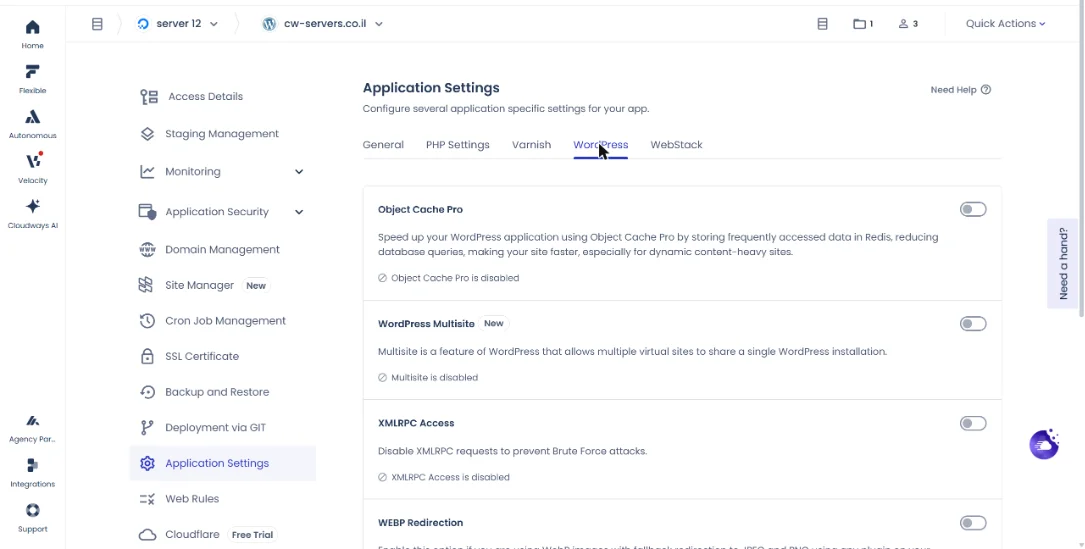
Step 5: Object Cache Pro, for a fast editor and for stores
Varnish and Breeze speed up pages for visitors. But the Elementor editor, the dashboard, the shopping cart and the customer account aren’t saved in the page cache, and that is where you feel the slowness. Object Cache Pro, a Redis-based object cache, keeps the results of database queries in memory and speeds up exactly those parts.
According to the Cloudways pricing page, Object Cache Pro is free on servers with 4GB and up. You turn it on in the application’s WordPress settings. The details are in the Object Cache Pro guide.
Step 6: Elementor’s own performance settings
Elementor collects its performance improvements in the dashboard, under Elementor, Editor and then Settings, in the Performance and Features tabs. According to Elementor’s documentation (June 2026):
| Setting | Where | What it does |
|---|---|---|
| Optimized Image Loading | Performance | Gives the main image (LCP) high priority and adds Lazy Load to images below the fold |
| Lazy Load Background Images | Performance | Defers loading of background images, except the first one |
| Optimized Gutenberg Loading | Performance | Removes unused block editor scripts and styles |
| Inline Font Icons | Features | Renders icons as SVG, without loading the Font Awesome and eicons libraries |
| Element Caching (experimental) | Features | Saves the HTML of widgets in the database instead of rebuilding them, which shortens server time |
Two notes from the documentation on Element Caching: it is off by default and is enabled per widget (in the widget’s Advanced tab, under Cache Settings), and you must not enable it on widgets with dynamic content, such as Dynamic Tags or shortcodes that display information per visitor. Since Varnish and Breeze already cache whole pages, its benefit for you will mostly be on pages that aren’t cached.
Step 7: Fonts, images and plugins
Fonts. Sites tend to load too many fonts: one font for headings, another for body text, each in four or five weights. Every weight is another file the browser has to download. Three things help:
- Limit yourself to one or two fonts, in two or three weights.
- Under Elementor, Editor, Settings and the Advanced tab, change Google Fonts Load to Swap. The text shows immediately in a fallback font, and switches when the font loads.
Images. Elementor recommends not uploading images over 1MB and using WebP. On Cloudways you can turn on redirection to a WebP version in the application’s WordPress settings, after a conversion plugin has created the files. A huge background image at the top of the page is the most common reason for a poor LCP score on Elementor sites. And videos: embed them from YouTube or Vimeo, not from the media library.
Plugins and external scripts. Google Maps, social media widgets, chat tools and Elementor add-on plugins that bring dozens of widgets (when you use only two of them) are the usual suspects. Delete what isn’t in use, and in add-on plugins turn off the widgets you don’t need.
The code BFCM802 takes 80% off your bill for the first two months (up to $200 off per month), including unlimited free site migrations. New customers only, and only until the offer ends.
The offer ends on December 4, 2026 at 23:59 (UTC+2).
Start with a free trial, no credit card. Enter the code at checkout and check that it shows up.
After Black Friday: 30% off for 3 months with the code ASAEL. On a large server (above about $444 a month) ASAEL already saves more today. BFCM802 vs. ASAEL calculator
Start a free trial server, no credit card. When you move to a paid plan, the code ASAEL takes 30% off your bill for the first three months.
The link fills in the code on the signup form. Just make sure it shows up.
Where should you place the server, and what about a CDN?
If most of your visitors are in one region, the server’s location directly affects server time. Every request that crosses an ocean and back adds tens to hundreds of milliseconds, before Elementor has even started working. As of November 2026, according to Cloudways documentation, AWS, Google Cloud and Vultr offer regional locations beyond the usual US and EU ones, and the other providers offer nearby data centers in Europe. The full comparison is in the guide to server locations.
For visitors from abroad, and for protection, Cloudflare Enterprise from Cloudways adds a CDN with edge caching and a Bot Protection layer. The details are in the guide to Cloudflare Enterprise on Cloudways.
What matters for a WooCommerce store built with Elementor?
In a store, the most important parts (cart, checkout, customer account) aren’t saved in the page cache, so it depends more on the server. Three points:
- Object Cache Pro is almost a must in a store, and it’s worth choosing a server of 4GB and up for that reason alone.
- According to the Breeze documentation, WooCommerce’s cart, checkout and account pages are excluded from the cache by default, with no manual setup needed. If you changed those page URLs (for example /my-cart/ or /pay/), check yourself in a private browsing window that the cart isn’t cached, and if needed add the URLs to the Never Cache URL(s) list in Breeze. The documentation doesn’t cover this case, and the check saves a visitor from seeing an old cart.
- A product page built in Elementor with dozens of widgets is slow on every product. Keep the product template simple.
More on hosting for stores in the guide to WooCommerce store hosting.
What do you do when Elementor’s CSS files are missing or broken?
You clear and regenerate them: in Elementor, under Tools, the Clear Files & Data button and then Save Changes, according to Elementor’s help guide. In earlier versions the button was called Regenerate Files & Data. It sounds like a cosmetic fix, but in three of my tickets Elementor CSS files were behind real problems:
| When | What I saw | What helped |
|---|---|---|
| Sep 2026 | Missing Elementor CSS files produced a wave of 404, 500 and 503 errors. One application used about 69% of the applications’ memory on a server with dozens of sites, and the server suffered MariaDB restarts | Support asked me to regenerate the CSS files and monitored the server |
| Oct 2024 | A change to a Global Widget showed in the editor but not to visitors, even after clearing the cache and regenerating CSS | According to support it wasn’t a server cache, but a PHP warning from an old code snippet that redirected 404 to 410 (a missing callback), together with Elementor errors. The recommendation: disable the snippet, regenerate files and data, temporarily turn off the performance features, and enable Auto Purge Varnish in Breeze |
| Sep 2024 | A client site broke with an unlink() error on the elementor/css/min folder, which was a folder and not a file | Regenerating CSS, disabling an image plugin and restoring a week-old backup didn’t solve it. The site stayed broken and the problem wasn’t solved through support |
The lesson: if the application logs show a lot of 404s for files under wp-content/uploads/elementor/css, start with Clear Files & Data. If that doesn’t help, look for custom code or a plugin that interferes with how the files load, before you upgrade the server. And restoring a backup doesn’t always fix it: when the problem is in a plugin’s code, it comes back with it.
Common mistakes and how to fix them
Two caching plugins at once: Breeze together with WP Rocket or LiteSpeed Cache creates conflicts and cache-clearing problems. Pick one. On Cloudways, Breeze works directly with Varnish.
The design broke after turning on an optimization: turn off the last setting you enabled, clear the cache, then enable it again with an exclusion for the problem script or file.
The Elementor editor doesn’t load: usually a low memory limit or a plugin conflict. Raise the Memory Limit and try Elementor’s Safe Mode.
Changes don’t show on the site: the cache is serving the old version. Clear Breeze and Varnish, and if needed, regenerate Elementor’s CSS files.
Measuring only on desktop: PageSpeed Insights on mobile is what Google mainly looks at, and that’s where Elementor sites are weaker. Always test on mobile.
Upgrading the server before checking the cache: a bigger server costs more every month. First make sure all the caching layers work. If CPU is still high, scale up the server.
Sources
The official sources this page is based on (checked on 7 Nov 2026):
- elementor.com: Element caching help
- elementor.com: Google fonts loading method
- elementor.com: Speed up a slow site
- elementor.com: What are performance experiments
- Cloudways Knowledge Base: How to change your application stack
- Cloudways Knowledge Base: How to enable one click optimization in breeze
- Cloudways Knowledge Base: How to use breeze file optimization to minify combine delay and exclude javascript
Frequently asked questions
Because a large part of the time is spent in the browser, not on the server: heavy images, too many fonts, external scripts and unused widgets. A good server shortens the response time, but you also need to work on the page itself and make sure the cache is active.
Breeze, the Cloudways caching plugin, because it works directly with Varnish on the server. Don’t install another caching plugin next to it. If a particular optimization breaks something, exclude the problem script instead of turning everything off.
No. Element Caching saves the output of individual widgets, while Breeze and Varnish save whole pages. On a site whose cache is working, Element Caching mostly helps pages that aren’t cached, and you must not enable it on widgets with dynamic content.
Elementor’s documentation recommends it, because it is minimal and leaves the design to Elementor. If you use a heavy theme and build everything in Elementor anyway, switching can save code, but you need to test it on staging.
There’s no single number. The default PHP memory limit on Cloudways is 256MB, and Cloudways recommends staying below 512MB on a 1GB server and below 1024MB on a 2GB server. If the editor doesn’t load, raise it gradually.
For a site whose visitors are mostly in one region, a nearby server shortens response time. As of November 2026, AWS, Google Cloud and Vultr offer regional locations beyond the usual US and EU ones. Check the price on the server setup screen, and consider a CDN as well.
Related guides
- WordPress Multisite on Cloudways
- How to speed up a WordPress site on Cloudways
- The complete guide to Breeze
- All guides on this topic: WordPress and WooCommerce
- For stores: WooCommerce store hosting
Official source: Optimize speed for Elementor websites, Improve performance features, Speed up page loading with Element Caching, Choose a loading method for Google fonts (Elementor Help Center, checked 6 Nov 2026), How to Change Your Application Stack, Breeze File Optimization, One-Click Optimization in Breeze (Cloudways Knowledge Base). Written and checked by Asael Dreyer · Updated: 6 Nov 2026
Disclosure: this is an independent site, not the official Cloudways site. Some links on this site are affiliate links: if you sign up through them we earn a commission, at no extra cost to you. Full details

