
Last updated: · By Asael Dreyer
In short: Cloudflare Enterprise on Cloudways is an add-on that routes your site through Cloudflare’s enterprise network: a global CDN, a web application firewall (WAF), DDoS protection and Edge Page Caching, with no separate Cloudflare account. As of November 2026 it costs $4.99 per domain per month (cheaper from 5 domains up), with a 30-day free trial. You enable it in the application, in the Cloudflare tab, and add a CNAME record in DNS. On Autonomous it is already included.
What Cloudflare is, and what is different about Enterprise
Cloudflare is a global network of servers that sits between your visitors and your server. Instead of every request going straight to your server on Cloudways, it passes first through a Cloudflare edge location close to the visitor. That location serves a stored copy of your files, filters out malicious traffic and forwards only what is needed to your server. The result: a faster site, a less loaded server and better protection. Not sure whether the free plan is enough? See Cloudflare Free vs Enterprise.
Cloudflare has several tiers. The free tier is excellent and fits many sites. The Business plan costs $200 a month per site, according to Cloudways. Enterprise is the top tier, normally sold only through a custom quote at big-company prices.
What Cloudways did: it sells Enterprise as an add-on, for a few dollars per domain, and manages the connection for you. When I first saw it, it looked like a pricing mistake: for a few dozen dollars a month you get Enterprise for dozens of sites, while directly through Cloudflare the same amount doesn’t even cover a Pro plan for a few sites.
What you get with Cloudflare Enterprise through Cloudways
| Category | What is included | What it gives you |
|---|---|---|
| Speed | A CDN with more than 330 data centers according to the product page, Argo Smart Routing, Argo Tiered Caching, Edge Page Caching, Early Hints, HTTP/3, Brotli compression | Shorter load times for visitors worldwide, and less load on the server |
| Security | DDoS protection on layers 3, 4 and 7, WAF, Enterprise-level bot management, Rate Limiting, Browser Integrity Check, Under Attack Mode, Turnstile | Attacks and bots blocked before they reach the server |
| Optimization | Image optimization (Polish), ScrapeShield to hide email addresses, AI Crawler Blocking | Lighter images, less spam, control over AI crawlers |
| Infrastructure | A wildcard SSL certificate, dedicated IP addresses for Cloudways customers, PCI DSS 4.0 compliance, security and cache analytics | Security for all subdomains, and compliance for stores that take payments |
Edge Page Caching deserves a separate explanation. A CDN normally stores only static files: images, CSS and JavaScript. Edge Page Caching also stores the HTML pages themselves at the edge locations, so even the page loads from the location closest to the visitor and not from your server. That cuts the time to first byte (TTFB) significantly. The feature is available for WordPress and WooCommerce sites in the new interface, and enabling it automatically turns off Varnish page caching so the two don’t conflict.
Note: the mobile optimization feature (Mirage), which appeared in the previous version of this guide, was retired by Cloudflare on 15 September 2025. Lazy loading and responsive images are the recommended replacement.
How much it costs
The price depends on the number of domains connected to Cloudflare Enterprise in your account. As of November 2026, according to the official documentation:
| Number of domains in the account | Price per domain per month |
|---|---|
| 1–4 | $4.99 |
| 5–9 | $3.99 |
| 10–24 | $2.99 |
| 25 and up | $1.99 |
More points that matter:
- 100GB of traffic is included per domain. Beyond that, $0.02 per GB.
- Prorated billing. If a domain becomes paid in the middle of the month, you pay only for the remaining days.
- A one-time free trial per domain: it ends after 30 days or 100GB, whichever comes first, and then the domain automatically becomes paid. Cloudways sends an email when 80% of the traffic has been used and five days before the trial ends.
- Deleting and re-adding a domain counts as a new paid subscription, with no further trial.
- Prices are in US dollars, like every Cloudways invoice, and are shown in the panel under See Pricing.
Example: an agency with 12 client sites pays 12 times 2.99, which is about $35.88 a month for all the sites together, before any traffic overage.
Before you start
- The site is already live on Cloudways, with its own domain. If not, first connect your domain to Cloudways.
- DNS access at your registrar or in a regular Cloudflare account.
- Clear out conflicting records. Before adding the CNAME, delete any existing A, AAAA or CNAME records with the same name that point to the server.
- From a personal Cloudflare account? If your DNS is managed in your own Cloudflare account (Free, Pro or Business), you don’t have to leave it. The Enterprise records there need to be set to DNS only (gray cloud). Note that after activation, cache rules, Page Rules and other settings from the personal account no longer apply to that domain.
How to enable Cloudflare Enterprise on Flexible, step by step
- In the management panel, open Servers, choose the server, click www and select the application.
- Under Application Management, choose Cloudflare.
- Click Add your Domain. If the domain already appears, click Enable it.
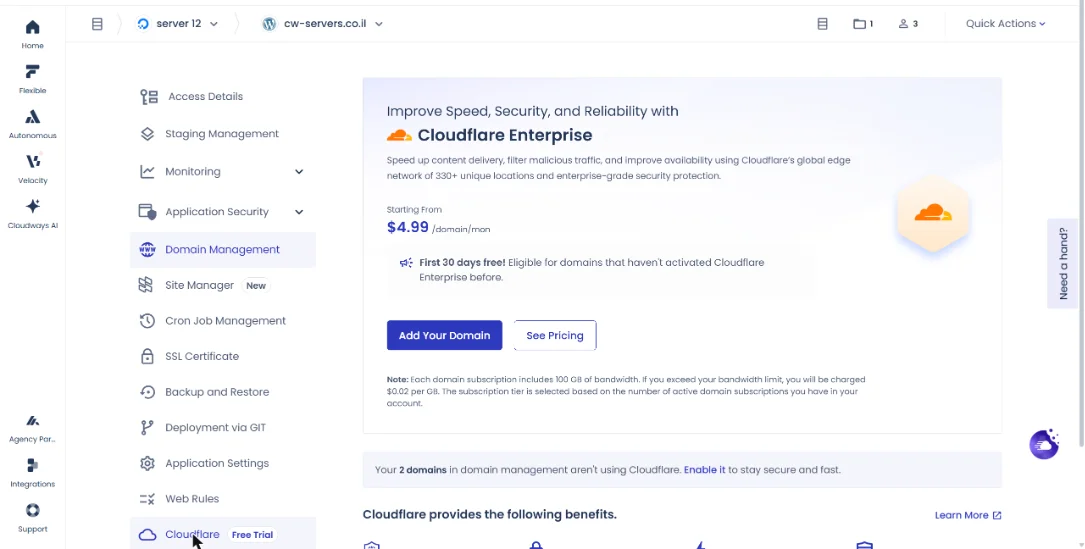
- Enter the domain. A primary domain (example.com) automatically covers www as well. You can add more domains with + Add another Domain. Click Save Changes.
- Accept the trial terms: the domain automatically becomes paid at the end of the trial.
- Click CNAME Records and copy the values.
- At your DNS provider, add a CNAME record:
| Type | Name / Host | Target / Value | TTL |
|---|---|---|---|
| CNAME | @ (or a subdomain, for example blog) | secure.cloudways.cloud | Auto |
If your DNS provider doesn’t allow a CNAME on the root domain (common at registrars), use two A records instead:
| Type | Name / Host | Value |
|---|---|---|
| A | @ | 162.159.136.54 |
| A | @ | 162.159.137.54 |
- Go back to the panel and click Done. The status will be Domain not live until Cloudways detects the records. This can take up to 24 hours, and you will get an email when the connection is complete and the status changes to Active. If it doesn’t update, click the refresh button.
You can reach the same activation from Integrations in the side menu, through View All and then Cloudflare.
The code BFCM802 takes 80% off your bill for the first two months (up to $200 off per month), including unlimited free site migrations. New customers only, and only until the offer ends.
The offer ends on December 4, 2026 at 23:59 (UTC+2).
Start with a free trial, no credit card. Enter the code at checkout and check that it shows up.
After Black Friday: 30% off for 3 months with the code ASAEL. On a large server (above about $444 a month) ASAEL already saves more today. BFCM802 vs. ASAEL calculator
Start a free trial server, no credit card. When you move to a paid plan, the code ASAEL takes 30% off your bill for the first three months.
The link fills in the code on the signup form. Just make sure it shows up.
The settings worth knowing
Once the domain is live, the application’s Cloudflare tab has performance and security settings. These are my recommendations, based on Cloudways’ defaults:
| Setting | Default | Recommendation |
|---|---|---|
| Caching | On | Leave on. Turning it off pushes every request to the server |
| Edge Page Caching | Your choice | Enable on content sites and brochure sites. On stores, test the cart, checkout and logged-in users carefully |
| Image Optimization | Your choice | Lossless when quality matters. Lossy only after a visual check |
| Early Hints | Your choice | Enable and test |
| WAF | On | Leave on. Turn off only to check for false blocks |
| Rate Limiting | On | Leave on. According to the Velocity documentation, a challenge triggers above 200 requests per minute from the same IP |
| Browser Integrity Check | On | Leave on |
| Under Attack Mode | Off | Enable only during an attack, and turn it off afterward |
| AI Crawler Blocking | Off | A business decision. On a site that wants to appear in AI engine answers, think carefully before enabling it |
| SSL Cipher | Compatible | Leave on Compatible, unless you have a special compatibility requirement |
To clear the Cloudflare cache there is a Purge button in the add-on’s tab. If you use Breeze, it connects to Cloudflare Enterprise with one click and also clears the Cloudflare cache when you update content. Details are in the guide to clearing cache on Cloudways and the Breeze guide.
How does Cloudflare Enterprise work on Autonomous?
On Cloudways Autonomous you don’t need to enable anything: Cloudflare Enterprise is built into every application. What you do need is to connect a domain with CNAME records (the target on Autonomous is secure.cloudwayssites.com), as explained in the guide to connecting a domain.
The settings are under Autonomous > My Applications, in the application, in the Security tab and then Cloudflare: Under Attack Mode, WAF, Rate Limiting, Browser Integrity Check, AI Crawler Blocking and SSL Cipher. After a change you click Save Changes. All of these settings require a domain in Live status.
Managing domains in the add-on
- Adding more domains to the same application: in the Domains tab, Add Domains. Each domain gets its own trial.
- Moving to another application: ⋮ next to the domain, Transfer, and choose the destination application. Traffic switches immediately. Useful when you move a site to another server within Cloudways.
- Deleting: ⋮ and then Delete. After deleting you need to point the DNS records back to the server’s IP address, otherwise the site will go down.
- Traffic usage: in the Domains tab for each domain, and in the Overview tab for all of them together.
Common mistakes and how to fix them
The status is stuck on Domain not live: usually an old A record is left over and conflicts with the CNAME, or the record in your personal Cloudflare account is Proxied (orange cloud). Delete the old record and switch to DNS only.
Double billing: happens when the same domain is added twice. Make sure each domain is set up once, and if you were charged twice, ask support for a billing correction.
Secondary domains are billed unnecessarily: an extra domain that only redirects to the main site doesn’t have to go through Enterprise. Point it to the server’s IP with an A record, and keep it out of the add-on.
The shopping cart or logged-in users behave strangely after Edge Page Caching: Edge Page Caching follows the Varnish exclusion rules for WordPress. If you added a plugin that uses non-standard cookies, you may need to exclude pages.
Legitimate visitors get blocked: check the security events in the add-on’s analytics. If the blocks come from Rate Limiting or the WAF, temporarily turn off the relevant setting and contact support.
I cancelled and I want another trial: not possible. The trial is one-time per domain.
Is it worth it?
For most sites on Cloudways, yes. $4.99 a month for a single site is less than any paid Cloudflare plan directly, and for an agency with many sites the price per domain drops to $1.99. In the load test Cloudways published in its documentation, on a 4GB server under up to 1,000 concurrent users, the number of errors fell from 8,700 to 7 with the Enterprise CDN. That is Cloudways’ own test in a controlled environment, but the direction is clear.
Who it suits less: a very small site with no meaningful traffic that already runs fine on the free Cloudflare plan, or someone who manages complex rules in a personal Cloudflare account and doesn’t want to give them up. You can start with the free trial and decide after 30 days, based on numbers from your own site. The speed comparisons I ran before and after moving to Cloudways can also help you decide.
Sources
- How to enable Cloudflare on your application – Cloudways Knowledge Base
- Cloudflare: Why you should use Cloudflare Enterprise – Cloudways Knowledge Base
- How to configure Cloudflare settings on Cloudways Autonomous – Cloudways Knowledge Base
- Cloudways Cloudflare Enterprise – official Cloudways page
Frequently asked questions
As of November 2026, the price is $4.99 per domain per month for 1–4 domains, $3.99 for 5–9, $2.99 for 10–24, and $1.99 from 25 domains. Each domain includes 100GB of traffic, and beyond that you pay $0.02 per GB. Billing is prorated by the days in the month.
Yes. Each domain gets a one-time free trial that ends after 30 days or after 100GB of traffic, whichever comes first. At the end of the trial the domain automatically moves to a paid plan, and Cloudways sends an email beforehand.
No. Cloudways manages Cloudflare Enterprise for you, and it is enough to add a CNAME record or two A records at your DNS provider. If your DNS is already in a regular Cloudflare account, you leave it there and set the records to DNS only.
The version through Cloudways gives you, among other things, Argo Smart Routing, Edge Page Caching, an advanced WAF, Enterprise-level bot management, image optimization and PCI DSS compliance. On the free plan some of these features are missing, and some exist in a basic version.
Yes. On Autonomous every site goes through Cloudflare Enterprise by default, and the settings are in the application’s Security tab. On Flexible it is an optional add-on that you enable per domain.
Yes, on WordPress and WooCommerce sites. Enabling Edge Page Caching automatically turns off Varnish page caching to prevent a conflict, and pages are served directly from Cloudflare’s edge servers.
Related guides
- How to set up the Cloudflare CDN
- Speed comparisons before and after moving to Cloudways
- The Breeze guide for Cloudways
- Object Cache Pro on Cloudways
- Cloudways pricing
- All guides on this topic: performance and speed guides
Official source: How to Enable Cloudflare on Your Application, Cloudflare: Why You Should Use Cloudflare Enterprise, How to Configure Cloudflare Settings on Cloudways Autonomous (Cloudways Knowledge Base) and Cloudflare Enterprise (Cloudways). This guide was written and checked by Asael Dreyer · Updated: 6 Nov 2026
Disclosure: this is an independent site, not the official Cloudways site. Some links on this site are affiliate links: if you sign up through them we earn a commission, at no extra cost to you. Full details

