
Last updated: · By Asael Dreyer
In short: to scale up a server on Cloudways, open the server, choose Vertical Scaling under Server Management, pick a new RAM and CPU size and click Scale Now, then Proceed. The server restarts with the new resources, the IP address stays the same, and billing is split by the hour. Scaling down directly is possible only with some cloud providers, and in other cases you do it by cloning to a smaller server.
What is server scaling (Vertical Scaling)
Scaling a server, or Vertical Scaling, means adding resources to the existing server: more RAM, more processors (CPU), and sometimes more disk. The server stays the same server, in the same location, with the same IP address, the same sites and the same settings. Nothing needs to be moved. For how much memory a WordPress site actually uses, see WordPress RAM usage.
This is the main difference from shared hosting. There, when a site grows, you switch plans and sometimes servers. On Cloudways you move a slider in the panel, wait a few minutes, and carry on working.
When you really need to scale a server
Not all slowness is a RAM problem. Before you pay more, look at the data. On the server, in the side menu, choose Monitoring:
- RAM: in the Details tab, choose Free memory. According to Cloudways, if free memory is constantly below 100MB, your applications will start to misbehave.
- Auto Healing Restarts: in the same menu. These are restarts of services that were killed for lack of memory. If they keep coming back, it is a clear sign that the server is too small.
- CPU: high load over time, and not just momentary spikes, points to a need for a stronger processor.
- Usage per application: in the Summary tab, expand Application Wise Details to see which site uses the most memory.
From my experience: sometimes one heavy site is the problem, not the server as a whole. In that case it’s better to move that site to its own server than to scale up a server that holds ten small sites. And before any scaling, make sure the cache is set up correctly. Breeze with Varnish and Object Cache takes a lot of load off the server.
Before you start
- A full account, not a trial. You can’t scale servers during the trial. You need to upgrade the account and add a payment method.
- An on-demand backup. Cloudways recommends taking a backup before every scaling. It takes a minute.
- A quiet window. The server may be unavailable during scaling, and once the process starts you can’t cancel it. For most sites, the night hours in your audience’s time zone are usually the right choice.
- An advance balance for large servers. According to Cloudways, scaling to a plan larger than 4GB requires adding a balance in advance equal to one month of the new plan (Billing > Add Funds). The balance is offset against future invoices.
How to scale a server, step by step
The steps are almost identical on every cloud provider, and the differences are detailed in the table below.
- In the management panel, open Servers and select the server.
- Under Server Management, choose Vertical Scaling.
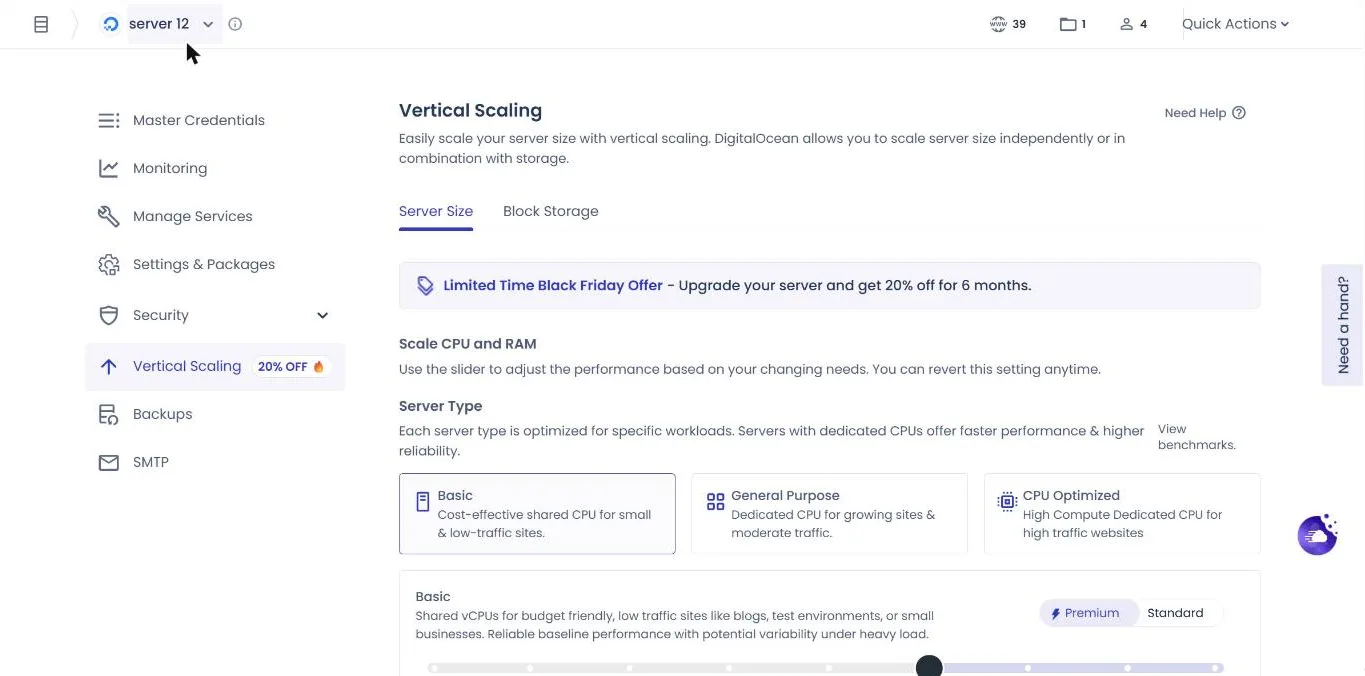
- Choose the new size. Hovering over each option shows its specs, and the price per hour and per month appears below.
- On DigitalOcean there is a switch that decides whether to scale the disk too. Leave it off if you want the option to go back to the original size (explained below).
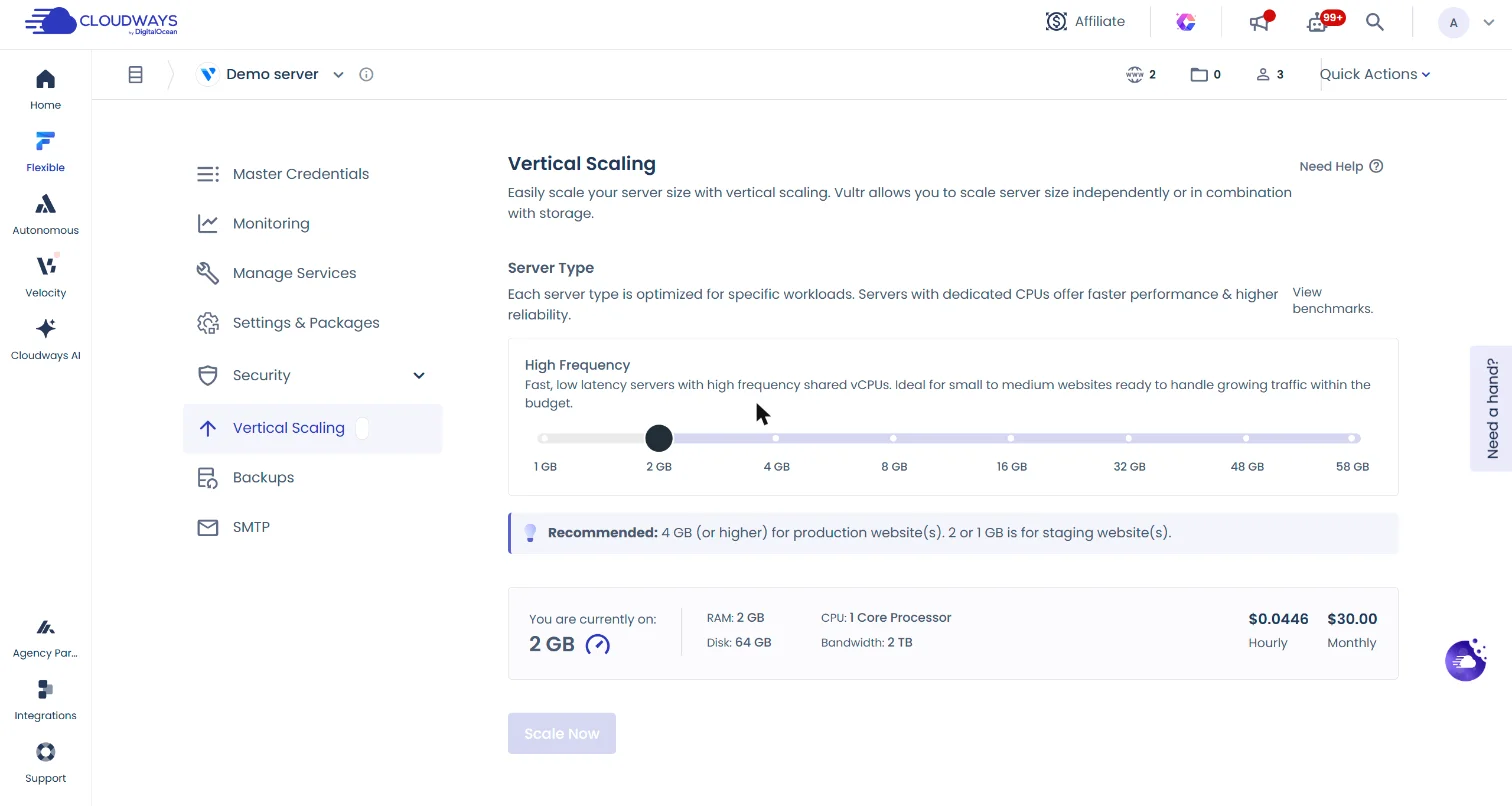
- Click Scale Now. If you change your mind before confirming, Reset restores the selection.
- In the confirmation window, read the warnings, for example about downtime and limitations, and click Proceed.
- Wait for the process to finish. The server restarts with the new resources. A server with a lot of data on disk can take longer than the panel shows.
Differences between cloud providers
Each cloud provider handles scaling a little differently. This mostly matters when you want to scale back down:
| Cloud provider | What you can scale | Can you scale down directly? | Notes |
|---|---|---|---|
| DigitalOcean | CPU and RAM only, or CPU, RAM and disk together | Yes, if you scaled only CPU and RAM, down to the original size | Scaling with the disk is permanent. You can switch between Standard and Premium CPU |
| Vultr | CPU, RAM and disk together | No, only through cloning | You can switch between General Purpose and CPU Optimized (Cross Scaling), but not from Standard to High Frequency |
| Linode (Akamai) | CPU, RAM and disk together | No, only through cloning | Suited to planned long-term growth |
| AWS / Google Cloud | CPU and RAM, and separately the files disk and the database disk | Yes for CPU and RAM. Disk only through cloning | The operating system disk is fixed (25GB) |
The important tip for DigitalOcean: if you’re scaling because of temporary load, such as a Black Friday sale or a campaign, scale only CPU and RAM. That way you can return to the original size after the event and pay for the larger size only for the hours you used it. If you scale the disk too, there is no way back without cloning.
How to scale a server down
On AWS and Google Cloud, and on DigitalOcean after scaling only CPU and RAM, you scale down from the same Vertical Scaling screen. In every other case you scale down through cloning:
- On the servers page, click (⋮) next to the server and choose Clone Server.
- Choose a smaller size and a location, and start the clone.
- After the clone, update the domains and the A records to the new server’s IP. The cloned server has a new IP address.
- Reinstall SSL certificates if they weren’t copied in the clone.
- Test all the sites. Only when everything works, delete the old server. Billing on it stops, and you’ll receive a final invoice up to the day of deletion.
Full details on cloning a server and what is copied are in the guide to cloning an application or server.
How billing works when you scale a server
Cloudways bills by usage, but there is a rule worth knowing:
- Scaling up to the 28th of the month: each server size is billed by the number of hours it ran. The hourly price is the monthly price divided by 672 hours (28 days times 24).
- Scaling up after the 28th: you are billed the full monthly price of the new size for that month.
- No scaling at all: you are billed the regular monthly price.
An example from Cloudways’ documentation: a 16GB server priced at $149 per month ran for 113 hours, and was then scaled to a Premium version priced at $170 per month that ran for 631 hours. The charge: about $25.05 for the first size and about $159.64 for the second. The prices in the example are for illustration only. You’ll see current prices on the Vertical Scaling screen and in the price list.
Two more points: scaling doesn’t change anything in the platform’s features, only the server’s resources. And on the invoice, as on every Cloudways invoice, prices are in US dollars. If you’re a business owner, check with your accountant how to book an invoice from a foreign supplier. More detail in the billing and invoices guide.
The code BFCM802 takes 80% off your bill for the first two months (up to $200 off per month), including unlimited free site migrations. New customers only, and only until the offer ends.
The offer ends on December 4, 2026 at 23:59 (UTC+2).
Start with a free trial, no credit card. Enter the code at checkout and check that it shows up.
After Black Friday: 30% off for 3 months with the code ASAEL. On a large server (above about $444 a month) ASAEL already saves more today. BFCM802 vs. ASAEL calculator
Start a free trial server, no credit card. When you move to a paid plan, the code ASAEL takes 30% off your bill for the first three months.
The link fills in the code on the signup form. Just make sure it shows up.
Server RAM vs PHP memory_limit: not the same thing
This is a common point of confusion, and earlier versions of this guide on this site mixed the two up as well. It’s important to separate them:
| Server RAM | PHP memory_limit | |
|---|---|---|
| What it is | The server’s physical memory, shared by all the sites | How much memory a single PHP script is allowed to use |
| Where you change it | Vertical Scaling on the server | In Settings & Packages on the server, or in the application’s PHP-FPM settings |
| Does it cost money? | Yes, a bigger server costs more | No, it’s just a setting |
| When to change it | The whole server is short on memory | An “Allowed memory size exhausted” error in WordPress |
If you got a memory error in WordPress, in most cases you don’t need a bigger server. Raising PHP’s memory_limit, for example to 512M or 1024M, is enough. In the earlier version of this guide I recommended 1024 in the Memory Limit field in Settings & Packages, and that is still a good recommendation, but it changes PHP’s limit and not the server’s RAM. The full explanation is in the guide to PHP settings on Cloudways.
For advanced users: you can set a different memory_limit for a specific application through Application Settings > PHP FPM Settings, with a line like php_admin_value[memory_limit] = 512M. That way one heavy site gets more without changing the whole server.
What about Autonomous?
On Cloudways Autonomous there is no manual server scaling. Each application runs in units called pods, and each pod is a kind of small server with its own CPU, RAM and PHP workers. When traffic rises, pods are added automatically, and when it drops, they are removed. If you need a higher baseline of resources over time, you change plans. Details in the Autonomous pricing guide.
Common mistakes and how to fix them
The message “Your account has reached its maximum server/memory size limit”: this is an account-level security limit, not a server fault. It appears when you try to scale or clone beyond 1GB, 2GB and 4GB on DigitalOcean, Vultr and Linode, beyond n1-standard-1 and n1-standard-2 on Google Cloud, and beyond Small and Medium on AWS. Contact support and ask them to lift it. They may ask you to add an advance balance of 50% of the server’s price.
I scaled on DigitalOcean including the disk and I want to go back: you can’t from the same screen. Clone the server to a smaller size, as explained above.
Scaling is taking much longer than the time shown: that is expected on a server with a lot of data on disk. Don’t restart it and don’t try to cancel. Wait for the process to finish.
I scaled and the site is still slow: the problem probably wasn’t resources. Check the cache, heavy plugins, slow database queries and the PHP version. Clearing the cache after scaling can also help.
I can’t scale in a trial account: that is a limitation of the trial period. Upgrade the account and add a payment method.
I forgot to delete the old server after scaling down by cloning: every active server is billed. Delete it once you’ve checked that the new one works.
Sources
- Guide to scale servers on the Cloudways platform – Cloudways Knowledge Base
- How does the server billing charges work when I scale my server – Cloudways Knowledge Base
- Why am I getting your account has reached its maximum server memory size limit notification – Cloudways Knowledge Base
Frequently asked questions
Usually yes, for a short time. The server restarts to receive the new resources, and sites may be unavailable until the process finishes. How long depends on the cloud provider and the amount of data on disk, so scale during quiet hours.
No. When you scale the same server, the IP address stays the same and you don’t need to touch DNS. The IP changes only when you scale down by cloning to a new server, and then you need to update the A records.
On AWS and Google Cloud you can scale CPU and RAM down directly from Vertical Scaling. On DigitalOcean you can return to the original size if you scaled only CPU and RAM. In every other case you clone the server to a smaller one, switch DNS and delete the old one.
If you scale up by the 28th of the month, each server size is billed by its hours of use, at the monthly price divided by 672 hours. If you scale up after the 28th, you are billed the full monthly price of the new size. The breakdown appears on the invoice.
It is an account-level security limit, and it appears when you try to scale or clone beyond certain sizes, for example above 4GB on DigitalOcean, Vultr and Linode. You contact support and ask them to lift it. They may ask you to add an advance balance of 50% of the server’s price.
No. Autonomous has no manual server scaling. The application runs in pods, and pods are added automatically under load and removed when the load drops. If you need more fixed resources, you change plans.
Related guides
- Cloudflare Enterprise on Cloudways
- How to set up the Cloudflare CDN
- Before-and-after speed comparisons for sites moving to Cloudways
- The guide to Breeze on Cloudways
- Cloudways pricing
- All guides on this topic: performance and speed guides
Official source: Guide to Scale Servers on the Cloudways Platform, How Does the Server Billing Charges Work when I Scale my Server, Why Am I Getting “Your Account has Reached its Maximum Server/Memory Size Limit” (Cloudways Knowledge Base). Written and checked by Asael Dreyer · Updated: 6 Nov 2026
Disclosure: this is an independent site, not the official Cloudways site. Some links on this site are affiliate links: if you sign up through them we earn a commission, at no extra cost to you. Full details

