
Last updated: · By Asael Dreyer
In short: WordPress Multisite is a mode where a single WordPress installation runs a network of several sites that share core files, plugins and themes. On Cloudways you switch it on with one click: Application Settings, the WordPress Settings tab, the WordPress Multisite toggle, a choice between subdirectory and subdomain, then Proceed. Treat the action as irreversible, and note that these instructions were written for Flexible. When a subsite outgrows the network, you move it to a standalone site with an XML export, a copy of wp-content and an import into a fresh installation.
What WordPress Multisite is and how it works
A Multisite network has one Network Admin who installs plugins and themes once for the whole network. Each subsite gets its own dashboard, its own content and its own users, but runs on the same files.
Behind the scenes there is a single database. Every subsite has its own numbered set of tables, for example wp_2_posts for the second site, while the users table is shared across the network. That is what makes management convenient, and isolation hard.
| Structure | What the address looks like | When to choose it |
|---|---|---|
| Subdirectory | example.com/en/ | Language versions, or branches of the same brand. No extra DNS or SSL needed |
| Subdomain | en.example.com | When each site needs a more separate identity. Requires a DNS record and an SSL certificate for every subdomain, or a wildcard |
| Domain Mapping | other-brand.com | A subsite with its own domain. You add it as an additional domain in the application |
According to Cloudways, there is no fixed limit on the number of sites in a network. The only limit is the server’s resources, and you can scale those whenever you need to.
When Multisite fits, and when separate sites are better
Multisite sounds like a time saver, and in some cases it is. In others it turns every small problem into a problem for all your sites at once.
| A good fit | Not a good fit |
|---|---|
| A site in one language plus a version in another language for the same business (see the guide to right-to-left WordPress sites) | Sites for different clients that have nothing to do with each other |
| A network of branches or franchises that share one design | Independent WooCommerce stores with different plugins |
| Department blogs inside the same organization | A site you might want to sell or hand over to a client later |
| A setup where one administrator controls the plugins | Sites that need different PHP versions or server settings |
The main reason to be careful: one broken plugin, one hack or one failed update hits the whole network at once. Backup and restore also work at the level of the entire application, not for a single subsite. On a Flexible server you can run plenty of separate WordPress applications, and even a regular site and a Multisite on the same server, so in most cases there is no technical reason to squeeze unrelated sites into one network.
Before you start
- Flexible. These instructions were written and tested for Cloudways Flexible. The Cloudways knowledge base articles mention subsites in a managed migration to Autonomous too, but I couldn’t find a guide for enabling Multisite in the Autonomous panel, so check with support before you plan a network there.
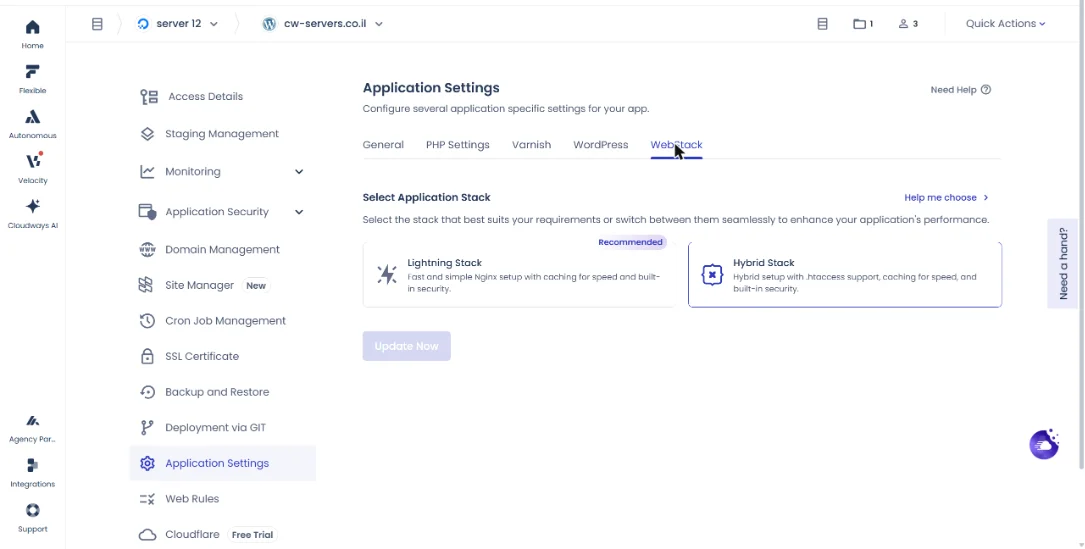
- Check your Stack. The panel’s Multisite settings apply only to the application’s root folder. WordPress installed in a subfolder will not work on the Lightning Stack, and a network that depends on htaccess rules (for example a subdirectory network migrated from another host) needs the Hybrid Stack. You choose it in the WebStack tab of the application settings.
- Backup. Take a backup of the application before you enable it. The change touches the WordPress settings and database.
- Subdomains? Prepare DNS records for each subdomain in advance (or a wildcard A record with an asterisk that points to the server’s IP address), and plan an SSL certificate that covers them.
How to enable WordPress Multisite on Cloudways, step by step
If you don’t have a WordPress application yet, create one first by following the guide to launching a server and an application. I prefer to start a network on a fresh, clean application rather than on a live site.
- Log in to the management panel, choose Servers and then the server that hosts the application.
- Click the www icon and select the application.
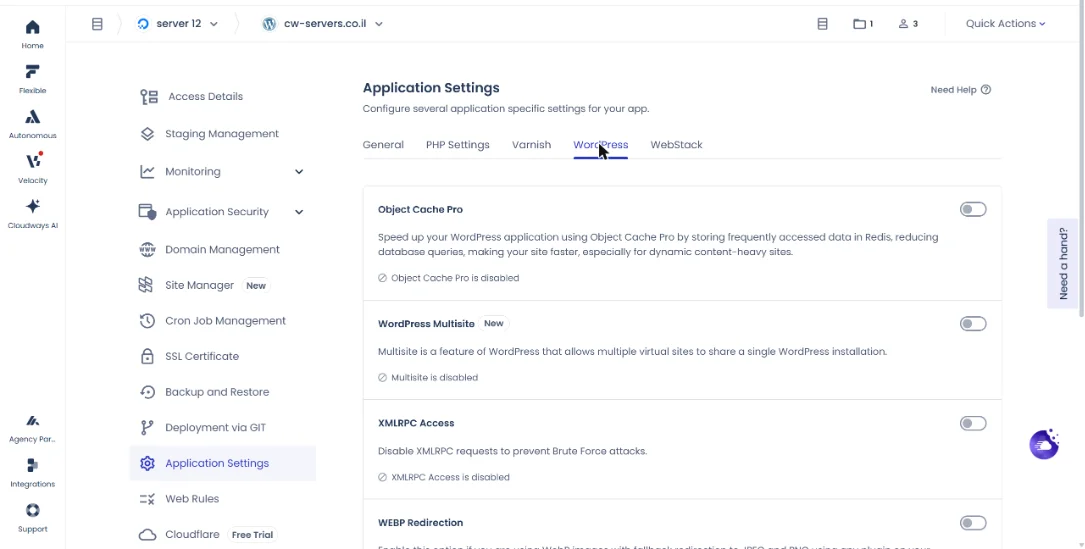
- In the side menu choose Application Settings and go to the WordPress Settings tab.
- Turn on the WordPress Multisite toggle.
- Choose the network type: Subdirectory or Subdomain. Think it through, because you can’t change this choice later.
- Click Proceed.
Before enabling it, the system checks whether the site already has network settings. If it finds them, for example from the htaccess file of a migrated network, it applies them and ignores your choice. This protects you from conflicting settings on a site that came over from another host.
After it’s enabled, log in to WordPress. The top bar now shows My Sites with Network Admin inside it. From there you add new sites under Sites and then Add New.
Domains and SSL for the network
Every address the network serves has to be defined in the application on Cloudways, otherwise the server doesn’t know where to route it.
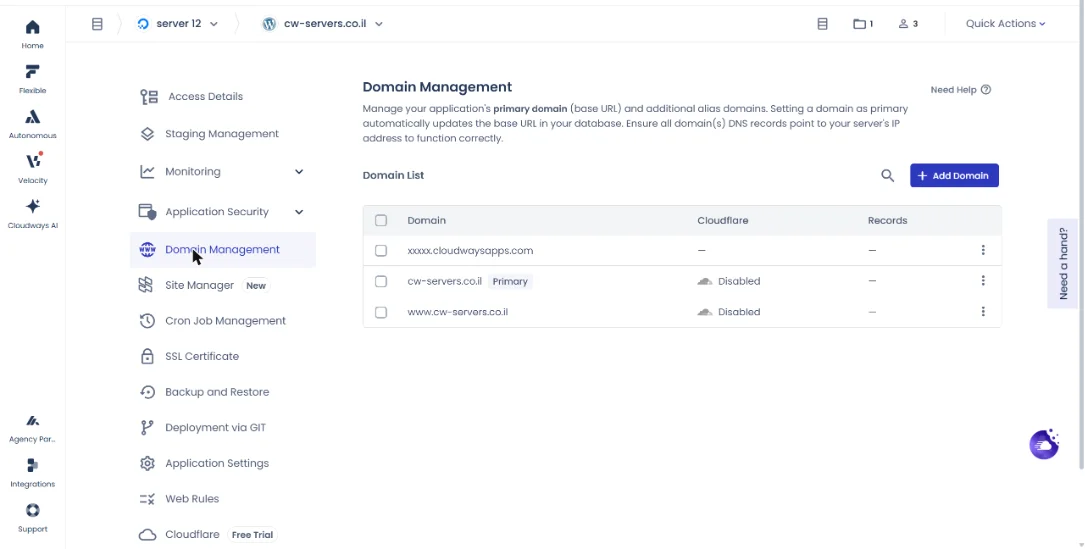
- In the application’s Domain Management, set the network’s main domain as the Primary Domain.
- Add every subdomain or mapped domain as an additional domain (Additional Domain).
- Point the DNS of each domain to the server’s IP address. The full steps are in the guide to connecting a domain to Cloudways.
- Install an SSL certificate that covers all of them. A single Let’s Encrypt certificate covers up to 100 domains and subdomains. For a subdomain network that keeps growing, a wildcard certificate (
*.example.com) is more convenient, and it requires DNS validation with a CNAME record. The details are in the SSL installation guide.
Turning Multisite off, and the “Incomplete Multisite network” message
Turning it off: in the same tab you switch the toggle off and confirm with Confirm. Disabling only changes the server settings. The subsites, their folders and their tables in the database stay exactly as they are. In other words, the site does not turn back into a regular site, which is why enabling it is irreversible in practice.
“Incomplete Multisite network detected. Please complete the wp-config.php setup manually”: this message appears when wp-config.php contains only the WP_ALLOW_MULTISITE permission line without the rest of the settings. In the WordPress dashboard go to Tools and then Network Setup, choose subdomains or subdirectories, fill in a network name and an admin email, and copy the code WordPress gives you into wp-config.php and htaccess.
The code BFCM802 takes 80% off your bill for the first two months (up to $200 off per month), including unlimited free site migrations. New customers only, and only until the offer ends.
The offer ends on December 4, 2026 at 23:59 (UTC+2).
Start with a free trial, no credit card. Enter the code at checkout and check that it shows up.
After Black Friday: 30% off for 3 months with the code ASAEL. On a large server (above about $444 a month) ASAEL already saves more today. BFCM802 vs. ASAEL calculator
Start a free trial server, no credit card. When you move to a paid plan, the code ASAEL takes 30% off your bill for the first three months.
The link fills in the code on the signup form. Just make sure it shows up.
How to move a subsite out of the network into a standalone WordPress site
This comes up more often than you’d think: a subsite grows, gets sold, or needs plugins that don’t suit the rest of the network. The official process uses WordPress’s own export and import tools.
Before anything else, take a full backup of the network application. The steps are in the backup and restore guide.
- Log in to the subsite you want to move, with an administrator user.
- Export the content: go to Tools, then Export, select All content and click Download Export File. You get an XML file with the posts, pages, comments and references to the media files.
- Copy wp-content: connect over SFTP (FileZilla, for example) and download the wp-content folder to your computer, so you have the theme and the plugins.
- Create a new WordPress application, on the same server or on another Cloudways server.
- Prepare the new installation: delete the “Hello World!” post, the “Sample Page” and the sample comment, and under Settings then Permalinks set the same link structure the subsite used.
- Import: go to Tools, then Import, choose WordPress, install WordPress Importer, upload the XML file and click Upload file and import. Assign the content to authors, and tick the option to download and import file attachments so the images come across.
- Upload the theme and plugins: over SFTP, upload the theme folder to wp-content/themes and the plugins to wp-content/plugins, then activate and configure them.
- Check everything: go through the pages and posts on the front end, and look for missing images and broken links.
After the move: what the official guide doesn’t mention
An XML import moves content, but not everything. A few things worth checking, from experience:
- Settings and menus: navigation menus, widgets and theme and plugin settings don’t always come across. Take screenshots of the important settings before you start.
- Internal links: if the address changed, for example from
example.com/en/toexample.org, replace the old address across the whole database with a search-replace, following the WP-CLI guide. - 301 redirects: redirect the subsite’s old URLs to the new ones so you don’t lose Google rankings. You can do it in Web Rules or with a redirect plugin on the network’s main site.
- WooCommerce store: orders, customers and payment settings don’t transfer reliably through an XML export. For a live store, use a dedicated migration tool or contact support.
- Deleting from the network: only after the new site works and the domain points to it, delete the subsite under Network Admin and then Sites.
Managing performance and cache on a Cloudways Multisite network
The Breeze caching plugin is compatible with Multisite and comes preinstalled on Cloudways WordPress applications. Cloudways’ Site Manager, the tool for managing updates and performance, also supports Multisite networks.
Pay attention to the object cache: on a Multisite network, purging the Object Cache (Redis) usually clears the cache for every site in the network. On a large network that causes a moment of load, so do it during quiet hours. For Elementor sites in a network, the tips in the guide to speeding up an Elementor site apply to every subsite.
Common mistakes and how to fix them
Subdirectory subsites return 404: almost always a Stack or permalinks problem. If the network depends on htaccess rules, switch to the Hybrid Stack. Then re-save the permalinks and clear the cache.
A new subdomain doesn’t load or shows an SSL warning: it wasn’t added as an additional domain in the application, it has no DNS record, or the certificate doesn’t cover it. Check all three, in that order.
You chose subdirectory and now you want subdomains: the panel doesn’t let you switch structure. Your options are a new network with the content moved over, or a manual change to the network settings in wp-config.php and the database, which is for advanced users only.
A plugin activated network-wide broke one site: a plugin enabled with Network Activate runs on every site. Activate plugins that only one site needs on that subsite alone.
You turned the toggle off and expected a regular site: disabling only changes the server settings. The subsites’ tables and folders remain, and WordPress is still configured as a network.
Sources
This page is based on the following official documentation and pages:
- How to set up a WordPress Multisite on Cloudways (Cloudways Knowledge Base)
- Move a subsite from a WordPress Multisite to a new single installation (Cloudways Knowledge Base)
- Hosting for WordPress Multisite on a Managed Cloud Platform
Frequently asked questions
It depends on the platform. The instructions in this guide were tested on Cloudways Flexible, where you enable it with one click in the application settings. I couldn’t find a guide for enabling it on Autonomous, so check with support.
According to Cloudways there is no fixed limit. What limits you is the server’s memory, CPU and disk, and you can increase those in a few clicks as the network grows.
Not with one click. Turning the toggle off in the panel only changes the server settings, and the site stays a network. The practical route is to move the main site or a subsite into a fresh installation, using the export and import process in this guide.
Usually subdirectory. It doesn’t need extra DNS or SSL, and Google sees all the sites as part of the same domain. A subdomain fits when each site needs a more separate identity, and it requires an SSL certificate that covers all the subdomains.
Yes. You add the domain as an additional domain in the application’s Domain Management, point its DNS to the server and install SSL that covers it. Then you update the subsite’s address when editing the site in Network Admin.
Not necessarily. All the sites share the server’s resources, so a large network needs a bigger server. With caching set up properly and a server of the right size, subsites load like regular sites.
Related guides
- How to speed up an Elementor site on Cloudways
- WP-CLI on Cloudways: commands and search-replace
- Installing an SSL certificate, including wildcard
- Web Rules, htaccess and 301 redirects
- All the guides on this topic: WordPress and WooCommerce on Cloudways
- For stores: WooCommerce store hosting on Cloudways
Official source: How to Set Up a WordPress Multisite on Cloudways, Move a Subsite From a WordPress Multisite to a New Single Installation (Cloudways Knowledge Base) and WordPress Multisite Hosting (checked 6 Nov 2026). This guide was written and tested by Asael Dreyer · Updated: 6 Nov 2026
Disclosure: this is an independent site, not the official Cloudways site. Some links on this site are affiliate links: if you sign up through them we earn a commission, at no extra cost to you. Full details

