
Last updated: · By Asael Dreyer
Short answer: Cloudways security starts from a good baseline. Every Flexible server is protected by Imunify360, with a firewall, a WAF, brute-force protection and DoS protection, at no extra cost. What is left for you is mostly checking and hardening: block direct access to the site through the server IP and through foreign domains, keep direct PHP file access and WordPress XMLRPC switched off, move config files to private_html, limit SSH/SFTP access to your own IP addresses, and use the server’s Security tab to block IPs and countries. The whole hardening pass takes about half an hour.
What does Cloudways handle in server security, and what is left to you?
With managed hosting, security is split between the provider and the site owner. Cloudways is responsible for the server, the operating system and the protection layers. You are responsible for what runs on the site: WordPress, plugins, themes, passwords and who gets access. Not sure which protection layers you actually need? See Wordfence, Sucuri or server-level protection.
| Cloudways handles | You handle |
|---|---|
| Server-level firewall and WAF (Imunify360) | Updating WordPress, plugins and themes |
| Protection against brute-force attacks and DoS | Strong passwords and two-factor authentication on your account |
| Security updates for the system and PHP | Deleting unused plugins, themes and sites |
| Automatic off-server backups | Who gets SFTP, SSH and dashboard access |
| Secure defaults on new applications | Checking that defaults were not changed on older applications |
A fresh example of this split: in October 2026, critical PHP remote code execution vulnerabilities were disclosed. According to the Cloudways page (last updated 22 Oct 2026), the vulnerabilities were published on 21 Oct 2026 and customers were notified the same morning. Cloudways enabled interim protections across the whole fleet and rolled out the official security patches for every PHP version it supports, including old ones (5.6, 7.4 up to 8.4). No action was required from customers. What was recommended: update plugins, delete what you don’t use, and back up before making changes. In other words, exactly the right-hand column of the table.
Before you start
- According to Cloudways, the Security Management tab is available only in the new interface and only on Flexible.
- Back up the application before changing WordPress settings. See the backup guide.
- Know your own IP address (search Google for “what is my ip”). You’ll need it to whitelist yourself before you block anyone else.
What Imunify360 does on your server
Imunify360 is an automated security system for hosting servers, which Cloudways installs on Flexible servers. According to the documentation, all of its features are on by default at no charge, except the Malware Protection add-on, which is paid. It includes:
- A firewall that blocks port scans, break-in attempts and DoS attacks.
- A WAF (web application firewall) that filters common attacks such as SQL injection and XSS, with rules tuned for WordPress.
- Brute-force protection for SSH, FTP and site logins.
- Weak password blocking: a WordPress user who tries to log in with a weak or leaked password is sent to a password reset.
- Reputation monitoring: an alert if a domain on the server is flagged as dangerous or lands on a blocklist.
What’s in the server’s Security tab?
To get there, open Servers in the platform, choose a server, and click Security in the server menu. Data is kept for the last 30 days.
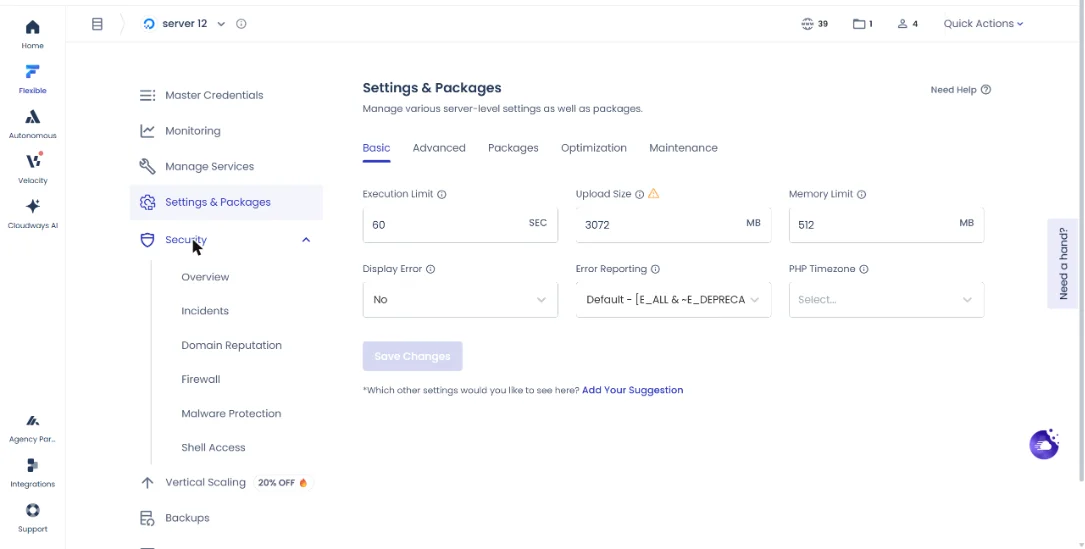
- Overview: a snapshot of incidents in the period you choose and how intense the attacks are. When I see a sudden spike in the graphs, that’s my cue to check what is going on with a specific site.
- Incident: a list of the suspicious activity blocked across the whole server, including the IP address. From there you can move an address to the whitelist or blacklist, several at a time if you like.
- Domain Reputation: whether a domain on one of the sites on the server is flagged as unsafe. This matters for email too: a blacklisted domain hurts the deliverability of email sent from the site.
- Firewall: custom rules to block or allow IP addresses and countries, plus extra settings (more on those below).
- Malware Protection: the status of each application on the server: Protected, Unprotected or Infected. You enable the add-on from here. Details are in the Malware Protection guide.
- Shell Access: limits SSH/SFTP connections and remote MySQL connections to approved IP addresses.
Each application also has its own security area, with Incidents for that site only, Malware Protection, and a Vulnerability Scanner that shows the WordPress version, themes and plugins and warns about vulnerable versions. The difference between the two Incidents screens: the application view shows only attacks on the site (ports 80 and 443). The server view covers all sites, plus attacks on SSH, SFTP and other ports.
How do you block IP addresses and countries in the firewall?
- In the server’s Security tab, go to Firewall and click Add custom rules.
- For an IP address: pick the IP Address tab, enter a single address or a CIDR range (for example
192.168.1.0/24), and choose whitelist or blacklist. - You can set a TTL, which makes the block temporary: anywhere from 1 hour to 576 hours (24 days). An empty field means a permanent block. Add a note so that six months from now you remember why you blocked it.
- For a country: pick it from the dropdown list and save.
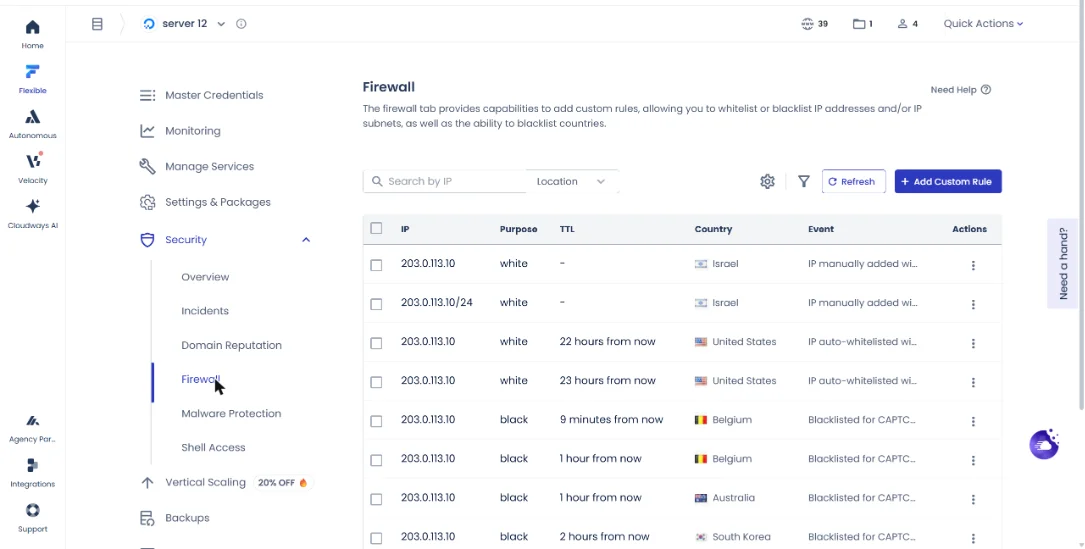
Tip from the field: blocking countries helps a lot if your forms get spam from countries where you have no customers. According to Cloudways, blocking a country does not block the Google, Bing, Yandex and Baidu bots when they come from verified addresses, so your organic rankings are not affected. It also doesn’t block outgoing connections from the server. One caution: a block that is too broad can cut off services your site depends on, such as a payment gateway or an email delivery system.
Additional firewall settings
The gear icon in the Firewall tab opens three settings:
- Enhanced DoS Protection: counts requests from each IP in 30-second windows. Anyone who goes over the limit gets an anti-bot challenge. You choose the limit from a list.
- Weak Password Login Prevention: blocks WordPress logins with weak passwords such as 1234.
- Anti-Bot Protection: detects and challenges suspicious automated traffic. According to Cloudways, turning it off can in rare cases clash with CDN cache settings, so check your cache before you disable it.
After every change, click Save changes.
Hardening checklist: six things to check on every server
On new servers and applications, most of these settings are already secure by default. On older servers, or when someone changed something along the way, it’s worth checking. This is what I do on every server I take over for management.
| Action | Where in the platform | Default on new setups |
|---|---|---|
| Block access to the site via the IP | Server: Settings & Packages, Advanced tab | Blocked |
| Block foreign domains | Same place, NGINX area | Blocked |
| Block direct access to PHP files | Application: Application Settings, WordPress tab | Blocked |
| Turn off XMLRPC | Application: Application Settings | Off |
| Config files in private_html | Over SFTP or SSH | No, manual |
| Limit SSH/SFTP to your addresses | Server: Security, Shell Access | No, manual |
1. Block direct access to the site through the server IP
If access is open, anyone who types the server’s IP address into a browser will see the default application, usually the first site that was installed. That exposes the site to scans that don’t go through the domain.
- Open Servers, choose the server, and under Server Management select Settings & Packages.
- Go to the Advanced tab and scroll down to the NGINX settings.
- Turn off Access Application via IP and click Save Changes.
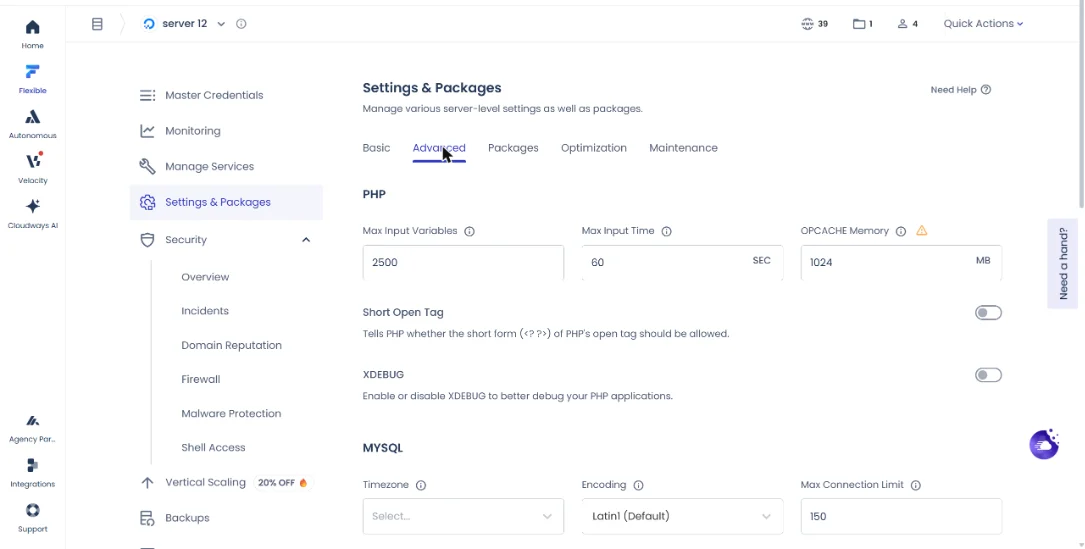
To test it, type the IP address into a browser. You should see a 403 Forbidden error.
2. Block foreign domains pointing at the server
Anyone can point their own domain at your server’s IP address. Without a block, that foreign domain will display your site, which confuses Google and can also be used for fraud. The setting lives in the same NGINX area and has three modes:
- Access Application via IP off: all unrecognized traffic (foreign domains, bots, direct requests to the IP) is blocked with a 403. This is my recommendation.
- On, with no default application: such traffic gets a message that the site is unavailable.
- On, with an application selected under Default Application: all unrecognized traffic lands on the application you chose.
3. Block direct access to PHP files in WordPress
Many WordPress break-ins work like this: the attacker exploits a plugin vulnerability, uploads a malicious PHP file (a backdoor) to a folder such as wp-content, and then runs it straight from the browser. With direct access blocked, the file won’t execute even if it was uploaded.
- Choose the application, and under Application Management open Application Settings.
- Go to the WordPress tab and scroll to Direct PHP File Access.
- If the toggle is on, turn it off and confirm with Confirm. Disable means access is blocked.
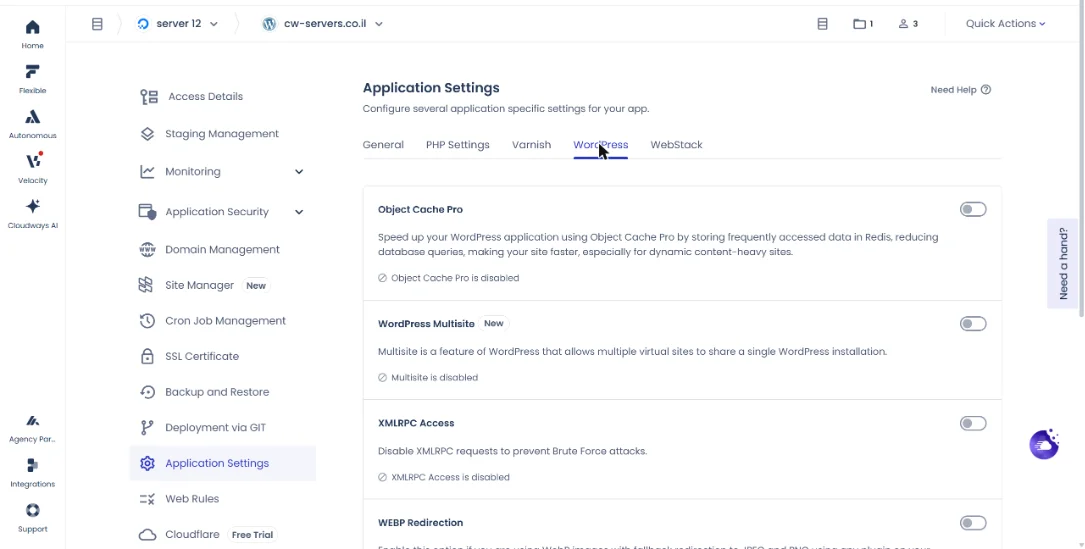
If a legitimate plugin stops working after the block (rare, but it happens with old plugins), that’s your signal to check it or replace it, not to reopen access for the whole site.
4. Turn off XMLRPC
XMLRPC is an old WordPress interface for connecting external apps, now mostly replaced by the REST API. Today it is mainly a target for brute-force attacks: thousands of POST requests to the xmlrpc.php file that load the server. On Cloudways it is off by default. If it was turned on:
- In the application, open Application Settings.
- Turn off XMLRPC Access and confirm with OK.
Leave it on only if an old service depends on it, and check whether that service has an alternative.
5. Sensitive config files in the private_html folder
Files such as wp-config.php contain the database username and password. In principle, everything inside public_html is reachable from the internet. That’s why Cloudways provides a folder called private_html, one level up, which cannot be reached from a browser and is included in backups, restores and clones.
- Connect over SFTP or SSH and go one level above
public_html. You’ll findprivate_htmlthere. See the FileZilla connection guide. - Move the config file into it.
- Update the application with the new path to the file. In WordPress you do this following the instructions Cloudways links to. For other applications, check with the developer.
This one is for advanced users. If you’re not sure, leave it to a developer, and take a backup first.
6. Limit SSH and SFTP to approved addresses
In the server’s Security tab, under Shell Access, you can allow only specific IP addresses for SSH/SFTP connections and remote MySQL connections. It suits you best when you have a fixed IP at the office. If you work from home with an IP that changes, remember to update the list, or you’ll lock yourself out. For more on credentials and users, see the Cloudways SSH guide.
The code BFCM802 takes 80% off your bill for the first two months (up to $200 off per month), including unlimited free site migrations. New customers only, and only until the offer ends.
The offer ends on December 4, 2026 at 23:59 (UTC+2).
Start with a free trial, no credit card. Enter the code at checkout and check that it shows up.
After Black Friday: 30% off for 3 months with the code ASAEL. On a large server (above about $444 a month) ASAEL already saves more today. BFCM802 vs. ASAEL calculator
Start a free trial server, no credit card. When you move to a paid plan, the code ASAEL takes 30% off your bill for the first three months.
The link fills in the code on the signup form. Just make sure it shows up.
Which other protection layers are worth knowing?
- Account security in the platform: two-factor authentication and permission management for team members. Breaking into your platform account is more dangerous than breaking into a single site. See the account security guide.
- Malware Protection: a paid add-on for scanning and cleaning malicious code. Details here.
- Bot protection: according to the current documentation, server-level bot protection is the Anti-Bot Protection setting in the firewall settings. I covered the other options in the bot protection guide.
- Cloudflare Enterprise: according to Cloudways, the recommended combination for maximum DDoS protection is Cloudflare Enterprise together with bot protection and regular updates. See the Cloudflare Enterprise guide.
Common mistakes and how to fix them
You blocked yourself: your IP address landed on the blacklist, either automatically after failed login attempts or manually. Log in to the platform from another network (your phone, for example), find the address in Incident or Firewall, and move it to the whitelist.
After blocking a country, orders or notifications stopped arriving: one of the services that sends requests to your site (payments, email delivery, an API) runs from the country you blocked. Check Incidents, whitelist their addresses, or remove the country block.
An app that connects to the site stopped working: it may be using XMLRPC. See whether it has a version that works with the REST API before you turn XMLRPC back on.
The site is behind a CDN and the blocks don’t work: according to Cloudways, Imunify360 is compatible with a long list of CDN providers, including Cloudflare and Sucuri. If something still doesn’t add up, contact support with an example from Incidents.
The Security tab doesn’t show up: it is available only on Flexible and in the new interface. On Autonomous, security is managed differently.
Sources
- A brief guide to server security management – Cloudways Knowledge Base
- How to block direct web traffic pointed towards server’s IP – Cloudways Knowledge Base
- How to block random domains pointing to your server – Cloudways Knowledge Base
- Restrict direct access to WordPress PHP files – Cloudways Knowledge Base
- Disable XMLRPC in WordPress applications – Cloudways Knowledge Base
- Securing app configuration files in private_html folder – Cloudways Knowledge Base
- Critical PHP remote code execution vulnerabilities status mitigations and recommended actions – Cloudways Knowledge Base
Frequently asked questions about Cloudways server security
Yes, at a good level from the start. Flexible servers are protected by Imunify360, with a firewall, a WAF, brute-force protection and DoS protection, at no extra cost. You are responsible for keeping the site, plugins and passwords up to date.
Yes. In the server’s Security tab, under Firewall, add a custom rule and choose a country. According to Cloudways, Google and Bing bots coming from verified addresses are not blocked, so your SEO is not affected.
For most sites it isn’t required, because the firewall and WAF already work at the server level, before WordPress. A security plugin can still help with monitoring and two-factor login for the dashboard. A plugin that is too heavy only slows the site down.
An old WordPress interface for connecting external apps, now mostly replaced by the REST API. Today it is a common target for brute-force attacks that load the server. On Cloudways it is off by default.
30 days. According to Cloudways, the graphs and reports in the Security tab show only the last 30 days, and older data is not kept.
According to the Cloudways page (last updated 22 Oct 2026), interim protections were enabled across the whole fleet, and the official security patches were rolled out for all supported PHP versions, including old ones. No action was required from customers, apart from a recommendation to update their sites and back up.
Related guides
- Connecting to your server with FileZilla and SFTP
- Cloudways Malware Protection
- Bot protection on Cloudways
- Cloudways account security
- Cloudways hosting review
- All guides on this topic: security guides
Official source: A Brief Guide to Server Security Management, How to Block Direct Web Traffic Pointed Towards Server’s IP, How to Block Random Domains Pointing to Your Server, Restrict Direct Access to WordPress PHP Files, Disable XMLRPC in WordPress Applications, Securing App Configuration Files in private_html Folder, Critical PHP Remote Code Execution Vulnerabilities (Cloudways Knowledge Base). This guide was written and checked by Asael Dreyer · Updated: 6 Nov 2026
Disclosure: this is an independent site, not the official Cloudways site. Some links on this site are affiliate links: if you sign up through them we earn a commission, at no extra cost to you. Full details

