
Last updated: · By Asael Dreyer
Short answer: to connect to a Cloudways server over SSH, take the username and password from the server’s Master Credentials screen and click Launch SSH Terminal, or connect from your computer with PuTTY or ssh user@IP on port 22. An application user needs SSH Access switched on in the application settings first. For better security, add an SSH key under SSH Public Keys and restrict access to specific IP addresses under Security > Shell Access.
What SSH is and why you need it
Before you connect, it helps to know what SSH gives you on Cloudways and what it doesn’t.
SSH (Secure Shell) is a protocol that opens an encrypted command line to a remote server. Everything that passes through the connection is encrypted, so anyone listening on the network in between can’t read it. With it you run commands directly on the server: WP-CLI for managing WordPress, Git, Composer, database queries, htop for checking load, and reading logs.
SFTP is SSH’s sibling for transferring files. Same credentials, but instead of a command line you get a file manager (FileZilla, for example). If all you need is to upload or download files, the FileZilla and SFTP guide is a better fit.
And what you don’t get: Cloudways doesn’t give you root access to the server. You connect as the Master user or as an application user, and system-level settings are handled from the panel. For most day-to-day work that’s enough, and it’s part of what lets Cloudways manage and secure the server for you.
What’s the difference between a Master user and an application user?
This distinction decides where you land after logging in and what you can reach.
| Feature | Master Credentials (master user) | Application Credentials (application user) |
|---|---|---|
| Scope of access | All applications on the server | One application only |
| SSH by default | Enabled | Disabled (SFTP only), needs to be enabled |
| Where you land after login | The master user’s home directory; you go from there into the application folder | Straight into the application folder |
| Where to find it | Server > Master Credentials | Application > Access Details |
| Best for | The server owner, a technical manager | A freelancer or developer working on a single site |
Rule of thumb: give every outside developer their own application user, not the Master credentials. That way you can revoke one person’s access without changing the password for everyone. For managing permissions across a team, see team members and permissions.
Before you start
- Access to the login details: permission on the server in the panel, or an application user you got from the account owner.
- A recent backup of the application. SSH is powerful, and one wrong command can delete files. Cloudways explicitly recommends taking a backup before working over SSH.
- If you’ve set up an IP whitelist before, make sure your current address is on it, otherwise the connection will be blocked.
Method 1: the SSH terminal inside the panel
The fastest way, with nothing to install. It suits a quick command or a check.
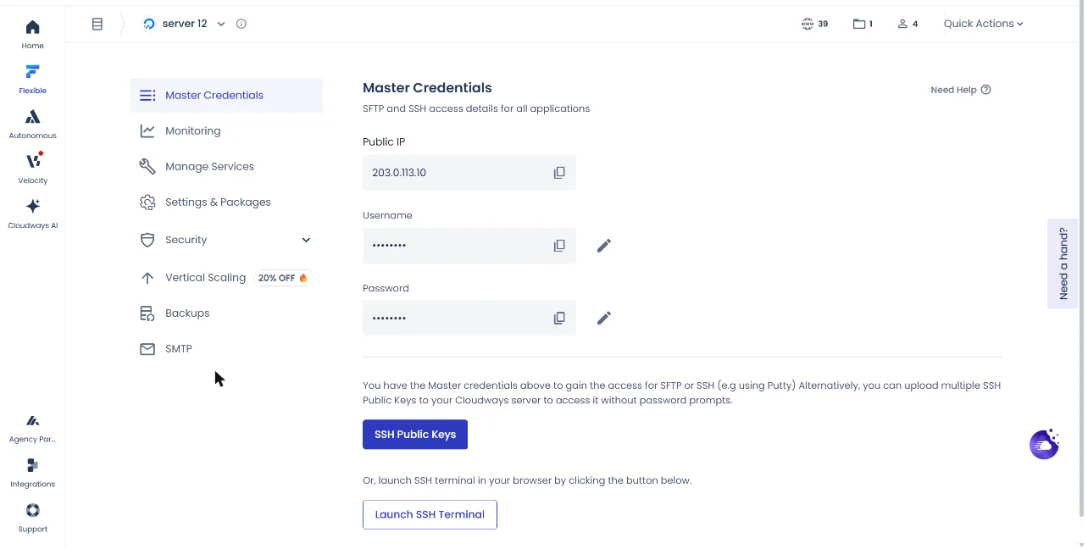
- Open the server in the panel and go to Master Credentials. Copy the username and password (clicking a field copies it).
- Click Launch SSH Terminal. A terminal opens in a new tab.
- If your browser shows a certificate security warning, that’s expected: the connection uses a self-signed certificate. Confirm and continue.
- Type the username and press Enter, then the password. Nothing appears while you type the password, and that’s normal.
- You’re connected. Try
lsto see the files.
In the panel’s terminal you navigate with the arrow keys, not the mouse. If you logged in as Master, move into the application folder with cd applications/<folder_name>/public_html.
Method 2: from your computer (PuTTY, Mac and Linux terminal)
For anything longer than a few minutes, a window on your own computer is more comfortable: copy and paste works, you can save connections, and you can use keys.
On Mac, Linux (and Windows with PowerShell)
Open a terminal and run the command with your username and the server’s public IP address from Master Credentials. The default is port 22. On Windows 10 and 11 the same command usually works in PowerShell too.
ssh username@203.0.113.10On the first connection you’ll be asked to confirm the server’s fingerprint. Type yes. After that you’ll be asked for a password, or you’ll go straight in if you’ve set up a key.
On Windows with PuTTY
- In Host Name, enter the server’s public IP address and leave the port at 22.
- Under Connection > Data, enter the username (Master or application).
- If you have a key: under Connection > SSH > Auth, choose your private key file (.ppk).
- Go back to Session, give it a name under Saved Sessions and click Save, so you don’t have to type everything next time.
- Click Open, and on the first connection accept the server key.
How do you enable SSH for an application user?
By default, an application user can only connect over SFTP. To allow SSH:
- Open the application and go to its settings (Application Settings in the official docs).
- Turn on SSH Access.
- In the dialog that opens, click OK.
From now on, every application user of that site can connect over SSH as well as SFTP. If there’s no application user yet, create one on the application’s Access Details screen.
How do you log in without a password using SSH keys?
A password can be guessed, especially in a brute-force attack that tries thousands of them. An SSH key is practically impossible to crack that way.
An SSH key is a pair of files: a public key that you put on the server, and a private key that stays only with you. When you connect, the server checks that the private key matches the public one, and you get in without a password. You can also protect the private key with a passphrase, so that even if your computer is stolen, the key alone isn’t enough.
Step A: generate a key pair
On Mac and Linux: run the command, accept the default location (~/.ssh/id_rsa) and choose a passphrase. The public key is saved in the same folder with a .pub extension.
ssh-keygen -t rsa -b 4096
cat ~/.ssh/id_rsa.pub
On Windows with PuTTYgen: open PuTTYgen, change the number of bits from 2048 to 4096, click Generate and move the mouse over the blank area until the key is created. Copy the public key from the window, and save the private key with Save Private Key in .ppk format.
Never send the private key to anyone, support included. Whoever holds it can log in to the server.
Step B: add the public key in the panel
- Open the server > Master Credentials and click SSH Public Keys. (For an application user: SSH Keys on the application’s access screen.)
- Give the key a recognizable Label, for example “Office computer”.
- Paste the full public key, from the start (ssh-rsa) to the end.
- Click Submit.
- On Mac and Linux, load the key into the agent with
ssh-add(orssh-add ~/.ssh/id_rsaif the file has a different name), then connect as usual withssh username@IP. - In PuTTY, choose the .ppk file under Connection > SSH > Auth, as described above.
In Cloudways Autonomous, the key is added from the application’s SSH/SFTP Details or Manage Access screen, through SSH Public Keys for the default user, or when you create an additional user in Add SFTP User.
How do you restrict SSH and SFTP to specific IP addresses?
This is the strongest layer: even someone who gets hold of a password can’t connect unless they come from an approved address.
On the server’s Security > Shell Access screen (SSH tab) there are two options:
| Option | What it does | Best for |
|---|---|---|
| Allow all IP addresses except those blocked by the Cloudways security system | Any address can connect, except addresses the Cloudways security system has blocked. This is the default | People who connect from changing locations |
| Block all IP addresses except those on the Whitelist | Only whitelisted addresses can connect over SSH and SFTP. Recommended by Cloudways | An office with a fixed IP, or working through a VPN with a fixed address |
- Find out your IP address, for example by searching “what is my IP” on Google.
- On the server, go to Security > Shell Access and choose Block all IP addresses, except those on the Whitelist.
- Type the address and click Add. Repeat for every address (there’s no limit on how many).
- Click Save Changes.
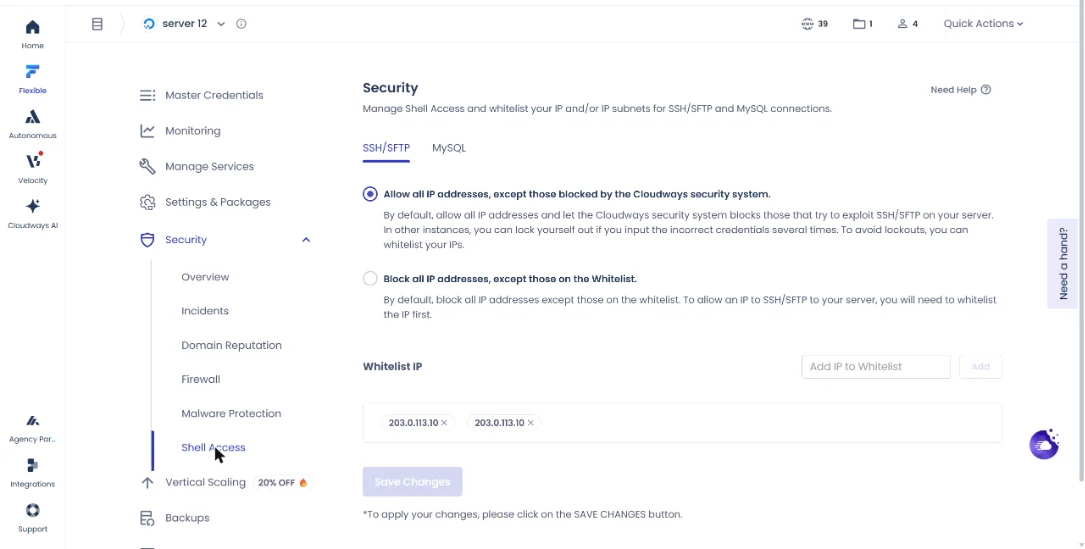
The setting applies only to the server you selected. You can also add an address range (for example 203.0.113.0/24), but Cloudways doesn’t recommend it because it opens access to many addresses.
Watch out for dynamic IPs
With many internet providers, at home and on mobile, you get a dynamic IP address that changes from time to time, so you can’t rely on it. If your address changes, you’ll be locked out until you add the new one (you do that from the panel, so you won’t lose access to the server entirely). Solutions: ask your provider for a fixed address, or work through a VPN that gives you a fixed one. And remember that anyone using the same VPN address can try to connect, so you still need a strong password or a key.
Composer and PHP on the command line
Plenty of developers connect over SSH for Composer. Two things worth knowing.
Composer 2 comes preinstalled on every new server. Check with composer -v. If you need Composer 1 for an old project, you can download it into the home directory and run it by its full path (/home/master/composer), alongside Composer 2.
The PHP version on the command line: according to Cloudways, when you connect as the master user, commands run with the server’s PHP version (on new servers the default is PHP 8.2), even if the application is set to a different version. So php -v may show a different version from the one the site uses, and Composer may complain about incompatibility. Cloudways recommends connecting as the application user instead, or calling the right PHP binary explicitly (the command below, as it appears in the official docs):
cd /home/master/applications/APP_FOLDER/public_html
/usr/bin/php8.3 /usr/local/bin/composer install
Replace 8.3 with the application’s version (you can see it under Settings > PHP Settings for the application), and APP_FOLDER with the folder name. If you recently changed the PHP version or created a new user, close the SSH connection and open a new one. For changing versions, see how to change the PHP version on Cloudways.
How to keep SSH secure
- A strong password for Master and for every application user.
- SSH keys with a passphrase instead of passwords, for anyone who connects regularly.
- An IP whitelist when you have fixed addresses.
- A separate application user for each outside developer, deleted when the work ends.
- Never send SSH credentials by plain email or an open chat.
Beyond SSH, there are more layers of protection at the server and site level. See how to harden your server and site security, Malware Protection and setting up Sucuri.
Common mistakes and troubleshooting
“Permission denied” with an application user: SSH wasn’t enabled for the application. Turn on SSH Access in Application Settings.
The connection hangs or shows “Connection timed out”: check whether you enabled a whitelist and your address has changed. Compare your current IP with the list, add it and save. Also try a different network (a phone hotspot, for example) and check that your client is set to port 22. If it still doesn’t work, support can check the server logs for connection attempts from your IP. And if the message appears in the browser when you open the site itself, see the ERR_CONNECTION_TIMED_OUT guide.
The password “isn’t being accepted”: no characters appear while you type a password. That’s normal. Paste or type it and press Enter.
The key doesn’t work: make sure you pasted the public key (not the private one) in full, that you’re connecting as the same user you added the key to, and that on Mac or Linux you ran ssh-add.
A warning that the server key has changed: this happens after replacing a server or cloning to the same address. If you know that’s what changed, delete the old entry in known_hosts and try again. If you changed nothing, stop and check with support.
IP restriction doesn’t work on an old server: according to Cloudways, the option is supported on Debian 8 and later. On an older server the recommendation is to clone to a new one. You can check the OS version with cat /etc/os-release.
The code BFCM802 takes 80% off your bill for the first two months (up to $200 off per month), including unlimited free site migrations. New customers only, and only until the offer ends.
The offer ends on December 4, 2026 at 23:59 (UTC+2).
Start with a free trial, no credit card. Enter the code at checkout and check that it shows up.
After Black Friday: 30% off for 3 months with the code ASAEL. On a large server (above about $444 a month) ASAEL already saves more today. BFCM802 vs. ASAEL calculator
Start a free trial server, no credit card. When you move to a paid plan, the code ASAEL takes 30% off your bill for the first three months.
The link fills in the code on the signup form. Just make sure it shows up.
Sources
- How to launch an SSH terminal from the Cloudways platform – Cloudways Knowledge Base
- How to enable SSH access for application users – Cloudways Knowledge Base
- Why should you set up SSH keys – Cloudways Knowledge Base
- How to manage IP access for SSH and SFTP connections – Cloudways Knowledge Base
- How to install and use Composer – Cloudways Knowledge Base
FAQ
On the server’s Master Credentials screen: public IP address, username and password. For a single-site user, the details are in the application’s Access Details, and you also need to turn on SSH Access in the application settings.
No. You connect as the master user or as an application user. System settings such as PHP, MySQL and services are handled from the panel, under Settings & Packages and Manage Services.
Port 22, the standard SSH port. The same port is used for SFTP.
Both use the same encrypted connection and the same credentials. SSH gives you a command line for running commands, and SFTP gives you file transfer. An application user gets SFTP by default, and SSH only after you enable it.
Log in to the panel (it isn’t affected by the setting), check your current IP, and add it under Security > Shell Access. Click Save Changes and try again. If your address changes a lot, consider a VPN with a fixed address.
Because when you connect as the master user, the command line uses the server’s PHP version (on new servers the default is 8.2), not the application’s. To run a command with the site’s version, call that version explicitly, for example /usr/bin/php8.3, or connect as the application user.
Related guides
- How to connect to your server with FileZilla and SFTP
- How to harden server and site security on Cloudways
- Malware Protection: scanning, protection and vulnerability checks
- How to set up Sucuri on a Cloudways site
- All guides on this topic: Cloudways security
- Before you decide: my full Cloudways review
Official source: How to Launch an SSH Terminal from the Cloudways Platform, How to Enable SSH Access for Application Users, Why Should You Set Up SSH Keys?, How to Manage IP Access for SSH and SFTP Connections, How to Install and Use Composer (Cloudways Knowledge Base). Written and checked by Asael · Updated: 6 Nov 2026
Disclosure: this is an independent site, not the official Cloudways site. Some links on this site are affiliate links: if you sign up through them we earn a commission, at no extra cost to you. Full details

