
Last updated: · By Asael Dreyer
Short answer: Cloudways blocks bots in two layers today. The first is the server firewall (Imunify360), which includes Anti-Bot Protection and Enhanced DoS Protection. It is active on every Flexible server at no extra cost and is managed under Security > Firewall. The second, if you use the Cloudflare Enterprise add-on, is Enterprise Bot Protection at the network edge, which you turn on under Cloudflare > Security Rules. The old WordPress “Bot Protection” plugin (by MalCare) has been discontinued.
Why block bots at all
A bot is software that visits websites automatically, with no person behind it. Some bots are useful: Googlebot and Bingbot crawl your site so it can appear in search results. Others are harmful: vulnerability scanners, password-guessing attempts, content scrapers and bots that flood the server with requests. If you suspect bots are loading your server, see AI bots and server load.
Malicious bots cost you in two ways. The first is security, because most break-in attempts against WordPress sites are automated. The second is money: every bot request uses CPU, memory and bandwidth. A site with a lot of bot traffic looks “busy”, and owners upgrade their server when they are really paying for bots. In the Autonomous dashboard, Cloudways even notes that high traffic with few visits can point to automated scraping.
DoS / DDoS is an attack that aims to take a site down by flooding it with requests. Bots are its main tool, which is why bot protection and DDoS protection go together. If you suspect a DDoS attack, see DDoS attack on a website.
Which bot-blocking layers does Cloudways have?
As of November 2026, these are the tools Cloudways documents. It is worth knowing all of them, because each one stops bots at a different point.
| Layer | Where it runs | What it does | Cost | Default state |
|---|---|---|---|---|
| Anti-Bot Protection (Imunify360) | On the server | Detects suspicious or automated traffic and serves it a challenge | Included | Toggle in Firewall settings |
| Enhanced DoS Protection | On the server | Counts requests from each IP in 30-second windows; above the threshold the IP gets a challenge | Included | Toggle in Firewall settings |
| Brute-force and Web Honeypot | On the server | Block password guessing over SSH and HTTP, and trap malicious bots | Included | Active |
| IP and country blocking | On the server | Manual blacklist or whitelist of addresses, ranges and countries | Included | Empty |
| Enterprise Bot Protection | At the Cloudflare edge | Challenges only likely bots (bot score 0–30) | Requires Cloudflare Enterprise | Off |
| Under Attack Mode | At the Cloudflare edge | Challenges all visitors, for use during an active attack | Requires Cloudflare Enterprise | Off |
According to the documentation, all Imunify360 features on the server, except the Malware Protection add-on, are active by default on every plan at no extra cost. Security management is available only in the new interface and only on Flexible.
What happened to the old Bot Protection
If you have read older guides, you may have seen “Bot Protection” as an option in the WordPress application, which ran in partnership with MalCare. According to Cloudways’ current documentation, this application-level protection has been discontinued across the whole platform. The server firewall and Cloudflare’s Enterprise Bot Protection, both described here, take its place.
Before you start
- Make sure you are in the new platform interface and on a Flexible server.
- Note your office or home IP address. If you tighten the blocking rules, you will want to whitelist it so you do not lock yourself out.
- For the Cloudflare layer: the Cloudflare Enterprise add-on must be active on the application. See the Cloudflare Enterprise on Cloudways guide.
How do you block bots in the server firewall?
- Log in to the platform, open Servers and choose your server.
- In the server’s side menu, click Security.
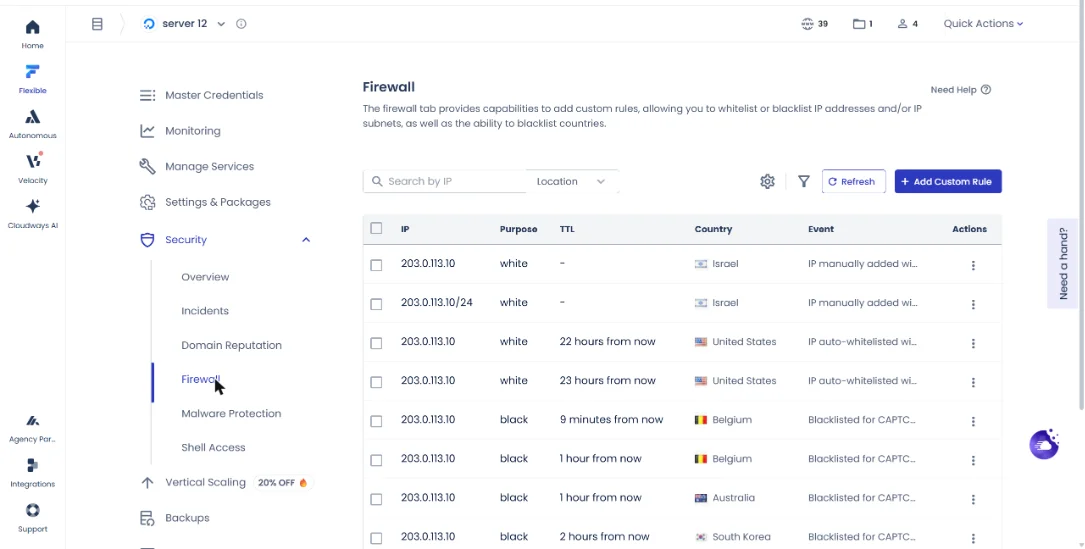
- Go to the Firewall tab and click the gear icon (settings).
- Make sure Anti-Bot Protection is on.
- Under Enhanced DoS Protection, turn it on and pick the per-IP request limit from the list.
- I also recommend turning on Weak Password Login Prevention, which stops WordPress logins with weak passwords such as 1234.
- Click Save changes.
How to choose the request limit: a limit that is too low can catch real visitors, for example a whole office browsing from one IP address, or a page that loads many files. Start with a moderate value and watch the Incidents tab to see who gets blocked. This is a recommendation from my own experience; Cloudways does not publish a recommended value.
Note: Cloudways states that in rare cases, turning off Anti-Bot Protection can conflict with CDN cache settings. If you are thinking of turning it off, check your cache settings first.
Blocking an IP or a country manually
Seen an address flooding your site, or do all the attacks come from a country where you have no customers? You can block manually.
- In the Firewall tab, click Add Custom Rule.
- To block an address: choose the IP Address tab, enter an address or a CIDR range (for example
192.168.1.0/24), and choose blacklist or whitelist. - You can set a TTL so the block expires automatically. Leave it empty for a permanent block, and add a note to remind yourself why you blocked it.
- To block a country: pick the country from the list and save.
Blocking a country does not block Google, Bing, Yandex and Baidu bots when they come from verified addresses, so your organic rankings are not affected. It also does not block outgoing connections from the server.
The Incidents tab: see what was blocked
The Incidents tab lists every suspicious activity that was blocked on the server. From the three-dot menu on each address’s row you can move it to the whitelist or blacklist, and you can select several addresses and act on them together. The Overview tab shows the intensity of attacks over time. Data is kept for the last 30 days only.
What does Cloudflare’s Enterprise Bot Protection add?
Cloudflare’s advantage is where it sits: bots are stopped at the network edge, before they reach your server and before they use up your resources. It suits high-traffic sites, stores that suffer from price scraping, and anyone already using the Cloudflare Enterprise add-on for speed. According to the Cloudways security page, as of November 2026 the add-on starts at $4.99 per domain per month.
- In the platform, choose Flexible > My Applications and click your application.
- In the application’s side menu, open Cloudflare and click Security Rules.
- At the top of the page, find Advanced Security Mode. By default it is set to Off.
- Choose Enterprise Bot Protection.
- Scroll down and click Save Changes. The message “Cloudflare settings have been saved” confirms the setting was stored.
| Enterprise Bot Protection | Under Attack Mode | |
|---|---|---|
| Who gets a challenge | Only likely bots (bot score 0–30) | All visitors, people and bots |
| Real visitors | Browse as usual | Have to pass a challenge |
| Verified bots (Googlebot, Bingbot) | Not affected | Not affected |
| When to use it | Permanently, to filter scraping and abuse | Only during an active DDoS attack, and turn it off when the attack ends |
Under Cloudflare > Settings > Security there are three more protections that are on by default: WAF, Rate Limiting (request rate limiting) and Browser Integrity Check. There is also AI Crawler Blocking, which is off by default and blocks bots from AI companies that collect content. To see what these protections actually block, see Cloudflare security events.
An important point about AI bots: if you want your site to be cited in ChatGPT, Perplexity or other AI engines, blocking AI crawlers across the board can work against you. On a content or service site, think twice before turning it on. On a site with paid content or information you do not want collected, it is a useful tool.
The code BFCM802 takes 80% off your bill for the first two months (up to $200 off per month), including unlimited free site migrations. New customers only, and only until the offer ends.
The offer ends on December 4, 2026 at 23:59 (UTC+2).
Start with a free trial, no credit card. Enter the code at checkout and check that it shows up.
After Black Friday: 30% off for 3 months with the code ASAEL. On a large server (above about $444 a month) ASAEL already saves more today. BFCM802 vs. ASAEL calculator
Start a free trial server, no credit card. When you move to a paid plan, the code ASAEL takes 30% off your bill for the first three months.
The link fills in the code on the signup form. Just make sure it shows up.
Common mistakes and how to fix them
I blocked myself: if your address ended up on the blacklist, log in to the platform from another network (for example a mobile hotspot), find the address in the Incidents or Firewall tab, and move it to the whitelist.
Visitors complain that they see a verification screen: most likely Under Attack Mode was left on after the attack ended. Set Advanced Security Mode back to Enterprise Bot Protection or Off. If this happens without Cloudflare, check whether their IP was caught by the Enhanced DoS Protection limit.
An external service (payment gateway, CRM, uptime monitoring) cannot connect to the site: services like these send many requests from the same addresses and are sometimes mistaken for bots. Add their IP addresses to the whitelist.
I blocked a country and traffic from Google dropped: this should not happen, because Google’s verified bots are not blocked. Check Search Console for crawl errors, and make sure you did not accidentally block the country your audience comes from.
The server is still overloaded despite all the protections: the load may be real traffic rather than bots. Check the steps to speed up your site, and only then consider upgrading the server.
Blocking harmful bots? Make sure you have not also blocked the crawlers of AI engines along the way. I tested this on my own servers, and what I found is explained in the guide Does Cloudways block AI crawlers like ClaudeBot?.
Sources
- Cloudways Managed Security
- Cloudways: A Brief Guide to Server Security Management
- Cloudways: How to Enable Cloudflare on Your Application
- Cloudflare Docs: Bots
Frequently asked questions
No, not if you use the Cloudways tools. Verified bots such as Googlebot and Bingbot are not affected by Enterprise Bot Protection or Under Attack Mode, and they are not blocked by country blocking either, as long as they come from verified addresses.
Yes, in several layers. On the server, Enhanced DoS Protection and the Imunify360 firewall are active, and Cloudflare Enterprise adds DDoS protection at the network edge plus Under Attack Mode for an active attack. For a site that is a target of attacks, Cloudflare Enterprise is the stronger layer.
Usually not. On Cloudways the blocking happens on the server and at the Cloudflare edge, before the request reaches WordPress, so it saves more resources than a plugin. A plugin adds load to the site itself.
Enterprise Bot Protection challenges only likely bots, and regular visitors notice nothing. Under Attack Mode challenges every visitor, so you turn it on only during an attack and turn it off right after.
30 days. Older reports and data are not kept, so if you need a long-term record, take screenshots of the Overview tab regularly.
Related guides
- Malware Protection on Cloudways: scanning and cleaning malware
- How to secure your Cloudways account
- SSH access and SFTP users on Cloudways
- How to set up Sucuri website security
- Hardening security on Cloudways
- Cloudways website hosting
- All guides in this category: Security guides
Official source: A Brief Guide to Server Security Management, How to Enable Cloudflare on Your Application (Cloudways Knowledge Base), Cloudways Managed Security. Written and checked by Asael Dreyer · Updated: 6 Nov 2026
Disclosure: this is an independent site, not the official Cloudways site. Some links on this site are affiliate links: if you sign up through them we earn a commission, at no extra cost to you. Full details

