
Last updated: · By Asael Dreyer
Short answer: The most important step in securing a Cloudways account is two-factor authentication (2FA): go to My Account, open the Login & Security area (Manage Preferences), click Activate TFA, scan the QR code in an authenticator app and save your backup codes. After that: a strong password, choosing how to get alerts about unusual logins, tracking what happens in the account in Activity Logs, and organizing your servers into projects. All of these settings take about fifteen minutes together.
Why your platform account is your most sensitive target
You can invest a lot in securing the site itself, but anyone who gets into your Cloudways account doesn’t need to break into the site. They can delete servers, clone sites, change access details and see billing information. One account holds all your sites, so it’s worth double protection.
Two-factor authentication (2FA) is a login method that requires two things: something you know (a password) and something you have (a phone with an authenticator app). Even if the password leaks, nobody can log in without the phone. In the Cloudways platform it’s called TFA (Two-Factor Authentication).
| Setting | What it protects against | Where in the platform | Time |
|---|---|---|---|
| Two-factor authentication (TFA) | A leaked or stolen password | My Account > Login & Security | 5 minutes |
| A strong password | Password guessing, reusing a password from another site | My Account > Password (Change Password) | 2 minutes |
| Login alert (New Login Alert) | Logins from an unfamiliar device or location | My Account > Login & Security | 1 minute |
| Activity log (Activity Logs) | Unauthorized actions, team members’ mistakes | My Account > Activity Logs | Periodic check |
| Projects | Mixing up sites and acting on the wrong server | My Projects | 5 minutes |
Before you start
- Install a TOTP authenticator app on your phone. Cloudways recommends Google Authenticator or Authy, and any reliable app of this kind will work.
- Make sure you have access to the mailbox registered on the account. A code is sent to it when you turn on TFA.
- Prepare a safe place to keep backup codes, such as a password manager.
How to turn on two-factor authentication on Cloudways
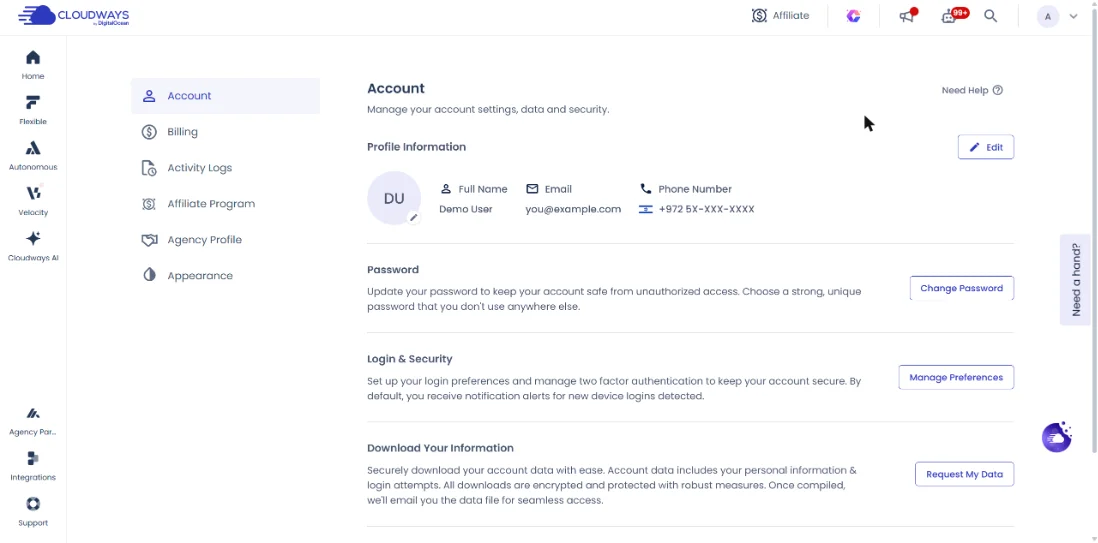
- Log in to the platform, click the profile icon in the top corner and choose My Account.
- On the Account page, in the Login & Security area, click Manage Preferences. In the official guide from early 2026 this area appears as a Security tab, and the display in the platform may change.
- Click Activate TFA. A 6-character security code is sent to your registered email.
- In the window that opens, a QR code and a key appear. Scan the code in the authenticator app, or type the key in manually.
- Enter the 6-digit code the app shows and click Verify.
Save your backup codes (don’t skip this)
Backup codes are your way in if your phone is lost, stolen or replaced. This step is officially optional, but in practice it’s the setting that saves the most headaches.
- In the same area (My Account > Login & Security), click the Generate Code link.
- 12 backup codes are shown. Copy or download them.
- Keep them somewhere safe, outside the phone that holds the authenticator app. Each code works only once.
What logging in looks like after you turn it on
You enter your email and password as usual, and on the next screen the code from the app. Don’t have your phone? Click Try Another Method and use a backup code. The primary account owner can also ask for a code by SMS to the registered phone number; team members can’t. You can tick the option for the system to remember the computer for 30 days, so you don’t enter a code on every login.
Team members can, and should, turn on TFA in their own accounts too. If you’re an agency with several employees or freelancers in the platform, require it from everyone. For managing team permissions, read the guide on Cloudways team members.
You turn TFA off on the same screen, with the Deactivate TFA button. Cloudways doesn’t recommend it, and the only case where you’ll need to turn it off temporarily is changing the account’s email address (details below).
How to change or reset your account password
Changing your password while logged in
- Click the profile icon and choose My Account.
- On the Account page, in the Password area, click Change Password. In the official guide it’s the Password tab under Profile.
- Enter your current password in Old Password, and the new one in New Password and Confirm Password.
- Click Change Password. The new password takes effect immediately.
Resetting an account password you forgot
- On the platform login screen, choose the password recovery option.
- Enter your registered email address and click Email Me Reset Link.
- Open the email from Cloudways and click Reset Now.
- Enter a new password and click Change My Password.
The reset works for both the account owner and team members. Don’t remember which email you signed up with? Search your mailboxes for emails from Cloudways, such as invoices or alerts. If you turned on TFA and lost both your phone and your backup codes, you’ll need to contact Cloudways by email, at the address given in the official article on password reset.
What a strong password means in practice (my recommendation): long (12 characters or more), unique to this account only, and stored in a password manager. The big risk isn’t guessing, it’s reusing a password that has already leaked from another site.
Why you get a “New Login Alert”, and what to do
Cloudways sends an alert when a login looks different from usual: an unfamiliar browser or device, a different location, a browser whose cookies were cleared, or a private browsing window. The alert goes to the account owner and team members alike.
The behavior depends on TFA. If TFA is on, you get an update email after the code is entered. If TFA is off, you’re asked to enter a 6-digit verification code sent to your email (or your phone, depending on the preference). The code is valid for 24 hours, and for a single use.
- Click the profile icon, choose My Account, and in the Login & Security area click Manage Preferences.
- In the New Login Alert area, choose Send code to the registered email address (the default: a verification code by email) or Send email notification only (just a notice, no code).
- Click Save.
Got an alert and it wasn’t you who logged in? Change your password right away, turn on TFA if you haven’t, and check Activity Logs for what happened in the account and from which IP address. If anything looks suspicious, open a support ticket.
How to see who did what and when in the activity log (Activity Logs)
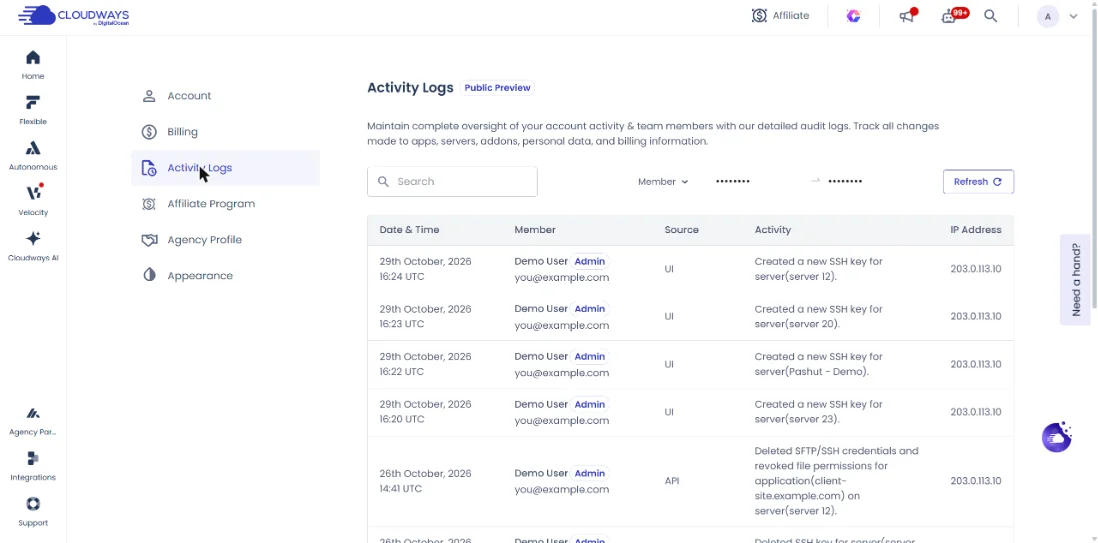
Platform Activity Logs (formerly called Auditability Logs) records every important action in the account: cloning or deleting a server, changing a plan, creating an application, changing SSH access and more. Each entry has the action, who performed it, the exact date and time, and the IP address. According to the official guide (March 2026) the tool is in Public Preview, meaning it’s live and usable but still improving, and entries are kept for up to 3 months.
- Click the profile icon and choose My Account.
- In the side menu, click Activity Logs.
- To see a specific person’s actions, choose them in Member Filter.
- To narrow to a period, use Date Filter and click Done.
- To look for a specific action, type a word in the search bar, for example Clone, IP Add or Firewall.
Tip for agencies: when a client’s site breaks and nobody on the team “touched anything”, the log answers within a minute. It’s also worth checking it regularly, for example once a month, because entries are deleted after 3 months.
Projects: organize the account so you don’t make mistakes
A project on Cloudways is a logical folder that groups applications and servers, for example by client, by environment (production and testing) or by campaign. It doesn’t create a server and doesn’t affect the sites. It looks like a matter of tidiness, but in an account with dozens of sites, tidiness prevents the most dangerous mistake: acting on the wrong server.
- In the side menu, click My Projects.
- Click + Add Project in the top corner.
- Give it a clear name in the Name Your Project field, for example the client’s name.
- Under Select Application(s), open each server and tick the relevant applications (or Select All).
- Click Create Project.
To update: click the project, change the name or applications, and click Update Project. To delete: the three-dot menu (⋮) in the project row, then Delete Project. Deleting a project doesn’t delete servers or applications, but the project itself can’t be restored.
The code BFCM802 takes 80% off your bill for the first two months (up to $200 off per month), including unlimited free site migrations. New customers only, and only until the offer ends.
The offer ends on December 4, 2026 at 23:59 (UTC+2).
Start with a free trial, no credit card. Enter the code at checkout and check that it shows up.
After Black Friday: 30% off for 3 months with the code ASAEL. On a large server (above about $444 a month) ASAEL already saves more today. BFCM802 vs. ASAEL calculator
Start a free trial server, no credit card. When you move to a paid plan, the code ASAEL takes 30% off your bill for the first three months.
The link fills in the code on the signup form. Just make sure it shows up.
How to change the account’s email address
Your email address is your username, and it’s where invoices and security alerts go. If you left a company or lost access to the old mailbox, it’s worth updating before it becomes a problem. There are a few conditions to know first:
- Only a full account can change its email, not a trial account.
- You can change it yourself only once. Another change requires manual help and verification.
- The new email can’t already be registered on Cloudways, neither as an account nor as a team member.
- You need to turn TFA off temporarily before the change, and turn it back on after.
- The account’s API key will be regenerated. Every integration that uses it will need the new key.
- Click the profile icon and choose My Account.
- In the side menu, click Account, and in the profile details area click Edit.
- Replace the email address and click Save. You’re logged out of the account automatically.
- Log in with the new email and your existing password. A confirmation message is sent to both addresses.
- Turn TFA back on and update the API key in your integrations.
If the field is greyed out or it’s a second change, you’ll need to contact Cloudways with verification details. In manual cases the update can take up to 24 hours. Changing the email also updates the link to related services, such as the affiliate program and the affiliate panel.
Common mistakes and how to fix them
I changed phones and can’t log in: use a backup code through Try Another Method, and if you’re the account owner, you can ask for a code by SMS. After logging in, turn TFA off and on again to connect the new phone.
The code from the app isn’t accepted: in most cases the phone’s clock is out of sync. Make sure the time on your phone is set automatically and try a new code.
The reset email doesn’t arrive: check the spam folder and make sure emails from Cloudways aren’t blocked on your side. In organizations with strict mail filtering, ask your IT admin to allow the domain.
I get a verification code on every login: you’re probably browsing in a private window or clearing cookies when you close the browser. Turn on TFA and tick “remember this computer”, or browse in a regular window.
After an email change, an integration stopped working: the API key was regenerated. Copy the new key from the account and update it in every tool that connects to Cloudways.
Next step: secure the server and the site too
A secure account is the foundation. The next layer is server access: restricting SSH and SFTP to known IP addresses (see the guide to SSH on Cloudways), and using encrypted SFTP rather than FTP when you work with FileZilla. Then the site itself: hardening security on Cloudways and setting up Sucuri.
Sources
This page is based on the following official documentation and pages:
- Enabling two factor authentication for Cloudways account (Cloudways Knowledge Base)
- How to change or reset your Cloudways account password (Cloudways Knowledge Base)
- Why am I receiving a new login alert (Cloudways Knowledge Base)
- Platform activity logs how to track all activities on your Cloudways account (Cloudways Knowledge Base)
- How to create update and delete a project (Cloudways Knowledge Base)
- How to change your Cloudways account Email address (Cloudways Knowledge Base)
FAQ
Any reliable TOTP app. Cloudways recommends Google Authenticator or Authy, but password managers that support TOTP codes will work too.
Log in with one of the 12 backup codes through Try Another Method. The primary account owner can also ask for a code by SMS. If you have no backup codes and no access to the phone, you need to contact Cloudways by email to recover access.
Yes. Both the account owner and team members can turn on TFA. The only difference is that receiving a code by SMS is available only to the primary account owner.
Up to 3 months. Older entries aren’t available, so if you need a long-term record, check the log regularly and save what matters.
No. A project is only a logical group. Deleting it leaves all servers and applications running, but the project itself can’t be restored.
No. Changing the email is available only on a full account, and only once through self-service. Before the change you need to turn off two-factor authentication temporarily.
Related guides
- SSH connections and SFTP users on Cloudways
- How to set up Sucuri site security
- Hardening security on Cloudways
- Accessing server files with FileZilla
- Cloudways hosting review
- All guides on this topic: Security guides
Official source: Enabling Two-Factor Authentication for Cloudways Account, How To Change or Reset Your Cloudways Account Password, Why am I Receiving a “New Login Alert”?, Platform Activity Logs, How to Create, Update, and Delete a Project, How to Change your Cloudways Account Email Address (Cloudways Knowledge Base). This guide was written and checked by Asael Dreyer · Updated: 6 Nov 2026
Disclosure: this is an independent site, not the official Cloudways site. Some links on this site are affiliate links: if you sign up through them we earn a commission, at no extra cost to you. Full details

