
Last updated: · By Asael Dreyer
Short answer: Malware Protection is a server-level antivirus layer for your site, which Cloudways runs on top of Imunify360. It scans files and the database, cleans malicious code automatically and blocks injections in real time (Proactive Defense). On Flexible it is a paid add-on per application, which you turn on under Application Security > Malware Protection; on Autonomous it is included and on by default. Alongside it you get a free Vulnerability Scanner, which spots vulnerable plugins and themes before anyone exploits them.
Three terms worth understanding first
People mix up “virus“, “vulnerability” and “scan”. The difference decides which tool you need.
- Vulnerability: a weakness in code, for example in a plugin that was not updated. It has not been exploited yet, but it is an open door.
- Exploit: the code or method an attacker uses to get through that door.
- Malware: the malicious code that stays on the site after the hack: redirects to spam sites, a backdoor, code that steals data.
The Vulnerability Scanner handles the first stage: it shows you which doors are open. Malware Protection handles the last two: it blocks injection attempts and cleans up what already got in. It is not either/or. A secure site needs both, plus updates, strong passwords and two-factor authentication.
What Malware Protection is: server-level antivirus for your site
Malware Protection is a managed protection system that runs at the server level, outside the application, and is based on Imunify360. Because it is not a WordPress plugin, malware that gets into the site cannot switch it off, and there is no plugin to update on every site. It protects WordPress, Magento, Joomla, Drupal, Laravel and other PHP applications.
| Component | What it does |
|---|---|
| Real-time malware scanner | Scans files as they change, and also supports scheduled or on-demand scans |
| Proactive Defense (RASP) | Watches what PHP scripts do at runtime and blocks malicious behavior before the code runs |
| Automatic cleanup | Removes code injected into files, or deletes or quarantines files that are entirely malicious |
| Database protection | Cleans infected fields, such as malicious redirects and malicious Cron jobs. WordPress, Joomla and Magento only |
| URL Scanner and Link Sanitizer | Check links on the site and neutralize dangerous ones, to protect your visitors |
| Phishing protection | Detects and blocks phishing pages injected into the site |
Flexible vs Autonomous: what you get with each
| Flexible | Autonomous | |
|---|---|---|
| Malware detection (scheduled scans) | Free | Included |
| Automatic cleanup and real-time protection | Paid add-on, per application | Included at no extra cost |
| Default state | Off; you enable it manually | On for every new application |
| Where in the platform | Application Security > Malware Protection | Security > Malware Protection |
How much Malware Protection costs on Flexible
The price is per application per month, and it drops as you protect more applications. As of November 2026, according to the official product page:
| Number of protected applications | Price per application per month |
|---|---|
| 1–5 | $4 |
| 6–15 | $3 |
| 16 and up (shown as 15+ in the platform) | $2 |
The third tier is labeled 15+ in the platform and in the official guide, and 16+ on the product page, so if you have exactly 15 applications, check the price on the activation screen. All tiers include the same features. You can enable it on only some of your sites, for example just the stores and the important client sites, and skip staging environments.
Before you start
- On Flexible, the add-on is available only in the new platform interface.
- You need permission to manage the application and the billing on the account (enabling it is a paid subscription).
- If the site is already infected, take a backup before you enable it. Automatic cleanup modifies and deletes files, and it is handy to have a copy to compare against.
- If you have a security plugin in WordPress, leave it in place for now. Cloudways recommends considering a switch, but that is your decision (see below).
How to enable Malware Protection on Flexible
- Log in to the platform, choose Flexible in the side menu and click My Applications.
- Choose the application you want to protect.
- Under Application Management, go to Application Security > Malware Protection. Here you see the application’s status, and sometimes already an “infected” status if the free scan found malware.
- Click Enable Protection and confirm the subscription.
- Real-time protection switches on, and a first scan of the files and database starts automatically. Wait for the message that the application is protected.
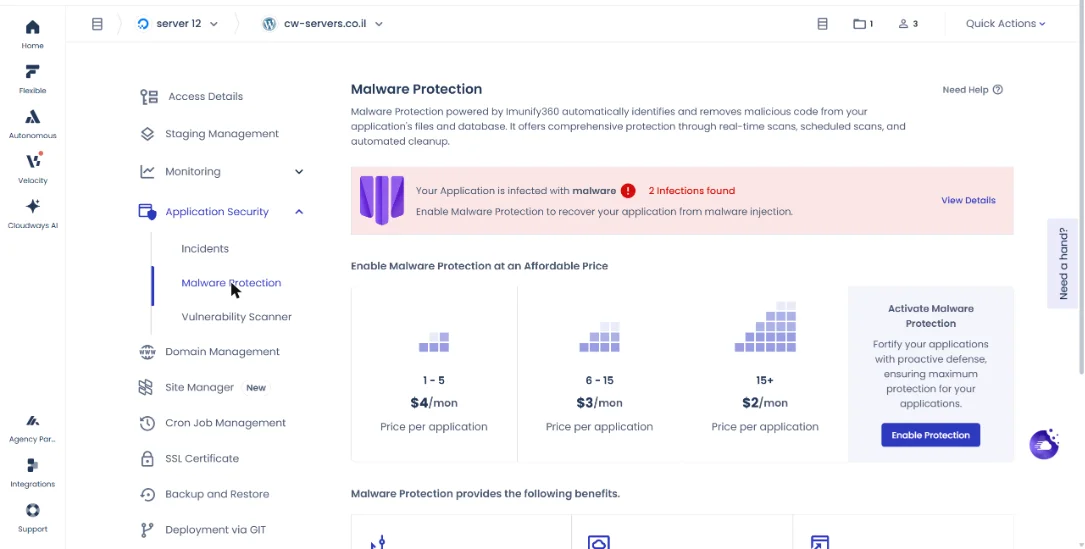
How long the first scan takes depends on the number of files. On a site with a large media library it can take a while; you can keep working as usual in the meantime.
How does Malware Protection work on Autonomous?
On Autonomous the protection is on by default for every new application, and you do not need to do anything. If someone turned it off, here is how to bring it back:
- In the side menu, choose Autonomous and then My Applications.
- Choose the application, and in the top menu click Security.
- Click Malware Protection and then Enable Malware Protection. The application will be marked Protected.
You turn it off from the three-dot menu (⋮) on the same screen, via Disable Protection. There is no good reason to turn it off, because it costs nothing and, according to Cloudways, does not affect performance or Autoscaling.
How to read the protection screen
After you enable it you will see three tabs. On Autonomous the names are slightly different (Threat and History, and the on-demand scan button is called Scan Now), but the content is similar.
The Malicious tab: what was found and what was done
Every malicious item that was found is listed here, with the file path (or the table, field and row in the database), the scan date and the reason. The Start Scan button runs an immediate scan. The important column is the status:
| Status | What it means | What you do |
|---|---|---|
| Cleaned | The malicious code was removed from the file, and the file stays | Check that the site works normally |
| Removed | A high-severity malicious file was deleted | Make sure it was not a legitimate file |
| Quarantined | The file was moved to quarantine | Restore it only if you are sure it is clean |
| In Progress | Cleanup or an advanced scan is still running | Wait and refresh |
The Actions column has two tools: viewing the injected code, and restoring a deleted file. Restoring through this screen also automatically reports a “false positive”, meaning a clean file that was wrongly flagged as malicious.
For advanced users: the reason column shows a signature like SMW-INJ-...-js.spam.redi. SMW is malware that runs on the server side, CMW runs in the visitor’s browser, INJ means code injected into an existing file, and SA or BLKH are fully malicious files.
The Scan History tab
A history of all scans: date, type, how many items were scanned, and the result (“No Malware Found” or the number of threats). From here you can also run an on-demand scan, for example right after you install a new plugin.
The Proactive Defense tab
Here you see events that were blocked at runtime: date, a short description, the script path, the host and where the first call to the script came from. If the same script keeps showing up, it is a sign that something on the site (usually a vulnerable plugin) is still being exploited, and you need to deal with the source.
Vulnerability Scanner: spot weaknesses before they are exploited
The Vulnerability Scanner is a Cloudways tool, built with Patchstack, that checks WordPress core, plugins and themes against a database of known vulnerabilities. It does not require installing a plugin, and it does not scan for malware. It is available in the new interface for WordPress applications, including WooCommerce and Multisite.
- In the platform, choose Flexible > My Applications and pick the application.
- Under Application Management, go to Application Security > Vulnerability Scanner.
- Go through the three sections: Core, Plugins and Themes. Look at the Status and Recommendation columns.
- For an item marked Insecure, click View Details for the Patchstack report, and update or remove it as recommended.
- After the updates, click Refresh to check again. You can refresh once every 10 minutes.
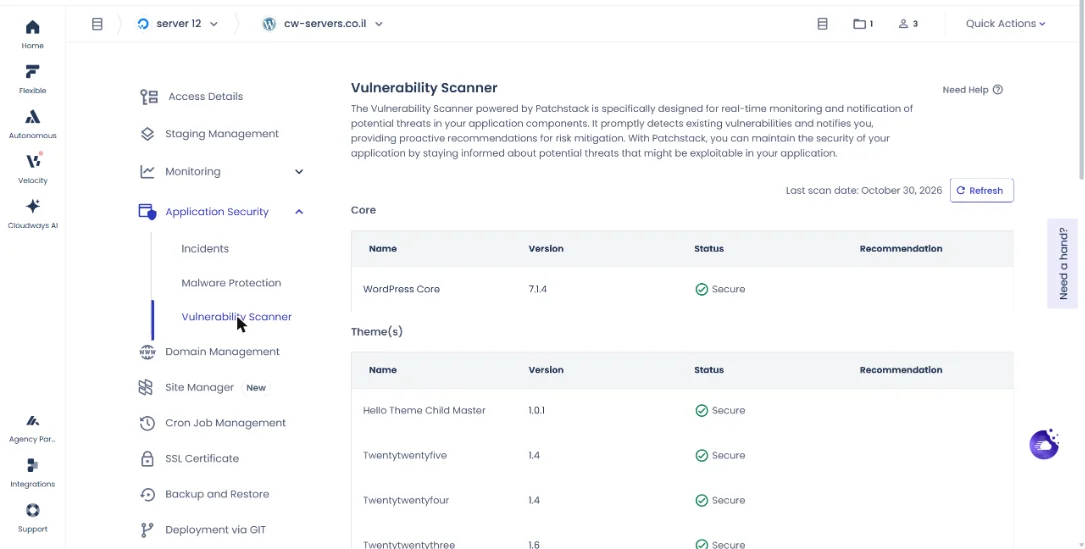
When a high-severity or actively exploited vulnerability is found, you get an alert by email and in the channel you set up in CloudwaysBot (for example Slack). Cloudways does not patch the plugin itself; the fix comes from the plugin developer, and you need to update. So you do not forget updates, it is worth getting to know Cloudways automatic WordPress updates.
The code BFCM802 takes 80% off your bill for the first two months (up to $200 off per month), including unlimited free site migrations. New customers only, and only until the offer ends.
The offer ends on December 4, 2026 at 23:59 (UTC+2).
Start with a free trial, no credit card. Enter the code at checkout and check that it shows up.
After Black Friday: 30% off for 3 months with the code ASAEL. On a large server (above about $444 a month) ASAEL already saves more today. BFCM802 vs. ASAEL calculator
Start a free trial server, no credit card. When you move to a paid plan, the code ASAEL takes 30% off your bill for the first three months.
The link fills in the code on the signup form. Just make sure it shows up.
How do you prevent reinfection after a cleanup?
It is important to know that Malware Protection cleans, but it does not provide root cause analysis (RCA). It will not tell you for certain which plugin or user the malware came through. So after a cleanup, take the steps Cloudways itself recommends:
- Go through the WordPress user list and delete any admin users you do not recognize.
- Update all plugins and themes, and delete the ones you do not use.
- Change the admin passwords and the SFTP credentials. See managing SSH and SFTP users.
- Turn on two-factor authentication both in WordPress and on the Cloudways account itself.
- Run the Vulnerability Scanner and deal with everything marked Insecure.
What about a security plugin, Cloudflare and Bot Protection
A WordPress security plugin: Cloudways recommends considering a switch to Malware Protection, because security plugins add load to the site and can be disabled by malware. Malware Protection blocks requests at the server level before they reach WordPress, so it usually does not conflict with plugins. If your plugin gives you something extra that you need, for example login attempt limits, you can keep it.
Cloudflare Enterprise: this complements Malware Protection rather than replacing it. Cloudflare blocks attacks at the network edge, before they reach the server, and protects against DDoS. Malware Protection looks after what is inside the server. That is why Cloudways recommends using both.
Malicious bots: automated scans and break-in attempts usually come from bots. Blocking them reduces both load and risk. See Bot Protection on Cloudways, and the comparison with site security with Sucuri.
Common mistakes and how to fix them
I removed the malware manually, and the platform still shows “infected”: the status updates only at the next scheduled scan. Wait for the scan, or enable the add-on and run an immediate scan.
A clean file was deleted or quarantined: restore it from the Actions column in the Malicious tab. The restore reports a false positive automatically.
WordPress comments are flagged as malicious: this is intentional. Spam comments sometimes contain dangerous links, and an admin who clicks one by mistake could be harmed. Delete the comments, and add a CAPTCHA to the comment form.
The scanner missed code I am sure is malicious: this is a false negative. Open a support ticket with all the details. According to the product page, if automation cannot clean it, the support and security team cleans it manually at no extra charge (for add-on subscribers).
Refresh in the Vulnerability Scanner does not work: you can refresh only once every 10 minutes. Wait and try again.
Sources
- How to use Malware Protection to protect your applications – Cloudways Knowledge Base
- Understanding Malware Protection and proactive defense in Cloudways Autonomous – Cloudways Knowledge Base
- Detect security bugs using vulnerability scanner – Cloudways Knowledge Base
- Cloudways Malware Protection – official Cloudways page
Frequently asked questions
According to Cloudways, not noticeably. The protection runs at the server level and its resource use is minimal, even on a small server. A slight, rare load is possible on sites with a very large number of files.
The Vulnerability Scanner identifies plugins, themes and WordPress core with known vulnerabilities, and does not touch the code. Malware Protection detects and cleans malicious code that has already got in, and blocks injections in real time. The two complement each other.
It depends on the product. On Autonomous it is included and on by default. On Flexible, detection through scheduled scans is free, but automatic cleanup and real-time protection are a paid add-on per application, starting from $2 per application per month at higher volumes.
Yes. On Flexible it is enabled per application, so you can protect only the important sites, such as stores and client sites, and skip staging environments.
No. The system detects and cleans, but does not provide root cause analysis that points to a specific plugin, user or file. After a cleanup, update everything, delete components you do not use and change passwords.
No. This is managed protection, and Cloudways limits control over the settings to keep protection consistent. What you can do: run on-demand scans, restore files, and turn the protection on or off.
Related guides
- Bot Protection on Cloudways: blocking malicious bots
- How to secure your Cloudways account
- SSH access and SFTP users on Cloudways
- How to set up Sucuri website security
- Cloudways website hosting
- All guides in this category: Security guides
Official source: How to Use Malware Protection to Protect Your Applications, Understanding Malware Protection and Proactive Defense in Cloudways Autonomous, Detect Security Bugs Using Vulnerability Scanner (Cloudways Knowledge Base), Cloudways Malware Protection. Written and checked by Asael Dreyer · Updated: 6 Nov 2026
Disclosure: this is an independent site, not the official Cloudways site. Some links on this site are affiliate links: if you sign up through them we earn a commission, at no extra cost to you. Full details

