
Last updated: · By Asael Dreyer
Short answer: when the customer paid and the order stays “Pending payment”, almost always the payment provider’s confirmation message (callback, IPN or notify) didn’t reach the site or failed on the way. The common causes are a firewall or bot protection, a redirect that breaks the request, a cache plugin and a PHP error, and you diagnose them from the site’s access log at the time of the transaction. A fixed IP address matters mostly in the opposite direction, when a provider or an external system needs to allow your server.
What happens between the payment and the order update
After the customer pays, the payment provider notifies the site in two ways, and each has a different role:
- The return to the site (Return URL): the customer’s browser goes back to the “Thank you” page. If the customer closed the window or the connection dropped, this doesn’t happen.
- The server message (Callback / IPN / Notify): the payment provider’s server contacts your server directly and reports the transaction. This is the reliable message, and it is the one that should update the order. In Tranzila it is called
notify_url_address, and in the PayPlus plugin it appears in the changelog as callback or IPN.
An order with the status Pending payment was created, but the site didn’t receive a payment confirmation. If the money was actually charged, the problem is on the path between the provider and the site, not with the customer’s card. Cardcom describes exactly this situation in its documentation (“the payment appears in the reports, and the order stays pending or was cancelled”) and points to the hosting firewall.
How to diagnose an order that doesn’t update after payment
Work in order. Each step narrows the options, and in most cases the answer shows up in step 4 or 5.
- Confirm that the transaction was approved at the provider. Find it in the payment provider’s admin system, and note the exact time.
- Read the order notes. On the WooCommerce order page, payment plugins write notes like “Payment received” or an error. No note at all? The message probably didn’t arrive.
- Check the plugin’s log. In WooCommerce ← Status ← Logs look for the payment plugin’s log from that time. In Cardcom, temporarily enable Debug Logging in the plugin settings.
- Check the application’s access log. In the Cloudways management panel: Servers ← the server ← www ← the application ← Monitoring ← Logs ← Access Logs. Filter by POST, and look for a request at the time of the transaction to the plugin’s path (usually
wc-apior a similar path). - Read the response code. 200 means the request arrived, so the problem is in processing. 301 or 302 point to a redirect. 403 or 429 point to a block. 500 points to a PHP error, and then you go to Error Logs on the same screen.
- No request in the log at all? The message was blocked before it reached the application. Check the server firewall, Cloudflare and the callback address configured at the provider.
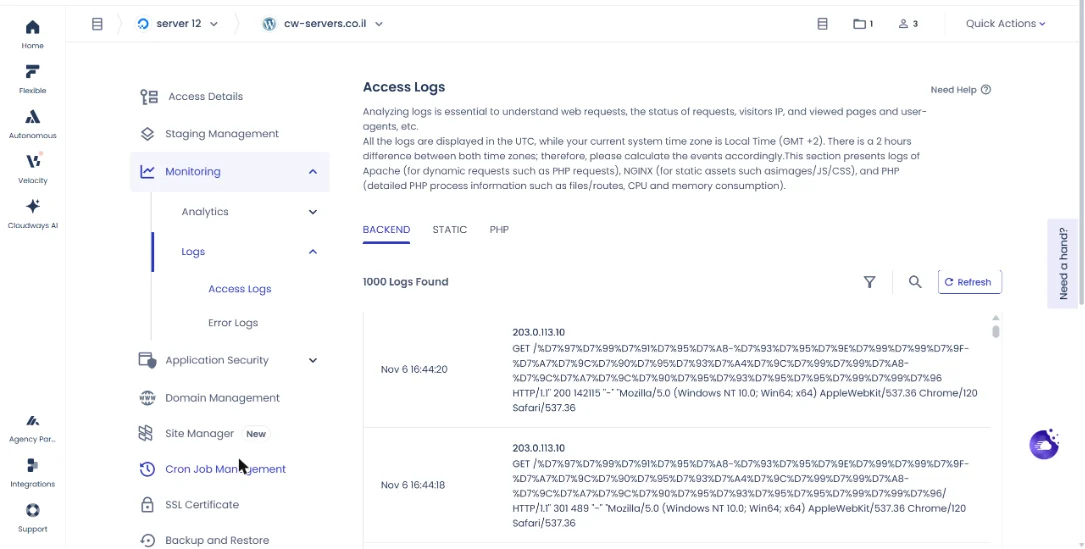
Note: the panel shows only the last 1,000 entries in each log. On a busy store that can be less than an hour. Check right after a test transaction, or connect over SSH to the full log files. How to do that is in the logs and debugging guide for Cloudways.
The common causes and how to fix each one
| What you see | The likely cause | The fix |
|---|---|---|
| No request in the log, or 403 | A firewall or bot protection blocked the provider’s server | Allow the provider’s IP addresses in the firewall (see below) |
| 403 or a challenge page | Cloudflare in Under Attack mode, or a WAF rule | Allow the addresses in Cloudflare too, or exclude the callback path |
| 301 or 302 | A redirect from http to https, from www, or a redirect rule | Update the exact site address at the provider, and check redirect rules |
| 200, but the order didn’t change | A cache plugin returned a stored page, or the plugin rejected the data | Exclude the path from the cache, read the plugin’s log |
| 500 | A PHP error in the payment plugin or another plugin | Error Logs, then update or fix the plugin |
| Works only sometimes | Server load, or rate limiting | Check server monitoring at the time of the failed transactions |
Allowing the payment provider in the server firewall
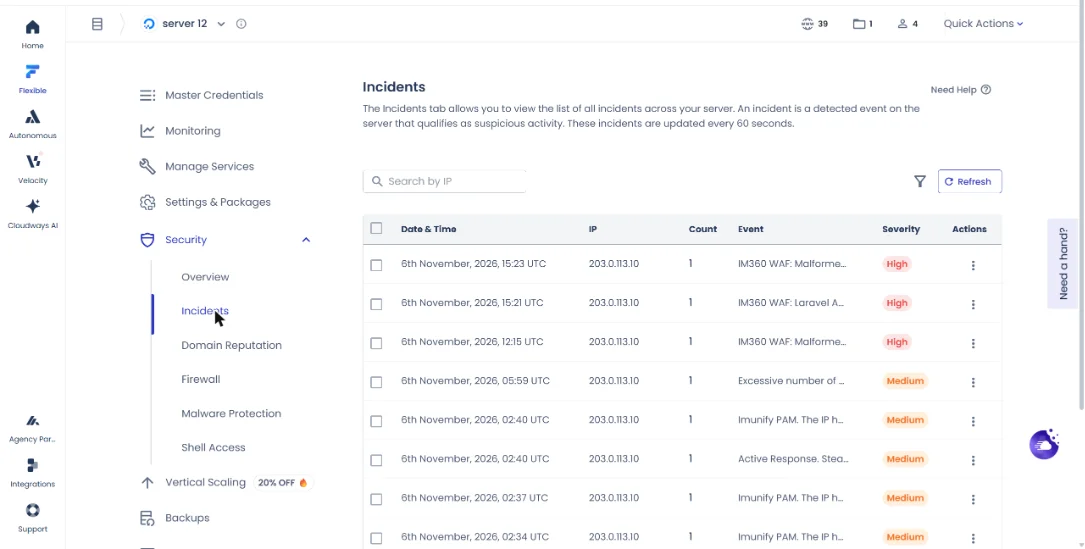
A Cloudways Flexible server has a Security tab with a firewall based on Imunify360. Here is how you allow a payment provider in it:
- In the panel choose Servers and your server, and click Security.
- In the Incidents tab look for blocks at the time of the transaction. If there is an address of the provider, allow it right from there through the three-dot menu.
- To allow a fixed range, go to Firewall, click Add custom rules, choose IP Address and enter the range in CIDR format. Leave TTL empty so the allowance is permanent, and add a note with the provider’s name.
You get the addresses from the provider. Cardcom, for example, publishes two ranges in its integration guide, and I detailed them in the Cardcom guide for WooCommerce. For Tranzila, Grow and PayPlus I didn’t find a public list, so ask their support for it. If you have country blocking enabled, remember that the provider’s servers may be located in a different country than yours. If you choose PayPlus, you can read the PayPlus for WooCommerce guide.
Redirects and cache
A callback message is usually a POST request. When the server returns a redirect, the provider usually doesn’t follow it with the same data, and the message is lost. This happens after moving to HTTPS, changing a domain, adding www, or a redirect rule you added. If you use Web Rules on Cloudways for redirects, make sure they don’t catch the callback path.
Varnish on Cloudways excludes all POST requests and the wc-api path by default, so it is usually not the problem. A cache plugin on the site can be. Cardcom documents a case where a cache plugin returned a stored page, and notes that on a healthy connection the site returns -1 to it.
A fixed server IP: when it really matters for payments
A fixed (dedicated) IP is an address assigned only to your server and it doesn’t change. On shared hosting, many sites share an address, and it can change when the provider moves you to a different server. For payments this matters in two directions:
- From the provider to you (callback). Here what matters is that your server accepts the provider’s addresses. Your IP doesn’t matter, but control over the firewall does.
- From you to the provider (API). When a plugin, an invoicing system, an ERP or an interface you build calls the provider, some services let you block access from addresses that weren’t approved in advance. Then you have to register your server’s IP with them, and an address that changes will break the connection without any warning.
According to the official Cloudways documentation, every server has one dedicated IP address, and it stays the same when you scale the server up. It changes only when you clone a server, because cloning creates a completely new server. So after a move or a clone, update the address everywhere you registered it. This is documented for Flexible servers. If you’re on Autonomous, where the infrastructure is managed differently, confirm the outbound address with Cloudways support before you register it with a provider.
For advanced users: to confirm which address the server uses to reach the internet, connect over SSH and run curl -s https://api.ipify.org. That is the address an external provider will see. Compare it with the address shown in the panel before you send it for registration.
The code BFCM802 takes 80% off your bill for the first two months (up to $200 off per month), including unlimited free site migrations. New customers only, and only until the offer ends.
The offer ends on December 4, 2026 at 23:59 (UTC+2).
Start with a free trial, no credit card. Enter the code at checkout and check that it shows up.
After Black Friday: 30% off for 3 months with the code ASAEL. On a large server (above about $444 a month) ASAEL already saves more today. BFCM802 vs. ASAEL calculator
Start a free trial server, no credit card. When you move to a paid plan, the code ASAEL takes 30% off your bill for the first three months.
The link fills in the code on the signup form. Just make sure it shows up.
What to do about orders that are already stuck
- Don’t mark an order as paid before you check. Verify each order against the provider’s admin system: amount, date and approval number.
- Use the plugin’s recovery tool, if there is one. The PayPlus plugin, for example, has a Get PayPlus Data button on the order and a scheduled task that checks open orders. A task like that only runs if the site’s cron works, so it’s worth enabling Cron Optimizer in the application settings on Cloudways.
- Update by hand whatever remains. Change the status to Processing, and add a note with the approval number from the provider. Check that the invoice was issued only once.
- Run a test transaction after the fix, and check in the access log that the provider’s request arrived with a 200 code.
Last checked: 6 Nov 2026
FAQ about an order that doesn’t update after payment
Because the site didn’t receive or didn’t process the provider’s confirmation message. The common causes are a block in the firewall or in Cloudflare, a redirect that breaks the request, a cache and a PHP error. Check the site’s access log at the time of the transaction.
It’s a message the payment provider’s server sends straight to your site to report the transaction result. It doesn’t depend on the customer’s browser, which is why it is the reliable way to update the order.
Not always. To receive messages from the provider you mostly need control over the firewall. A fixed IP matters when a provider, an invoicing system or another interface approves only addresses registered in advance. Then an address that changes breaks the connection.
According to Cloudways documentation, every server has one dedicated IP, and it doesn’t change when you scale the server up. It changes only when you clone a server, because cloning creates a new server.
Yes, after you’ve verified in the payment provider’s system that the transaction was approved for the right amount. Add a note with the approval number, and check that no duplicate invoice was issued.
If the server’s access log shows no request at all from the provider at the time of the transaction, and the site is behind Cloudflare, check Cloudflare’s event log. Under Attack mode shows a challenge to everyone who isn’t a verified bot, including payment providers’ servers.
Related guides
- WooCommerce store hosting on Cloudways
- Logs and debugging on Cloudways
- Web Rules on Cloudways
- Comparing payment gateways for WooCommerce
- All guides on this topic: WordPress and WooCommerce guides
Official sources: Does Cloudways Provide Dedicated IP? · How to View Application Logs Using the Cloudways Platform · A Brief Guide to Server Security Management (Cloudways Knowledge Base) · Cardcom integration guide · Tranzila DirectNG iframe · PayPlus Payment Gateway. Written and checked by Asael Dreyer · Updated: 6 Nov 2026
Disclosure: this is an independent site, not the official Cloudways site. Some links on this site are affiliate links: if you sign up through them we earn a commission, at no extra cost to you. Full details

