
Last updated: · By Asael Dreyer
In short: You set up a managed AI agent on Cloudways on the agent’s page, under Cloudways AI > Managed AI Agents. In the LLM & Channels tab, you first connect a model provider (an API key from Anthropic, OpenAI, Gemini, DigitalOcean or OpenRouter, or an existing ChatGPT/Codex subscription), and then channels: WhatsApp by scanning a QR code, Slack with two tokens, and Telegram with a token from BotFather. In the MCP tab, you connect Cloudways MCP with an API token, so the agent can manage your servers.
What a managed AI agent is made of: a brain, channels and tools
Before you start, it helps to understand what each connection gives the agent. It will also help you decide what to connect first.
The agent itself, OpenClaw or Hermes, is software that runs on a server Cloudways manages for you. To be useful, it needs three things:
| Component | What it is | Without it |
|---|---|---|
| LLM (model provider) | The language model that reads instructions and writes replies, like the models behind ChatGPT or Claude | The agent does not respond at all. This is the only required connection |
| Channels | The messaging apps you use to talk to the agent: WhatsApp, Slack, Telegram | You can only talk to it from the dashboard |
| MCP | A protocol that gives the agent built-in access to external tools and data | The agent can only talk, and cannot take actions in your Cloudways account |
MCP (Model Context Protocol) is an open standard for connecting AI agents to tools. When you connect Cloudways MCP, the agent can check server status, read application details and carry out supported management actions on request in plain language. If you have not set up an agent yet, start with the Managed AI Agents guide, which explains the choice between OpenClaw and Hermes, sizes and prices (Cloudways Managed AI Agents pricing). To calculate the actual monthly cost, including tokens, see the monthly cost of an AI agent.
Before you start
- A paid Cloudways account with access to Managed AI Agents, and an agent that is already set up.
- An API key from a model provider, or a ChatGPT subscription on the Plus, Pro or Business plan.
- For channels: access to a phone with WhatsApp, admin permission in Slack, or a Telegram account.
- For MCP: a Cloudways API token (see the Cloudways API and creating a token).
- All the instructions here are based on OpenClaw, as in the official documentation. On Hermes the names and steps may be slightly different.
An iron rule for this whole guide: API keys, tokens and passwords are like a bank account password. Never paste them into screenshots, support tickets or shared documents.
How to connect a model provider (LLM)
This is the first and mandatory step. Without a connected LLM, the agent will not process any request, even if all the channels are connected.
Method 1: An API key
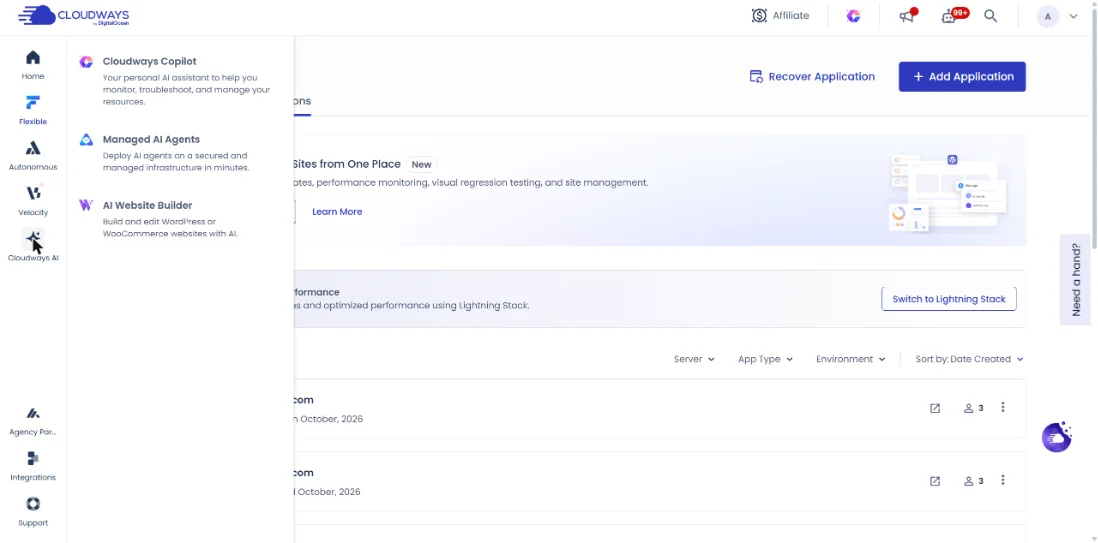
- In the side menu, click Cloudways AI > Managed AI Agents (in some documentation articles the name is AI Agents), and open the agent.
- Go to the LLM & Channels tab, to the LLM Provider section.
- Choose a provider: Anthropic, DigitalOcean, Gemini, OpenAI or OpenRouter. If you do not have a key yet, Get API Key takes you to the provider’s site.
- Paste the key into the API key field (the eye icon lets you check it) and click Confirm.
- The key will appear masked, which confirms it was saved. If the status does not update, click Sync.
To replace a key, click Update Key. To switch to a different provider, just choose it and add a key; you do not need to delete the previous one. While you switch, the agent may stop responding for a moment.
Method 2: An existing ChatGPT/Codex subscription
If you already pay for ChatGPT, you can connect your subscription instead of an API key. The connection uses OAuth, which means you sign in on an OpenAI page and Cloudways never sees your password.
- In ChatGPT, go to Settings > Security and turn on Enable device code sign-in for Codex, Excel, PowerPoint, and Word. In a business Workspace, the Workspace admin may need to allow this.
- On the agent’s page, under LLM Provider, choose OpenAI and then the subscription option ChatGPT/Codex subscription.
- Under Sign in with OpenAI, click Connect. A setup code appears; leave the screen open.
- Open OpenAI’s sign-in page from the link, enter the code, sign in with the account that holds the subscription and approve.
- Go back to Cloudways and wait for a success message (or click Sync). Test with Open Agent and a simple message.
As of November 2026, this connection is only available from the LLM & Channels tab, and not from the setup wizard or the agent creation flow.
| Topic | ChatGPT/Codex subscription | OpenAI API key |
|---|---|---|
| How you connect | Signing in to your OpenAI account | Pasting a key |
| How you are billed | Included in your existing subscription | By usage, directly from OpenAI |
| Usage limits | Shared with your personal ChatGPT use | According to the API account’s limits |
| Best for | Personal use and light load | Heavy load or an agent that works all the time |
Pay attention to this point: the agent draws from your own quota. A busy agent can make you hit the limit early, and then your personal ChatGPT will also be blocked temporarily. For serious work, an API key is better.
Costs: according to the product page, the model cost stays with the provider and does not appear on the Cloudways invoice. Set a spending limit and alerts with your LLM provider, because an agent running in a loop can rack up a bill.
How to connect messaging channels
Once the LLM is connected, you add ways to talk to the agent outside the dashboard. For every channel, the connection instructions are on the agent’s page > LLM & Channels > Channels.
| Channel | Connection method | Estimated time | Best for |
|---|---|---|---|
| Scanning a QR code, like WhatsApp Web | Under a minute | Anyone who uses WhatsApp every day, personally or for business | |
| Slack | Creating a Slack app, permissions and two tokens | 15–20 minutes | Teams that work in Slack |
| Telegram | Creating a bot in BotFather and a token | 5 minutes | A separate bot with its own identity |
- In Channels, under WhatsApp, click Connect WhatsApp, and then Click To Generate QR Code.
- On your phone, open WhatsApp: on iPhone, Settings; on Android, the three-dot menu.
- Choose Linked Devices > Link a Device.
- Point the camera at the code on the screen. Pairing takes a few seconds.
- Close the window in the dashboard. The status should update to Connected; if not, click Sync.
- Send a message to the linked number and check that the agent answers.
One WhatsApp number can be linked to only one agent at any time. If you remove the linked device from your phone, the connection stops, so the phone needs to stay connected to the internet. My tip (not from the documentation): the connection works like a linked device, so the agent uses the same number. For an agent that answers customers, consider a separate business number and not your personal one. For connecting the agent to WhatsApp and Slack, see connecting an AI agent to WhatsApp and Slack.
Slack
Slack takes a bit more work, because you create your own app. You need admin permission in the Workspace (or approval from the admin).
- At api.slack.com/apps, click Create New App > From scratch, give it a name and choose a Workspace.
- In OAuth and Permissions, under Bot Token Scopes, add these permissions:
chat:write,im:history,im:write,app_mentions:read,channels:history,channels:read,users:read. - In App Home, make sure Messages Tab is on, and tick the option that lets users send messages from the tab.
- In Socket Mode, turn on Enable Socket Mode, create an app-level token with the
connections:writepermission, and copy the token that starts withxapp-. - In Event Subscriptions, turn on Enable Events, and add the events
message.imandapp_mention. Save. - Go back to OAuth and Permissions, click Install to Workspace and approve. Copy the Bot User OAuth Token that starts with
xoxb-. - In Cloudways, in Channels > Slack, click Connect Slack, paste the xoxb- token into the Bot Token field and the xapp- token into the App Token field, and click Connect Slack.
- In Slack, open a direct message to the app and send a test message. To use the agent in a channel, invite it with
/invite @app-name.
An important warning from the documentation: do not turn on Token Rotation in OAuth and Permissions. It makes the xoxb- token expire every 12 hours, and the connection will keep dropping.
Telegram
- In Telegram, search for the verified BotFather and send
/newbot. - Give the bot a display name, then a unique username that ends in
bot(Latin letters, digits and underscores). - Copy the HTTP API token that BotFather gives you.
- In the agent’s Channels, click Connect Telegram, paste the token and click Connect Telegram.
- Search for the bot by its username, start a conversation and send a test message.
If the token is exposed, treat it as compromised: create a new one in BotFather with /token and update the agent. Want different identities for different agents? Create a separate bot for each.
How to connect Cloudways MCP
This is where the agent turns from something that talks into something that does. After connecting, you can ask, for example, “What is the status of the server?” and get an answer from the account itself.
- Create a Cloudways API token (see the Cloudways API guide).
- On the agent’s page, go to the MCP tab, and under Cloudways MCP click Connect.
- In the Connect Cloudways MCP window, paste the token into the Access Token field and click Connect.
- Make sure the status changed to Connected (if not, Sync).
- Open the agent and ask it to check a server’s status. A correct answer from your own account confirms the connection works.
To update the token or disconnect: the three-dot menu next to Cloudways MCP > Update or Disconnect. Disconnecting immediately cuts the agent’s access to your servers and applications.
A thought before you connect: the agent can perform any action the token allows. If you only want information and not actions, consider whether you need the connection at all, and keep an eye on what the agent does. For more on this server and its tools, read the Cloudways MCP Server guide.
How to pair a device (Device Pairing)
Device pairing is a security mechanism that makes sure only browsers and devices you have approved can reach the agent’s dashboard. Without it, anyone who guesses the address could control the agent, its keys and its channels.
In most cases you do not need to do anything. When you open the agent from the dashboard, through Managed AI Agents > the agent > Open Agent, pairing happens automatically. Manual pairing is only needed when you copy the agent’s address from Agent Details and open it directly in a browser or on another device.
- Open the agent’s address, paste the Gateway Token on the sign-in screen and click Connect. A request ID appears, waiting for approval.
- Connect to the agent’s server over SSH with the details from SSH Credentials (username, IP, port and password). Note that the port is not necessarily 22.
- Run the approval command with the request ID.
- Go back to the browser and click Connect again.
ssh -p <port> <username>@<ip-address>
openclaw devices approve <request-id>
Pairing is done once per browser or device. A different browser or profile will ask for approval again. If you work on Windows, you can connect with PuTTY: the IP address, the port from the dashboard, and the SSH connection type. More on SSH in the guide to SSH on Cloudways.
Installing custom packages
Want to give the agent an extra capability, for example a connection to Google Workspace? You install an npm package. There is no root or sudo access on managed agents, and none is needed: npm works without admin permissions.
- In the agent’s Access Details tab, copy the SSH details.
- Connect from the terminal in the dashboard or from your computer.
- Use
pwdto make sure you are in the agent’s folder (something like/home/youragentname) and not the server root. - Install the package and check that it is on the list.
pwd
npm i @googleworkspace/cli
npm list
Warnings about funding or audit during installation are informational only. As of November 2026, only npm packages are supported; you copy the exact install command from the package’s page on npmjs.com.
Who is responsible for what
| Area | Cloudways | You |
|---|---|---|
| Infrastructure | Setting up the server in the region you chose | Choosing the size and region |
| Installation | Setting up the stack, the container and the agent | Connecting the LLM key |
| Security | Installing and renewing SSL | Protecting keys, tokens and environment variables |
| Updates | Agent versions and platform updates | Updating Skills, Nodes and your workflow logic |
| Model costs | Not billed on the Cloudways invoice | Tracking usage and setting limits with the provider |
Recommendations from the documentation: choose a region close to your users (and to data residency requirements, if you have any), back up before big configuration changes, and keep different agents on separate machines.
Common mistakes and troubleshooting
The agent does not answer in any channel: almost always the LLM. Check that the key was copied without spaces, that it is active and that it has a balance with the provider. On a ChatGPT subscription, you may have hit the limit or the sign-in may have expired.
The Confirm button is gray: no provider was chosen, or the key field is empty.
The WhatsApp QR code expired or does not appear: close the window, open it again and generate a new code.
WhatsApp stopped working: check on the phone that the device still appears under “Linked Devices”, and that the phone is connected to the internet.
Slack worked and then stopped after half a day: Token Rotation is on. Turn it off and reconnect.
No ChatGPT subscription option: it only appears when you choose OpenAI. Also check that you turned on device code sign-in in ChatGPT’s security settings.
The MCP token is not accepted: copy it again in full, or create a new token.
The status does not update: each section (LLM, Channels, MCP) has a Sync button that refreshes without reconnecting.
The code BFCM802 takes 80% off your bill for the first two months (up to $200 off per month), including unlimited free site migrations. New customers only, and only until the offer ends.
The offer ends on December 4, 2026 at 23:59 (UTC+2).
Start with a free trial, no credit card. Enter the code at checkout and check that it shows up.
After Black Friday: 30% off for 3 months with the code ASAEL. On a large server (above about $444 a month) ASAEL already saves more today. BFCM802 vs. ASAEL calculator
Start a free trial server, no credit card. When you move to a paid plan, the code ASAEL takes 30% off your bill for the first three months.
The link fills in the code on the signup form. Just make sure it shows up.
Sources
This page is based on the following official documentation and pages:
- How to connect an LLM provider to your managed AI agent on Cloudways (Cloudways Knowledge Base)
- How to connect your existing ChatGPT Codex subscription to your managed AI agent on Cloudways (Cloudways Knowledge Base)
- How to connect communication channels to your managed AI agent on Cloudways (Cloudways Knowledge Base)
- How to connect MCP server to your managed AI agent on Cloudways (Cloudways Knowledge Base)
- How to manually pair your device with a managed AI agent on Cloudways (Cloudways Knowledge Base)
- How to install custom packages on Cloudways managed AI agents (Cloudways Knowledge Base)
Frequently asked questions
According to the documentation, as of November 2026: Anthropic, DigitalOcean, Gemini, OpenAI and OpenRouter, with an API key. You can also connect an existing ChatGPT/Codex subscription (Plus, Pro or Business) by signing in to OpenAI, with no key.
No. You pay Cloudways for the agent’s server, and the model cost is billed directly by the provider according to usage. If you connect a ChatGPT subscription, the usage is included in the subscription, but it shares your quota.
No. A WhatsApp number can be linked to one agent at a time. To move it, disconnect it from the current agent and connect it to the new one with the same QR scan.
Built-in access to your Cloudways account. After connecting with an API token, the agent can check server status, read application details and carry out supported management actions on request in plain language.
Because you opened the agent’s address directly and not through Open Agent in the dashboard. It is a security mechanism. You approve once per device, over SSH, with the command openclaw devices approve and the request ID.
No. Cloudways manages and secures the server, so there is no root or sudo. You install additional tools with npm from the agent’s folder, without admin permissions.
Related guides
- Managed AI Agents on Cloudways: OpenClaw, Hermes, sizes and prices
- Cloudways Velocity: what it is and how to launch an app
- Managing an app and server on Cloudways Velocity
- Cloudways API: how to create a token and manage servers automatically
- Cloudways Copilot: Cloudways’ AI assistant
- All guides in this category: AI and automation on Cloudways
- Before you choose: the full Cloudways review
Official source: How to Connect an LLM Provider to Your Managed AI Agent, Connect Your ChatGPT/Codex Subscription, Connect Communication Channels, Connect MCP Server, Manually Pair Your Device, Install Custom Packages (Cloudways Knowledge Base). Written and checked by Asael Dreyer · Updated: 6 Nov 2026
Disclosure: this is an independent site, not the official Cloudways site. Some links on this site are affiliate links: if you sign up through them we earn a commission, at no extra cost to you. Full details

