
Last updated: · By Asael Dreyer
Short answer: Cloudways Copilot is the Cloudways AI assistant for Flexible servers. It monitors your servers and sites around the clock, detects problems (crashed services, a full disk, bot attacks, 5xx errors in WordPress), explains in an AI Insight report what happened and why, and in some cases offers a SmartFix: a one-click repair that runs after you approve it. Billing is by credits: every Insight and every SmartFix costs one credit. As of November 2026 plans start at $3.99 a month, and the basic plan is included at no charge on accounts with a monthly invoice of $100 or more.
What Cloudways Copilot is and who it’s for
We all know the moment: the site won’t load, the server can’t handle the traffic, and you start digging through logs without knowing what you’re looking for. Cloudways Copilot is meant to shorten that moment. It isn’t an ordinary support chat. It’s a tool that monitors your servers, connects the signs and explains in plain language what the problem is and what to do about it.
According to Cloudways, it cuts issue resolution time by up to 70–80%, and its diagnosis accuracy is above 90%. Those are the vendor’s figures. What I can say from experience: the first time I opened the Copilot section in the dashboard, 11 Host Health alerts were waiting for me, some of them about things I didn’t know were happening. That alone made it worth opening.
- Good for: live sites where uptime matters, WooCommerce stores, agencies with many servers, and business owners without technical knowledge who want to understand what is going on with their server.
- Not for: Autonomous customers. According to the documentation, Copilot is available only on Flexible. It’s also less necessary for development and staging environments, and you can turn monitoring off for them.
How Copilot works: detection, diagnosis and repair
- Detection (Incident Detection): Copilot constantly monitors your servers and applications, and spots a problem the moment it happens.
- Diagnosis (AI Insight): A report is generated with an Investigation Summary, the root cause and repair recommendations.
- Repair (SmartFix): When a supported fix exists, a button appears that shows exactly what will be done. The fix runs only after you approve it.
What Copilot checks
| Area | What is checked |
|---|---|
| Web Stack Health | The services your site runs on: Apache, NGINX, MySQL, PHP-FPM and the cache layers |
| Host Health | DoS attacks, bot activity, brute-force login attempts and excessive scanning |
| Disk Health | Disk space, temporary files and cache buildup |
| Inode Health | The limit on the number of files on the server (inodes) and how close you are to it |
| Backup Health | Failures in managed backups and custom backups |
| Application errors | 5xx errors on WordPress and WooCommerce sites, for example from a conflict between plugins |
An inode, if you’re not familiar with it, is a file system record for each file and folder. Even when there is free disk space, if you run out of inodes you can’t create new files. This happens a lot on sites with millions of cache files or image thumbnails.
How much does Copilot cost: plans and credits
Copilot runs on credits (Cloudways Copilot pricing). Every AI Insight costs one credit, and every SmartFix costs one credit. Basic monitoring and the dashboard don’t use credits. The prices are correct as of November 2026 and come from the Cloudways documentation:
| Plan | Price per month | What’s included |
|---|---|---|
| Starter | $3.99 | 4 Insights (2 for servers, 2 for applications) + 2 SmartFix. Included at no charge on accounts with a monthly invoice of $100 or more |
| Growth | $9.99 | 12 credits for Insights and SmartFix |
| Scale | From $19.99 | 25 credits, and up to 100 credits for $80 |
- Credits reset every month and don’t roll over to the next month. If you turn Copilot off, any remaining credits are lost.
- The price doesn’t depend on the number of servers. You pay for credits and use them across all servers on the account.
- An upgrade takes effect immediately, and credits you already used are deducted from the new plan. A downgrade takes effect only in the next billing cycle. There is no commitment, and you can cancel at any time.
- The charge is added to your regular Cloudways invoice, on the same payment method, in US dollars.
- Out of credits? CloudwaysBot alerts keep coming, but Insights and SmartFix are unavailable until the credits renew or you upgrade.
Note that the Cloudways documentation is inconsistent about the basic plan. The list price of Starter is $3.99 a month, and it is included at no charge on accounts with a monthly invoice of $100 or more. Other articles describe it as a free plan with 5 credits during a promotion, and the latest getting-started article (September 2026) describes it as a free plan for 12 months from activation. Check your own account, on the Credits & Plan screen, to see exactly what is active for you.
What do you need to prepare before you start?
- A paid Flexible account. According to Cloudways, Copilot is enabled by default for new paying customers. You may need to choose a plan to start receiving Insights.
- Existing customers: Copilot is rolling out gradually. If you don’t see it in the dashboard, you can ask support to enable it.
- A recent backup. SmartFix actions can’t be undone, so it’s good to have a restore point. See the backup guide.
How to use Cloudways Copilot, step by step
Step 1: Find Copilot in the dashboard
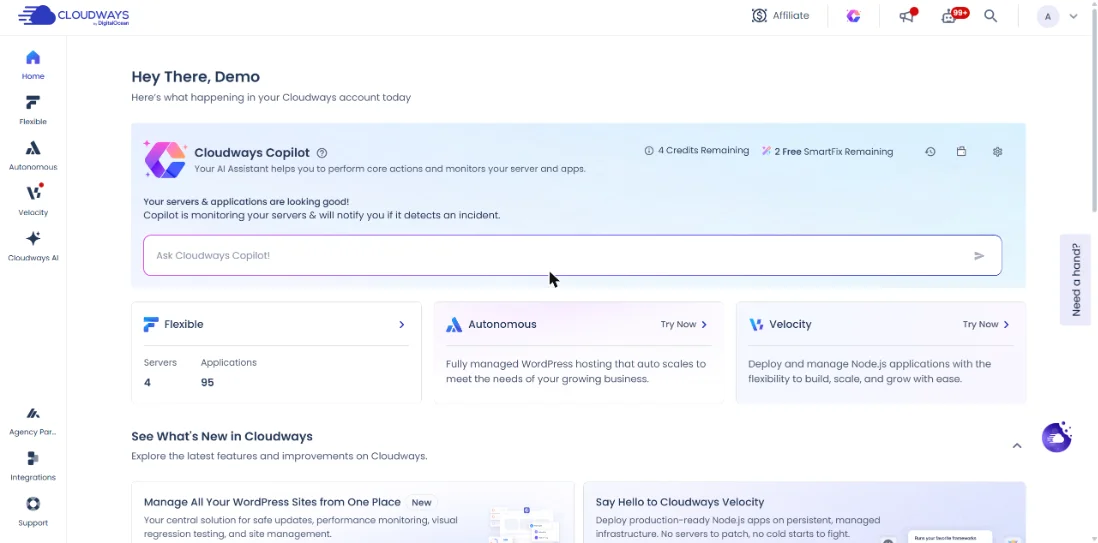
- Log in to the management platform. The main dashboard has a Cloudways Copilot section with an overview of the issues detected on your servers and applications: the type of issue, the server or site, and when it was detected.
- For the full history, click the Copilot icon in the top corner. A side panel opens with all the issues.
Step 2: Read the AI Insight
- Click an issue. For a server-level issue you’ll see the Investigation Summary (what happened and why), a Review SmartFix button if there’s an automatic fix, and View Manual Steps for a manual solution.
- For an application-level issue you’ll see an investigation summary and Recommended Steps. For now, according to the documentation, SmartFix isn’t available for application issues, and you carry out the recommendations manually.
Step 3: Run SmartFix
- Click Review SmartFix. Copilot shows the list of actions it intends to perform. Read it.
- If everything looks reasonable, click Apply SmartFix. According to Cloudways, the fix completes in under 5 minutes, and you’ll get a confirmation.
SmartFix isn’t code the AI invents on the spot. According to Cloudways, these are fixed repair scripts that engineers wrote and tested in advance. The AI diagnoses, and the script repairs. That’s also why the SmartFix steps can differ from the manual steps in the report: SmartFix is tuned for a safe one-click run, while the manual steps are more comprehensive. Wondering which AI plugins are worth the load on your server? See AI plugins for WordPress.
| Issue type | What SmartFix does |
|---|---|
| Disk Space | Cleans temporary files, truncates or compresses logs, deletes unused cache files |
| Disk Inodes | Deletes small temporary files |
| Host Health | Restarts crashed services, blocks bots or traffic to sites |
| Webstack | Restarts Apache, NGINX or MySQL, improves settings and fixes syntax errors in config files |
After the fix, the issue’s status changes. Open: the issue needs attention. Fixing: SmartFix is running. Resolved: handled manually, by you or by support. Resolved by Copilot: SmartFix fixed it. If the fix fails, the issue goes back to Open, and you can try again or contact support with the Insight number.
The code BFCM802 takes 80% off your bill for the first two months (up to $200 off per month), including unlimited free site migrations. New customers only, and only until the offer ends.
The offer ends on December 4, 2026 at 23:59 (UTC+2).
Start with a free trial, no credit card. Enter the code at checkout and check that it shows up.
After Black Friday: 30% off for 3 months with the code ASAEL. On a large server (above about $444 a month) ASAEL already saves more today. BFCM802 vs. ASAEL calculator
Start a free trial server, no credit card. When you move to a paid plan, the code ASAEL takes 30% off your bill for the first three months.
The link fills in the code on the signup form. Just make sure it shows up.
Proactive suggestions: a warning before the server goes down
So far we’ve talked about problems that already happened. Proactive Suggestions spot a risk before it turns into an outage. The first type available is high, sustained CPU load. According to the documentation, memory, disk, bandwidth and slow queries will be added later.
How is it calculated? Copilot collects CPU samples from the last hour and checks the 95th percentile (P95): the value below which 95% of the samples fall. If it’s 85% or higher, a suggestion appears. This method filters out momentary spikes, for example when a scheduled task runs, and warns only about real load.
- When there’s a risk, a suggestion card appears in the dashboard (and sometimes on the application page too). No email is sent, so it’s worth logging in to the platform now and then.
- Click the card to see the CPU graph. This is free.
- Click Generate Insight for a root cause analysis (one credit).
- If a SmartFix is offered, run it. According to the documentation, for these suggestions the credit is charged only if the fix succeeds.
If the load keeps coming back, the solution is usually not a repair but a bigger server. See the guide to scaling your server.
How do you choose which servers Copilot monitors?
Not every server needs Copilot. A development server that goes down in the middle of the night doesn’t justify a credit. Here’s how to choose:
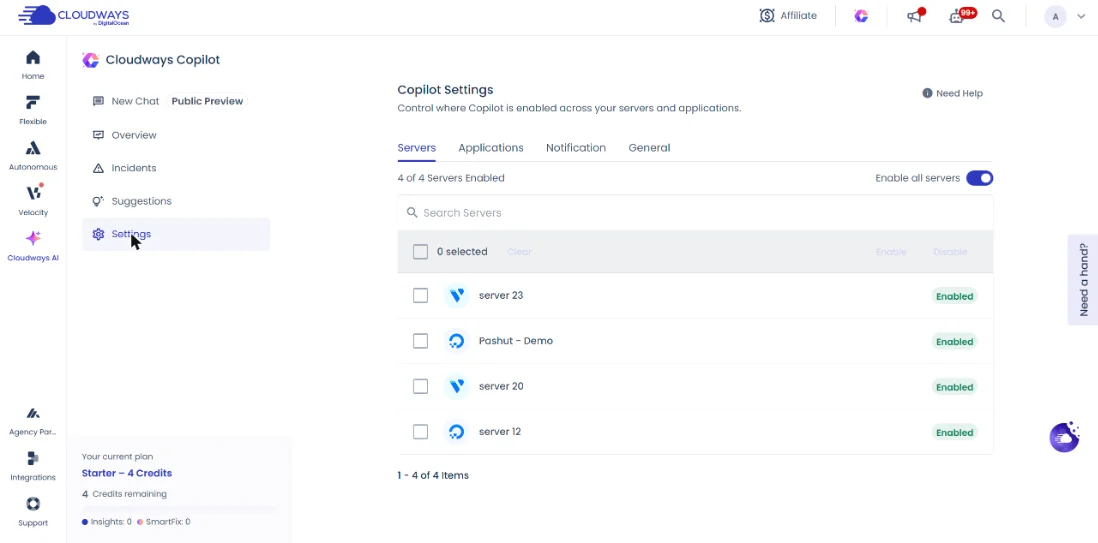
- In the Cloudways Copilot section, click the settings icon and open Copilot Settings.
- In the Servers tab, switch monitoring on or off for each server separately. A blue toggle means monitoring is active, gray means off. The change is immediate.
- In the Applications tab, you can monitor or skip specific sites, with filtering by type: WordPress, WooCommerce, PHP, Laravel and Magento.
- In the General tab you can turn Copilot off completely. Regular CloudwaysBot monitoring and support keep working, and old Insights remain available.
My recommendation: monitor production servers, stores and sites with traffic, and turn monitoring off for development and staging servers. That saves your credits for problems that actually cost you money. Team members see Insights only for servers they have access to. How does Copilot compare with external monitoring tools such as UptimeRobot and New Relic? See AI server monitoring: Copilot vs UptimeRobot and New Relic.
Alerts in Slack, email or a webhook
For agencies and teams, this is one of the most useful parts: you can send Copilot alerts to your team’s Slack channel, to email, or to your own webhook.
- In Copilot settings, in the side menu, choose Notification Settings.
- Choose which alerts to receive: at the server level (high CPU or RAM, crashed services, Web Stack) and at the application level (plugins, database, backups, site errors).
- Click Add Channel, choose a type (Slack, Email or Webhooks), give it a name, enter a destination (a Slack webhook URL, an email address or an HTTPS URL), and set the status to Active.
- Choose which events trigger an alert, for example Web Stack Health, Host Health, Disk Health or Backup Alerts.
- Click Save & Test Channel. A test alert is sent to the channel.
In the three-dot menu next to each channel you can edit it, pause it (Set Inactive) during maintenance, or delete it.
Copilot Chat: talk to your account in plain language
The newest capability is conversation. Instead of searching through menus, you write a request such as “Is my server healthy?” or “Back up my application”, and Copilot answers or acts. A request for an action (creating a server, creating an application, a backup, clearing cache) is carried out in the platform. A question (“How do I add a domain?”) is answered from the official Cloudways knowledge base.
- Where: In the Ask Cloudways Copilot! box on the home page, the Copilot icon in the top bar, or the Cloudways AI menu and then Cloudways Copilot, where you also see chat history and credits.
- Safety: Before any action that can’t be undone or that affects a live server, Copilot asks for your approval in the chat.
- Availability: As of November 2026, the capability is in Private Preview: only for customers invited by email, and only for the main account owner, not team members. According to the documentation, chat doesn’t depend on a Copilot plan and is also available during the trial period.
- Limitations: You can’t yet ask about a specific alert that has already come up, attach files, or ask questions unrelated to Cloudways. The examples in the documentation are in English, so if an answer in another language isn’t accurate, phrase your request in English.
There is also a chat on the Cloudways website, behind the Ask Copilot button next to Login, for questions about products, pricing and comparisons with competitors. Cloudways itself notes that the answers are generated by AI and may be wrong, and that you should check prices on the official pages. I keep the current prices in the Cloudways pricing guide.
Security and privacy: what Copilot sees
- Limited access: According to Cloudways, Copilot works on the principle of least privilege, and has no unrestricted root access.
- No changes without approval: SmartFix doesn’t run on its own. Every fix waits for your approval.
- Data processing: Copilot analyzes logs, settings and signals from the server. According to the documentation, the data may be processed by OpenAI models, under Cloudways’ terms. If you have strict privacy requirements (for example, clients who require it by contract), check the terms before enabling it.
- You can opt out: Turn it off for a specific server or the whole account, whenever you like.
Copilot is part of the Cloudways AI toolset. For safe WordPress updates there is SafeUpdates, for managing servers from external AI tools there is the MCP server, and for building a site from scratch there is the AI Website Builder. The difference between Flexible and Autonomous, where Copilot isn’t available, is explained in the Cloudways Autonomous guide.
Common mistakes and how to fix them
You don’t see Copilot in the dashboard: You’re on Autonomous, or it hasn’t been enabled yet on an older account. On Flexible, contact support and ask them to enable it.
Credits run out fast: Copilot is monitoring servers you don’t need it on. Turn monitoring off for development servers, and don’t generate an Insight for every recurring issue. According to Cloudways, for a recurring issue it’s enough to handle the latest Insight, and an issue that keeps coming back points to a deeper problem that is worth raising with support.
There’s no SmartFix button: Not every issue has an automatic fix, and for application issues it isn’t available yet. Follow the manual steps, or contact support. They see the same Insights.
SmartFix did something you didn’t want: It can’t be undone from the dashboard. Contact support with the Insight number. This is why it’s important to read the list of actions before you approve.
You missed a proactive suggestion: They aren’t sent by email. Log in to the platform regularly, or set up an alert channel for server-level issues.
Sources
The official sources this page is based on (checked on 7 Nov 2026):
- Cloudways Knowledge Base: How to get started with cloudways copilot
- Cloudways Knowledge Base: How smartfix works with cloudways copilot
- Cloudways Knowledge Base: How does cloudways copilot pricing and billing work
- Cloudways Knowledge Base: How to manage cloudways copilot settings
- Cloudways Knowledge Base: How to manage cloudways copilot notification settings
- Cloudways Knowledge Base: How proactive cloudways copilot suggestions work
- Cloudways Knowledge Base: How to use cloudways copilot’s conversational capability
Frequently asked questions about Cloudways Copilot
As of November 2026, according to the documentation: Starter at $3.99 a month, Growth at $9.99 with 12 credits, and Scale from $19.99 with 25 credits. Starter is included at no charge on accounts with a monthly invoice of $100 or more.
No. Copilot diagnoses and suggests, but every SmartFix waits for your approval. The list of actions is shown before you approve. Note that once it has run, the fix can’t be undone from the dashboard.
No. According to the Cloudways documentation, Copilot is available only on Flexible servers and isn’t supported on Autonomous plans.
Basic monitoring and CloudwaysBot alerts continue. Insights and SmartFix are unavailable until the credits renew at the start of the billing cycle or you upgrade your plan. Unused credits don’t roll over to the next month.
No. It handles common, predictable issues, and human support continues to handle complex cases. Support sees the same Insights, so mention the Insight number when you contact them.
Logs, settings and system signals from the server, to detect issues and write the reports. According to Cloudways, the data may be processed by OpenAI models under its terms. You can turn Copilot off for a specific server or the whole account.
Related guides
- Cloudways Autonomous: what it is and who it’s for
- SafeUpdates: safe WordPress updates on Cloudways
- The Cloudways MCP server
- Cloudways AI Website Builder
- Cloudways hosting review
- All guides on this topic: AI and automation guides
Official source: How to Get Started with Cloudways Copilot, How SmartFix Works with Cloudways Copilot, How Does Cloudways Copilot Pricing and Billing Work, How to Manage Cloudways Copilot Settings, How to Manage Cloudways Copilot Notification Settings, How Proactive Cloudways Copilot Suggestions Work, How to Use Cloudways Copilot’s Conversational Capability (Cloudways Knowledge Base). This guide was written and checked by Asael Dreyer · Updated: 6 Nov 2026
Disclosure: this is an independent site, not the official Cloudways site. Some links on this site are affiliate links: if you sign up through them we earn a commission, at no extra cost to you. Full details

