
Last updated: · By Asael Dreyer
Short answer: Cloudways Managed AI Agents is a service that runs a managed AI agent for you, OpenClaw or Hermes, on an isolated cloud server, without you installing Docker, SSL or updates yourself. You pick an agent, a region and an instance size under Cloudways AI > Managed AI Agents, connect an API key from a model provider (Anthropic, OpenAI, Gemini and others), and talk to the agent from the dashboard or from WhatsApp, Slack and Telegram. What you pay Cloudways is for the infrastructure; model usage is billed separately by the provider.
What a managed AI agent is, and how it differs from a chatbot
An AI agent is software that uses a language model to carry out tasks, not just answer questions. It can run commands, read and write files, browse, run scheduled tasks and send notifications. A chatbot answers when you ask; an agent keeps working when you are not at the screen.
For an agent to work around the clock, it needs a server that is always running. Self-hosting means setting up a server, installing Docker, configuring SSL, updating and fixing problems. A managed AI agent is the same agent, with Cloudways taking care of the infrastructure: setup, security, updates and daily backups. You only handle configuration and use.
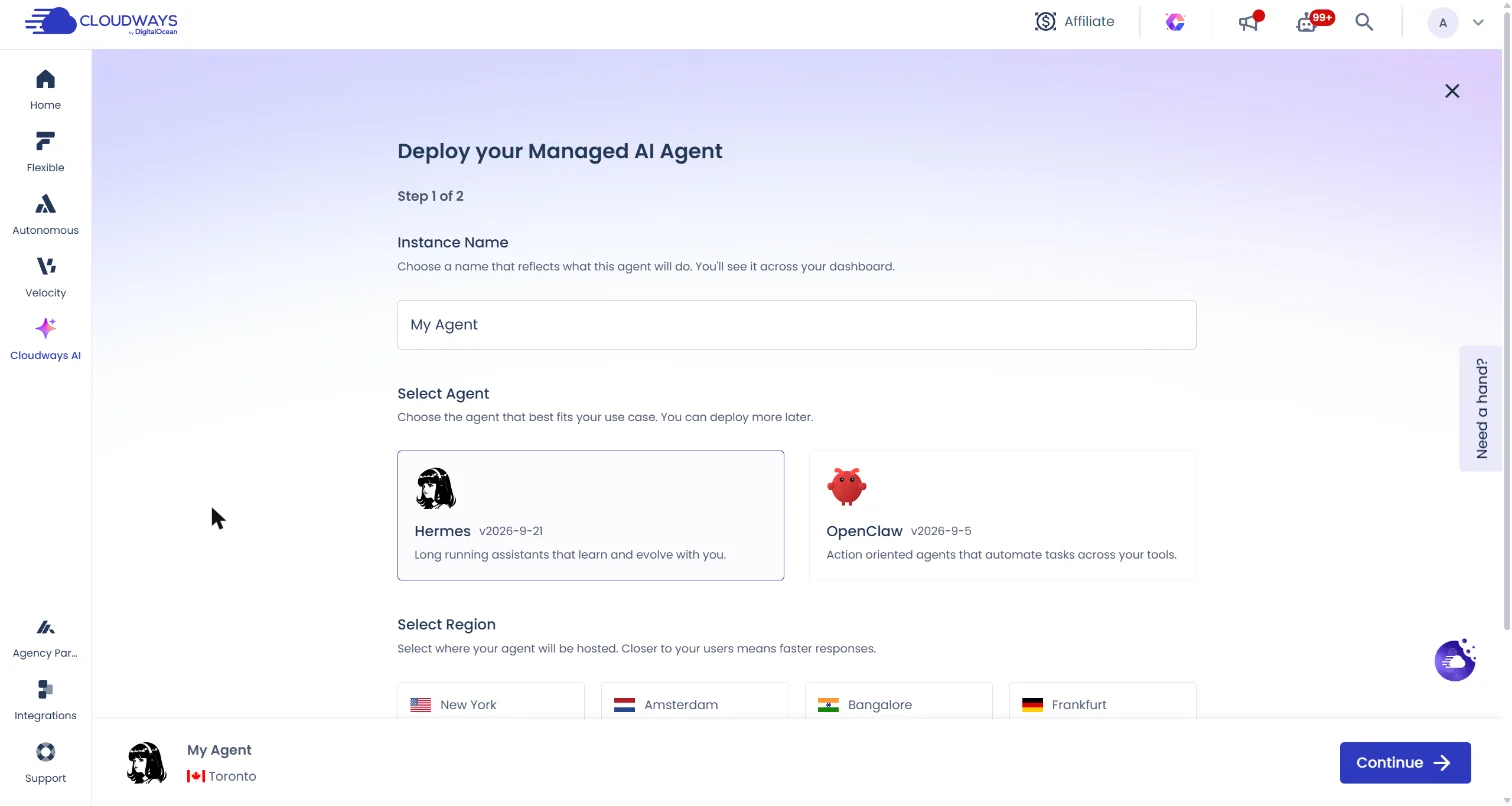
OpenClaw vs Hermes: which agent to choose
| OpenClaw | Hermes | |
|---|---|---|
| Core idea | A broad assistant that lives in your messaging apps and can run a team of agents | A single agent that learns your work and improves over time |
| How you talk to it | Mainly through WhatsApp, Telegram, Slack and Signal, via a central service (gateway) | Mainly from the command line; messaging is an add-on |
| New capabilities | Ready-made Skills (more than 100 according to the documentation) | Saves methods that worked as a Skill and improves them on its own |
| Memory | Managed in the gateway | Notes on preferences, projects and settings, with searchable history |
| Best suited for | Business owners and teams who want an assistant available in messages | Developers who want an agent that gets better at technical work |
| Who develops it | Not stated in the documentation | Nous Research |
Both agents work with the model you choose (Claude, GPT, Gemini and others) and with your own API key. This approach is called BYOK (Bring Your Own Key): the model is not included in the price, and you pay the provider by usage. To work out the real monthly cost, including tokens, see the monthly cost of an AI agent.
Who it is for, and who it is not
- A good fit: anyone who wants an AI agent available 24/7 without managing a server; agencies that want a separate agent for each client; developers who want SSH access and an isolated environment without DevOps work.
- Less of a fit: anyone who is fine with a regular chat on their computer; anyone still on a trial account (the service is available only on a paid account); and anyone unwilling to keep an eye on API costs at the model provider, which can grow when the agent works a lot.
Instance size and price
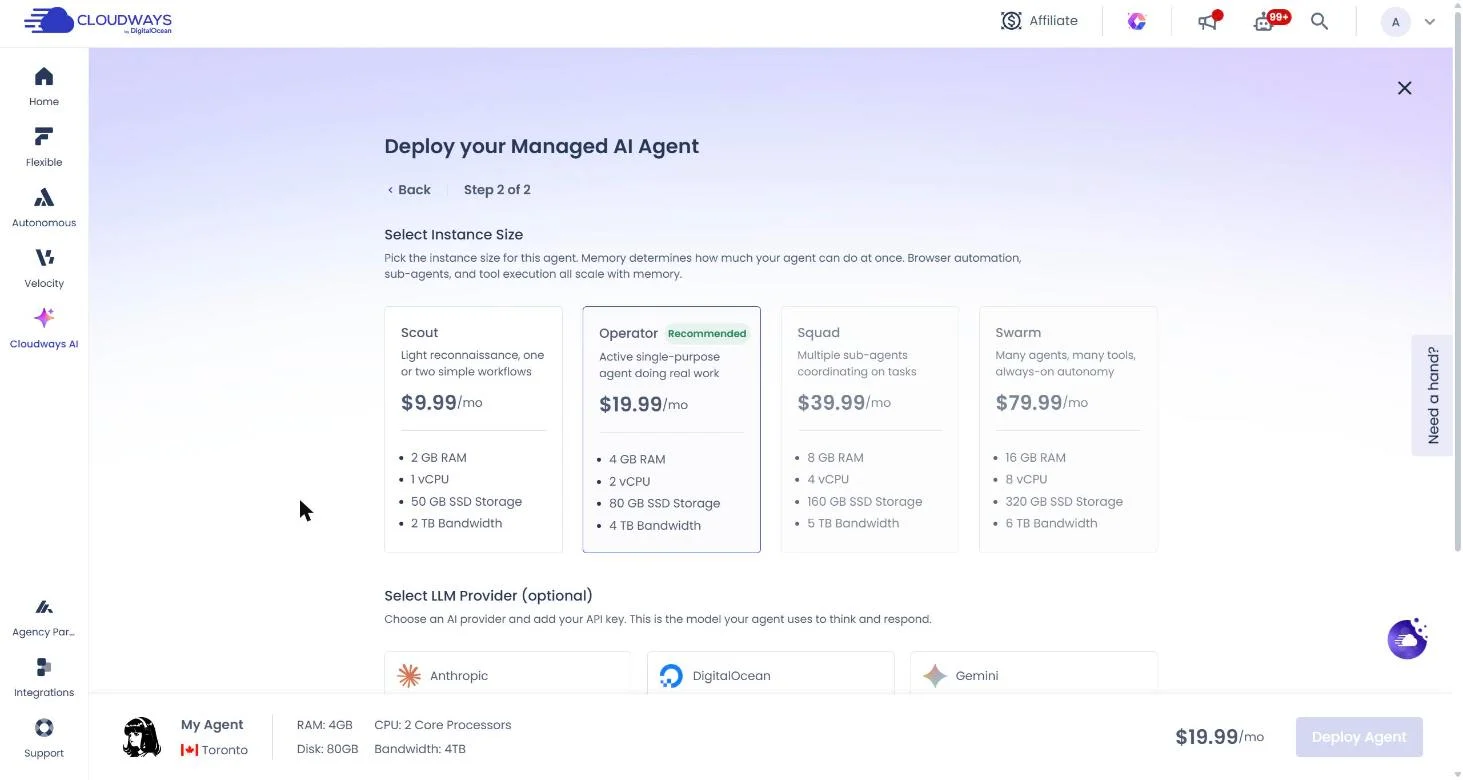
An instance is the cloud environment the agent runs in: CPU, memory, storage and bandwidth. According to the documentation, as of November 2026 there are four tiers:
| Tier | Resources | Bandwidth | Price per month (per the documentation) | Best suited for |
|---|---|---|---|---|
| Scout | 1 vCPU, 2GB RAM, 50GB | 2TB | $9.99 | Experimenting, learning, a personal assistant, simple scheduled tasks |
| Operator | 2 vCPU, 4GB RAM, 80GB | 4TB | $19.99 | First real use, a connected messaging channel, 1–2 sub-agents at once |
| Squad | 4 vCPU, 8GB RAM, 160GB | 5TB | $39.99 | Several processes a day, several channels, 3–5 sub-agents at once |
| Swarm | 8 vCPU, 16GB RAM, 320GB | 6TB | $79.99 | More than 5 sub-agents at once, agencies, heavy load |
Prices are in US dollars, before any applicable taxes. The documentation notes that temporary promotional prices may appear on the setup screen, so the price that counts is the one shown to you before you confirm. The model cost (Anthropic, OpenAI and so on) is on top and is billed by the provider. All sizes and prices are collected in the full Managed AI Agents pricing page.
How to choose the right size
The main factor is concurrency: how many tasks or sub-agents run at the same time at peak, not how many agents you have defined in total. Cloudways’ rule of thumb: Scout for learning and experiments, Operator as the safe default for first real use, Squad for several processes through the day, and Swarm for busy setups. Torn between two tiers? Cloudways recommends picking the higher one.
Pay attention to storage: Cloudways’ size-selection guide says you cannot increase disk space through vertical scaling, while the newer guide on changing tiers shows tiers with a larger disk. The two do not match, so if you expect a lot of files, logs or data, choose a tier with enough disk from the start and check the Manage Plan screen before you plan to scale up.
Before you start
- A paid Cloudways account. The service is not available on a trial account, and you need to upgrade first.
- An API key from a supported model provider: Anthropic, OpenAI, Google (Gemini), DigitalOcean or OpenRouter. You can also add it after setup.
- Set a monthly spending limit at the model provider. An agent that runs all the time can use a lot of tokens, and keeping track is your responsibility.
- Decide which region the agent will run in. Cloudways recommends choosing by data-retention and regulatory requirements; a region close to your users will also shorten response times.
How to launch a managed AI agent, step by step
- Log in to the platform, and in the side menu click Cloudways AI and then Managed AI Agents.
- Click Launch your Agent.
- Give it a clear name in Instance Name, for example by client or project.
- Under Your Agent, choose OpenClaw or Hermes, pick a region and click Continue.
- Choose an instance size.
- Optional: choose a model provider and paste an API key. No key yet? Get API Key opens the provider’s site.
- Read and accept the terms, and click Deploy Agent.
- Wait for the status to update. When setup finishes, the agent appears in the list with the options Open Agent, Setup and an extra menu.
What does the Setup Wizard do?
After launch, the Setup Wizard gathers all the important settings in one place. Every step is optional, you can skip and come back, and changes apply immediately, with no reinstall. The wizard changes only the agent you opened it from.
- In Managed AI Agents (under Cloudways AI; in the official guides the menu also appears as AI Agents), click Setup on the agent’s row. If a model provider is already connected, the button disappears; open the three-dot menu and choose Setup.
- LLM Provider: choose a provider, paste your key in the API key field, choose a default model and click Next. Cloudways checks the key with the provider before the step is marked as complete.
- Configure Souls: choose a ready-made “soul”, meaning a set of instructions that defines the agent’s role, tone and priorities, and adjust it as needed.
- Configure Skills: turn Skills on or off from the community list (the Cloudways list is marked “coming soon”).
- Connect a Channel: choose a messaging app, follow the on-screen instructions and check the connection status.
- Save the configuration.
About messaging channels: according to the documentation, OpenClaw supports WhatsApp, Slack, Discord and Telegram. WhatsApp is especially handy in the many countries where it is the main way people communicate. But think about who will be able to write to the agent: an agent with access to files and commands should not be open to everyone who has the number. On the difference between a self-run agent and a closed service, I wrote about it here: OpenClaw vs closed agent services.
The code BFCM802 takes 80% off your bill for the first two months (up to $200 off per month), including unlimited free site migrations. New customers only, and only until the offer ends.
The offer ends on December 4, 2026 at 23:59 (UTC+2).
Start with a free trial, no credit card. Enter the code at checkout and check that it shows up.
After Black Friday: 30% off for 3 months with the code ASAEL. On a large server (above about $444 a month) ASAEL already saves more today. BFCM802 vs. ASAEL calculator
Start a free trial server, no credit card. When you move to a paid plan, the code ASAEL takes 30% off your bill for the first three months.
The link fills in the code on the signup form. Just make sure it shows up.
How do you scale the agent up or down?
Does the agent feel slow, or are you paying for resources you do not use? Check usage and change the tier.
- In Managed AI Agents, click Setup on the agent’s row and go to the Instance tab.
- Under Monitoring, check RAM Usage, CPU Usage, Disk Usage and Bandwidth. Look at the trend over time, not at a momentary spike.
- Click Manage Plan. The current tier is marked Current Plan.
- Click Upgrade or Downgrade on the row of the tier you want.
- The status changes to Scaling Instance. The process usually takes a few minutes, and the agent may be unavailable for a short time.
Scaling up does not change the agent’s settings, channels or MCP connections. Signs that it is time to scale up: the container restarts at busy hours, processes that have not changed take longer, or the dashboard is slow when sub-agents are running. Before scaling down, make sure the smaller tier is enough for your current load. For a plain explanation of the protocol, see what MCP is.
What to know about security and costs
- The API key is like a password. Keep it out of screenshots, tickets and shared documents. If it leaks, revoke it at the provider and create a new one.
- Model costs are not with Cloudways. The tier does not affect them. Set a budget limit at the provider.
- A separate agent for each client. For agencies, Cloudways recommends separate instances to isolate resources, settings and data.
- The agent can act. An agent with access to the terminal, files and email can make real mistakes. Start with narrow permissions and tasks, and widen them gradually.
Want the agent to manage your Cloudways servers too? You can connect the Cloudways MCP Server to it, or work directly with the Cloudways API. A practical walkthrough for configuring an agent is waiting in the AI agent setup guide.
Common mistakes and how to fix them
Managed AI Agents is missing from my menu: your account is probably still on a trial. Upgrade to a paid account.
The agent does not answer after setup: make sure the LLM Provider step in the wizard is marked Complete. If it is Skipped or Incomplete, open the wizard again and add a valid key.
The API key is not accepted: check that you copied it in full with no spaces at the start or end, and that the account at the provider has an active usage balance.
The Setup button disappeared: this is normal once a model provider is connected. Open the three-dot menu on the agent’s row and choose Setup.
The scaling is stuck: if the status does not update after 10–15 minutes, refresh the page or contact support.
After scaling down, the agent is slow or unresponsive: go back to the previous tier with Upgrade, and check in Monitoring what your real usage is.
Sources
- Cloudways Knowledge Base: How to get started with managed AI agents on Cloudways
- Cloudways Knowledge Base: How to choose the right instance size for your managed AI agent on Cloudways
- Cloudways Knowledge Base: How to upscale or downscale your managed AI agent on Cloudways
- Cloudways Knowledge Base: How to use the setup wizard on your managed AI agent on Cloudways
- Cloudways Managed AI Agents
Frequently asked questions
According to the documentation, as of November 2026, the price starts at $9.99 per month for the Scout tier and goes up to $79.99 for the Swarm tier. On top of that you pay the model provider by usage. Promotions are possible, and the price that counts is the one shown on the setup screen.
Not to set it up and configure it. Launching, the wizard and connecting channels are all done from the interface. You do need to understand what the agent can do and define its tasks clearly, and for more technical tasks, basic terminal knowledge helps.
No. The service works on a BYOK basis: you connect your own API key, and usage is billed directly by the model provider, separately from your Cloudways subscription.
Yes. According to the documentation, OpenClaw supports WhatsApp, Slack, Discord and Telegram. You connect it in the Connect a Channel step of the setup wizard, or in the Channels tab of the agent’s dashboard.
No. According to the documentation, the service is available only on a paid Cloudways account, and you need to upgrade before you can launch an agent.
OpenClaw is a broad assistant that lives in your messaging apps and can run several agents in parallel. Hermes, from Nous Research, is a single agent that learns your ways of working and improves them, and it suits developers who work from the command line.
Related guides
- Setting up an AI agent
- Cloudways Velocity
- Managing Velocity
- The Cloudways API
- Cloudways MCP Server: managing servers with AI
- Cloudways website hosting
- All guides in this category: AI and automation guides
Official source: How to Get Started with Managed AI Agents on Cloudways, How to Choose the Right Instance Size, How to Upscale or Downscale Your Managed AI Agent, How to Use the Setup Wizard (Cloudways Knowledge Base), Cloudways Managed AI Agents. Written and checked by Asael Dreyer · Updated: 6 Nov 2026
Disclosure: this is an independent site, not the official Cloudways site. Some links on this site are affiliate links: if you sign up through them we earn a commission, at no extra cost to you. Full details

