
Last updated: · By Asael Dreyer
Short answer: Cloudways MCP Server is Cloudways’ official MCP server that connects AI assistants like Claude, ChatGPT, Cursor and Gemini to your account, so you can manage servers and applications in plain language: “show me all my servers”, “clear the cache on the site”, “back up before deploying”. You connect it in two steps: create an Access Token under API Integration in the platform, and add the address https://mcp.cloudways.com/mcp/ with the token to your AI tool. According to Cloudways, the service is free for every customer.
What an MCP server is, and why a site owner should care
MCP (Model Context Protocol) is an open standard that lets an AI model use external tools. Without MCP, a chatbot can only explain how to scale a server. With MCP, it can carry out the action itself, through the service’s API. How do you manage a WordPress site through Claude or ChatGPT, and what are the risks? See managing a WordPress site with Claude and ChatGPT.
The MCP server is the side that provides the tools. In our case, Cloudways runs a server that exposes actions from the platform, such as listing servers, cloning an application, clearing a cache or checking CPU. The MCP client is the tool you work in: Claude Desktop, Claude Code, Cursor, VS Code and others. For a plain explanation of the protocol, see what MCP is.
The flow is simple: you write a request, the client sends it to the Cloudways MCP server, the server validates the token, performs the action and returns a structured result. In practice that means less switching between tabs, and a faster response when something breaks in the middle of the night.
Who it suits, and who it suits less
- A good fit: agencies and freelancers with many servers, developers who already work in Cursor or Claude Code, and anyone who wants to check problems quickly (CPU, slow PHP pages, slow queries) without hunting through the platform.
- Less of a fit: someone who runs one site and logs in once a month, or who is not comfortable with a JSON config file. Cloudways itself stresses that you need to understand infrastructure concepts and the consequences of actions like scaling, deleting and restarting. The AI does not replace judgment.
What you can do with Cloudways MCP
As of November 2026, according to the documentation, the server supports more than 240 tools, in areas such as server and application management, services, plugins, monitoring and analytics, Cloudflare, DNS Made Easy, Git, SSH keys, staging environments, team members, security and Copilot. Examples from the documentation:
| What you want | What to write (English works best) | The tool that runs behind the scenes | Type of action |
|---|---|---|---|
| See all servers | Show me all my running servers | server_list | Read |
| Check that services are healthy | Are all services healthy on my production server? | service_status | Read |
| Diagnose high CPU | Show CPU usage for my server over the last 24 hours | monitoring_server_graph | Read |
| Find slow pages | Which PHP pages are slowest on my app? | analytics_app_php | Read |
| Check WordPress for vulnerabilities | Scan my WordPress site for vulnerabilities | app_vulnerabilities_refresh + list | Read |
| Clear the cache | Purge all caches for my WordPress blog | app_purge_cache | Change |
| Back up before a deploy | Back up my production app before I push changes | app_backup | Change |
| Scale a server | Scale my server to 4GB RAM | server_scale | Change (a few moments of downtime are possible) |
| Delete a server | Delete the old staging server | server_delete | Delete, irreversible |
For advanced users: to avoid overloading the model’s context window, the client initially sees only 65 tools (62 common ones and three meta-tools). The rest are loaded on demand through list_available_toolsets, get_toolset_tools and execute_tool. This saves tokens without giving up coverage of the full API. For an overview of AI plugins for WordPress, see AI plugins for WordPress.
What to prepare before you start
- An active Cloudways account, and you must be the primary account owner. Team members cannot create API credentials.
- An MCP client: Claude Desktop, Claude Code, Cursor, VS Code with Copilot, Gemini CLI, Codex, Devin (formerly Windsurf) or any client that supports JSON configuration.
- For Claude Desktop and connecting through mcp-remote: Node.js installed. The official instructions specify version 24 or higher.
- A strong AI model. Cloudways recommends, among others, Claude Opus 4, Claude Sonnet 4, GPT-5 and Gemini 2.5 Pro. Weaker models work, but make more mistakes in choosing the tool.
Note: the old API key (email + API key) was scheduled to reach end of life on 15 October 2026, and according to Cloudways, existing keys will be revoked after that date. Older guides that show headers like X-CW-Email and X-CW-Api-Key are no longer relevant. Today you connect with an Access Token in the X-Access-Token header.
Step 1: How do you create an Access Token?
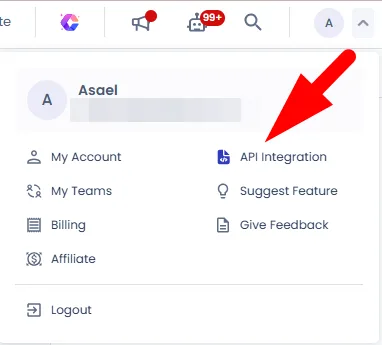
- Log in to the platform, open the profile menu in the top corner and click API Integration.
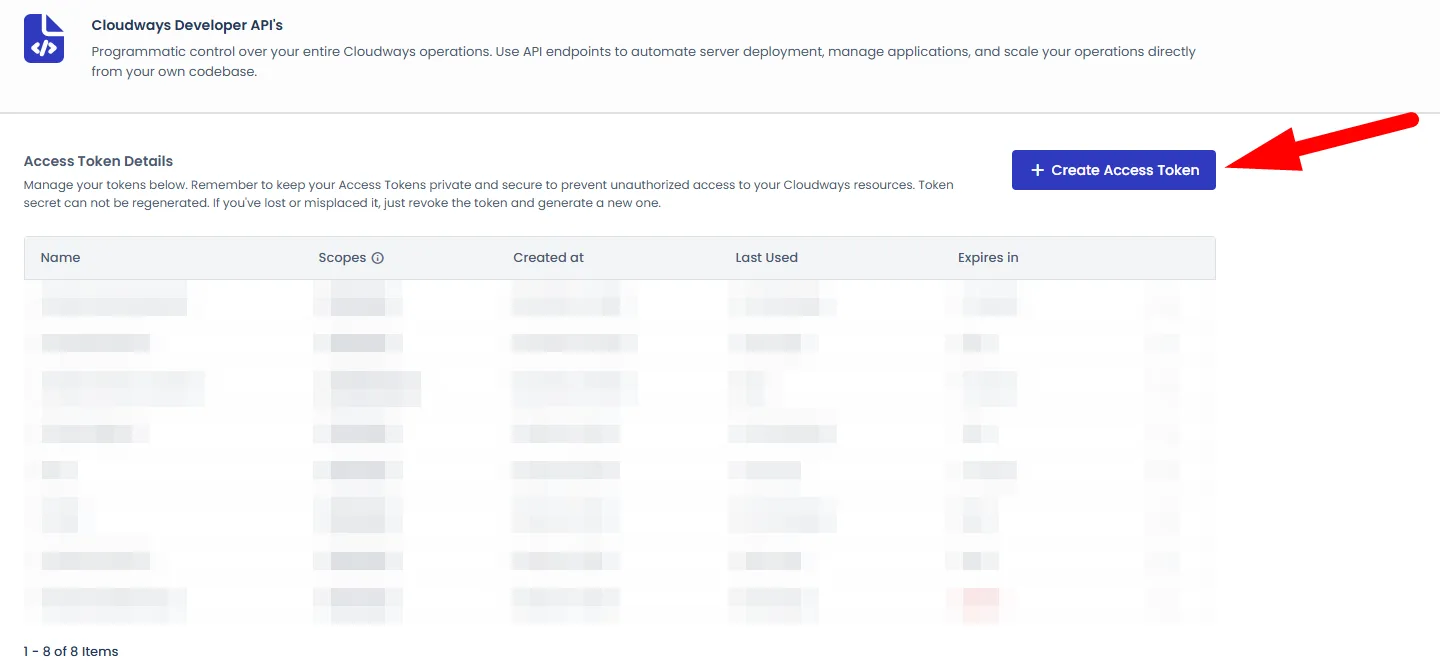
- In the Access Token Details area, click Create Access Token.
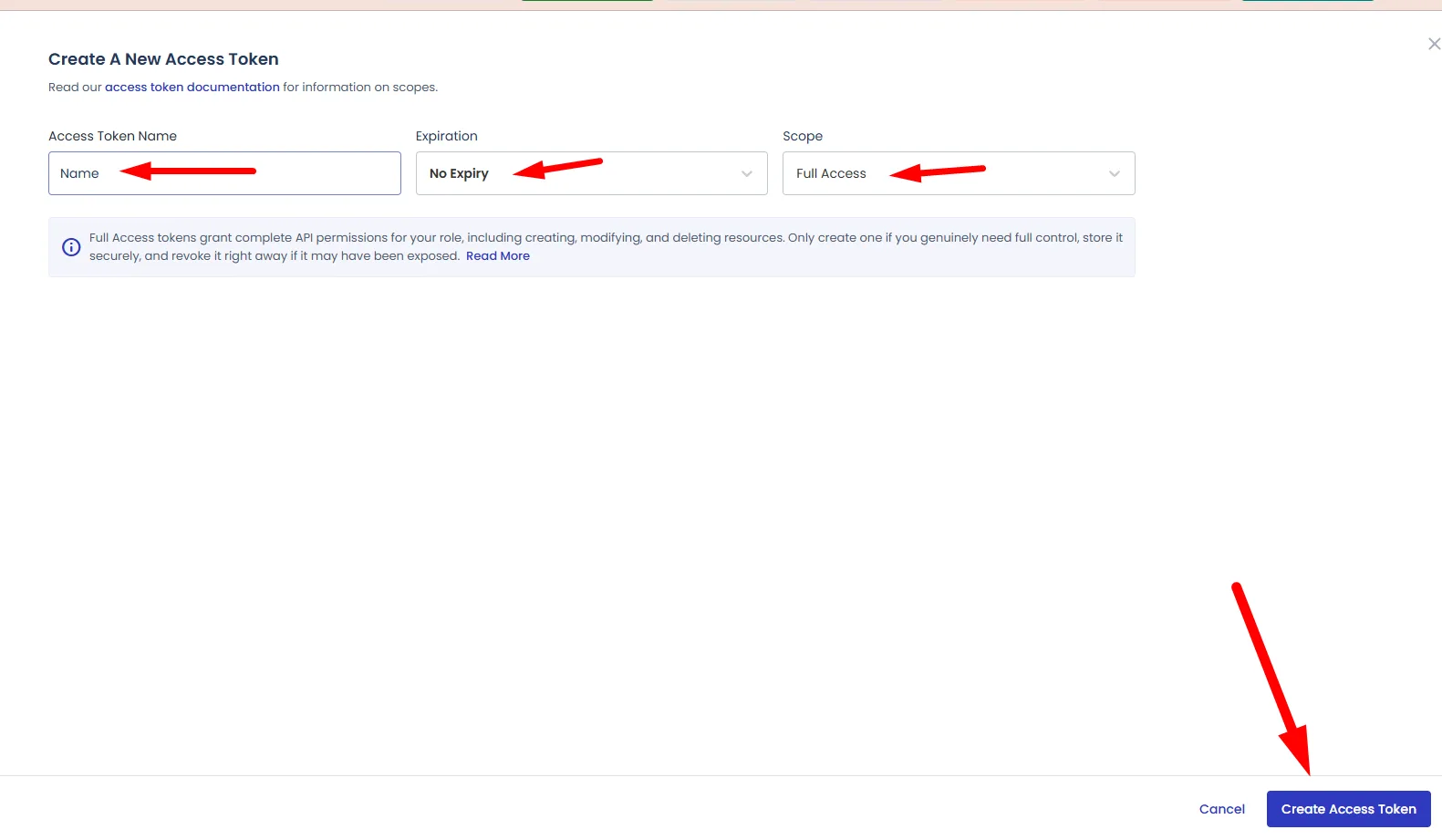
- In the Access Token Name field, give it a clear name, for example “Cloudways MCP – Claude Desktop”.
- Under Expiration, choose a validity period: a day, a month, 3 months, six months, a year or Never.
- Under Scope, choose a permission level: Read-Only Access, Limited Access or Full Access (see the table).
- Click Create Access Token, copy the token on the Access Token Created screen, tick that you copied it and click Done.
Step by step with screenshots (I hid the token and the account details):
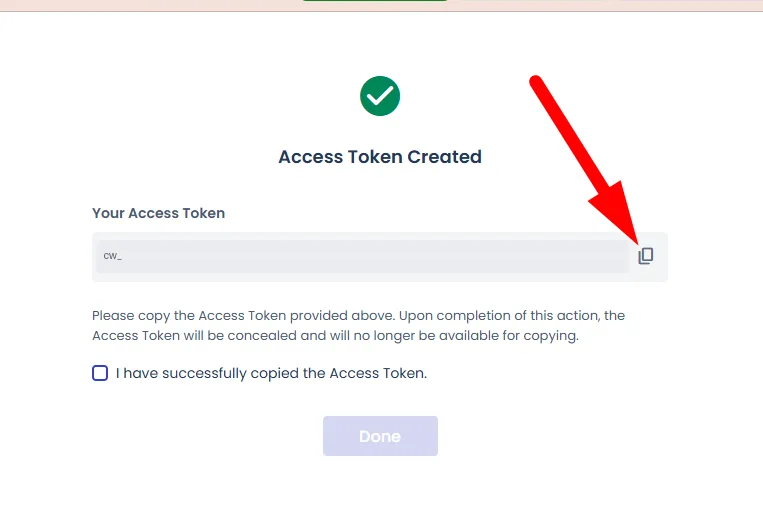
The full token is shown only once. If you lose it, it cannot be recovered; you revoke it and create a new one. Treat it like a password: not in screenshots, not in a shared document, and not in code you push to GitHub.
| Scope | What the token can do | When to choose it |
|---|---|---|
| Read-Only Access | Read only: lists, statuses, graphs | Getting started, monitoring, diagnosing problems. Recommended for the first week |
| Limited Access (Beta) | Only the groups of actions you selected | Regular use with narrow permissions, for example cache clearing and backups only |
| Full Access | Everything, including create, change and delete | Only when you really need it, and with a short expiration |
One more important setting: by default, the MCP tools do not expose SSH and SFTP passwords in their responses. You can enable this for a specific token through the three-dot menu and the Reveal Credentials toggle. Leave it off unless you truly need the passwords inside the chat.
Step 2: Connect your AI tool
In every client you set two things: the server address https://mcp.cloudways.com/mcp/ (including the trailing slash), and two headers: X-Access-Token with the token, and X-Mcp-Host with the client name.
Claude Code
Claude Code supports remote MCP servers directly. Run this in the terminal:
claude mcp add --transport http \
  --header "X-Access-Token: <your-cloudways-access-token>" \
  --header "X-Mcp-Host: claude-code" \
  -s user \
  cloudways https://mcp.cloudways.com/mcp/
The -s user flag saves the configuration at the user level, so it is available in all projects. To check: claude mcp list. To remove: claude mcp remove cloudways.
Claude Desktop
Claude Desktop connects to a remote server through the mcp-remote bridge, so you need Node.js.
- Open the config file. On Windows:
%APPDATA%\Claude\claude_desktop_config.json. On Mac:~/Library/Application Support/Claude/claude_desktop_config.json. - Add the following configuration (if
mcpServersalready exists, add only thecloudwaysentry inside it):
{
  "mcpServers": {
    "cloudways": {
      "command": "npx",
      "args": [
        "mcp-remote",
        "https://mcp.cloudways.com/mcp/",
        "--header", "X-Access-Token:<your-cloudways-access-token>",
        "--header", "X-Mcp-Host:claude-desktop"
      ]
    }
  }
}- Save, then quit Claude Desktop completely (not just close the window) and open it again.
- In Settings > Developer, under Local MCP Servers, make sure cloudways shows Running.
Note: in Claude Desktop, do not put a space after the colon in the --header values. The official instructions stress this.
Cursor
Cursor has a one-click install button in the official article. Manually: Settings > Tools & MCP > New MCP Server, and add this to the ~/.cursor/mcp.json file:
{
  "mcpServers": {
    "cloudways": {
      "url": "https://mcp.cloudways.com/mcp/",
      "headers": {
        "X-Access-Token": "<your-cloudways-access-token>",
        "X-Mcp-Host": "cursor"
      }
    }
  }
}
A green dot on the Cloudways row in Tools & MCP means the connection works. A red dot: restart Cursor and check the JSON syntax.
Other clients
| Client | Config file | URL field name | X-Mcp-Host value |
|---|---|---|---|
| VS Code (Copilot) | mcp.json (structure: servers, with “type”: “http”) | url | vs-code |
| Gemini CLI | ~/.gemini/settings.json | httpUrl | gemini-cli |
| Codex / Codex CLI | ~/.codex/config.toml | url (headers in http_headers) | codex / codex-cli |
| Devin (formerly Windsurf) | ~/.codeium/devin/mcp_config.json | serverUrl | Devin |
The small differences in field names cause most of the problems. In Gemini CLI, for example, using url instead of httpUrl will try a different connection type and fail.
Step 3: Check that the connection works
- Open a new conversation in the client.
- Write:
Show me all my servers. - If everything is fine, you will get a list of servers with status, cloud provider, region and IP address.
- A second check:
List all of my Cloudways projects. If the model says it has no tool for that, the client is still using an old cached tool list. Quit it completely and open it again.
The code BFCM802 takes 80% off your bill for the first two months (up to $200 off per month), including unlimited free site migrations. New customers only, and only until the offer ends.
The offer ends on December 4, 2026 at 23:59 (UTC+2).
Start with a free trial, no credit card. Enter the code at checkout and check that it shows up.
After Black Friday: 30% off for 3 months with the code ASAEL. On a large server (above about $444 a month) ASAEL already saves more today. BFCM802 vs. ASAEL calculator
Start a free trial server, no credit card. When you move to a paid plan, the code ASAEL takes 30% off your bill for the first three months.
The link fills in the code on the signup form. Just make sure it shows up.
How to work with MCP without breaking anything
- Start read-only. Cloudways recommends starting with read actions, such as lists and statuses, before asking for changes. A Read-Only token enforces this technically.
- Be precise in your request. “Check the server” is worse than “Show CPU and memory usage for server 12345 over the last 7 days”. A server ID, an application name and a time range save mistakes.
- Read before you approve. Most clients show the tool and its parameters before running it. For actions like server_delete or app_delete, make sure the ID is correct. Deletion is final.
- Back up before changing anything. Ask for an application backup before scaling, a PHP change or a deploy.
- A separate token for each tool. One token for Claude Desktop, another for Cursor. That way you can revoke one without breaking the other, and you can see when each was used.
Common mistakes and how to fix them
A red dot or “Connection failed”: check that the address is exactly https://mcp.cloudways.com/mcp/, including the trailing slash.
A 401 Unauthorized error: the token is wrong, expired or revoked. If you are still using the old API key, create an Access Token and replace it.
The tools do not show up: restart the client after saving the config file. In Claude Desktop you need a full quit (from the tray on Windows), not just closing the window.
“mcp-remote not found” in Claude Desktop: Node.js is not installed, or npx is not on the PATH. Install Node.js (version 24 or higher, per the official instructions), make sure npx is available and restart Claude Desktop.
The server will not start because of the JSON: a missing comma or bracket. Paste the file into a JSON validator. In Codex, note that a TOML file is whitespace-sensitive.
Timeout: usually a momentary network problem. Try again after a few moments.
Sources
The official sources this page is based on (checked on 7 Nov 2026):
- Cloudways Knowledge Base: How to use cloudways mcp server for ai based server management
- Cloudways Knowledge Base: Cloudways mcp server tools
- Cloudways Knowledge Base: How to create and manage cloudways api access tokens
- Cloudways: MCP Server
Frequently asked questions
According to the Cloudways product page, it is free for every customer. You pay only for your servers, as usual, and for the subscription of the AI tool you use, if there is one.
Yes. ChatGPT appears in the list of supported clients in the documentation and on the product page. The setup depends on ChatGPT’s connections interface, but the address and the token are the same.
No. The MCP server translates your request into API calls. You do need to understand what a server, an application and a service are, and the consequences of actions like scaling, restarting and deleting.
Not with a token of their own. Only the primary account owner can create Access Tokens. The account owner can create a limited token and give it to a team member, but it is better to restrict its permissions and its expiration.
Only if the token allows deletion and you approve the action. With a Read-Only token it is not possible at all. With Full Access, read every run request before you approve it, because deleting a server is final.
Usually yes, because strong models understand many languages well. In practice the tool names and results are in English, and precise requests in English reduce the chance of picking the wrong tool. This is an impression from my own use, not official guidance.
Related guides
- Cloudways AI Website Builder
- Managed AI Agents on Cloudways
- Setting up an AI agent
- Cloudways Velocity
- Cloudways website hosting
- All guides in this category: AI and automation guides
Official source: How to Use Cloudways MCP Server for AI-Based Server Management, Cloudways MCP Server Tools, How to Create and Manage Cloudways API Access Tokens (Cloudways Knowledge Base), Cloudways MCP Server. Written and checked by Asael Dreyer · Updated: 6 Nov 2026
Disclosure: this is an independent site, not the official Cloudways site. Some links on this site are affiliate links: if you sign up through them we earn a commission, at no extra cost to you. Full details

