
Last updated: · By Asael Dreyer
Short answer: the WooCommerce checkout is slower than the rest of your site because it must not be cached: every load and every update runs PHP and database queries from scratch. When the server is weak, when there is no object cache, when a shipping, payment or invoicing plugin calls a slow external service, or when WP-Cron is overloaded, checkout hangs. You diagnose it from the slow request in the browser and from the server’s PHP monitoring, and you fix the cause, not the symptom.
Why checkout in particular is slow when the site itself is fast
A product page or a homepage can be cached: the server prepares it once and serves the same copy to everyone. At checkout that’s impossible, because every customer has their own cart, address, shipping and coupon. That is why caching systems deliberately exclude it.
On Cloudways, for example, Varnish by default excludes /cart, /checkout, /my-account, the wc-api path, the ?wc-ajax=get_refreshed_fragments request, all POST requests and WooCommerce’s cart and session cookies. The result: a speed test of your homepage can show an excellent score while checkout takes 6 seconds. They are two different measurements.
Here is what happens every time a customer changes the address or shipping method at checkout: the browser sends a wc-ajax=update_order_review request, WooCommerce recalculates price, tax, shipping and discounts, and returns the order summary. Every plugin that hooks into that calculation adds time to it. When they click “Place order”, the same thing happens again, plus creating the order, calling the payment provider and sending emails.
How to diagnose a slow WooCommerce checkout
Don’t start by replacing plugins or upsizing the server. First find out which request is slow, and then why.
- Open checkout in an incognito window, with a product in the cart. Open the developer tools (F12) and go to the Network tab.
- Change the city or the shipping method, and look for the
update_order_reviewrequest. In the Time column you’ll see how long it took. Anything over a second is worth investigating. - Place a test order and check the
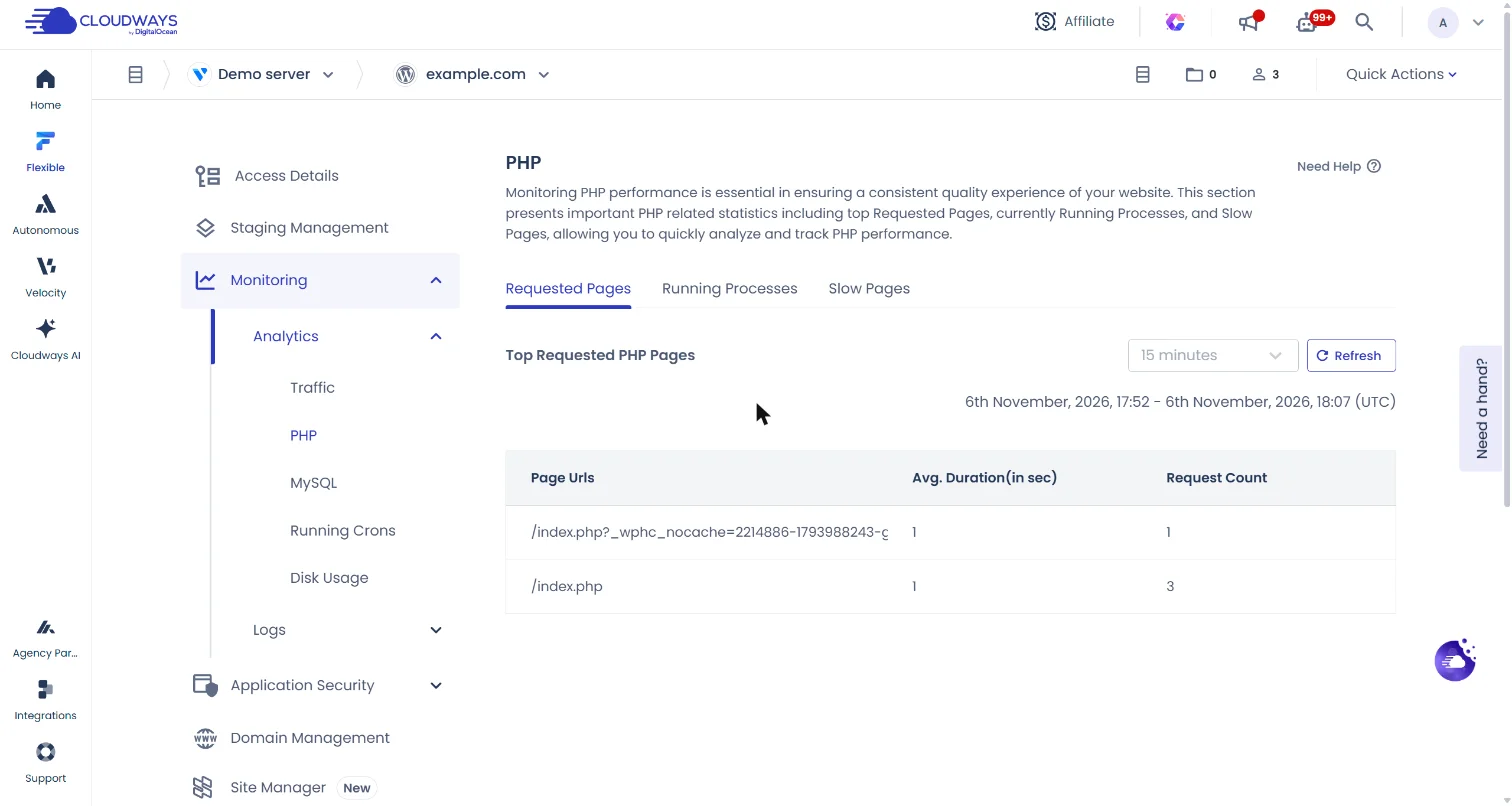
checkoutrequest that is sent when you click “Place order”. - In the Cloudways management panel go to Servers, choose a server, click www and choose the application. Under Application Management choose Monitoring ← Analytics ← PHP.
- In the Slow Pages tab you’ll see scripts that ran for more than five seconds, with the number of requests and the maximum and average time. In the Running Processes tab you’ll see active PHP processes and their CPU and memory use.
- Also check server monitoring: if the CPU or memory is close to 100% at peak hours, the problem is resources first of all. I covered that in the guide to slow sites and high CPU.
For developers: the free Query Monitor plugin shows, on each request, which queries and which external HTTP calls took the longest, and which plugin they came from. On Cloudways you can also connect New Relic for deeper monitoring. See application monitoring on Cloudways.
What are the common causes of a slow checkout, and what do you do?
| The cause | How to recognize it | What to do |
|---|---|---|
| No object cache | Many identical database queries on every request | Enable Redis with Object Cache Pro |
| A slow external service (shipping, payments, invoicing, address validation) | Query Monitor shows a long HTTP call during update_order_review | Update the plugin, check with the provider, cache the results where possible |
| Heavy plugins at checkout (fields, upsells, analytics) | The time drops when you disable them on staging | Drop them, replace them, or limit them to other pages |
| WP-Cron running during browsing | Random slowdowns, not constant ones | Move it to a server-side cron |
| A server that’s too small for the traffic | High CPU or memory at peak hours | Upsize the server |
| An old PHP version | The server is on PHP 7.4 or 8.0 | Upgrade after testing on staging |
Object cache: the cache that does work at checkout
Object cache stores the results of database queries in memory, not whole pages. That’s why it works at checkout, in the cart and in the admin. Redis is the service that holds the data in memory, and Object Cache Pro is the plugin that connects WordPress to it.
According to Cloudways documentation, Object Cache Pro comes installed and active on new WooCommerce applications when the Redis service is active on the server, and on new servers Redis is active by default. It is free for Cloudways customers on supported applications. If the site has another object cache plugin, remove it first, because two such plugins conflict. The full setup is in the Object Cache Pro guide.
Payment, shipping and invoicing plugins
Plugins that call an external service hold up checkout until the service answers. Calculating shipping with a courier, validating an address or generating a document can add whole seconds. Payment plugins themselves also improve over time. The changelog of the PayPlus plugin, for example, lists in 2026 a reduced frequency of order-status checks at checkout to take load off the server, and the removal of a delay of about 200 milliseconds the plugin added to every request on the site. For installing and configuring that gateway, see the gateway setup guide.
The takeaway: before you look for a problem on the server, update your payment, shipping and invoicing plugins, and read their changelogs. If there is still a slow external call, go to the provider with the timings you measured.
WP-Cron and Cron Optimizer
WP-Cron is WordPress’s scheduler. It doesn’t run on a clock but on site visits, which means heavy tasks like emails, stock syncing or plugin backups can run during a customer’s checkout request. In a store with many scheduled tasks, you feel it.
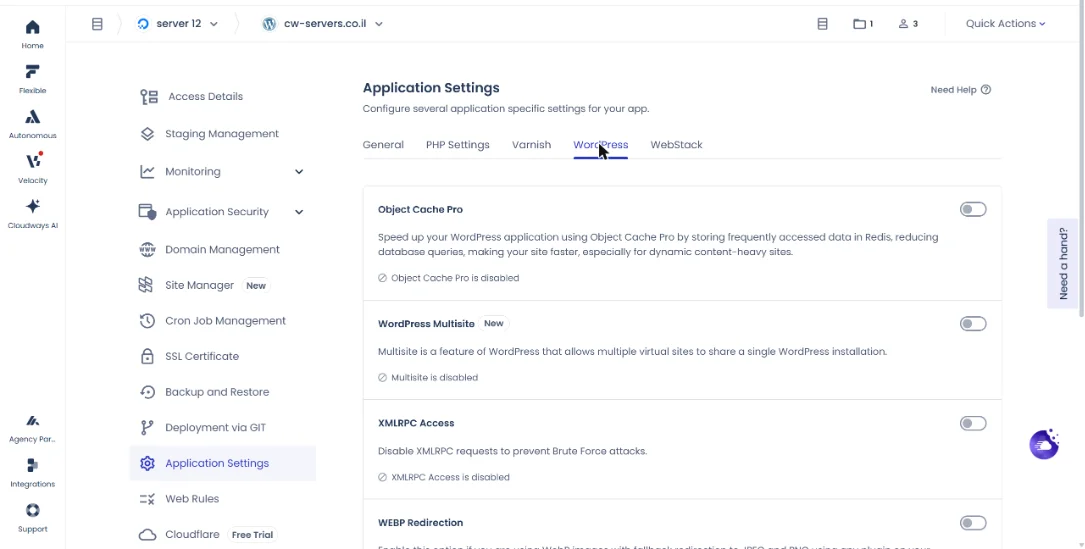
Cloudways has a built-in solution for this, Cron Optimizer: it moves the tasks to run on the server side through WP-CLI, and spreads them out so they don’t all run together.
- In the management panel open Servers and choose the server.
- Click www and choose the application.
- Choose Application Settings and go to the WordPress Settings tab.
- Enable Cron Optimizer and confirm with Confirm.
More on scheduled tasks in the cron guide for Cloudways.
When you really need a bigger server
If the CPU or memory hits the ceiling every time there is traffic, and the other causes have already been dealt with, it’s time to upsize the server. On Cloudways you do it from the panel, and the server’s IP address doesn’t change when you scale up, so there’s no need to update your payment provider or your DNS. See scaling a server on Cloudways. If the load arrives in waves, mainly during sales, also read preparing a WooCommerce store for sale traffic.
The code BFCM802 takes 80% off your bill for the first two months (up to $200 off per month), including unlimited free site migrations. New customers only, and only until the offer ends.
The offer ends on December 4, 2026 at 23:59 (UTC+2).
Start with a free trial, no credit card. Enter the code at checkout and check that it shows up.
After Black Friday: 30% off for 3 months with the code ASAEL. On a large server (above about $444 a month) ASAEL already saves more today. BFCM802 vs. ASAEL calculator
Start a free trial server, no credit card. When you move to a paid plan, the code ASAEL takes 30% off your bill for the first three months.
The link fills in the code on the signup form. Just make sure it shows up.
Server location, invoicing and checkout fields
Server location. Checkout is a series of small requests: updating the address, updating shipping, a coupon, and finally the order itself. Each one travels from the customer to the server and back. When the server is far from your customers, each round trip takes longer, and the difference adds up. For a store whose customers are mostly in one region, choose a nearby data center. See Cloudways server locations.
Invoicing at order time. Local invoicing and payment plugins sometimes generate the document in the same request in which the order is created. If the invoicing provider’s service is slow at that moment, the customer waits. Check in the plugin settings whether the document can be generated after the status update, and not in the middle of the “Place order” click.
Extra checkout fields. A tax ID or company number field for the invoice, picking a city from a list, and validating a street against an address database are convenient for the customer, but each of them can add a request to the server. Keep only what is really needed.
How do you run a quick 15-minute check?
No time for a full diagnosis? Go through this list in order. In most stores one of the items reveals the problem.
- Make sure Redis is active on the server and the Object Cache Pro plugin is enabled on the site.
- Update WooCommerce and your payment, shipping and invoicing plugins.
- Enable Cron Optimizer.
- Measure update_order_review in the developer tools, as a guest.
- Look at Slow Pages in the PHP monitoring, and at the server’s CPU graph at peak hours.
- On staging, disable the plugins that run at checkout one by one, and measure again after each.
Mistakes that slow checkout down even more
Forcing checkout into the cache: a misconfigured cache plugin serves one customer another customer’s cart, or an old order summary. That doesn’t speed anything up, it breaks the store. Make sure cart, checkout and my-account are excluded at every cache layer: in the plugin, in Varnish and in Cloudflare. I wrote about the Varnish exclusions in the Varnish guide.
Adding yet another “optimization” plugin: plugins that combine and defer JavaScript sometimes break the payment provider’s iframe, or the order summary update. If you enabled one, exclude the checkout page from it.
Testing only as a logged-in user: as an admin you see a different site, with admin plugins and no cache. Always test as a guest too, in an incognito window.
Blaming the payment provider when the problem comes before the payment: if the customer waits before the payment page opens, the problem is on your site. If the payment page opens fast but the order doesn’t update after payment, that’s a completely different problem, covered in the payment went through but the order didn’t update.
Upgrading PHP straight on the live site: a newer PHP is usually faster, but one old plugin can take checkout down. Upgrade first on a staging environment. On new Cloudways servers you can also choose the PHP version for a single application (Public Preview).
Before Black Friday: if you plan to move the store to a stronger server before the sales, Cloudways has 80% off for two months until 4 Dec 2026 with the code BFCM802. Details on the coupons page.
Last checked: 6 Nov 2026
FAQ about slow WooCommerce checkout
Because it isn’t cached, and every load runs PHP and database queries from scratch. The common causes are a weak server, no object cache, plugins that call external services, and WP-Cron running during browsing.
No. The checkout page is personal to each customer, and caching it would show wrong carts and totals. What does work at checkout is an object cache with Redis, which stores query results and not whole pages.
They are requests the browser sends to the server without loading a new page, for example to update the order summary. They are slow when a plugin hooks into them and does heavy work. Check them in the Network tab in the developer tools, and find the plugin with Query Monitor.
Yes, according to Cloudways documentation it is free for customers on supported WordPress applications, and it comes preinstalled on new WooCommerce applications when Redis is active.
Only if the problem is resources. If the CPU and memory are calm and checkout is still slow, the cause is almost always a plugin or an external service, and a bigger server won’t change much. Diagnose first.
There is no official number. In my experience, an update_order_review request that takes more than a second on a small store points to a problem worth checking, especially if it varies widely between attempts.
Related guides
- WooCommerce store hosting on Cloudways
- Object Cache Pro on Cloudways
- Slow site and high CPU
- Varnish on Cloudways
- Comparing payment gateways for WooCommerce
- All guides on this topic: WordPress and WooCommerce guides
Official sources: How to Use Varnish at Cloudways · Speed Up Your WordPress Application Using Object Cache Pro · How to Monitor the PHP Performance of an Application · How to Enable Cron Optimizer for Your Application (Cloudways Knowledge Base) · PayPlus Payment Gateway changelog (WordPress.org). Written and checked by Asael Dreyer · Updated: 6 Nov 2026
Disclosure: this is an independent site, not the official Cloudways site. Some links on this site are affiliate links: if you sign up through them we earn a commission, at no extra cost to you. Full details

