
Last updated: · By Asael Dreyer
In short: a traffic spike during a sale crashes a WooCommerce store mostly on the pages that can’t be cached: the cart, checkout and customer account. To get through Black Friday safely you need four things: full page caching for the rest of the site, Redis and Object Cache Pro for the database, a server with headroom in RAM and CPU (or Autoscaling that adds resources by itself), and a load test at least a week before the sale. Most of the preparation takes two to three hours, and it’s done well before the day of the sale itself.
Why a WooCommerce store crashes during a sale in particular
This section explains exactly what breaks when five or ten times as many visitors arrive, because the whole preparation follows from it.
Most visitors to a regular content site see cached pages, so the server barely works for them. A store is different: the moment a visitor adds a product to the cart, they get a session cookie, and every page they see from then on is rebuilt in PHP and the database. During a sale, the share of visitors with an active cart jumps, so the real load on the server grows much faster than the number of visits.
PHP workers are the processes on the server that run WordPress code. Every request that didn’t come from the cache occupies one worker until it finishes. When all the workers are busy, the next requests wait in a queue, checkout hangs, and in the end the visitor gets a 502 or 504 error. That’s the moment people write on Facebook “the site crashed during the sale”.
There are three more regular suspects:
- The database: WooCommerce stores orders, stock and sessions in the database. Without an object cache, every page runs dozens of queries, and the database becomes the bottleneck.
- Background tasks: order emails, stock updates, and syncing to invoicing and marketing systems run through WP-Cron and Action Scheduler. Under load they pile up and take resources from checkout.
- External services: payments, shipping and pixels. If the payment company’s payment page is slow, or the callback doesn’t come back to the server, the order stays “pending payment” even when the server itself is fine.
What to check two weeks before the sale
Go through the following checklist and it saves you most of the surprises. Do it while there’s still time to fix things.
- A full backup of the server and the application, and a known restore point. The guide: backup and restore on Cloudways.
- A change freeze: plugin updates, theme updates and the PHP version are done now, on Staging, not during the week of the sale.
- Baseline numbers: how many visits and orders you had at the peak hour of the previous sale, and what the CPU and RAM usage was. Without a number like that you can’t know how big a server you need.
- Coordination with your payment provider: that the callback address is up to date, and that if the provider requires a whitelist of IPs, your server’s IP is on it.
How to prepare a WooCommerce store for Black Friday
The order matters: first you take work off the server (caching), and only then you add power to it (scaling). A big server running an untuned site simply crashes a little later.
1. Page caching for everything you can
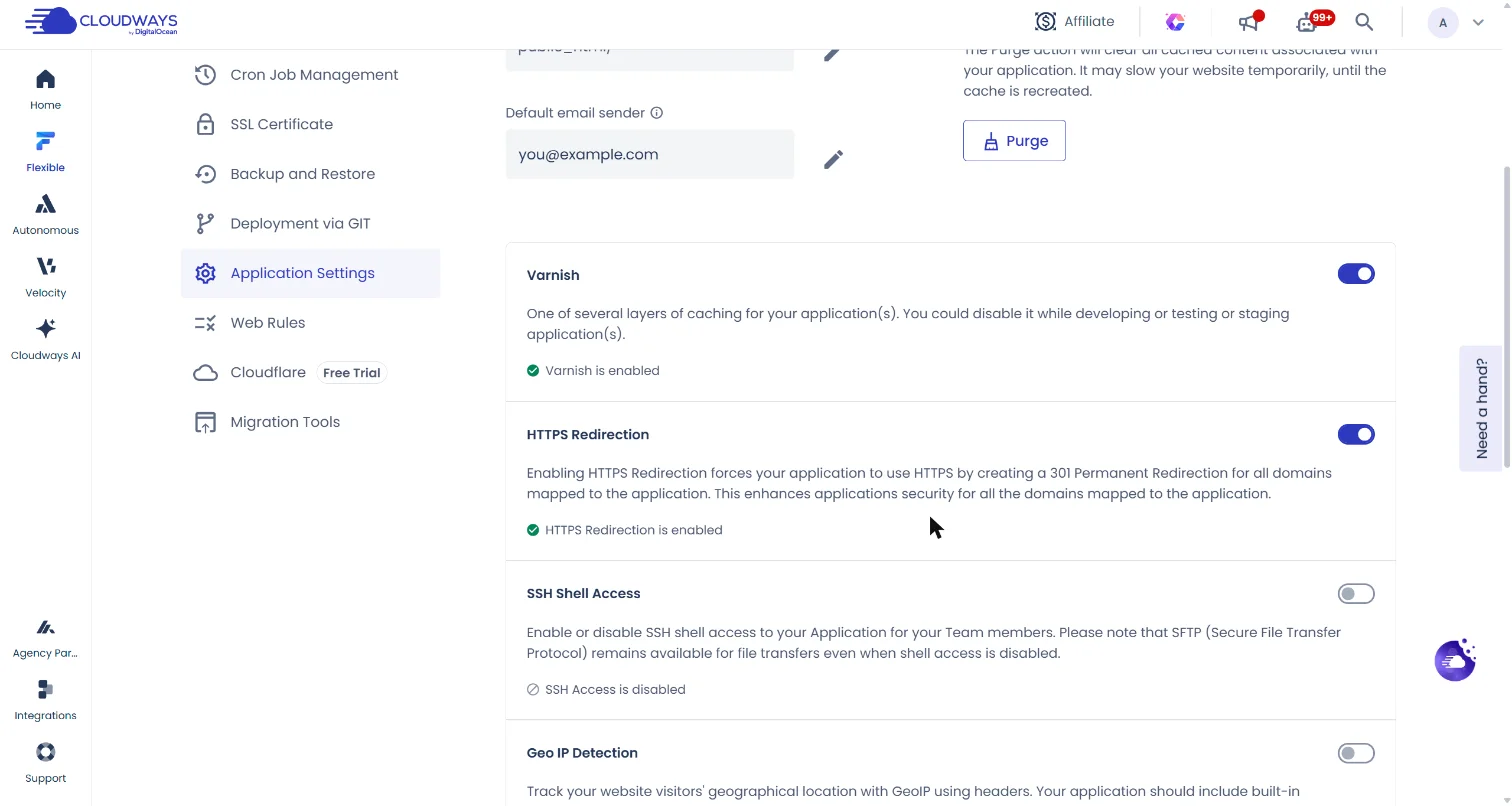
Varnish is a server-level cache layer that sits between the visitor and WordPress and serves a ready-made copy of the page without running PHP. On Cloudways servers it’s preinstalled, compatible with WooCommerce, and comes with default settings that already exclude dynamic pages and cookies. The Breeze plugin manages it from inside WordPress.
- Make sure Varnish is active at the server and application level. The full explanation: Varnish on Cloudways.
- In Breeze, make sure page caching is on. The Cart, Checkout and My Account pages are excluded automatically; if one of them still gets cached, add it under Advanced Options in Never Cache These URLs. The settings: the Breeze guide.
- Check that product and category pages really come out of the cache: open an incognito window, load a product page twice, and look at the response headers in the developer tools.
A common mistake: purging the whole cache every few minutes during the sale, for example on every stock update. Each purge sends all the visitors at once to a “cold” server. Update prices and banners before the sale goes live, and purge the cache once.
2. Redis and Object Cache Pro for the cart and checkout
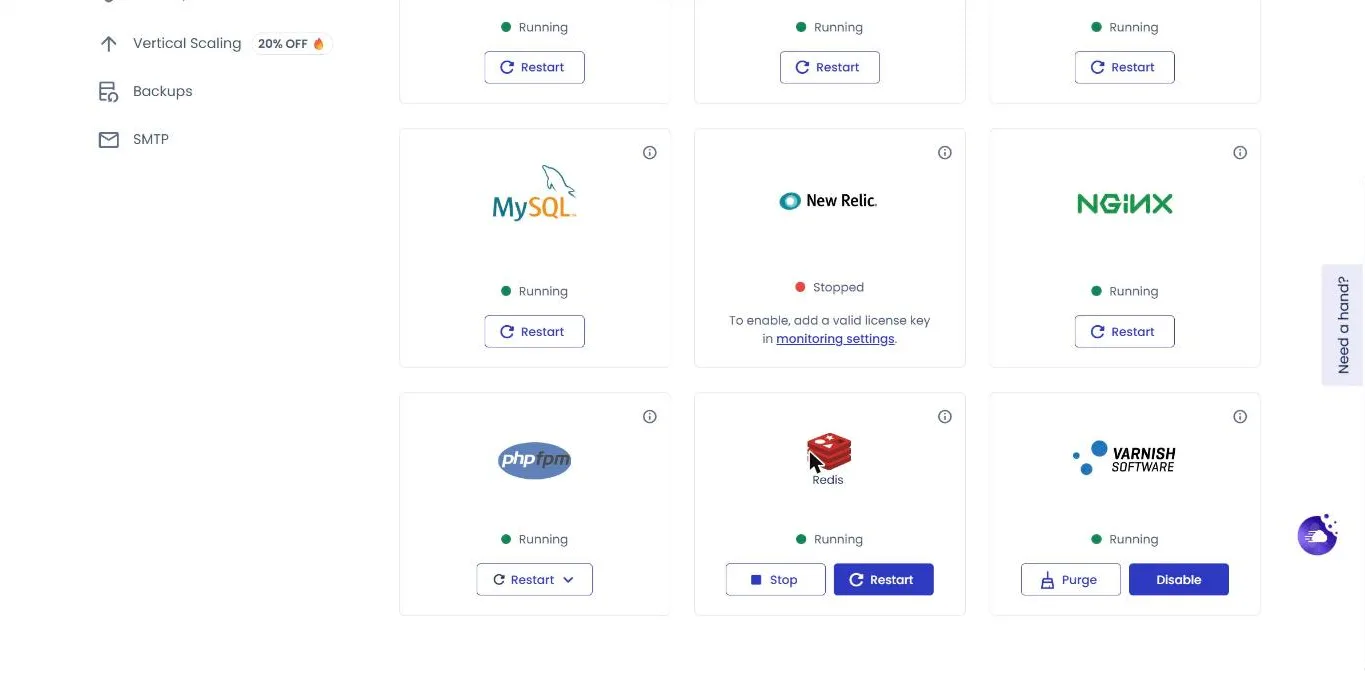
An object cache keeps the results of database queries in memory, so even a page that can’t come from the page cache (the cart, checkout) is built faster. On Cloudways the Redis service runs by default on the server, and Object Cache Pro comes at no extra cost on a server of 4GB and up (according to the pricing page, as of November 2026). On new WooCommerce stores it’s installed and enabled in advance when the service is active.
- In the panel, under Manage Services, check that Redis is running.
- In WordPress, make sure Object Cache Pro is connected and that there’s no other Redis plugin next to it. Two object cache plugins together create a conflict. The guide: Object Cache Pro on Cloudways.
3. Clean out what slows down checkout
- Disable plugins that don’t work for the sale: statistics collected inside WordPress, heavy popups, “see how many people are buying right now” plugins.
- Replace WP-Cron with a real scheduled task on the server, so background tasks don’t run on top of visitor requests. The setup: cron jobs on Cloudways.
- Check under WooCommerce > Status > Scheduled Actions that there aren’t thousands of failed or pending tasks. A queue like that is a sign of a problem that will blow up under load.
- Update the PHP version to a current supported one (8.3 and up, after testing on Staging). The guide: changing the PHP version.
4. Add resources: scale the server or use Autoscaling
There are two ways to handle planned load, and the difference between them is who presses the button and when.
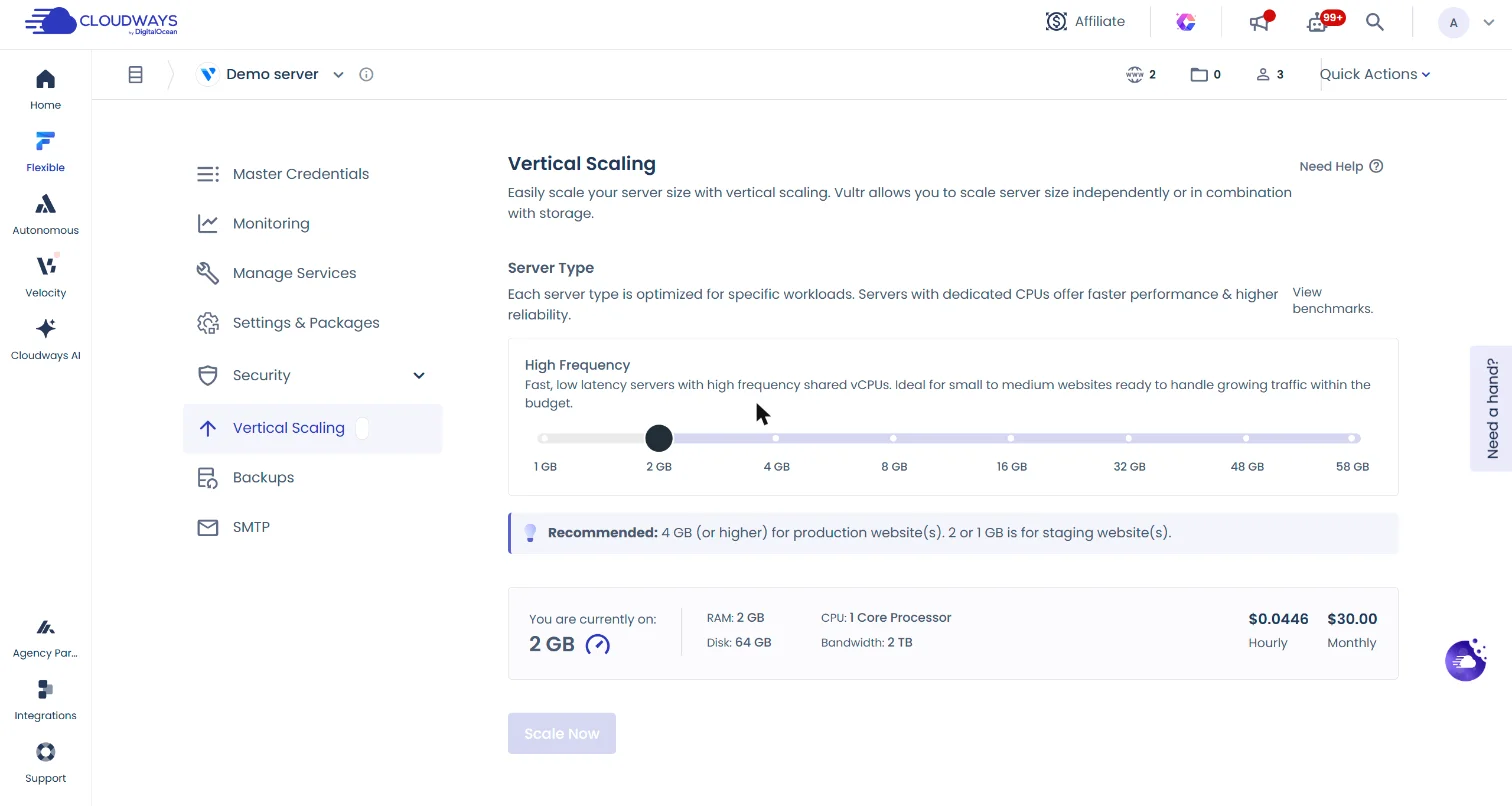
Scaling the server (Vertical Scaling) on Flexible: you increase the RAM and CPU of the existing server, in the same data center and with the same IP address. On DigitalOcean you can increase only CPU and RAM without the disk, and then go back to the original size after the sale. On Vultr and Linode the increase is permanent, and the server goes down for a short time during the process, so you do it in quiet hours, after a backup. On a trial account you can’t scale a server. The full guide: how to change a server’s RAM on Cloudways.
Autoscaling on Autonomous: the application runs inside “pods”, isolated units of resources with their own CPU, RAM and PHP workers. When traffic rises, the system adds more copies of the application by itself, and removes them when the load drops. You pay by the hour for every extra pod, and you can set a budget cap after which Autoscaling stops. The full explanation of the product: Cloudways Autonomous.
| Topic | Flexible + manual scaling | Autonomous + Autoscaling |
|---|---|---|
| Who adds resources | You, in advance | The system, automatically |
| Best for | A sale with a known date and predictable load | Unpredictable spikes, a viral campaign, a launch |
| Going back to the previous size | On DigitalOcean (CPU and RAM only) yes; on Vultr and Linode only by cloning the server | Automatically when the load drops |
| Cost of the load | The price of the big server by the hour, as long as it stays big | Growth $0.07, Scale $0.10, Plus $0.12 per pod per hour |
| Base price | By provider and size, on the pricing page | From $99 a month per application, on the Autonomous pricing page |
| Sites per plan | As many as the server can support | One application per plan |
An example bill, based on the example in the Autonomous documentation: 4 extra pods at $0.10 an hour, running for 3 peak hours, cost $1.20. On top of that there may be overage charges for traffic ($0.04 per GB) and for disk ($1 per GB per month), even when Autoscaling stops at the cap. Visits themselves aren’t billed. The full comparison between the products: Flexible vs Autonomous.
5. A load test before the sale
A load test simulates many visitors at the same time, to see where the site breaks before your customers see it. Tools like k6 or Loader.io let you run a scenario of browsing, adding to the cart and going to checkout.
- Run the test on a clone of the site or on a Staging environment, not on the live store. The explanation: Staging and cloning.
- In the test environment, switch off the real payment connection and the emails sent to customers.
- Raise the load gradually, and note at how many simultaneous visitors checkout’s response time goes past 2–3 seconds.
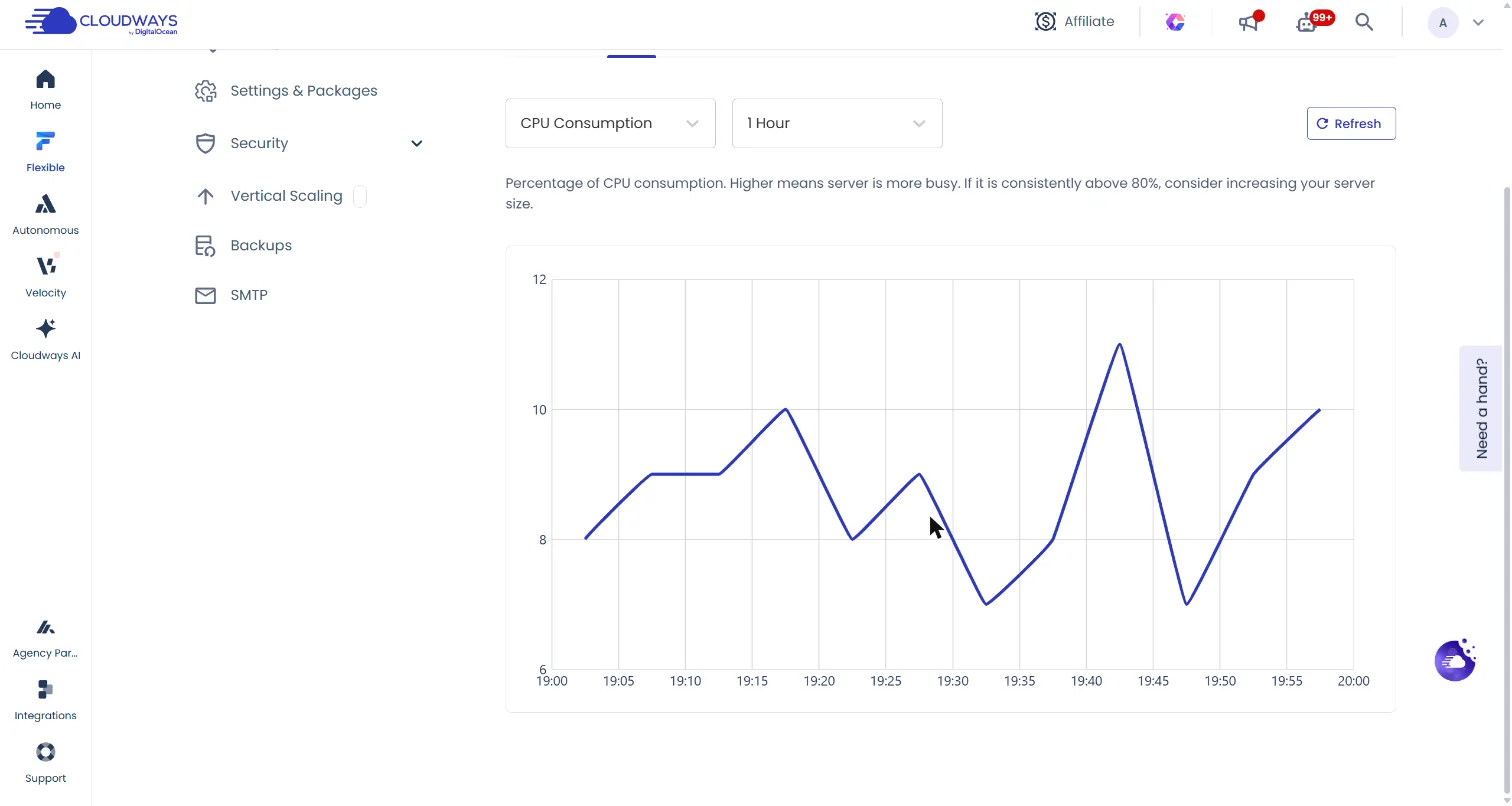
- During the test, keep the CPU, RAM and database connection charts open in the panel. The explanation: server monitoring on Cloudways.
6. Payment gateways: a fixed IP and the callback
Many payment providers send the store a payment confirmation (a callback) after the customer pays on their page. If the server is too busy to answer, or its IP isn’t on the provider’s whitelist, the order stays stuck. On Cloudways each server has one dedicated IP, and it doesn’t change when you scale the server. It does change when you clone a server, because cloning creates a new server. If you’re going to switch to a cloned server before the sale, update your provider in advance.
On Autonomous the architecture is different (Kubernetes behind Cloudflare Enterprise). If your payment provider requires a fixed outbound IP, confirm the address with Cloudways support before you switch.
The code BFCM802 takes 80% off your bill for the first two months (up to $200 off per month), including unlimited free site migrations. New customers only, and only until the offer ends.
The offer ends on December 4, 2026 at 23:59 (UTC+2).
Start with a free trial, no credit card. Enter the code at checkout and check that it shows up.
After Black Friday: 30% off for 3 months with the code ASAEL. On a large server (above about $444 a month) ASAEL already saves more today. BFCM802 vs. ASAEL calculator
Start a free trial server, no credit card. When you move to a paid plan, the code ASAEL takes 30% off your bill for the first three months.
The link fills in the code on the signup form. Just make sure it shows up.
On the day of the sale
- An hour before: purge the cache once and load the main sale pages to “warm” them.
- At the peak: don’t update plugins, don’t change the theme, and don’t run a heavy manual backup.
- Monitoring: watch the server charts and the orders that come in with “processing” status. If orders pile up as “pending payment”, the problem is probably the callback, not the load.
- Afterwards: on Flexible, return the server to its previous size if you increased only CPU and RAM on DigitalOcean. On Autonomous, check the invoice to see how many pods were added and for how long.
Planning to move to Cloudways before the season? Until 4 Dec 2026 there’s a Cloudways Black Friday offer, with the details on the Cloudways coupon page.
What common mistakes happen during sales, and how to fix them
You scaled the server and it still crashes: usually the cache isn’t working, or a single plugin runs a heavy query on every page. Check the page cache and Object Cache Pro first, then the plugins.
502/504 errors only at checkout: the PHP workers are running out. Take work off checkout (plugins, external scripts), or add CPU, because the number of requests processed in parallel is tied directly to the processor.
You scaled the server on the day of the sale: on Vultr and Linode the server goes down briefly during the process, and the time it takes grows with the amount of data on the disk. Scale a day or two beforehand.
Trial account limits: on a trial account you can’t scale a server. If you’re testing Cloudways right before a sale, activate the full account in advance.
When Cloudways won’t help: if checkout is slow because of a shipping plugin that calls an external API on every refresh, or because of a slow payment page at your provider, no server will fix it. You need to deal with the plugin or contact the provider.
The offer ends on December 4, 2026 at 23:59 (UTC+2).
Start with a free trial, no credit card. Enter the code at checkout and check that it shows up.
Start a free trial server, no credit card. When you move to a paid plan, the code ASAEL takes 30% off your bill for the first three months.
The link fills in the code on the signup form. Just make sure it shows up.
Frequently asked questions
Usually because the cart and checkout don’t come out of the cache, and every visitor with a cart triggers PHP and the database. When the PHP workers run out, requests get stuck in the queue and you get 502 or 504 errors. An object cache, plugin cleanup and extra CPU solve most cases.
One to two weeks. That’s enough to update plugins on Staging, run a load test and scale the server without pressure. On the day of the sale itself you change nothing.
Autoscaling is the automatic addition of resources when traffic rises, and their removal when it drops. On Cloudways Autonomous, extra pods are added at $0.07 to $0.12 per pod per hour, depending on the plan, and you can set a budget cap. As of November 2026.
No. On Cloudways the dedicated IP stays when you change the server’s size. It changes only when you clone a server, because cloning creates a new server.
It depends on the provider. On DigitalOcean, if you increased only CPU and RAM, you can go back to the original size. On Vultr and Linode the increase is permanent, and to shrink you need to clone to a smaller server.
No, when it’s configured properly. On Cloudways, Varnish is compatible with WooCommerce and its settings already exclude dynamic pages and cookies. If you add a plugin that creates a new cookie, you may need to exclude it manually.
Related guides
- Autonomous pricing: plans, Autoscaling and overage charges
- How big a server does a WooCommerce store need?
- WooCommerce store hosting on Cloudways
- How to change a server’s RAM on Cloudways
- All the guides on this topic: WordPress and WooCommerce
Sources
- How Autoscaling Works on Cloudways Autonomous
- How Payment and Pricing Work on Cloudways Autonomous
- Guide to Scale Servers on the Cloudways Platform
- Does Cloudways Provide Dedicated IP?
- How to Use Varnish at Cloudways
Official source: How Autoscaling Works on Cloudways Autonomous, How Payment and Pricing Work on Cloudways Autonomous, Guide to Scale Servers on the Cloudways Platform, Does Cloudways Provide Dedicated IP? and How to Use Varnish at Cloudways (Cloudways Knowledge Base). This guide was written and tested by Asael Dreyer · Updated: 6 Nov 2026
Disclosure: this is an independent site, not the official Cloudways site. Some links on this site are affiliate links: if you sign up through them we earn a commission, at no extra cost to you. Full details

