
Last updated: · By Asael Dreyer
In short: to give someone access to a server or a site on Cloudways, you add them as a team member: in the profile menu choose My Teams, click Add Member, and choose whether to give full access (Full Access) or access limited to specific servers and applications (Limited Access). They receive an activation email and log in with their own password, so you never hand over your account details. The whole process takes about 5 minutes.
Why not just send the developer your password
It happens all the time: a developer needs to “check something on the server”, and the business owner sends them the account email and password over a chat app. From that moment, they have access to every server, every site, billing and the payment method. There’s no way to know what they did, and no way to revoke their access without changing the password for everyone.
Cloudways solves this with the Team feature (team members). Each person gets their own user, sees only what you approved for them, and can be removed with a click. I work this way with dozens of servers and several development teams, and it is the difference between being in control and hoping for the best.
Which of the two ways to share access fits you?
Before you add anyone, ask what they really need to do. Sometimes they don’t need the panel at all.
| What the person needs | The right way | What they get |
|---|---|---|
| Upload files, edit code, work over SSH on one site | Application Credentials | An SFTP/SSH user for one application only, with no panel login |
| Manage a site from the panel: domain, SSL, cron, settings | A team member with Limited Access | Panel login with access only to the servers and applications you chose |
| Manage the whole infrastructure, for example an IT manager or a partner | A team member with Full Access | All servers and all applications, including the master credentials |
| Handle invoices and payments | A team member with the Billing permission | Access to invoices, payments and payment methods |
| Open support tickets on your behalf | A team member with the Support permission | Access to the support area and opening tickets |
Permissions combine: you can give your accountant only Billing, with no access to servers at all, and give a developer limited access to one server, without Billing.
Before you start
- Only the account owner can add team members. If you are a team member yourself, ask the account owner.
- A “clean” email address. An address that is already linked to a Cloudways account, trial or full, can’t be used as a team member. If the developer once opened a trial account with their email, they’ll need a different address.
- Decide in advance: which servers, which applications and which actions to grant access to. It’s easier to widen permissions later than to narrow them.
How to add a team member, step by step
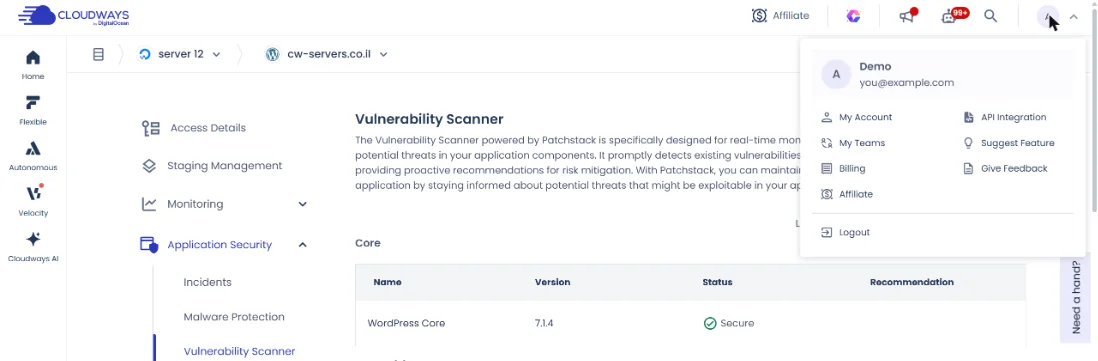
- Log in to the management panel, and in the top profile menu choose My Teams. In the previous interface you reached the same place through the plus button at the top of the screen.
- Click Add Member.
- Fill in the details: Email (the team member’s email), Member Name (their name) and Job Title (their role). Leave Status as Active.
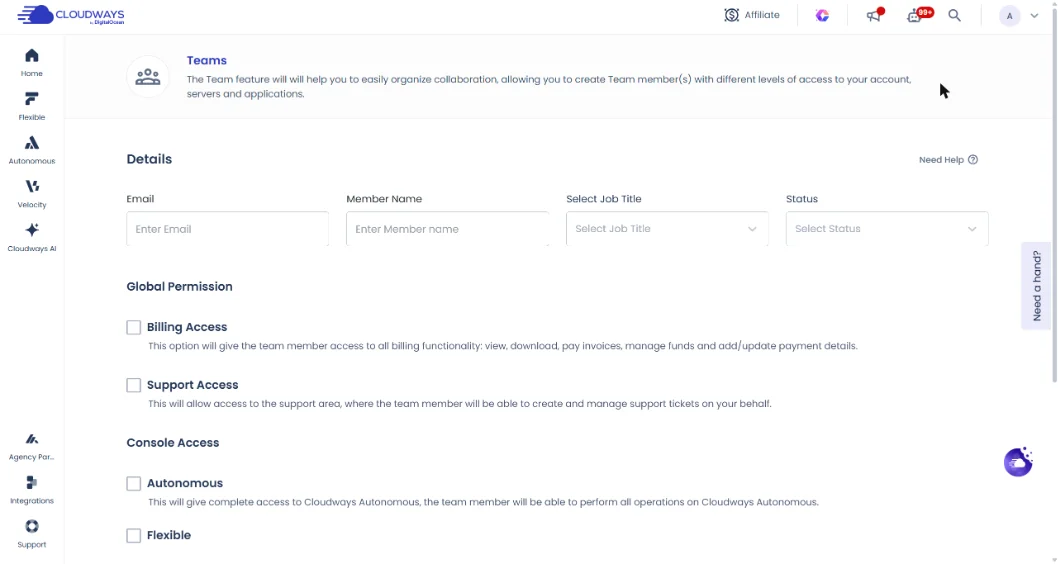
- Under Global Permission, tick whether to give access to Billing (invoices, payments, payment methods) and Support (opening and managing support requests). If the person doesn’t need them, leave them unticked.
- Under Console Access, choose which product to grant access to: Flexible, Autonomous, or both. According to the documentation there are also options for Velocity and AI Agents.
- If you chose Flexible, choose an access level:
- Full Access: all servers and all applications, including viewing and updating the master credentials.
- Limited Access: you choose exactly which servers, which applications on each server, and which actions.
- With Limited Access, tick the servers, and within each server the applications the team member will see. Then choose the actions allowed on the server, such as start and stop, scaling (Scale), viewing the master credentials and monitoring (Monitoring). You can also decide whether they can manage add-ons and projects.
- Click Add Member. The team member receives an activation email with a link to choose a password, and a confirmation message appears on your side.
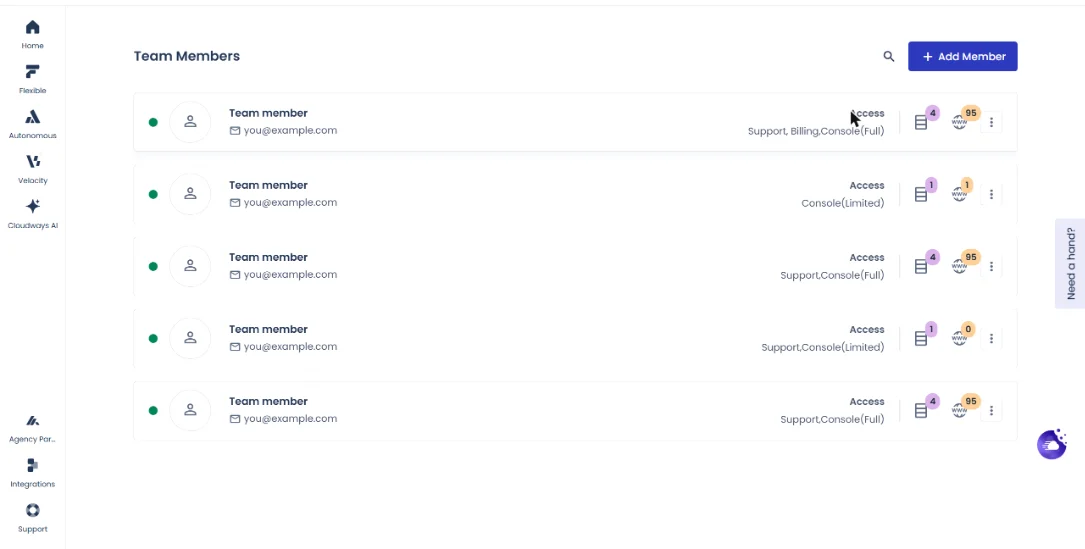
Important about Autonomous: Autonomous currently has no limited level. Whoever gets access to Autonomous gets access to all the applications and to plan management, including the applications’ access details. If you want to share only one site, consider giving SFTP credentials for the application instead.
What the team member sees and what they can do
After activation, the team member receives two emails: a welcome email and an activation email. They click the link, choose a password and log in to the panel with their email.
They will see only what you approved. Depending on permissions, they can perform actions on the server such as start and stop, scaling, cloning and deleting, and in the application actions such as managing domains, installing SSL, cron jobs and settings. They can’t add new servers to the account, and they can’t manage the team members either.
For SFTP/SSH access, the team member creates their own application credentials from the panel. That way every person has their own user, and passwords aren’t shared.
Working with several teams from the same user
If you’re a freelancer or an agency working with several clients, you don’t need several users. One email address can be a team member in several Cloudways accounts. In the top left corner, next to the logo, there is a dropdown of teams. You choose the client, and the panel shows only their servers, applications and projects. It’s worth checking which team you’re in before every action, so you don’t change another client’s server by mistake. For a proper handoff of a site to a client, including domain and email, see handing a site over to a client.
Application SFTP credentials: when you don’t need the panel at all
A developer who only needs to upload files doesn’t need to log in to the panel. In that case, create application credentials for them:
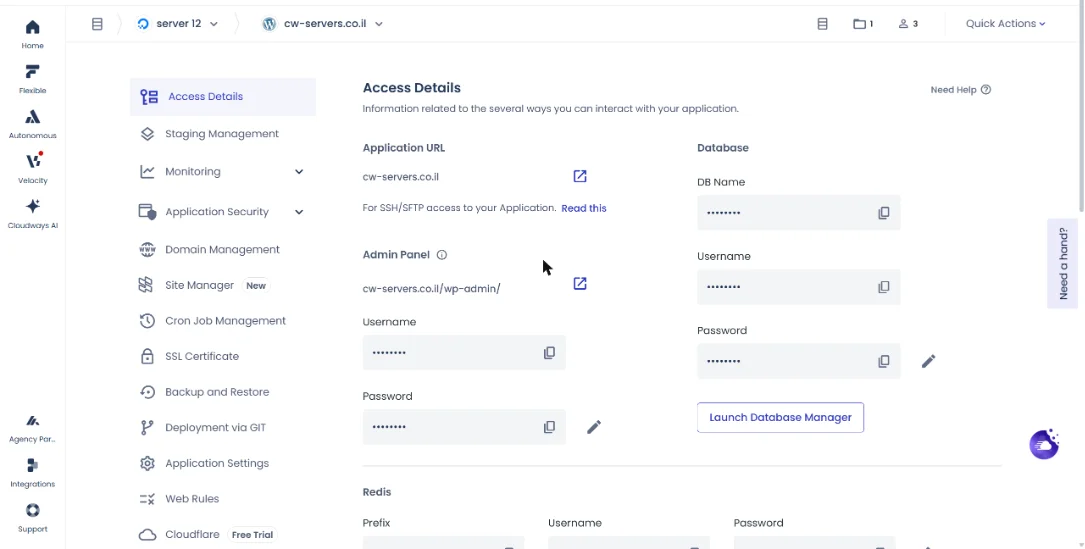
- Open the application and choose Access Details.
- In the Application Credentials area, add a new user with a username and password.
- If they also need SSH, enable SSH access for the user.
- Send them the username, the password and the server’s IP address. They will connect directly to the application’s folder only.
How to connect with these details in FileZilla is explained in the guide to accessing site files on Cloudways.
How do you edit, deactivate and delete a team member?
- Editing permissions: in My Teams, click the team member, change what you need and click Update.
- Temporary deactivation: change the Status from Active to Not Active. It suits a freelancer who is finishing a project and may come back.
- Deletion: click (⋮) next to the team member, choose Delete Team Member, type DELETE in the confirmation window and click Delete.
When someone leaves, don’t stop at deleting the team member. Also delete the SFTP credentials they created for applications, and check that they didn’t leave behind any SSH keys.
The code BFCM802 takes 80% off your bill for the first two months (up to $200 off per month), including unlimited free site migrations. New customers only, and only until the offer ends.
The offer ends on December 4, 2026 at 23:59 (UTC+2).
Start with a free trial, no credit card. Enter the code at checkout and check that it shows up.
After Black Friday: 30% off for 3 months with the code ASAEL. On a large server (above about $444 a month) ASAEL already saves more today. BFCM802 vs. ASAEL calculator
Start a free trial server, no credit card. When you move to a paid plan, the code ASAEL takes 30% off your bill for the first three months.
The link fills in the code on the signup form. Just make sure it shows up.
Common mistakes and how to fix them
The panel won’t let me add the email address: the address is already linked to a Cloudways account. Ask for a different address. A team member can’t also be the owner of an account with the same address.
The team member didn’t receive the activation email: ask them to check the spam folder. If the email isn’t there, delete the team member and add them again, or contact support.
The team member can’t see the site: with Limited Access you ticked the server but not the application inside it. Edit the permissions and tick the application too.
The team member can’t connect over SFTP: team members don’t automatically get your SFTP credentials. They need to create application credentials, and their IP address needs to be allowed in the server’s security settings.
You gave Full Access “for convenience”: a team member with Full Access sees the master credentials of all the servers. For most people, Limited Access is enough. If you already gave it, narrow it down and consider changing the master credentials.
A client wants “ownership” of the server: a team member doesn’t become an owner. If the client needs to pay for and control the server themselves, transfer the server to their account, or bill them through Client Billing.
Sources
- Cloudways Knowledge Base: Collaboration features on Cloudways platform
- Cloudways Knowledge Base: How to create and update team members
- Cloudways Knowledge Base: What can I do as a team member
- Cloudways Knowledge Base: How to manage collaboration with multiple teams
Frequently asked questions
Yes. When you add a team member, choose Limited Access, tick the relevant server and inside it only the application you want to share. The team member will see only that one. If they only need files and not the panel, it is enough to create application credentials (SFTP) for them.
Only the account owner. Even a team member with full access can’t manage the list of team members, because access to the Team feature isn’t included in any permission level.
Because the address is already linked to a Cloudways account, trial or full. Such an address can’t be used as a team member. Ask the person for a different email address, or have them open their own account with a separate address.
According to the documentation, a team member can’t add servers, and requests for a new server go to the account owner. With Limited Access you can also control permissions such as managing add-ons and projects. Billing for everything that happens in the account stays with the account owner.
In My Teams, click the three dots next to the team member, choose Delete Team Member and type DELETE to confirm. For a temporary block without deleting, change their status from Active to Not Active.
Related guides
- Billing and invoices on Cloudways
- Client Billing: billing clients through Cloudways
- Cloudways Autonomous pricing
- The Cloudways affiliate program · The affiliate panel, screen by screen
- Cloudways pricing
- All guides on this topic: account and billing guides
Official source: Collaboration Features on Cloudways Platform, How to Create and Update Team Members, What Can I Do As a Team Member?, How to Manage Collaboration with Multiple Teams (Cloudways Knowledge Base). Written and checked by Asael Dreyer · Updated: 6 Nov 2026
Disclosure: this is an independent site, not the official Cloudways site. Some links on this site are affiliate links: if you sign up through them we earn a commission, at no extra cost to you. Full details

