
Last updated: · By Asael Dreyer
Short answer: SafeUpdates is Cloudways’ automatic plugin-update mechanism. It updates WordPress, themes and plugins on a temporary Staging copy first, runs a visual check and performance tests, and pushes to the live site only if everything passes. If something fails, the site rolls back to the backup taken before the update. As of November 2026, SafeUpdates is no longer a separate product: it is part of Site Manager Pro, which you enable from the Site Manager menu of the WordPress application.
What problem does SafeUpdates solve?
Anyone who manages WordPress sites knows the dilemma. If you do not update, the site is exposed to vulnerabilities in old plugins. If you do update, sometimes a single plugin breaks the layout, the form or the checkout page. So a lot of site owners simply put updates off, which is exactly how most WordPress sites get hacked. What update policy should you set with clients? See an update policy for clients.
The manual solution is to clone to a Staging environment, update there, check every important page, and only then update the live site. It works, but it takes time, and with ten sites it is already a full working day. SafeUpdates runs the same process automatically, on a schedule you set. A live store needs special care with updates: safely updating a WooCommerce store.
How the process works, step by step
- Backup: before every update, a full backup of the live site is taken.
- Temporary Staging: an identical copy of the site is created, and the updates are installed on it, not on the live site.
- Tests: screenshots and checks before and after the update, a performance check, HTML validity, browser console and network errors, and a visual check.
- Deploy or cancel: if all the tests pass, the updates move to the live site. If not, the update is cancelled. If a problem shows up even after deployment, the site rolls back to the backup.
Visual Regression Testing (VRT) is an automatic comparison between a screenshot of the page before the update and after it. If the layout, design or page components changed by more than the threshold you set, the system stops. This is the check that catches what a human eye would miss in a rushed review.
What changed with SafeUpdates and Site Manager?
According to Cloudways’ current documentation, Site Manager replaces the previous SafeUpdates tool. The old tool worked through WP-CLI and was slow on many sites; Site Manager works with a small WordPress plugin that syncs data within seconds. SafeUpdates itself remains, as one of the update options in the Pro plan. On Cloudways’ product pages it now appears as “Site Manager Pro, formerly SafeUpdates”.
| Feature | Site Manager Basic (free) | Site Manager Pro (paid) |
|---|---|---|
| Site overview and management of plugins, themes and users | Yes | Yes |
| Quick Updates (updating directly on the live site) | Yes | Yes |
| One-click WordPress login (SSO) | Yes | Yes |
| SafeUpdates (updating through Staging and tests) | No | Yes |
| Scheduled automatic updates | No | Yes |
| Visual check for up to 5 pages | No | Yes |
| Critical Updates (urgent security fixes) | No | Yes |
| WordPress activity log and update history | No | Yes |
| PageSpeed score tracking | No | Yes |
The price of Site Manager Pro is shown in the platform at activation time, and the official article does not state it. As of 6 Nov 2026, Cloudways’ add-ons page still shows SafeUpdates “starting from $3 per month”, but it is not clear that this is the price of Site Manager Pro, so I will not commit to a figure. Check the current price on the activation screen before you confirm.
Quick Update vs SafeUpdate: when to use which
| Quick Update | SafeUpdate | |
|---|---|---|
| Where the update is installed | Directly on the live site | On a temporary Staging first |
| Backup and tests | None | Backup, visual check, performance and errors |
| Speed | Almost instant | Slower |
| Best suited for | Small fixes, low-traffic sites | Stores, client sites, sites that earn revenue |
What to prepare before you start
- The application must be WordPress on Flexible, in the new interface.
- The site must be reachable from the internet, with a domain pointing to your Cloudways server.
- If the site sits behind your own Cloudflare account, Sucuri or another firewall, you will need to allow Site Manager’s IP addresses there. Cloudways allows them automatically only at the server level.
- You need permission to add a paid subscription to the application (for the Pro plan).
How to enable SafeUpdates (Site Manager Pro)
- Log in to the platform and choose Flexible in the side menu.
- Go to the Applications tab and click the WordPress application.
- In the application’s side menu, click Site Manager.
- On the screen showing the two plans, click Get Pro (or Start Free for the basic plan).
- Wait for the message “Subscribing to Site Manager Plan…” until activation finishes.
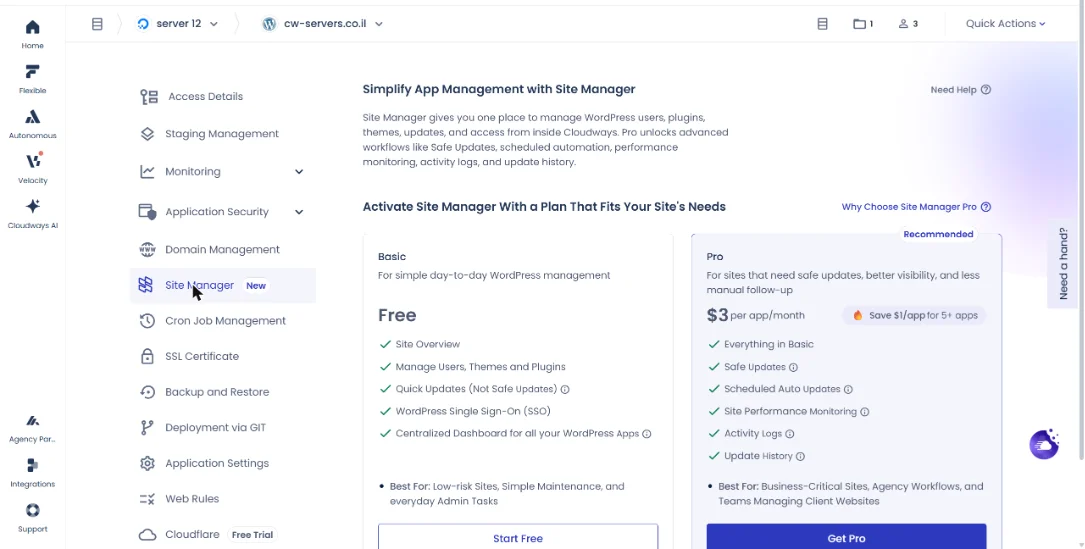
If you manage many sites: you can connect applications in bulk through Integration > Site Manager in the main dashboard, and pick a plan for each one.
How do you schedule automatic plugin updates?
- Go to Site Manager > Auto Updates > Scheduling.
- Turn on the Set Automatic Schedule Update toggle.
- Choose a day under Day of Week and a time under Schedule Time. The time is in UTC.
- Click Manage Updates and tick what to include: WordPress Core, Plugins and Themes (everything or selected items). Save with Save Update Configuration.
- Under Update Type, choose SafeUpdate.
- Choose the sensitivity of the visual check (see the table below).
- Check Smart Skip (per the official guide it is on by default), consider turning on Critical Updates (explained below), and click Save Changes.
A tip on time zones: the time is set in UTC, so convert from your local time and remember that the offset changes with daylight saving. If you want the update to run at 3 a.m. local time, work out the matching UTC hour for the season. And avoid peak shopping hours and sale nights, when the store is busy.
Visual check sensitivity
| Level | Allowed difference | Best suited for |
|---|---|---|
| Critical | 0% | Checkout pages, stores, important landing pages |
| Standard | Up to 5% | Blogs, business and marketing sites |
| Low | Up to 10% | Sites with frequently changing content, such as feeds and dashboards |
If your home page has a rotating slider, a dynamic promotions banner or an Instagram feed, the Critical level will stop almost every update. In that case Standard is more balanced.
Choosing which pages to check
By default the visual check runs only on the home page. In the Visual Regression tab, click Add Page and add up to 5 important pages. On a store: a product page, the cart and the checkout page. On a service site: the contact page and the main service page.
Smart Skip and Critical Updates
Smart Skip lets the process continue even if a particular plugin or theme fails to update: the problem item is skipped, the rest are updated, and then the visual check runs. Without Smart Skip, one stuck plugin stops all the updates.
Critical Updates is connected to the Vulnerability Scanner. When a high-severity or actively exploited vulnerability is found, the fix is pushed immediately as a Quick Update, without waiting for the scheduled time. This shrinks the window in which the site is exposed. Read about the scanner itself in the Malware Protection and Vulnerability Scanner guide.
Email notifications
Under Auto Updates > Notifications you can add up to 4 email addresses and choose notifications: a message 24 hours before a scheduled update (Pre-Notification), a successful update, and a cancelled update. Save with Save My Preference. For agencies: add the client’s email too, so they know in advance.
The code BFCM802 takes 80% off your bill for the first two months (up to $200 off per month), including unlimited free site migrations. New customers only, and only until the offer ends.
The offer ends on December 4, 2026 at 23:59 (UTC+2).
Start with a free trial, no credit card. Enter the code at checkout and check that it shows up.
After Black Friday: 30% off for 3 months with the code ASAEL. On a large server (above about $444 a month) ASAEL already saves more today. BFCM802 vs. ASAEL calculator
Start a free trial server, no credit card. When you move to a paid plan, the code ASAEL takes 30% off your bill for the first three months.
The link fills in the code on the signup form. Just make sure it shows up.
Common mistakes and how to fix them
“Update Your HTTP Auth Credentials”: the site is protected with an HTTP password, and Site Manager cannot reach the pages to check. Temporarily turn off the password protection, run the update, and turn it back on.
“We Are Unable to Connect to Your Site”: the site is not reachable, the domain does not point to the server, the Site Manager plugin is off, or a CDN or firewall is blocking the requests. Check them in that order.
“Please Re-install the Plugin and Retry”: the Site Manager plugin is missing, corrupted or disabled. Delete it from the WordPress admin, install it again and make sure it is active.
The update was blocked because a backup is running: Site Manager does not update during a scheduled backup, to prevent a conflict. Wait for the backup to finish and try again. It is a good idea to schedule updates a few hours after the backup time.
Every update is cancelled because of the visual check: the page probably has dynamic content. Lower the sensitivity to Standard or Low, or replace the tested page with a more stable one.
Who it suits less
A small brochure site with five plugins, whose owner logs in every week, can manage with Site Manager Basic and careful manual updates. Sites with flows that a visual check does not catch, such as a custom payment gateway or an external API connection, also need a manual check after major updates. SafeUpdates lowers the risk a lot, but it does not replace testing the full purchase flow in a store.
Want to go a step further and manage your servers with AI? See Cloudways MCP Server, AI Website Builder and Managed AI Agents.
Sources
The official sources this page is based on (checked on 7 Nov 2026):
- Cloudways Knowledge Base: How to use cloudways site manager
- Cloudways: SafeUpdates
- WordPress.org: Plugin and themes auto-updates
Frequently asked questions
Yes, but as part of Site Manager Pro. Site Manager replaced the previous SafeUpdates tool, and SafeUpdate remains as an update type inside it, alongside Quick Update.
According to the original product page, SafeUpdates was tested on more than 100 popular plugins and works with premium plugins that support updating through WP-CLI. Plugins that require an active license need a valid license to receive an update.
If the problem is found in the tests on Staging, the update never reaches the live site. If it is found after deployment, the site automatically rolls back to the backup taken before the update, and you get a notification.
Yes. In Manage Updates you choose exactly which components are included: WordPress core, plugins and themes, everything or specific items. A plugin you want to update manually, you simply leave unticked.
No. The free plan includes management of plugins, themes and users and manual Quick Updates. Scheduled updates, SafeUpdates and the visual check are only in the Pro plan.
Related guides
- Cloudways MCP Server: managing servers with AI
- Cloudways AI Website Builder
- Managed AI Agents on Cloudways
- Setting up an AI agent
- The Staging environment on Cloudways
- More on WordPress on Cloudways: WordPress and WooCommerce on Cloudways
- Cloudways website hosting
- All guides in this category: AI and automation guides
Official source: How to Use Cloudways Site Manager (Cloudways Knowledge Base), Cloudways SafeUpdates. Written and checked by Asael Dreyer · Updated: 6 Nov 2026
Disclosure: this is an independent site, not the official Cloudways site. Some links on this site are affiliate links: if you sign up through them we earn a commission, at no extra cost to you. Full details

