
Last updated: · By Asael Dreyer
In short: to move a site from one server to another inside the same Cloudways account, you clone the application to the destination server with Clone App/Create Staging, add your domain to the copy and make it the primary domain, then change the A record to the new server’s IP address. The old site keeps running until the moment of the switch, so there is no downtime. The work itself takes about 30–60 minutes, plus waiting time for the DNS to update.
When you would move a site to another server
On Cloudways, every server is a separate virtual machine at a cloud provider. Sites that sit on the same server share the same memory, CPU and disk. Cloudways’ own recommendation is clear: several small servers with a few sites each are better than one giant server with dozens of sites.
The common reasons to move a site to another server:
- One site is “eating” the server. A WooCommerce store that has grown slows down every other site. Move it to a server of its own.
- Security isolation. A site that gets hacked or attacked affects all of its neighbors on the server. Important sites are worth separating.
- Different requirements. An old site that needs a different MySQL version, packages or server settings than all the rest. On Debian 11 and newer servers you can already choose a PHP version per application, but on older servers the PHP version is shared by the whole server.
- Server location. If most of your visitors are in one region, a server closer to them gives shorter response times. You pick the data center when you launch a server, and cloning to a new server lets you choose a different one.
- Client billing. Agencies move a client’s site to a separate server to know exactly what it costs, or as preparation for transferring the server to the client’s own account.
From my experience with dozens of servers: the official recommendation is up to about 10 small WordPress sites on one server, and fewer the busier they are. Large sites get a server of their own.
What are the ways to move a site within Cloudways?
| Method | What it does | When to choose it |
|---|---|---|
| Clone App | Copies one site to another existing server or to a new server | Almost always the right way to move a single site. This is what the guide teaches |
| Clone Server | Copies all the sites on a server to a new server, possibly at a different cloud provider and in a different location | When you change cloud provider or location for the whole server, or want a smaller server |
| Scale | Moves nothing, only adds resources to the existing server | When the only problem is a lack of resources, see the guide to scaling a server |
Before you start
- A destination server that is ready. An existing server in the account, or a new server you launch during the clone. The destination server must meet the application’s minimum requirements.
- The same database engine. You cannot clone between a server with MariaDB and a server with MySQL 8.4. Check Settings & Packages on both servers.
- A compatible PHP version. The copy inherits the PHP version and settings of the original site, but runs on the destination server’s packages. If a warning about package differences appears, update the destination server before cloning.
- DNS access. At your domain registrar or in Cloudflare. Without it you will not be able to change the A record.
- A fresh backup. Take a backup of the application before you begin. It takes a minute and is worth every second.
- An account in the trial period? During the trial only one server is allowed, so you cannot move a site to another server until you upgrade the account.
My most important tip: if the domain is managed in Cloudflare, the switch at the end of this guide takes effect almost immediately. With a regular domain registrar it can take a few hours. If you haven’t connected it yet, it is worth connecting the domain to Cloudflare before the move. How long a DNS update really takes is explained in the DNS propagation guide.
How do you move a site between servers, step by step?
I demonstrate the whole move, from cloning the application to swapping the IP in Cloudflare. Here are the same steps in writing:
Step A: clone the application to the destination server
- Log in to the management panel, open Servers, choose the server the site is on, click www and select the application.
- Open the quick actions menu (Quick Actions) and choose Clone App/Create Staging. In the old interface the menu opens when you hover over the orange bubble in the corner of the screen.
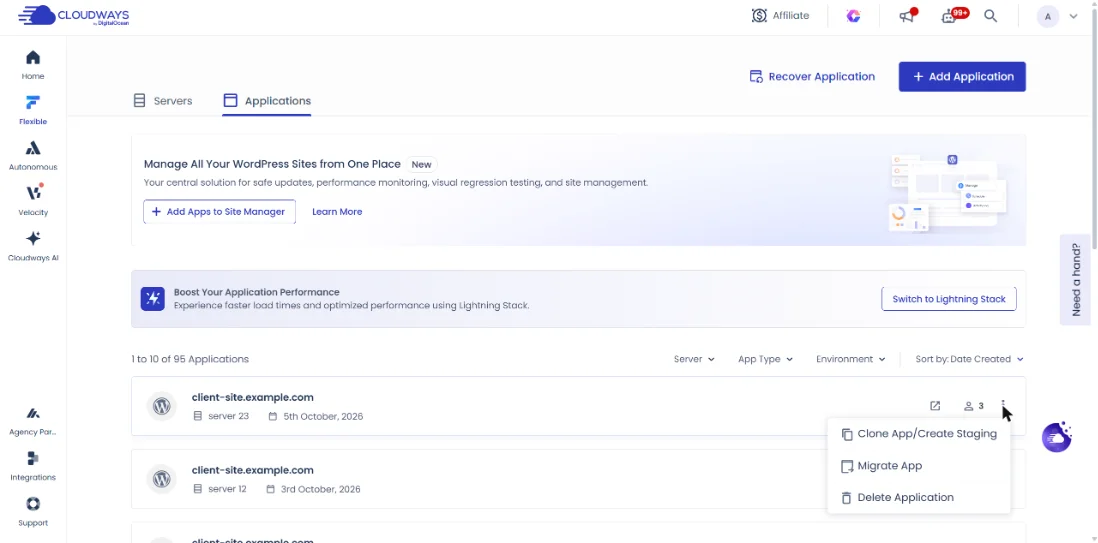
- In the dropdown, choose the destination server, or a new server if you want to launch one now.
- Do not check Create as Staging. Checking it creates a staging environment linked to the original site, not an independent site on the new server.
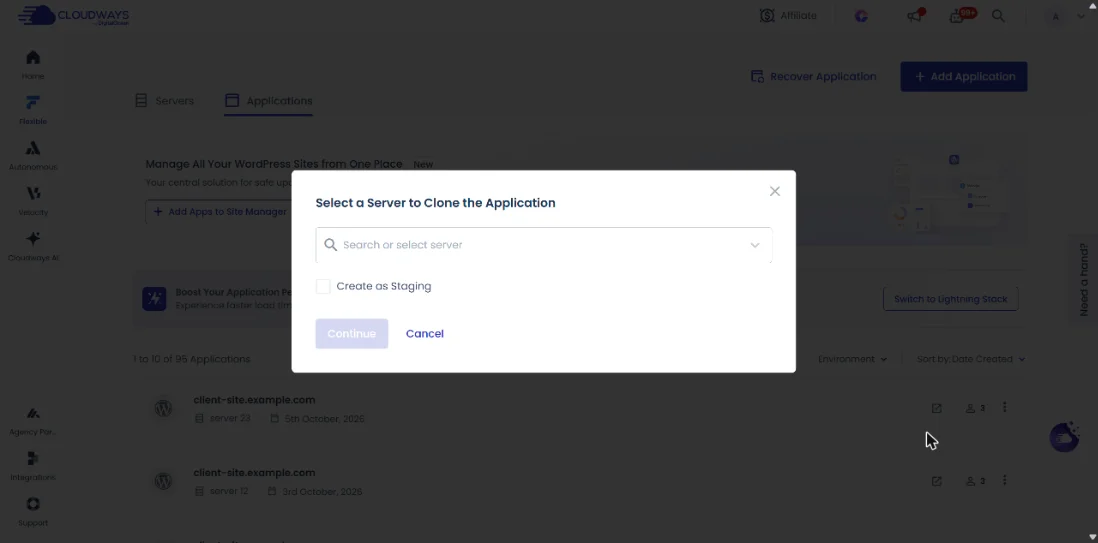
- Click Continue and wait for the message that the clone has finished.
What the clone copies: all the site files, the database, the PHP version and its settings, and the WordPress admin login details. What it does not copy: SSH/SFTP users, CDN settings, and a few folders such as /.git, wp-content/cache and the debug.log file.
Step B: set the real domain on the copy
The copy is created with a temporary Cloudways URL (ending in cloudwaysapps.com). Now you connect your real domain to it.
- Open the new application, choose Domain Management in the side menu and click Add Domain. Enter the domain and save with Save Changes. When you add a primary domain, the www version is added automatically.
- Next to the domain, click the three dots (⋮), choose Make Primary and confirm with Set as Primary. Setting it as the primary domain also updates the site’s base URL.
Note: if your domain uses www as the main version, set it up exactly that way, so the links on the site don’t change.
Step C: test the site before you change DNS
This is the step most people skip, and that is a pity. You can view the site on the new server under the real domain, before any visitor reaches it.
- Copy the new server’s IP address. It appears on the server page, in the Master Credentials area, and also on the application’s Access Details screen.
- On Windows, open Notepad as administrator (Run as administrator), open the file
C:\Windows\System32\drivers\etc\hosts(on macOS and Linux it is/etc/hosts) and add a line with the IP and the domain, with and without www:
203.0.113.10 example.com
203.0.113.10 www.example.com- Save, open the site in your browser and check the pages, forms, shopping cart and admin login. If the domain goes through Cloudflare’s proxy, you may need to test in a private browsing window or flush your computer’s DNS cache.
When you finish the move, delete the lines from the hosts file. Otherwise your computer will keep going to the server listed in the file and not by DNS.
Step D: swap the A record
- Go to the domain’s DNS management, edit the A record of the primary domain and replace the IP with the new server’s address. If there is a separate A record for www, replace that one too. If www is set up as a CNAME pointing to the primary domain, there is nothing to change on it.
In Cloudflare you do this in the site’s DNS tab. At any other domain registrar it is exactly the same action, in the registrar’s DNS interface. See the guide to connecting a domain to Cloudways for registrar examples.
- Check propagation with a tool such as whatsmydns.net. On Cloudflare it is almost instant. At other registrars it usually takes minutes to a few hours, and sometimes up to 24 hours.
Step E: SSL, testing and cleanup
- Once DNS points to the new server, go to SSL Certificate in the new application and install a Let’s Encrypt certificate for the domain and for www. The certificate requires the domain to already point to the server, which is why it comes after the DNS switch. If the Cloudflare proxy is on and the installation fails, you may need to turn it off temporarily. Full details are in the guide to installing an SSL certificate.
- Test the site again from several devices, including forms and outgoing email. If the site uses an SMTP plugin or Elastic Email at the server level, make sure it is configured on the new server too.
- Only after a few days of normal operation, delete the old application. If the old server is now empty, delete it as well, because every running server keeps being billed.
The code BFCM802 takes 80% off your bill for the first two months (up to $200 off per month), including unlimited free site migrations. New customers only, and only until the offer ends.
The offer ends on December 4, 2026 at 23:59 (UTC+2).
Start with a free trial, no credit card. Enter the code at checkout and check that it shows up.
After Black Friday: 30% off for 3 months with the code ASAEL. On a large server (above about $444 a month) ASAEL already saves more today. BFCM802 vs. ASAEL calculator
Start a free trial server, no credit card. When you move to a paid plan, the code ASAEL takes 30% off your bill for the first three months.
The link fills in the code on the signup form. Just make sure it shows up.
What common mistakes happen during a move, and how do you fix them?
I checked Create as Staging by mistake: a staging environment was created instead of an independent site. Delete it and clone again without the checkbox. A staging environment cannot be cloned again.
The new site redirects to a cloudwaysapps.com address: the domain was not set as primary, so the WordPress site URL stayed temporary. Go back to Domain Management and set the domain as Primary. If that doesn’t help, update the site URL manually.
I moved to the same server and got a conflict: on one server, the same domain cannot be set up in two applications. Remove the domain from the original application and only then add it to the copy.
The clone has been stuck for hours: check the process status in the panel and the server load. If there is no progress, contact support. If the site uses a custom session path, Cloudways recommends moving it to public_html/var/sessions, a folder that is not included in the clone.
After the move the site shows “not secure”: the SSL certificate was not installed on the new server. Certificates do not carry over automatically when you clone an application. Install Let’s Encrypt as in step 13.
I forgot to delete the old server: Cloudways bills by the running time of each server, cloned servers included. An empty server that gets forgotten will keep showing up on your invoice.
Sources
- How to distribute multiple sites on your Cloudways servers – Cloudways Knowledge Base
- How to clone your application – Cloudways Knowledge Base
- How do I take my website live from Cloudways – Cloudways Knowledge Base
Frequently asked questions
No, if you work in the right order. The original site keeps running from the old server until you change the A record. The only downtime that can happen is in the minutes between the DNS switch and installing the SSL certificate on the new server.
According to Cloudways, an application under 30GB is usually cloned in 20–30 minutes, an application of 30–100GB takes up to an hour, and over 100GB takes a few hours. A typical small-business WordPress site finishes well before that.
The clone itself costs nothing, but every running server is billed by usage time. If you launched a new server for the move, it is billed from the moment it runs. After the site has moved, delete the old application, and if the old server is now empty, delete it too.
Cloning an application copies one site to an existing or new server. Cloning a server copies all the sites on it to a new server, and in the new interface it can also copy settings, domains, cron jobs and team members. To move a single site, clone the application.
Yes. You can clone an application to a server running at a different cloud provider, for example from DigitalOcean to Vultr, as long as the destination server meets the application’s minimum requirements. You cannot switch between MariaDB and MySQL by cloning.
Related guides
- How to migrate a WordPress site to Cloudways from another host
- How to transfer a server between Cloudways accounts
- The free Cloudways migration service
- How to launch servers and sites on Cloudways
- All guides on this topic: site migration guides
Official source: How to Distribute Multiple Sites on Your Cloudways Servers, How to Clone Your Application, How Do I Take My Website Live from Cloudways? (Cloudways Knowledge Base). This guide was written and checked by Asael Dreyer · Updated: 6 Nov 2026
Disclosure: this is an independent site, not the official Cloudways site. Some links on this site are affiliate links: if you sign up through them we earn a commission, at no extra cost to you. Full details

