
Last updated: · By Asael Dreyer
In short: DigitalOcean on Cloudways is a DigitalOcean cloud server (Droplet) that Cloudways sets up and manages for you: installation, caching, security, backups and 24/7 support. It starts at $11 per month for a 1GB server, compared with $6 for a similar Droplet bought directly from DigitalOcean with no management. It is the most popular and best-value choice on Cloudways for WordPress sites. There are ten locations across North America, Europe, Asia and Australia, but none in the Middle East, so pick the one closest to your visitors.
What DigitalOcean is, and what Cloudways adds
DigitalOcean is a cloud provider (IaaS) that sells virtual servers called Droplets. When you buy a Droplet directly, you get an empty Linux machine: you install and maintain the web server, PHP, the database, security and backups yourself.
DigitalOcean on Cloudways is the same kind of server, but ready to work. Cloudways builds it with a stack tuned for WordPress and PHP, configures caching, a firewall and backups, and gives you a dashboard for managing sites, domains, SSL and staging. You do not need to know Linux.
One fact worth knowing: Cloudways is a DigitalOcean subsidiary, but the services are separate. According to Cloudways, you can sign in to it with your DigitalOcean account details, billing comes only from Cloudways (there is no separate invoice from DigitalOcean), and Cloudways does not manage Droplets that already exist in your DigitalOcean account. You create a new server from inside Cloudways.
DigitalOcean direct or managed: what the price difference buys
A basic Droplet with 1GB of memory, one CPU, 25GB of storage and 1,000GB of bandwidth costs $6 per month directly from DigitalOcean. A similar server through Cloudways costs $11. The $5 per month difference buys what you would otherwise do yourself:
| Task | DigitalOcean direct | DigitalOcean on Cloudways |
|---|---|---|
| Installing the web server, PHP and database | You | Automatic at launch |
| Caching (Varnish/NGINX, Redis, Breeze) | You | Preconfigured |
| System updates and firewall | You | Managed |
| Backups | A paid DigitalOcean service (20% or 30% of the Droplet price, or by size) | From the dashboard, $0.033 per GB of backup |
| SSL, staging, cloning | You | One click |
| Multiple sites on one server | Manual setup | Add an application with one click |
| Support | Infrastructure only | 24/7 for the server and the platform |
| Root access | Yes | No (SSH and SFTP are available) |
Prices are correct as of 6 Nov 2026, from DigitalOcean’s pricing page and Cloudways’ pricing page, before taxes. All sizes and series are collected on the full DigitalOcean pricing page for Cloudways. Since the start of 2026, DigitalOcean bills per second and Cloudways bills per hour, in both cases with a monthly cap.
When should you buy direct? If you are a developer who knows how to harden a server, you need root, or you run something that is not a PHP site. For everyone else, one hour of downtime on an unmanaged server costs more than several years of that price difference.
DigitalOcean server types on Cloudways
On the server setup screen you choose between three types. Under Basic, you also choose between Standard and Premium.
- Basic Standard: a shared CPU and SSD disk, Intel processors of the second generation or earlier, network up to 2Gbps. The cheapest option, suitable for most brochure sites and blogs.
- Basic Premium: second or third generation Intel Xeon Scalable processors, a faster NVMe disk and a network up to 10Gbps. A small price step up that you can feel on databases and stores.
- General Purpose: a dedicated CPU, with a ratio of 1 core to 4GB of memory. For busy sites, forums and SaaS.
- CPU Optimized: a fast dedicated CPU (2.6GHz and up), with a ratio of 1 core to 2GB. For stores and learning platforms with a lot of content that does not get cached.
How much DigitalOcean costs on Cloudways
| Memory | CPU | Basic Standard | Basic Premium | Storage (Standard / Premium) | Bandwidth |
|---|---|---|---|---|---|
| 1GB | 1 vCPU | $11 | $14 | 25GB SSD / 25GB NVMe | 1TB |
| 2GB | 1 vCPU | $24 | $28 | 50GB | 2TB |
| 4GB | 2 vCPU | $46 | $54 | 80GB | 4TB |
| 8GB | 4 vCPU | $88 | $99 | 160GB | 5TB |
| 16GB | 8 vCPU | $149 | $170 | 320GB | 6TB |
Prices are per month in US dollars, before taxes, from Cloudways’ pricing page on 6 Nov 2026. General Purpose servers start at $98 (8GB, 2 dedicated vCPUs), and CPU Optimized at $72 (4GB, 2 vCPUs). All prices, including other providers, are on the Cloudways pricing page.
- Hourly billing: each server is billed for the hours it is active, with a monthly cap. A server that ran for half a month costs about half.
- A stopped server still costs money: on DigitalOcean you also pay for a server you have stopped, because the resources stay reserved for you. To stop billing, delete the server.
- Bandwidth: going over the bandwidth quota costs $0.02 per GB.
- Backups: $0.033 per GB of backup stored off the server.
Locations: where to put your server
On the server setup screen on 6 Nov 2026, I saw ten DigitalOcean locations: New York, San Francisco, Atlanta, Toronto, London, Amsterdam, Frankfurt, Bangalore, Singapore and Sydney. There is no location in the Middle East.
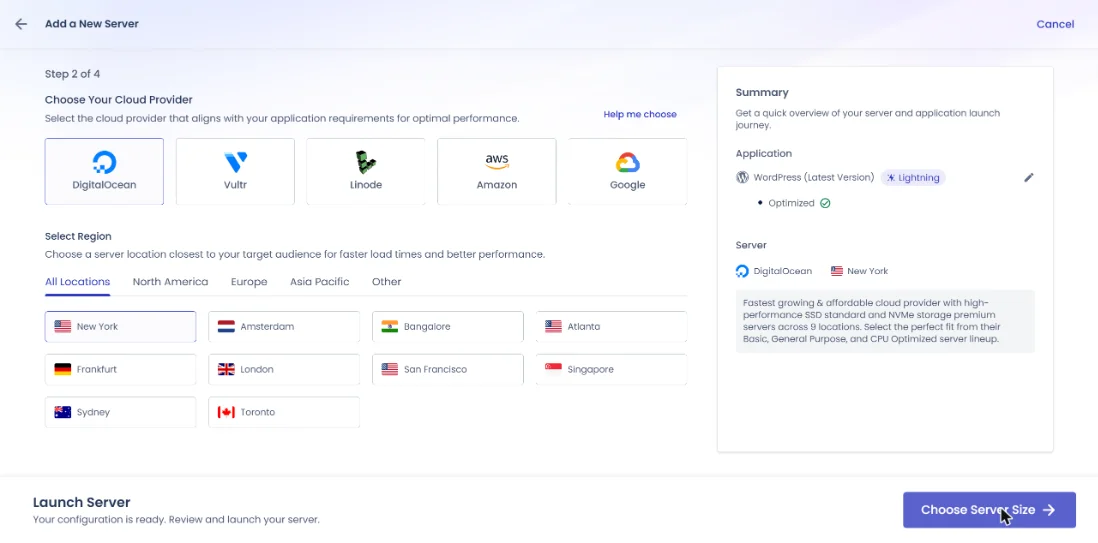
Pick the location closest to most of your visitors: Frankfurt, Amsterdam or London for Europe, New York or Toronto for North America, Singapore or Sydney for Asia-Pacific. With good caching and a CDN, the difference between nearby locations is small on most pages and is mainly noticeable on dynamic pages such as the cart and checkout. If you need a server in Tel Aviv, choose AWS, Vultr or Google Cloud.
How to launch a DigitalOcean server on Cloudways, step by step
- Log in to the dashboard, choose Flexible and click Add Server (Add Server).
- In step 1, choose the application type, for example WordPress, and the stack.
- In step 2, choose DigitalOcean and the location, for example Frankfurt.
- In step 3, choose the database, the server type (Basic, General Purpose or CPU Optimized), Standard or Premium, and a size on the slider. The hourly and monthly price is shown at the bottom of the screen.
- Click Review & Launch, check the summary and launch. Setup takes a few minutes.
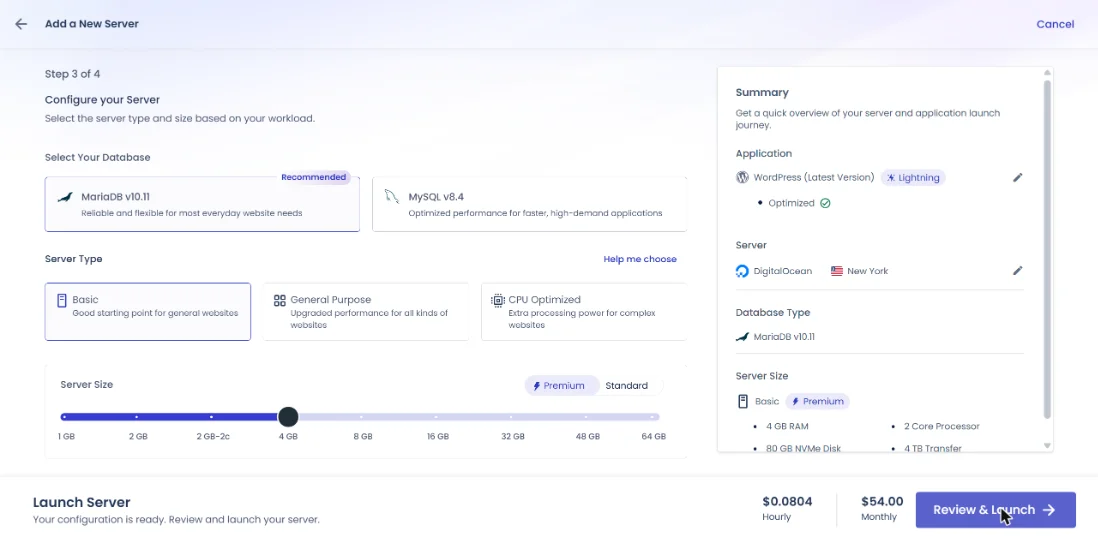
For a full walkthrough of launching your first server, including the trial account, see the guide to opening an account and launching a server.
The code BFCM802 takes 80% off your bill for the first two months (up to $200 off per month), including unlimited free site migrations. New customers only, and only until the offer ends.
The offer ends on December 4, 2026 at 23:59 (UTC+2).
Start with a free trial, no credit card. Enter the code at checkout and check that it shows up.
After Black Friday: 30% off for 3 months with the code ASAEL. On a large server (above about $444 a month) ASAEL already saves more today. BFCM802 vs. ASAEL calculator
Start a free trial server, no credit card. When you move to a paid plan, the code ASAEL takes 30% off your bill for the first three months.
The link fills in the code on the signup form. Just make sure it shows up.
How to scale a DigitalOcean server up and down
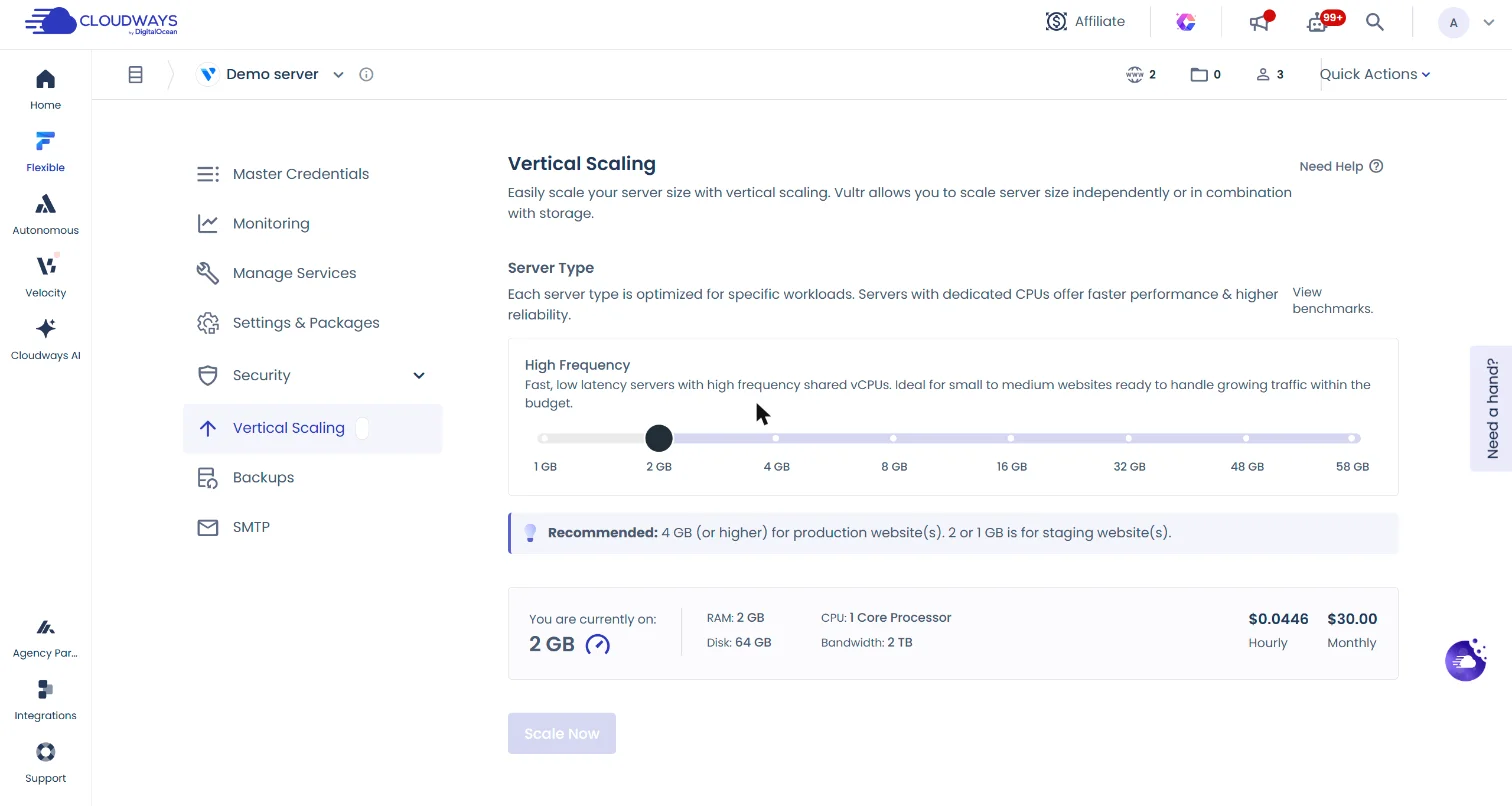
The server’s Vertical Scaling tab has two options, and the difference between them matters:
- Increase CPU and memory only: you can return to the original size at any time. Good for a sales season or a campaign.
- Increase CPU, memory and disk together: permanent. You cannot go back to a smaller size.
In both cases you cannot go below the size the server was created with, and scaling involves a short downtime, so do it during quiet hours and after a backup. If you only need more disk space, there is a separate Block Storage tab. This is how it appears in the Cloudways knowledge base as of November 2026.
What is included with every DigitalOcean server on Cloudways
The server price includes the management layer. According to the DigitalOcean page on Cloudways’ site, as of November 2026, this is what you get at no extra cost:
- A ready-made stack: the Lightning Stack, based on NGINX and PHP-FPM, with server-level caching, Redis and Memcached.
- Object Cache Pro: included on servers with 4GB of memory and above. It mainly helps stores and membership sites.
- Security: a built-in firewall with IP blocking, free SSL, a WordPress vulnerability scanner and two-factor authentication for your account.
- Working tools: staging and cloning, SSH and SFTP, Git, cron jobs and monitoring of more than 15 metrics.
- Copilot: according to the product page, 4 free credits for the AI assistant that detects problems and suggests fixes.
What is not included: mailboxes (paid Rackspace or an external provider), Cloudflare Enterprise, Malware Protection and extended support, all of which are paid add-ons.
Common mistakes with DigitalOcean on Cloudways
Launching a server that is too big “just in case”: you cannot go below the size the server was created with. Start small and scale up, not the other way around.
Scaling the disk as well when you only need memory: scaling with disk is permanent. If you only lack space, Block Storage is the more flexible fix.
Stopping a server to save money: a stopped server keeps costing money. If you do not need it, back it up and delete it.
Pros and cons of DigitalOcean on Cloudways
- Pros: the lowest price on Cloudways; cheap, generous bandwidth; three server types and a Premium version with NVMe; scaling back down is possible when you only increase CPU and memory; Block Storage for adding space.
- Cons: no location in the Middle East; scaling involves a short downtime; scaling with disk is permanent; a stopped server still costs money; fewer locations than Vultr and Google Cloud.
DigitalOcean vs the other cloud providers on Cloudways
| Provider | Entry price on Cloudways | Middle East (Tel Aviv) | Best for |
|---|---|---|---|
| DigitalOcean | $11 (1GB) | No | Most sites, low budgets, audiences in Europe |
| Vultr | $14 (1GB) | Yes | Low-budget sites with a Middle East audience |
| Linode | $14 (1GB) | No | An alternative to DigitalOcean with different locations |
| AWS | $20.56 (1GB) | Yes | Enterprises, flexible scaling up and down |
| Google Cloud | $37.33 (1.7GB) | Yes | A server in the Middle East on enterprise infrastructure |
Prices are before taxes, from Cloudways’ pricing page on 6 Nov 2026. AWS and Google Cloud have no free trial, and bandwidth is billed by usage. A full comparison of all the providers is in the guide to cloud providers and server locations.
Who DigitalOcean on Cloudways suits, and who it does not
It suits brochure sites, blogs and small to medium stores, freelancers and agencies running several sites on one server, and anyone starting out on Cloudways who wants the lowest price with good performance.
It does not suit anyone who needs a server physically in the Middle East, anyone who needs to freely scale a server down even after increasing the disk (AWS or Google Cloud are more flexible there), and anyone who needs full root access.
The offer ends on December 4, 2026 at 23:59 (UTC+2).
Start with a free trial, no credit card. Enter the code at checkout and check that it shows up.
Start a free trial server, no credit card. When you move to a paid plan, the code ASAEL takes 30% off your bill for the first three months.
The link fills in the code on the signup form. Just make sure it shows up.
Sources
This page is based on the following official documentation and pages:
- Which infrastructure provider do I have to choose (Cloudways Knowledge Base)
- Guide to scale servers on the Cloudways platform (Cloudways Knowledge Base)
- Bandwidth charges of infrastructure providers (Cloudways Knowledge Base)
- Managed DigitalOcean Cloud Hosting
- DigitalOcean Droplet Pricing
Frequently asked questions
From $11 per month for a 1GB Basic Standard server, and $14 for the Premium version with NVMe, before taxes. Billing is hourly with a monthly cap, as of November 2026.
Because the price includes management: setup, caching, security, backups from the dashboard, staging and 24/7 support. A direct 1GB Droplet costs $6, but you do all of that yourself.
Ten: New York, San Francisco, Atlanta, Toronto, London, Amsterdam, Frankfurt, Bangalore, Singapore and Sydney. There is none in the Middle East. For a server in Tel Aviv on Cloudways, choose AWS, Vultr or Google Cloud.
No. According to Cloudways, it does not manage existing Droplets. You launch a new server on Cloudways and move your site to it, with the migration plugin or a managed migration.
Yes, if you only increased CPU and memory. If you increased the disk as well, the change is permanent. In any case, you cannot go below the size the server was created with.
Related guides
- Vultr on Cloudways: performance, locations and price
- Linode (Akamai) on Cloudways
- AWS on Cloudways
- Google Cloud on Cloudways
- Cloudways pricing
- All guides in this category: Cloud providers and server locations
Official source: Which Infrastructure Provider Do I Have to Choose?, Guide to Scale Servers on the Cloudways Platform, Bandwidth Charges of Infrastructure Providers (Cloudways Knowledge Base); Managed DigitalOcean Cloud Hosting; DigitalOcean Droplet Pricing (checked on 6 Nov 2026). Written and checked by Asael Dreyer · Updated: 6 Nov 2026
Disclosure: this is an independent site, not the official Cloudways site. Some links on this site are affiliate links: if you sign up through them we earn a commission, at no extra cost to you. Full details

