
Short answer: building a WordPress site for a business takes eight steps: planning, domain, hosting, installation, connecting the domain and SSL, design, plugins, and pre-launch checks, including accessibility and privacy. In my estimate, a 6-page services site goes live in about 5 working days once the content is ready, and a managed cloud server on Cloudways starts at $11 a month (DigitalOcean Standard), as of November 2026.
At a glance: the numbers to know before you start
| Topic | The fact | Source |
|---|---|---|
| Cloudways cloud server | From $11 a month (DigitalOcean, 1GB), billed hourly, 5-day free trial with no credit card | Pricing page |
| Data center choice | Not every location exists on every provider. Tel Aviv, for example, is available on AWS, Google Cloud and Vultr, but not on DigitalOcean or Linode | My own check against the Cloudways API |
| Latency (my test) | From Israel: Vultr Tel Aviv 9 ms on average vs 72 ms to Vultr Frankfurt (ping, my own measurement, indicative) | Latency test |
| Backups | Default: a daily backup kept for a week. Configurable from hourly to every 7 days, with 1–4 weeks of retention | Cloudways KB |
| “Good” speed according to Google | LCP up to 2.5 seconds, INP up to 200 ms, CLS up to 0.1 | web.dev |
| Email to Gmail | Every sender needs SPF or DKIM. Above 5,000 messages a day: SPF, DKIM and DMARC | |
| Online store | Distance-selling laws usually give buyers a cancellation right; the EU and Israel, for example, set 14 days. Check the rules in your own market | Example of a national consumer law (Israel, Hebrew) |
As of 6 Nov 2026. Prices in USD. Full prices by provider are on my Cloudways pricing page.
What you’ll learn in this guide
| Step | What you do | Estimated time |
|---|---|---|
| 1. Planning | Goal, pages, content, budget | Two hours to a day |
| 2. Domain | Choosing a name and registering it | 30 minutes |
| 3. Hosting | Choosing a hosting type and launching a server | 15–30 minutes |
| 4. Installing WordPress | Installation and first settings | 15 minutes |
| 5. Domain and SSL | Pointing DNS and adding a certificate | 30 minutes + propagation time |
| 6. Design | Theme, page builder, language and layout | A day to a week |
| 7. Plugins | SEO, forms, caching, backups, security | One to two hours |
| 8. Checks and launch | Accessibility, privacy, speed, Google | Half a day |
Why choose WordPress for a business site, and when not to?
WordPress is an open-source content management system: free software you install on a server and use to manage every page, image and product on the site. Its main advantage for a business is ownership: the site, the code and the content are yours, and you can move them to any hosting company.
WordPress fits especially well when the site needs to grow: a blog that brings traffic from Google, a WooCommerce store, forms connected to a CRM, or a customer area. There are thousands of plugins and themes, and solid support for every major language, including right-to-left scripts. If you’re moving an existing store, see migrating from Shopify to WooCommerce.
When WordPress isn’t the right choice: if you need a three-page digital business card, have no time or nobody to maintain the site, and don’t plan to grow, a site builder such as Wix will be simpler. WordPress needs regular plugin and theme updates. Neglect them and you’re exposed to hacks.
Domain, hosting and WordPress: how do the three pieces fit together?
A self-hosted WordPress site is made of three separate components that you pay for separately: the domain (the address), hosting (the server that runs the site) and WordPress (the free software that manages the content). Each can sit with a different provider, and you can replace any of them without rebuilding the site.
A common confusion is WordPress.org versus WordPress.com. WordPress.org is the home of the open-source software, which you install on hosting of your choice. WordPress.com is a commercial service that includes managed hosting, and according to its official comparison page you can install plugins only on paid plans. This guide covers the first option.
| Component | Where you buy it | Whose name it’s registered in | What happens when you leave a provider |
|---|---|---|---|
| Domain | A domain registrar | The business or its owner | Transfer it to another registrar, or just change the DNS records |
| Hosting | A hosting company, for example Cloudways | The business (even if a freelancer manages it) | Move the site files and database to a new server |
| WordPress, theme and plugins | Free from WordPress.org; paid licenses from the developers | Licenses in the business’s name | They move with the site; a license that isn’t renewed stops getting updates, depending on the developer’s terms |
Step 1: What do you need to plan before you build?
Plan the goal, the page map, the content, who builds it and the budget before you buy a domain. Most sites that stall halfway stall because of content, not technology. Answer these questions in writing:
- What does the site need to do? Bring inquiries, sell, show your work, or inform. One primary goal.
- Who is the audience and what do they search for on Google? Write down 10 questions customers ask you on the phone. Each one can become a page or a section.
- Page map. For a typical services site: home, about, one page per service, testimonials, FAQ, contact, an accessibility statement and a privacy policy.
- Content and assets. Copy, logo, real photos of the business. Stock photos alone look generic.
- Who builds it? You, a freelancer or an agency. And: who maintains it after launch.
- Budget. Build, hosting and yearly maintenance. The full breakdown is in my guide to what a business WordPress site costs.
Build it yourself, with a freelancer or with an agency?
The decision depends less on the build budget and more on who will maintain the site after launch. The table sums up my experience from client work; detailed price ranges are in the WordPress site cost guide.
| Who builds | Fits when… | The main risk | What to insist on |
|---|---|---|---|
| You | A simple brochure site, you have time to learn, the content is yours | Lots of time on design, and maintenance that gets forgotten | A ready-made theme, few plugins, automatic backups |
| Freelancer | A services site or small store, mid-range budget | Dependence on one person; domain and hosting in their name | Everything registered to the business, admin access for you, a written maintenance agreement |
| Agency | A large site, integrations, campaigns, an in-house team that needs support | High price, and small changes that take a while | A response SLA, documentation, staging before every change |
Step 2: How do you choose and register a business domain?
A domain is the site’s address (for example yourbusiness.com). You buy it from a domain registrar, separately from hosting, and pay for it once a year or for several years at a time.
- Country domain or .com? For a business serving one country, the local country-code domain (.de, .co.uk, .com.br and so on) is familiar and builds trust. A .com fits an international audience. If you can, register both and redirect one to the other.
- Short and easy to spell over the phone, with no unnecessary hyphens and no numbers you have to explain.
- Register it in the business’s name or your own, not the freelancer’s. It’s a common mistake that complicates moving the site later.
- Country-code domains are registered through registrars accredited by that country’s registry. The registry’s website keeps the current list of accredited registrars.
Important: a cloud hosting company like Cloudways doesn’t sell domains. You buy the domain from a registrar and connect it in step 5. For an example of how registration and pricing work for a country-code domain, see my guide to registering a country-code domain.
Step 3: Which hosting should a business WordPress site use?
For a site that should bring inquiries or sell, choose hosting with dedicated resources in a data center close to your visitors. Hosting is the server where the site “lives”. It’s the technical decision with the biggest effect on speed, stability and security. There are three main types:
| Hosting type | Fits | Advantage | Drawback |
|---|---|---|---|
| Shared hosting | A small brochure site, low budget | Cheap, usually includes email | Shared resources, high renewal price, slow under load |
| Managed cloud hosting (like Cloudways) | A business site, a store, a freelancer with several sites | Dedicated resources, fast, backups and staging, no lock-in | No email and no cPanel, interface in English |
| Self-managed VPS | Developers | Full control, cheap | All security and maintenance is on you |
For a business site that’s meant to bring inquiries, I recommend managed cloud hosting. On Cloudways a server starts at $11 a month, billed hourly, and you can run several sites on it. Pick a data center close to your audience so the site loads fast for them. Locations are covered in my server locations guide, and the differences between hosting types in my WordPress hosting guide.
Why location matters, with a real example: on Cloudways you can open a server in Tel Aviv with three providers: AWS, Google Cloud and Vultr (I checked against the Cloudways API on 6 Nov 2026). In my measurement from the same home connection, Vultr Tel Aviv answered in 9 ms on average, versus 72 ms to Vultr Frankfurt. That’s an indicative measurement from one place, and it doesn’t replace caching and a CDN, but the same logic applies wherever your visitors are. Details are in my regional server guide and the latency test.
Cloudways offers a 5-day free trial with no credit card. You can build the site during that period and decide afterwards. The full walkthrough is in my guide to opening a Cloudways trial account.
Step 4: How do you install WordPress on Cloudways?
On Cloudways there’s no “installation” in the old sense of uploading files: you choose WordPress when you launch the server, and it’s installed automatically with caching and the Breeze plugin already configured.
- Log in to the platform and click Add Server.
- Choose a WordPress application and name the application and the server.
- Pick a cloud provider, a server size and a location.
- Click Launch Now and wait a few minutes.
- In the application’s Access Details tab you’ll find the WordPress admin URL and the login credentials.
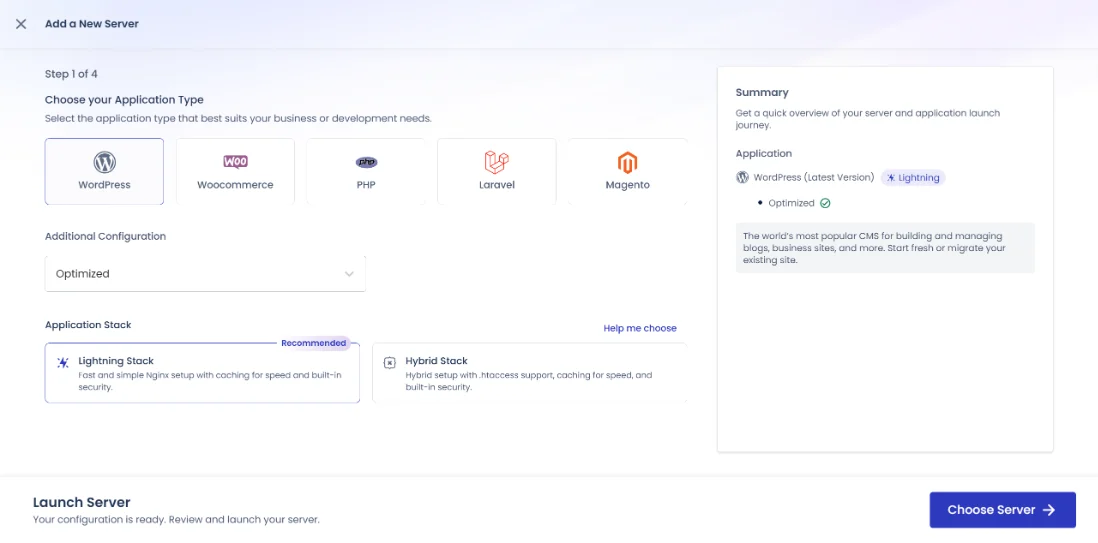
The full guide, including which server size to choose: how to launch a server on Cloudways.
First settings in WordPress
- Language: Settings → General → Site Language: the language of your audience. Both the admin interface and the site switch to it, including text direction for right-to-left languages.
- Timezone: your business’s local timezone, so post and order dates are correct.
- Permalink structure: “Post name”. Set this now, before there’s any content.
- Admin user: a username other than admin, a strong password, and two-factor authentication.
- Delete the sample content and any plugins and themes you won’t use.
Step 5: How do you connect the domain and install SSL?
Now you connect the address you bought to the server. This happens in two places: in the hosting panel (you add the domain to the application) and at the domain registrar (you point the DNS records to the server).
- In the Cloudways platform, open the application, go to Domain Management and add the domain as the primary domain.
- Copy the server’s IP address.
- At the registrar, create an A record for the root domain (@) and for www, pointing to the IP.
- Wait for DNS to update. It usually takes minutes to a few hours.
- Under SSL Certificate, install a free Let’s Encrypt certificate and turn on the HTTPS redirect.
Detailed guides: how to connect a domain to Cloudways hosting, DNS setup at a registrar (worked example with a country-code domain) and installing an SSL certificate.
Step 6: How do you design the site: a theme or Elementor?
A theme sets the overall look of the site. A page builder such as Elementor lets you design pages by drag and drop, without code. There are two main approaches:
| Approach | Fits | Advantage | Drawback |
|---|---|---|---|
| The WordPress block editor (Gutenberg) + a block theme | A content site, a blog, anyone who wants a light, fast site | Built in, fast, fewer plugins | Less design freedom for beginners |
| Elementor + a lightweight theme | A designed brochure site, landing pages | Design flexibility, lots of tutorials | Heavier, needs a stronger server and optimization |
Language and fonts: check that the theme handles your site’s language properly, and test the layout on mobile. Watch the fonts: not every font covers every alphabet or accented character. If you publish in a right-to-left language such as Hebrew or Arabic, my guide to WordPress RTL covers the details, including fixes for common problems like punctuation on the wrong side.
How do you choose a theme for a business site?
Choose a theme by four criteria, not by the prettiest demo. The WordPress theme directory has filters for features and for block themes; for right-to-left sites there’s an RTL Language Support filter with more than 4,300 themes tagged as RTL-ready (as of 6 Nov 2026).
- Language support: a tag in the directory is a start. Install the theme on a test site set to your site language, and check the menu, the forms and the footer.
- Speed: run the demo page through PageSpeed Insights before you commit. A theme that’s already slow in its demo won’t get faster once you add content.
- Block theme or page builder: decide using the table above, and don’t combine two page builders on the same site.
- License and updates: for a paid theme, check what the license covers, for how many sites and for how long, and what happens to updates if you don’t renew. A theme that stops getting updates becomes a security risk over time.
If you chose Elementor, hosting makes a big difference. An Elementor site on weak shared hosting is a common source of slowness complaints. Tips are in my guide to a fast Elementor site.
The code BFCM802 takes 80% off your bill for the first two months (up to $200 off per month), including unlimited free site migrations. New customers only, and only until the offer ends.
The offer ends on December 4, 2026 at 23:59 (UTC+2).
Start with a free trial, no credit card. Enter the code at checkout and check that it shows up.
After Black Friday: 30% off for 3 months with the code ASAEL. On a large server (above about $444 a month) ASAEL already saves more today. BFCM802 vs. ASAEL calculator
Start a free trial server, no credit card. When you move to a paid plan, the code ASAEL takes 30% off your bill for the first three months.
The link fills in the code on the signup form. Just make sure it shows up.
Step 7: Which plugins does every business site need?
A plugin adds a capability to WordPress. The rule: as few as possible, and only from a known source with regular updates. Every unnecessary plugin is one more thing slowing the site and one more potential hole. These are the basic categories:
| Need | Common examples | Note |
|---|---|---|
| SEO | Yoast SEO, Rank Math | One only, never both |
| Forms | Contact Form 7, WPForms, Elementor Pro forms | Connect SMTP so the emails arrive |
| Caching and speed | Breeze (preinstalled on Cloudways) | Don’t run two caching plugins at once |
| Sending email | WP Mail SMTP | Without it, form emails tend to land in spam |
| Accessibility | An accessibility plugin | A plugin alone doesn’t make a site accessible; see step 8 |
| Backups | Server-level backups (built into Cloudways) | Better than a backup plugin running inside the site |
| Security | Server-level protection + two-factor authentication | See my website security guide |
Forms that don’t send email are one of the most common problems on new sites. The fix is usually SMTP: setting up WP Mail SMTP and SMTP on Cloudways.
How do you set up business email on your domain?
Business email (for example office@yourbusiness.com) comes from a separate email service, not from the site’s server. Cloudways doesn’t host mailboxes on its servers, and offers add-ons instead: Rackspace for mailboxes, and an SMTP add-on for sending email from the site.
There are two different needs here. Mailboxes are what your team reads and writes in, with an email provider of your choice. Sending from the site covers form notifications, order confirmations and password resets, which go through SMTP. According to the same article, the Gmail SMTP add-on sends up to 500 emails a day from a free Gmail account, and up to 2,000 a day from a paid Google Workspace account.
To keep emails out of spam, the domain needs three DNS records: SPF (which servers may send on the domain’s behalf), DKIM (a digital signature on every message) and DMARC (what to do with a message that fails the checks). According to Google, anyone sending to Gmail must have at least SPF or DKIM, and anyone sending more than 5,000 messages a day must have all three. Set all of them up from day one. The full walkthrough: setting up SPF, DKIM and DMARC, and the email provider comparison in my business email on your domain guide.
Which pages does a business site need, and what goes on each?
A typical services site needs six core pages, each with one job and one call to action. This is the template I use on client projects:
| Page | What must be on it | Where the CTA goes |
|---|---|---|
| Home | One sentence saying what you do and for whom, service area, 3 main services, proof (testimonials, logos, numbers) | At the top and again at the end: phone, WhatsApp or a form |
| Service page (one per service) | What’s included, who it’s for, how you work, a price range or “from”, FAQs about that service | After the process section and at the end of the page |
| About | Who’s behind the business, experience, real photos, relevant certifications | Links to the service pages and to contact |
| Testimonials or work | Name, business and a measurable result where possible; before-and-after shots | “Want a similar result?” with a form |
| FAQ | The questions customers ask on the phone, with a direct answer up front | A link to the matching service page |
| Contact | Phone, email, address or service area, hours, a short form (3–4 fields), a map | The form itself |
Alongside these you need legal pages: an accessibility statement and a privacy policy, and for a store also terms and conditions and a returns policy. Details are in the accessibility and privacy section.
How do you write content that Google and AI engines understand?
Write a page for every customer question, with a direct answer in the first paragraph and consistent business details everywhere. A beautiful site without good content won’t bring inquiries. A few simple rules that make a difference:
- A page for every service, with a heading that describes what people search for (“air conditioner repair in Leeds”, not “Our services”).
- A direct answer in the first paragraph. Both Google and ChatGPT quote pages that answer quickly and clearly.
- Consistent business details: the same name, address and phone on the site, on your Google Business Profile and everywhere else.
- Real FAQs, taken from conversations with customers.
- Compressed images with alt text that describes what’s shown, for accessibility and for SEO.
How does the business show up on Google in your area?
A local business shows up in search and on Maps mainly through its Google Business Profile, not only through the website. The site supports the profile: the same name, address and phone in both.
- Who qualifies for a profile: according to Google’s guidelines, a business that serves customers at a fixed address, or one that travels to customers. A PO box or virtual office doesn’t qualify.
- Business name: the real name as it appears on your signage and invoices, with no slogan, no keywords and no phone number in the name.
- A business that travels to customers (plumber, pest control, photographer): set a service area and hide your home address. Google recommends that the service area not extend beyond roughly two hours’ drive from your base.
Structured data: LocalBusiness markup in the page code helps Google understand your business details. According to Google, the required fields are name and address, and it’s recommended to add a phone number with country code, opening hours, coordinates and a URL. SEO plugins such as Yoast generate basic organization schema; full LocalBusiness markup usually needs an extension or manual setup.
Measurement tools, on launch day: Google Search Console (indexing, queries, errors), Google Analytics 4 (where visitors come from and what they do), and Microsoft Clarity if you want session recordings and heatmaps. Every tracking tool needs to be listed in your privacy policy.
Step 8: What should you check before the site goes live?
Check three areas: legal obligations (accessibility, privacy, terms), the technical side (HTTPS, forms, mobile, speed), and the connection to Google. Go through this list before you announce the site. It prevents most first-week problems.
Accessibility and privacy: the legal side
Accessibility: many countries require business websites that serve the public to be accessible, and most national rules point to the WCAG guidelines. What’s required, and who is exempt, differs by country, business size and sector, so check your own jurisdiction. As one national example (Israel) of how detailed these rules get, the accessibility regulations include a chapter on internet services, refer to the national standard IS 5568, and require an accessibility statement in a prominent place on the site, with exemptions and reduced requirements based on factors such as turnover and when the site was built. Whatever the law says, an accessibility plugin doesn’t replace testing: keyboard navigation, contrast, alt text for images, a clean heading structure and forms with labels. The text of that example, for reference: the regulations on Nevo (Hebrew). This isn’t legal advice; talk to an accessibility consultant or a lawyer.
Privacy: privacy laws generally require you to tell people why you collect their personal data, whether they have to provide it, and who it will be shared with. In the EU and UK that’s the GDPR; other countries have their own laws, and, as one example, Israel’s Privacy Protection Law (section 11) sets a similar duty to inform. So a site that collects details (a contact form, a newsletter, orders) or runs tracking tools such as Google Analytics needs a clear privacy policy, and since these laws keep being amended, check the current version. A store also needs terms and a returns policy under consumer law. One example of a statute text: Example of a national privacy law (Israel, Hebrew). This isn’t legal advice; for binding wording, talk to a lawyer.
What goes into an accessibility statement: where one is required, it’s shown in a prominent place on the site (and in the app, if there is one) and follows the web accessibility standard that applies. It typically includes:
- The accessibility adjustments made on the site.
- Contact details for the person responsible for accessibility, where the business must appoint one.
- A way to report an inaccessible element or request an accessible alternative.
Online store: selling on your site is usually treated as a distance sale under consumer law. In practice that tends to mean disclosing, before the purchase, the business name, registration details and address, the product’s characteristics, the price and payment terms, delivery time and method, warranty details and the right to cancel, plus a cooling-off period during which the buyer can cancel. Periods and permitted cancellation fees vary by country; the national consumer law in Israel (section 14C) and the EU, for example, set 14 days. Put all of this in your terms and returns policy. This isn’t legal advice.
Cookies and tracking tools: if the site runs Google Analytics, Clarity or an ad pixel, describe in your privacy policy what data is collected, for what purpose and who receives it, and check whether your market also requires cookie consent. A hands-on accessibility example: WordPress accessibility under local rules.
Technical checklist
- The site loads over HTTPS, and both the www and non-www addresses end up in the same place.
- Every form is tested: the email arrives, and not in spam.
- Mobile check, in at least two browsers.
- Speed test (PageSpeed Insights). If the score is low, see how to speed up a WordPress site.
- In Settings → Reading, “Discourage search engines from indexing this site” is unchecked. It’s the most common reason a new site doesn’t show up on Google.
- The site is connected to Google Search Console, and the sitemap has been submitted.
- A first backup has been taken, and you know how to restore it. See backup and restore on Cloudways.
- Your Google Business Profile is updated with the new address.
What actually affects a new site’s speed?
On a new site, three things determine most of the speed: server location and quality, caching, and the weight of images and scripts. Google measures visitor experience with Core Web Vitals, and according to web.dev the “good” thresholds are LCP (time to load the largest element) up to 2.5 seconds, INP (response to a click) up to 200 ms and CLS (layout shifts) up to 0.1.
- Caching: on Cloudways, the Breeze plugin is preinstalled. According to the support article, the Standard preset turns on Gzip compression, browser caching, image lazy loading and HTML and CSS minification. Start there, and try Advanced only after testing on staging.
- Images: upload images at the width they’re displayed, not straight-from-camera files. Don’t lazy-load the main image at the top of the page, because it’s usually the LCP element.
- Web fonts: one or two font families, only in the weights you actually use.
- A nearby server: a server close to your audience cuts response time for them, especially on pages that aren’t cached, such as the cart and checkout.
How to measure and what to do with the result: website speed test, Core Web Vitals in WordPress and configuring Breeze.
How do you protect a WordPress site from hacks?
Protect the site with four habits: updates, two-factor authentication, backups and minimal permissions. On the hacked sites I clean up, the way in is usually a plugin or theme that wasn’t updated, or a weak password.
- Regular updates of WordPress, plugins and the theme, and removal of anything you don’t use.
- Two-factor authentication (2FA) for every admin user. WordPress doesn’t include it out of the box; the Two-Factor plugin, maintained by the WordPress community, supports authenticator apps, email codes and backup codes.
- Backup strategy: on Cloudways, the default is a daily server backup kept for a week. You can set the frequency from hourly to every 7 days and retention of 1–4 weeks, and take a manual backup before every major update. For a site that takes orders every day, consider a higher frequency, and keep an off-server copy from time to time.
- Permissions: every person gets their own user, with the minimum role they need. When a freelancer finishes, delete their user.
If something does happen, there’s a clear order of steps: what to do when a WordPress site is hacked. More on server-side protection in my website security guide.
Need a store? When to add WooCommerce
Add WooCommerce when you want to take payment on the site itself: products, orders, courses or paid bookings. If you sell only a handful of products, a payment link from your payment provider is sometimes enough, without a full store.
A store changes three things in the plan. The first is the payment gateway, which needs the provider’s plugin: Stripe and PayPal cover most markets, and many countries also have local gateways. My worked examples come from one local market: a gateway comparison for WooCommerce, plus guides for Cardcom, Tranzila and Grow (Meshulam). The second is invoicing, which should be generated automatically for every order, in line with your local tax rules. The third is a stronger server, because the cart and checkout aren’t cached; the requirements are in WooCommerce server requirements.
Still unsure between a WordPress store and a closed platform? See Shopify vs WooCommerce.
Example: how much time and money does a 6-page services site take?
In my estimate, a 6-page services site you build yourself, with the copy and images ready, goes live in about 5 working days. This is the timeline I see on projects, not an official figure:
| Day | What you do | Result |
|---|---|---|
| 1 | Planning, page map, domain registration, launching a WordPress server, first settings | An empty site on a temporary URL |
| 2 | Theme, colors and fonts, menu, home page | The site’s skeleton |
| 3 | Service pages, about, testimonials and FAQ | All the content on the site |
| 4 | Forms and SMTP, business email, SPF/DKIM/DMARC, SEO plugin, accessibility statement and privacy policy | A site that works end to end |
| 5 | Domain and SSL, mobile and speed checks, Search Console, Google Business Profile | The site is live |
First-year costs: a 1GB DigitalOcean server on Cloudways costs $11 a month, so $132 a year at full price (with the code ASAEL, 30% off for the first 3 months). Add the domain’s yearly registration fee from your registrar’s price list and, if you choose them, a paid theme or plugins. Mailboxes are a separate cost with your email provider. If a professional builds the site, that becomes the biggest cost; the ranges are in the WordPress site cost guide.
When are Wix or Shopify better than WordPress?
Wix is better for a small site that won’t grow and has nobody to maintain it, and Shopify is better for a store that wants to start selling fast without managing a server. WordPress wins when ownership of the site, flexibility and content that brings Google traffic over time matter to you.
| Your situation | The sensible choice | Why |
|---|---|---|
| A 3–5 page business card, no plans for a blog or store | Wix | Everything in one place, no updates and no server |
| A services site that should bring inquiries from Google and grow its content | WordPress | Full control over SEO, plugins and hosting |
| A new store, few products, you want to sell this week | Shopify | Fast setup, no server maintenance |
| A store with local payment gateways and invoicing, customizations and content | WooCommerce on WordPress | Local plugins, no platform transaction fee |
My rule: if your Wix site works, brings the inquiries you need, and you have no plans for a blog, a store or integrations, stay on Wix. Migrating costs time and money, and it’s only worth it when there’s a business reason. The full comparisons: Wix vs WordPress and Shopify vs WooCommerce.
What maintenance does a WordPress site need after launch?
A WordPress site needs regular updates, backups, monitoring and content refreshes. It isn’t a project that ends; it needs ongoing upkeep, like a car:
- Updates: WordPress, plugins and the theme, once a week or every two weeks. Before a major update, test it on a staging environment.
- Backups: automatic, daily, with an occasional check that you can actually restore.
- Monitoring: an alert when the site goes down, and a monthly look at speed and traffic.
- Content: update prices, hours and photos. A site that hasn’t changed in two years signals a business that isn’t active.
Checklist for the first 30 days after launch
- Day 1: submit a form from every page and make sure the email reached the inbox, not spam. Check that the first server backup ran.
- Day 3: in Search Console, check that the sitemap was read and there are no crawl errors. Request indexing for the home page and the service pages.
- Week 1: run a speed test on the home page and one service page, on mobile, and save the result as a baseline.
- Week 2: update plugins for the first time, after a manual backup. Make sure your Google Business Profile links to the new site.
- Week 3: check in Analytics which pages bring inquiries, and improve the weakest one.
- Day 30: try restoring a backup to a staging environment, so you know it works before you really need it. Put a monthly maintenance reminder in your calendar.
No time for maintenance? Here’s what a good website maintenance package looks like, and what to ask of whoever maintains your site.
What are the common mistakes when building a WordPress site?
The five mistakes I run into most are unclear domain ownership, hosting chosen by promo price, too many plugins, working on the live site, and a non-business email address.
The domain is registered to the builder: when you part ways, the site gets “stuck”. Make sure the domain, the hosting account and the WordPress admin access are all in your name.
Choosing hosting by the promo price: the second-year price can be several times higher. Compare the renewal price.
Dozens of plugins “just in case”: every plugin slows the site and adds risk. Install only what you need right now.
Working on the live site: a design change or a big update made directly on a site that’s taking inquiries. Use staging.
No business email: a gmail address on a business site hurts trust. Set up an address on your domain, as explained in the business email section. The options are in my Cloudways email guide.
Frequently asked questions
A 5–8 page brochure site, with the content already prepared, can be built in a few working days. The domain, hosting and installation take an hour. Most of the time goes into design and content. A store or a large site takes a few weeks.
Yes. With a ready-made theme or Elementor you can build a brochure site without writing code. What takes learning is connecting the domain, SSL and email, and ongoing maintenance. If you don’t have time for that, consider a freelancer for the build and the upkeep.
The software is free and open source. You pay for the domain, for hosting, and sometimes for a paid theme or plugins. There’s also the cost of time, yours or that of whoever builds and maintains the site.
Wix is a closed service that bundles hosting and an editor for one price, and it’s simpler for beginners. WordPress is software you install on hosting of your choice, with full ownership and far more plugins and flexibility, but also responsibility for maintenance and updates.
For a very small site, shared hosting can be enough. For a site that should bring inquiries or sell, hosting with dedicated resources is better, such as a managed cloud server, in a data center close to your visitors. Compare the renewal price too, not just the promo price.
In many countries, yes: businesses that serve the public are often covered by accessibility rules, and most of them are based on WCAG. Requirements, exemptions and deadlines differ by country, business size and sector. This isn’t legal advice, so check with an accessibility consultant or a lawyer in your market.
The most common reason is that the option discouraging search engines from indexing the site is still checked in the WordPress Reading settings. Uncheck it, connect the site to Google Search Console and submit a sitemap. A new site can take a few days to a few weeks to appear.
WordPress.org is the home of the free, open-source software, which you install on hosting of your choice and fully own and control. WordPress.com is a commercial service that includes managed hosting, but you can install plugins only on paid plans. For a business site that needs local payment plugins and flexibility, the usual choice is WordPress from WordPress.org on your own hosting.
The offer ends on December 4, 2026 at 23:59 (UTC+2).
Start with a free trial, no credit card. Enter the code at checkout and check that it shows up.
Start a free trial server, no credit card. When you move to a paid plan, the code ASAEL takes 30% off your bill for the first three months.
The link fills in the code on the signup form. Just make sure it shows up.
Related guides
- How to open a trial account and your first server on Cloudways
- Launching a WordPress server on Cloudways: choosing a provider and size
- Connecting a domain to Cloudways hosting
- WordPress in right-to-left languages: RTL, fonts and common issues
- What a business WordPress site costs in 2026
- All guides in this area: getting started
Sources
- Cloudways Pricing – server prices and free trial (checked 6 Nov 2026)
- How to Configure a Server-Level Backup – backup frequency and retention (Cloudways KB)
- Does Cloudways Provide Servers for Email Hosting? – email and SMTP add-ons (Cloudways KB)
- How to Configure Breeze – Breeze presets (Cloudways KB)
- WordPress.com vs. WordPress.org · Themes with RTL support · Two-Factor
- Web Vitals (web.dev) · Email sender guidelines · Google Business Profile guidelines · LocalBusiness structured data (Google)
- Examples of national law (one country, in Hebrew): accessibility regulations for services · Privacy Protection Law · Consumer Protection Law (Nevo)
- Latency measurements and a check of regional availability against the Cloudways API: my own tests, 6 Nov 2026
Sources: Complete WordPress Onboarding Guide for Cloudways · How Do I Take My Website Live from Cloudways? (Cloudways Knowledge Base) · Cloudways Pricing · Country-code domain registry (example of a national registry) · National accessibility regulations example (Nevo) · National privacy law example (Nevo). Written and checked by Asael Dreyer · Updated: 6 Nov 2026
Disclosure: this is an independent site, not the official Cloudways site. Some links on this site are affiliate links: if you sign up through them we earn a commission, at no extra cost to you. Full details