
Last updated: · By Asael Dreyer
Short answer: When SSL does not work on Cloudways, the two most common problems are a missing certificate chain and a Let’s Encrypt certificate that does not renew. A missing chain (Incomplete Certificate Chain) happens with a custom certificate that was installed without the intermediate certificate. The fix is to reinstall it under the application’s SSL Certificate page, with the CA Chain. A Let’s Encrypt certificate that does not renew is usually caused by a rule in .htaccess that blocks the validation check, or by Cloudflare. For a Wildcard certificate, the cause is usually a deleted _acme-challenge CNAME record.
How to tell which SSL problem you have
If the browser shows ERR_SSL_PROTOCOL_ERROR or ERR_SSL_VERSION_OR_CIPHER_MISMATCH, the handshake failed before the certificate was even checked. In that case go to the guide to ERR_SSL_PROTOCOL_ERROR and CIPHER_MISMATCH errors.
| What you see | The likely cause | Where to jump |
|---|---|---|
| The site opens on one computer, but a checking tool or a phone shows an “Incomplete chain” or “Broken chain” warning | A custom certificate without an intermediate certificate | Missing certificate chain |
| The certificate expired even though automatic renewal is on | A rule in .htaccess blocks validation, or Cloudflare is in the way | Let’s Encrypt does not renew |
| A Wildcard certificate (*.example.com) does not renew | The _acme-challenge CNAME record is missing | Wildcard does not renew |
| An error saying you reached a limit during installation or renewal | Let’s Encrypt limits | Let’s Encrypt limits |
For an objective check, run the domain through an external tool: Qualys SSL Labs, SSL Shopper or Why No Padlock. All of them explicitly flag a broken chain and show the certificate’s expiry date.
How to fix a missing certificate chain (Incomplete Certificate Chain)
What a trust chain is, and why it breaks
Browsers do not know every SSL certificate in the world. They know a short list of root authorities (Root CAs). When you buy a certificate, it is signed by an intermediate certificate, which is itself signed by the root. The browser verifies this relationship, link by link, up to a root it trusts.
If the server serves only the site’s certificate without the intermediate, the browser is missing a link. Some browsers fill it in from memory, so the site “works for you”, but other visitors, mobile devices or checking tools will show a warning. This happens almost always with a custom certificate (Custom SSL) that you installed yourself, or when the intermediate certificate has expired or been revoked. With Let’s Encrypt installed from the platform, you do not need to paste a chain manually.
Step 1: Gather the files
| File | Common extension | What it is | Where to paste it |
|---|---|---|---|
| Site certificate | .crt or .cer | The certificate for your domain | Certificate Code / CRT |
| Intermediate certificate | .ca or .ca-bundle | The link between the certificate and the root | CA Chain |
| Private key | .key | Generated on your side with the certificate request (CSR) | Key (in the Re-Install option) |
Certificate providers usually send the intermediate certificate in a separate file, sometimes with a name like “bundle”. Do not have it? You can generate it with an external tool like What’s My Chain Cert: paste the contents of the .crt file, click Generate Chain and download the file.
When you copy a certificate’s contents, open the file in a plain text editor (Notepad or TextEdit) and copy everything, including the lines -----BEGIN CERTIFICATE----- and -----END CERTIFICATE-----.
Step 2: Reinstall with the chain
- Log in to the platform, open the server and choose the application.
- In the application menu, choose SSL Certificate. In the dropdown at the top of the screen (where Let’s Encrypt appears), choose the custom certificate option, Custom SSL.
- If you see Install Certificate: click it, paste the site certificate into Certificate Code and the intermediate certificate into CA Chain, and click Submit.
- If you see Re-Install Certificate: click it. In the CRT field paste the site certificate and right after it the intermediate certificate (a concatenation of the two files), and in the Key field the private key. Click Submit.
- If a window appears offering to enable an HTTPS redirect: choose Enable HTTPS, or Not Now if you already have a redirect (see below).
- Wait a few minutes and run the SSL check again in the external tool.
A warning about the HTTPS redirect: if the site is behind Cloudflare or Sucuri, or you already have an HTTPS redirect in a plugin or in .htaccess, do not enable another redirect from the platform. Two redirects at once can create a redirect loop (Too Many Redirects).
What to do when a Let’s Encrypt certificate does not renew automatically
Let’s Encrypt certificates are valid for 90 days. When automatic renewal is on, Cloudways renews them 30 days before expiry. To renew, Let’s Encrypt needs to reach a temporary validation file on the site, at the path /.well-known/acme-challenge/. If something blocks that path, renewal fails silently, and you only find out when the certificate expires.
Two common blockers: .htaccess rules (redirects, access restrictions, security plugin rules) and Cloudflare as a DNS provider with the proxy on.
Before you start
- Take a backup of the application (On-demand). All the fixes here touch .htaccess.
- If the domain goes through Cloudflare, Cloudways recommends disabling it temporarily while you fix this. Note that this exposes the server’s IP address, so be careful if the site is prone to attacks. See connecting a domain from Cloudflare to Cloudways.
- Connect to the server over SSH (from an SSH client or from the terminal built into the platform) and go to the site folder:
cd applications/<your_application_name>/public_html/The application name in the path is the same as its database name, which appears in the application’s access details. Remove the angle brackets (< >).
Fix 1: Temporarily disable .htaccess
- Rename the file:
mv .htaccess .htaccess_temp - Make sure the change went through:
ls .htaccess_temp - In the platform, under the application’s SSL Certificate, run a manual renewal (On-demand renewal).
- If the renewal succeeded, restore the name:
mv .htaccess_temp .htaccess, and check withls .htaccess.
Important: while the file is disabled, the site may behave differently (WordPress permalinks, redirects). Work fast, and do not forget to restore the name.
Fix 2: A rule that excludes the validation path
This fix is better in the long run, because it prevents the problem on later renewals too.
- Open the file for editing:
vim .htaccess, and pressifor insert mode. - Paste the two lines below at the top of the file (pasting in the terminal: Ctrl+Shift+V).
- Press Esc, type
:wq!and press Enter to save. - Run a manual renewal from the platform.
RewriteEngine On
RewriteRule ^.well-known/acme-challenge - [L]
Not comfortable with vim? You can also edit the file through SFTP or the file manager, and paste the same lines at the top.
Fix 3: Revoke the certificate and reinstall
- In the platform, revoke (Revoke) the existing Let’s Encrypt certificate.
- Over SSH, temporarily disable .htaccess:
mv .htaccess .htaccess_temp - Install a new Let’s Encrypt certificate from the platform. See how to install an SSL certificate on your site.
- Restore the file name:
mv .htaccess_temp .htaccess
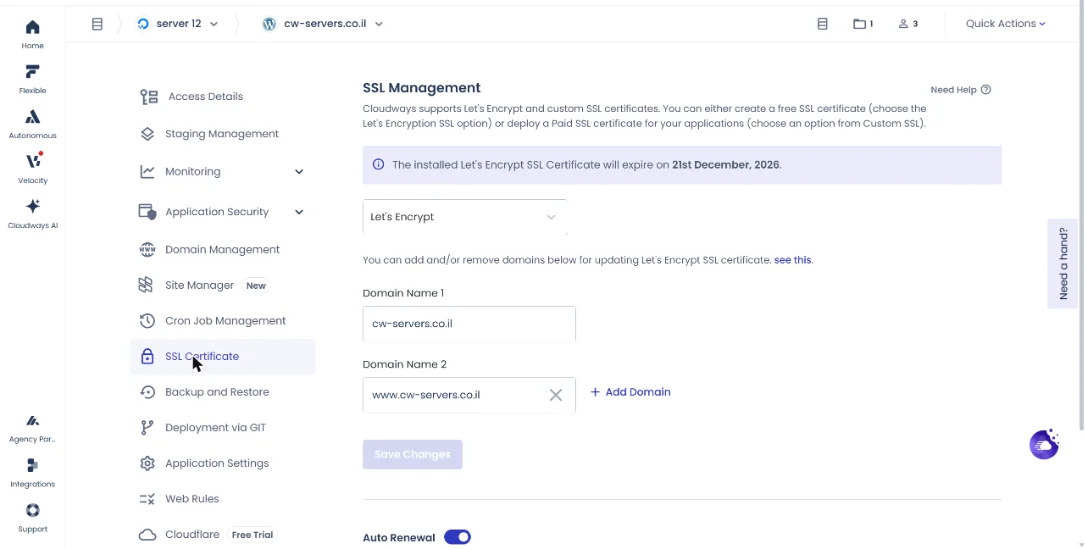
If the three fixes did not help, open a support ticket or chat, and say what you already tried.
What to do when a Wildcard certificate does not renew
A Wildcard certificate covers all subdomains (*.example.com). It is not validated through a file on the site, but through a DNS record: a CNAME record named _acme-challenge that you added when you installed the certificate. If the record was deleted, for example when you moved DNS management to another provider or cleaned out “unnecessary” records, renewal fails.
- Go to the domain’s DNS management (at your registrar, Cloudflare or DNS Made Easy).
- Check whether a CNAME record named
_acme-challengeexists. - If not, add it with the value shown in the Cloudways platform when you installed the Wildcard.
- Wait for the record to update, and renew the certificate from the platform.
Note that some registrars’ DNS panels automatically append the domain name to the record name. If you type _acme-challenge.example.com in the name field, you may actually end up with _acme-challenge.example.com.example.com. Usually it is enough to type _acme-challenge.
Let’s Encrypt limits worth knowing
If you tried many times and suddenly get a limit error, it is not a bug. These are limits of Let’s Encrypt itself, and Cloudways cannot get around them. Revoking a certificate does not reset them either.
| Limit | Value |
|---|---|
| Installations for the same domain | Up to 5 certificates per week |
| Manual renewal | Up to 5 times a day |
| Certificates per application | One Let’s Encrypt certificate at a time |
| Domains in one certificate | Up to 100 domains and subdomains |
| Validity | 90 days, automatic renewal 30 days before expiry |
So do not try again and again on the same day. Find the cause first with the fixes above, and only then renew.
The code BFCM802 takes 80% off your bill for the first two months (up to $200 off per month), including unlimited free site migrations. New customers only, and only until the offer ends.
The offer ends on December 4, 2026 at 23:59 (UTC+2).
Start with a free trial, no credit card. Enter the code at checkout and check that it shows up.
After Black Friday: 30% off for 3 months with the code ASAEL. On a large server (above about $444 a month) ASAEL already saves more today. BFCM802 vs. ASAEL calculator
Start a free trial server, no credit card. When you move to a paid plan, the code ASAEL takes 30% off your bill for the first three months.
The link fills in the code on the signup form. Just make sure it shows up.
More common mistakes
The certificate is valid but the browser still warns: check with an external tool, not just your own browser, which may remember an old warning. Clear the cache and try a private window.
After enabling HTTPS there is “Too Many Redirects”: there are two HTTPS redirects at once (the platform and also Cloudflare, a plugin or .htaccess). Keep only one.
Cloudflare shows error 525 (SSL handshake failed): Cloudflare could not establish a secure connection to the server, usually because Cloudflare has SSL set to Full or Full (strict) while the server is not serving a certificate yet, for example before Let’s Encrypt was installed. The full diagnosis and fix, and also 520, 521 and 522: Cloudflare 5xx errors.
Let’s Encrypt cannot be installed at all: usually the domain does not point to the server yet. Make sure the A record is updated to the server’s IP address. See connecting a domain to Cloudways.
You moved a domain to another application: revoke the certificate on the old application, and install a new one on the new application.
Sources
This page is based on the following official documentation and pages:
- How to fix incomplete certificate chain warning (Cloudways Knowledge Base)
- Fix issue of Let’s Encrypt SSL not renewing automatically (Cloudways Knowledge Base)
- Let’s Encrypt SSL certificates limitations (Cloudways Knowledge Base)
Frequently asked questions
Most likely an intermediate certificate is missing. Your browser filled it in from memory, but other browsers and devices do not. Reinstall the certificate with the CA Chain, and check with an external tool like SSL Labs.
The certificate is valid for 90 days. With automatic renewal on, Cloudways renews it 30 days before expiry, so you usually do not need to do anything.
It can. Cloudways recommends temporarily disabling Cloudflare while you fix a renewal problem. Remember that this exposes the server’s IP address, and turn Cloudflare back on right after the renewal.
It usually comes from the certificate provider in a separate file with a .ca or .ca-bundle extension. If you do not have it, you can generate it with a tool like What’s My Chain Cert from the contents of the site certificate.
Up to 5 times a day, and up to 5 installations for the same domain per week. These are Let’s Encrypt limits, and revoking a certificate does not reset them.
Related guides
- How to install an SSL certificate on Cloudways
- How to connect a domain to Cloudways hosting
- Connecting a domain from Cloudflare to Cloudways
- The DNS Made Easy add-on
- Cloudways website hosting
- All guides in this category: Domain and SSL guides
Official source: How to Fix Incomplete Certificate Chain Warning?, Fix Issue of Let’s Encrypt SSL Not Renewing Automatically, Let’s Encrypt SSL Certificates Limitations (Cloudways Knowledge Base). Written and checked by Asael Dreyer · Updated: 6 Nov 2026
Disclosure: this is an independent site, not the official Cloudways site. Some links on this site are affiliate links: if you sign up through them we earn a commission, at no extra cost to you. Full details

