
Last updated: · By Asael Dreyer
Short answer: On Cloudways Flexible, the HTTPS redirect is a single switch: in your application, go to Application Settings, the General tab, turn on HTTPS Redirection and confirm with Yes. It creates a permanent (301) redirect from every HTTP address to the secure one. To also close the gap at the very first moment a browser connects over HTTP, add an HSTS rule to your .htaccess file, and in the server settings you can choose which TLS versions are allowed.
What’s the difference between HTTPS, a redirect, HSTS and TLS?
HTTPS is the encrypted version of HTTP. The encryption is done by the TLS protocol (the successor of SSL), using an SSL certificate installed on your site. Without HTTPS the browser shows “Not secure”, according to Cloudways Google gives priority to secure sites, and passwords and customer details travel unprotected.
But installing a certificate isn’t enough on its own. The site is still reachable at http:// too, and anyone who types the address without https or follows an old link browses unencrypted. That’s why there are three layers:
| Layer | What it does | Where you set it | Required? |
|---|---|---|---|
| HTTPS redirect (301) | Sends every HTTP request to the matching HTTPS address, permanently | A switch in the application | Yes, for every site |
| HSTS | Tells the browser not to try HTTP at all on later visits | A rule in the .htaccess file | Recommended, especially for stores and sites with logins |
| TLS versions | Sets which encryption versions the server accepts | Server settings | Recommended: turn off old versions |
Before you start
- An SSL certificate is installed on all of the site’s domains, including www. If you don’t have one yet, see how to install an SSL certificate on Cloudways.
- No other redirect is active. If you already redirect to HTTPS through Cloudflare, Sucuri, a WordPress plugin or a rule in .htaccess, don’t turn on the Cloudways switch as well. Two redirects at once create a loop and a “too many redirects” error. Disable the other redirect first, and only then turn on the switch.
- Flexible only. The switch exists on Flexible. On Autonomous, SSL comes from Cloudflare Enterprise and is always on.
- Before HSTS, back up the application.
How do you redirect to HTTPS on Cloudways, step by step?
According to Cloudways, the redirect is on by default in new applications. If you migrated a site, or it’s switched off, here’s how to turn it on:
- Open the server list and choose the server your site is on.
- Click the globe icon (in the old interface: www) and choose the application.
- In the application menu choose Application Settings.
- Go to the General tab.
- Scroll down and turn on HTTPS Redirection.
- Read the message in the window that opens and click Yes. The redirect takes effect within a few minutes.
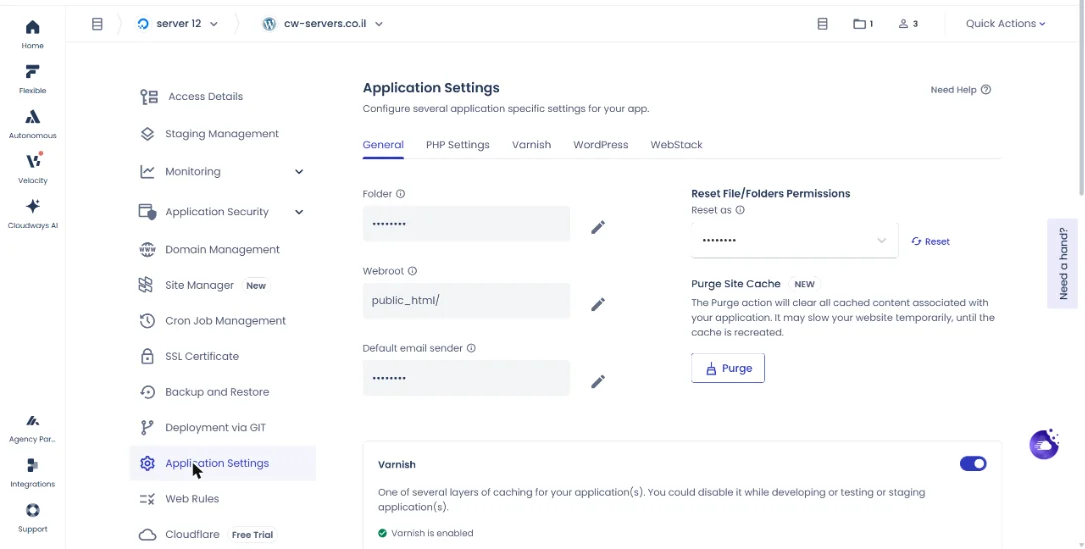
Tip: right after you install a Let’s Encrypt certificate, the platform itself offers to turn on the redirect. If you clicked Enable there, the redirect is already active.
How to check that the redirect works
- Clear your browser cache, clear the Varnish cache in the platform, and restart the Apache service in Manage Services.
- Open a private browsing window and type the address with http://. It should switch to https:// on its own.
- Use a tool like Redirect Checker or httpstatus to confirm you see a 301 (permanent redirect), not a 302.
- If the padlock doesn’t show, check WhyNoPadlock for mixed content: images or scripts that still load over http.
Why does HSTS matter, and how do you turn it on?
Even with a redirect, there’s a small window of exposure. When someone types example.com, the browser first connects over HTTP, gets a redirect, and only then moves to HTTPS. In that moment, for example on public Wi-Fi in a café, an attacker can intercept the request and keep the visitor on HTTP or send them to a fake site. This attack is called SSL stripping.
HSTS (HTTP Strict Transport Security) closes that gap. The server sends the browser a header that says “for this site, HTTPS only, for the next period”. From the second visit on, the browser won’t try HTTP at all. For HSTS on a country-code domain behind Cloudflare (a .co.uk example), see country-code domain security.
Adding an HSTS rule to the .htaccess file
- Make sure an SSL certificate is installed and the HTTPS redirect is active. Take an on-demand backup of the application (On-Demand Backup).
- Connect to the server over SSH with the Master Credentials, using an SSH client or the SSH terminal built into the platform.
- Go to the site folder:
cd applications/<app_name>/public_html/. The folder name is the same as the application’s database name, and it appears in its access details. - Open the file for editing:
vim .htaccess, and press i to enter edit mode. - Paste the rule before the line
# BEGIN WordPress. Start with a 5-minute test value:Header always set Strict-Transport-Security "max-age=300; includeSubDomains" env=HTTPS - Press Esc, type
:wq!and press Enter to save. - Clear the Varnish cache and restart Apache.
- Test the site with SecurityHeaders: you should see a mark next to Strict-Transport-Security.
- After you’ve confirmed that the whole site and all subdomains work, switch to the long-term value Cloudways recommends:
Header always set Strict-Transport-Security "max-age=31536000; includeSubDomains; preload" env=HTTPS
Not comfortable with vim? You can edit the same file in an SFTP client like FileZilla, or through the Cloudways file manager. The result is identical. Note that .htaccess starts with a dot, so you may need to turn on showing hidden files to see it.
| Part of the rule | Meaning | When to use it |
|---|---|---|
max-age=300 | 5 minutes | Initial test. If something breaks, the effect disappears quickly |
max-age=31536000 | One year | After you’ve tested everything. It’s also the minimum for the Preload list |
includeSubDomains | The rule also applies to every subdomain | Only if all subdomains have SSL. Otherwise they won’t open |
preload | Marks that the site asks to join the Preload list | Only if you really intend to submit the site to the list |
The HSTS Preload list, and what about SEO
HSTS has one weakness: the browser has to see the header at least once. To protect the first visit too, there’s a Preload list built into browsers. To get on it you need a valid certificate, a redirect to HTTPS, all subdomains available over HTTPS, and an HSTS header with a max-age of at least one year, includeSubDomains and preload. Be aware that getting removed from the list is very slow, so submit only if you’re sure every subdomain, now and in the future, will work over HTTPS.
On SEO: once you’re on the list, SEO tools may warn about 307 redirects. That’s normal. The 307 happens inside the browser, and the 301 still exists at the server level. You can confirm this with a redirect checker.
How do you update the TLS version on the server?
TLS 1.0 and 1.1 are considered insecure. The PCI standard for card security recommends at least TLS 1.2, and services like PayPal and Stripe no longer accept TLS 1.0 connections. Cloudways supports all versions, including TLS 1.3.
- Open the server and, in the server menu, choose Settings & Packages.
- Go to the Advanced tab and scroll to the Nginx area.
- Next to TLS Versions click edit.
- Choose the versions you want (for example 1.2 and 1.3) and click Save Changes. You can’t turn off TLS 1.3.
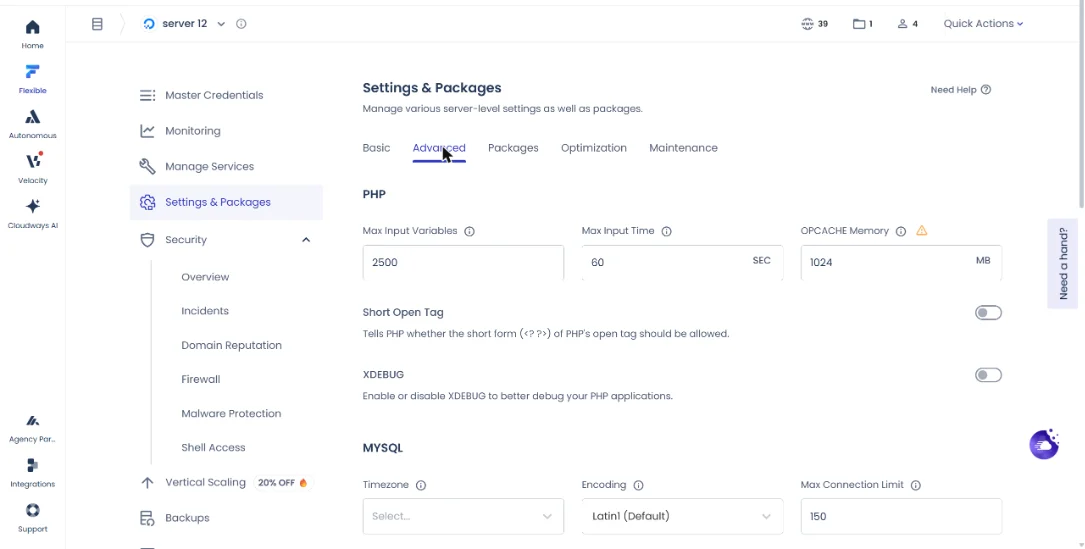
Three notes: the setting is at server level and applies to every application on it. It doesn’t carry over when you clone a server, so you have to set it again on the cloned server. And turning off old versions will block very old devices, such as Android 4.4 and below, Internet Explorer 10 and below, and Windows 7. If your audience includes older devices, check your analytics before you turn them off.
The code BFCM802 takes 80% off your bill for the first two months (up to $200 off per month), including unlimited free site migrations. New customers only, and only until the offer ends.
The offer ends on December 4, 2026 at 23:59 (UTC+2).
Start with a free trial, no credit card. Enter the code at checkout and check that it shows up.
After Black Friday: 30% off for 3 months with the code ASAEL. On a large server (above about $444 a month) ASAEL already saves more today. BFCM802 vs. ASAEL calculator
Start a free trial server, no credit card. When you move to a paid plan, the code ASAEL takes 30% off your bill for the first three months.
The link fills in the code on the signup form. Just make sure it shows up.
Common mistakes and how to fix them
The “too many redirects” error (ERR_TOO_MANY_REDIRECTS): two redirects are running at once, for example the Cloudways switch and a WordPress plugin, or Cloudflare in Flexible SSL mode. Keep only one redirect. In Cloudflare, the Full SSL mode prevents the loop in most cases. If the loop only happens when you open wp-admin, see the WordPress login loop.
A subdomain stopped opening after HSTS: you turned on includeSubDomains, but the subdomain has no SSL certificate. Install a certificate for it, or remove includeSubDomains. If you used a long max-age, visitors who already came by will have to wait for it to expire, which is why you start with 300.
The padlock doesn’t show despite the redirect: mixed content. Some images or scripts are still on http addresses. Update the site URLs in WordPress to https, and replace old URLs in the database.
The HSTS rule doesn’t show up in the test: the cache is serving an old version. Clear Varnish, restart Apache and test again. If the application runs on the newer Lightning Stack, ask Cloudways support whether the .htaccess setting is read there.
An external provider can’t connect after the TLS update: rare, but very old systems may not support TLS 1.2. Temporarily restore the previous version and contact the provider.
Planning to change your site’s URLs, not just move to HTTPS? In the guide moving from non-English URLs to English ones you’ll find my full process, including 301 redirects, renaming media files and post-move checks.
Sources
- How to redirect HTTP to HTTPS – Cloudways Knowledge Base
- How to enable HTTP Strict Transport Security (HSTS) policy – Cloudways Knowledge Base
- How to update the TLS version – Cloudways Knowledge Base
FAQ
Yes. According to Cloudways, the HTTPS Redirection switch creates a permanent 301 redirect, which sends both visitors and search engines to the secure address and preserves your rankings.
No. On Cloudways Flexible the redirect is turned on from the platform, with no code and no plugin. If you already have a plugin that does it, pick one of the two so you don’t create a redirect loop.
The redirect works on the server: it receives an HTTP request and sends it to HTTPS. HSTS works in the browser: after the first visit, the browser won’t try HTTP at all. Using both also protects against SSL stripping attacks.
According to the Cloudways KB, HSTS is enabled by adding a rule to the .htaccess file, over SSH or SFTP. The KB doesn’t document a platform switch for it. I recommend starting with a 5-minute lifetime and extending it to a year after testing.
TLS 1.2 and 1.3. That’s what the PCI standard recommends and what major payment services require. You can’t turn off TLS 1.3 on Cloudways, and turning off 1.0 and 1.1 will only block very old devices.
Related guides
- How to install an SSL certificate on Cloudways: Let’s Encrypt, Wildcard and custom certificates
- Cloudways SSL errors and how to fix them
- How to connect a domain to Cloudways
- How to connect a domain through Cloudflare to Cloudways
- Cloudways: full, up-to-date review
- All guides on this topic: Domain and SSL guides
Official source: How to Redirect HTTP to HTTPS, How to Enable HTTP Strict Transport Security (HSTS) Policy, How to Update the TLS Version (Cloudways Knowledge Base). This guide was written and checked by Asael Dreyer · Updated: 6 Nov 2026
Disclosure: this is an independent site, not the official Cloudways site. Some links on this site are affiliate links: if you sign up through them we earn a commission, at no extra cost to you. Full details

