
Last updated: · By Asael Dreyer
Short answer: DNS Made Easy is a paid Cloudways add-on that lets you manage your domain’s DNS records from inside the management panel, even when the domain is registered with another registrar. You enable it under Integrations, then DNS Made Easy and Get Started, add your domain, and within 48 hours update the nameservers at your registrar to the ones the add-on gives you. As of Nov 2026 the price is $0.50 per domain per month, including 500,000 DNS queries.
What DNS is, and why you’d need an add-on to manage it
DNS is the phone book of the internet. When someone types your domain, a DNS server tells the browser which IP address to go to. DNS records are the lines in that book: an A record points to the site’s server, an MX record to email, a TXT record is used for verification and SPF, and so on.
Cloudways doesn’t host DNS itself. The default is to manage the records at the registrar where you bought the domain, such as GoDaddy or Namecheap. The DNS Made Easy add-on moves that management into the Cloudways panel, so the server, the site and the DNS records are all in one place.
What the add-on gives you
- Centralized management: all your domains and their records on one screen in the panel, without jumping between different registrars’ interfaces. For an agency with dozens of clients, that’s a real difference.
- Fast updates: according to Cloudways, a record change takes effect immediately on the service’s nameservers, without waiting for the registrar.
- TTL control: TTL (Time To Live) sets how long other servers remember the record. A low value allows a quick switch, for example before moving servers. A high value reduces the number of queries.
- Failover: according to the documentation, if the primary server goes down, traffic can move to a backup server.
- Email templates: Elastic Email and Rackspace records are added in one click, through the Template option.
The record types supported, according to the product page: A, AAAA, ANAME, CNAME, MX, TXT, CAA and SRV.
DNS Made Easy, Cloudflare or your registrar’s DNS?
Before you pay, it’s worth an honest comparison. The add-on isn’t the right choice for everyone. The full comparison with Cloudflare is in the guide DNS Made Easy vs Cloudflare DNS: which is better for a business site.
| DNS Made Easy (Cloudways) | Cloudflare free | Registrar’s DNS | |
|---|---|---|---|
| Cost | $0.50 per domain per month (before tax) | Free | Usually included with the domain |
| Where you manage it | Inside the Cloudways panel | In a separate Cloudflare account | In the registrar’s interface |
| Update speed | Immediate, according to Cloudways | Almost immediate | Varies between registrars |
| CDN and firewall | No, DNS only | Yes, when the record is Proxied | No |
| Fits | Agencies and owners of several sites who want everything in one panel | Anyone who also wants a free CDN and protection | A single site where you rarely change records |
Who it’s not for: if your domain is already managed on Cloudflare and you enjoy the CDN and the protection, there’s no reason to switch. Two services can’t manage the same domain in parallel, because each domain has one set of nameservers. Instructions for connecting through Cloudflare are in the guide to connecting Cloudflare to Cloudways.
What it costs
- $0.50 per domain per month, including 500,000 DNS queries per domain (as of Nov 2026).
- Queries are counted at the account level: five domains together give 2.5 million queries a month.
- Beyond the quota: $0.10 per additional 100,000 queries. Cloudways doesn’t block or slow traffic, it bills for it. On the invoice it appears as a DNS Made Easy (Excessive DNS Query Usage) line.
- Deleting and re-enabling the same domain counts as a new subscription, with an additional charge.
What do you need to prepare before you start?
- Access to your account at the domain registrar, with permission to change nameservers.
- A full list of the existing records: A, CNAME, MX, TXT and verification records. After the nameservers change, a record you didn’t copy simply stops working. Most important: the email records.
- Time: after you add the domain to the add-on, you have 48 hours to update the nameservers at the registrar. After that, Cloudways removes the domain automatically. Don’t start the process on a Friday afternoon if your registrar isn’t available over the weekend.
Enabling DNS Made Easy, step by step
Enabling the add-on
- In the management panel, open Integrations in the side menu.
- Choose DNS Made Easy.
- Click Get Started.
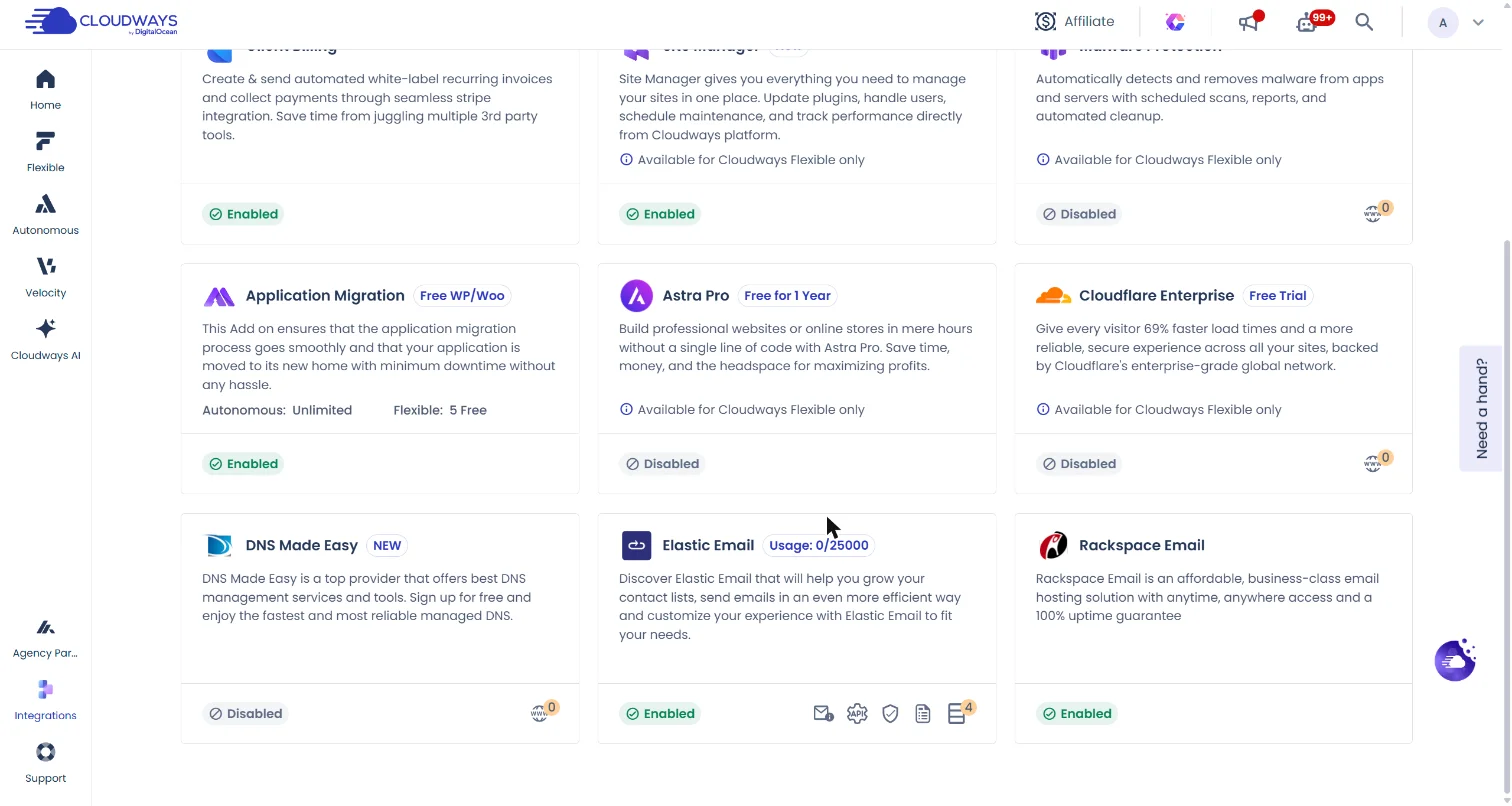
Adding a domain
- Click Add Domain and enter your domain, for example
example.com. You can add up to 10 domains at once. - Click Save Changes. The domain will show with the status Inactive. That’s fine at this stage.
- Click Configure Nameservers and copy the list of nameservers.
Copying the records before changing the nameservers
This is the step I recommend doing before you touch the registrar. That way, the moment the nameservers switch, all the records are already waiting in the new place and the site and email don’t go down.
- Next to the domain, click the three dots (⋮) and choose Manage Records.
- Click Add Record and choose the record type (Record Type).
- Fill in the details. For the site: an A record for the domain with the IP address of your server on Cloudways, and a record for www. For email: all the MX and TXT records from the previous registrar.
- Click Save Changes. To add several records at once, click Add Record again before saving.
Editing and deleting work on the same screen: the three dots next to the record, then Edit Record or Delete Record.
Updating the nameservers at your registrar
- Log in to your account at the registrar and open the domain’s nameserver settings.
- Replace the existing nameservers with the DNS Made Easy ones. Cloudways recommends entering all of them. If the registrar limits the number of fields, enter as many as you can.
- Save, and wait. Nameserver propagation usually takes 24–48 hours. When it finishes, the status in the panel changes to Active.
A country-code domain? At some registrars the number of nameserver fields is limited, and that’s exactly the case where you enter the maximum. More on country-code domains and DNS records is in the guide to connecting a country-code domain and DNS.
A domain already linked to another Cloudways account
If the domain is already registered in DNS Made Easy under another Cloudways account (for example, a previous developer’s), you’ll get a message about ownership verification. Click View TXT Records, add the TXT record shown, and refresh the domain’s status. You have 48 hours to verify. Otherwise the domain is removed from the account.
The code BFCM802 takes 80% off your bill for the first two months (up to $200 off per month), including unlimited free site migrations. New customers only, and only until the offer ends.
The offer ends on December 4, 2026 at 23:59 (UTC+2).
Start with a free trial, no credit card. Enter the code at checkout and check that it shows up.
After Black Friday: 30% off for 3 months with the code ASAEL. On a large server (above about $444 a month) ASAEL already saves more today. BFCM802 vs. ASAEL calculator
Start a free trial server, no credit card. When you move to a paid plan, the code ASAEL takes 30% off your bill for the first three months.
The link fills in the code on the signup form. Just make sure it shows up.
Tracking DNS queries and saving on cost
A DNS query is a request to translate the domain into an IP address. Every visitor, and every browser that requests a file from the domain, generates queries. You can see the monthly count in Manage Records, at the top of the screen, and the graph has a daily breakdown. The graph updates once a week.
What raises the number of queries? More traffic, a low TTL (servers ask again more often), many subdomains, and resources that load from several domains. What lowers it? An active cache on the server, a CDN, and a higher TTL for records that rarely change. My rule of thumb: a low TTL only in the days before a server move, and after the move is done you set it back to a high value.
How do you remove a domain from the add-on?
- Before removing, copy all the records to the next DNS provider and change the nameservers at the registrar.
- In the add-on, click the three dots next to the domain and choose Delete Domain.
- Confirm with Unsubscribe.
The order matters: if you delete before you’ve moved the records, the site and email stop working until the new nameservers propagate.
Common mistakes and how to fix them
The domain disappeared from the add-on: the nameservers weren’t updated at the registrar within 48 hours, and Cloudways removed it. Add it again, and this time update the registrar right away.
The domain is stuck on Inactive: check that all the nameservers were entered correctly at the registrar, with no spaces and no extra period at the end. If less than 48 hours have passed, it may still be propagating.
Email stopped working: the MX records weren’t copied. Add them in Manage Records from the details at your email provider. For sending email from your site, see also the guide to SPF, DKIM and DMARC.
A higher bill than expected: probably you exceeded the query quota. Check the graph, raise the TTL for permanent records, and check that the server cache is active.
The SSL certificate isn’t installed after the move: the certificate depends on the records pointing to the server. Make sure the A records for the domain and for www exist in the add-on, then reinstall following the SSL installation guide. If errors appear, see troubleshooting SSL problems.
Sources
The official sources this page is based on (checked on 7 Nov 2026):
- Cloudways Knowledge Base: How to activate the dns made easy add on
- Cloudways: DNS Made Easy add-on
- Cloudways: Platform Add-Ons
Frequently asked questions about DNS Made Easy on Cloudways
No. Cloudways doesn’t host DNS itself. You can manage the records at your registrar or on Cloudflare for free, or enable the paid DNS Made Easy add-on to manage them from inside the panel.
As of Nov 2026, $0.50 per domain per month, including 500,000 DNS queries per domain. Queries beyond the quota cost $0.10 per 100,000.
Yes. The add-on works with domains registered at any registrar. At the registrar you only switch the nameservers to the ones the add-on gives you, and you manage the records from Cloudways.
Usually 24 to 48 hours from updating the nameservers at the registrar. When propagation finishes, the status in the panel changes from Inactive to Active.
Not on the same domain. Each domain has one set of nameservers, so only one service manages its records. Choose Cloudflare if you also want a CDN and protection, and DNS Made Easy if centralized management in the panel matters to you.
Related guides
- How to connect a domain to hosting on Cloudways
- HTTP to HTTPS redirect on Cloudways
- Troubleshooting SSL problems on Cloudways
- Cloudways hosting review
- All guides on this topic: Domains and SSL guides
Official source: How to Activate the DNS Made Easy Add-on (Cloudways Knowledge Base), DNS Made Easy Addon by Cloudways. This guide was written and tested by Asael Dreyer · Updated: 6 Nov 2026
Disclosure: this is an independent site, not the official Cloudways site. Some links on this site are affiliate links: if you sign up through them we earn a commission, at no extra cost to you. Full details

